
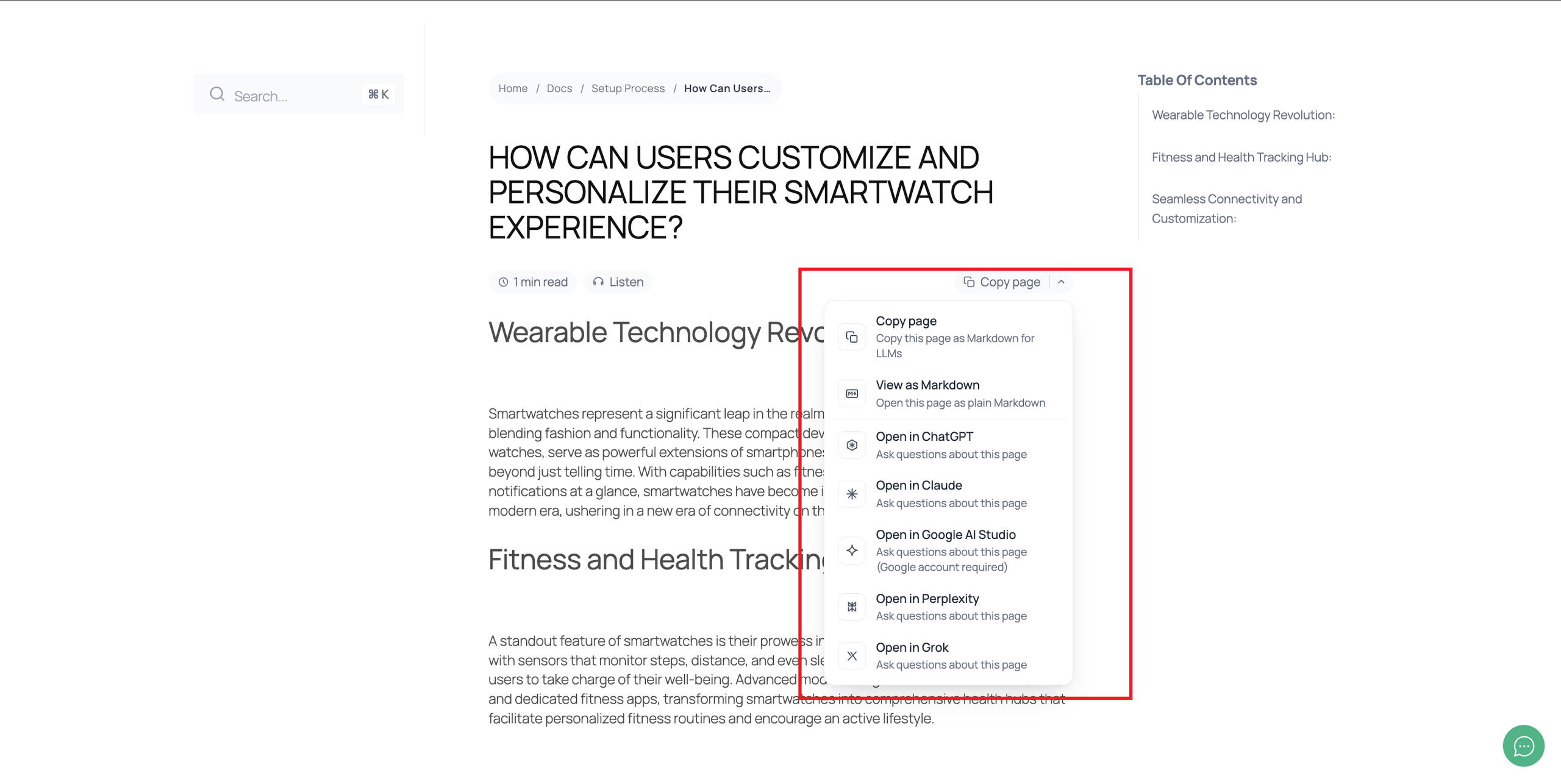
साथ में BetterDocs AI Actions, you can add a ‘Copy page’ button beside the title of every single doc, completely free. Readers often take your documentation into ChatGPT, Claude or another AI assistant to ask follow-up questions. With AI Actions, they can copy the page as clean Markdown or open it directly in their preferred AI assistant in one click. Readers find their answers faster, and your docs reach them in a format AI tools can read accurately. This also cuts down on repeat support queries.
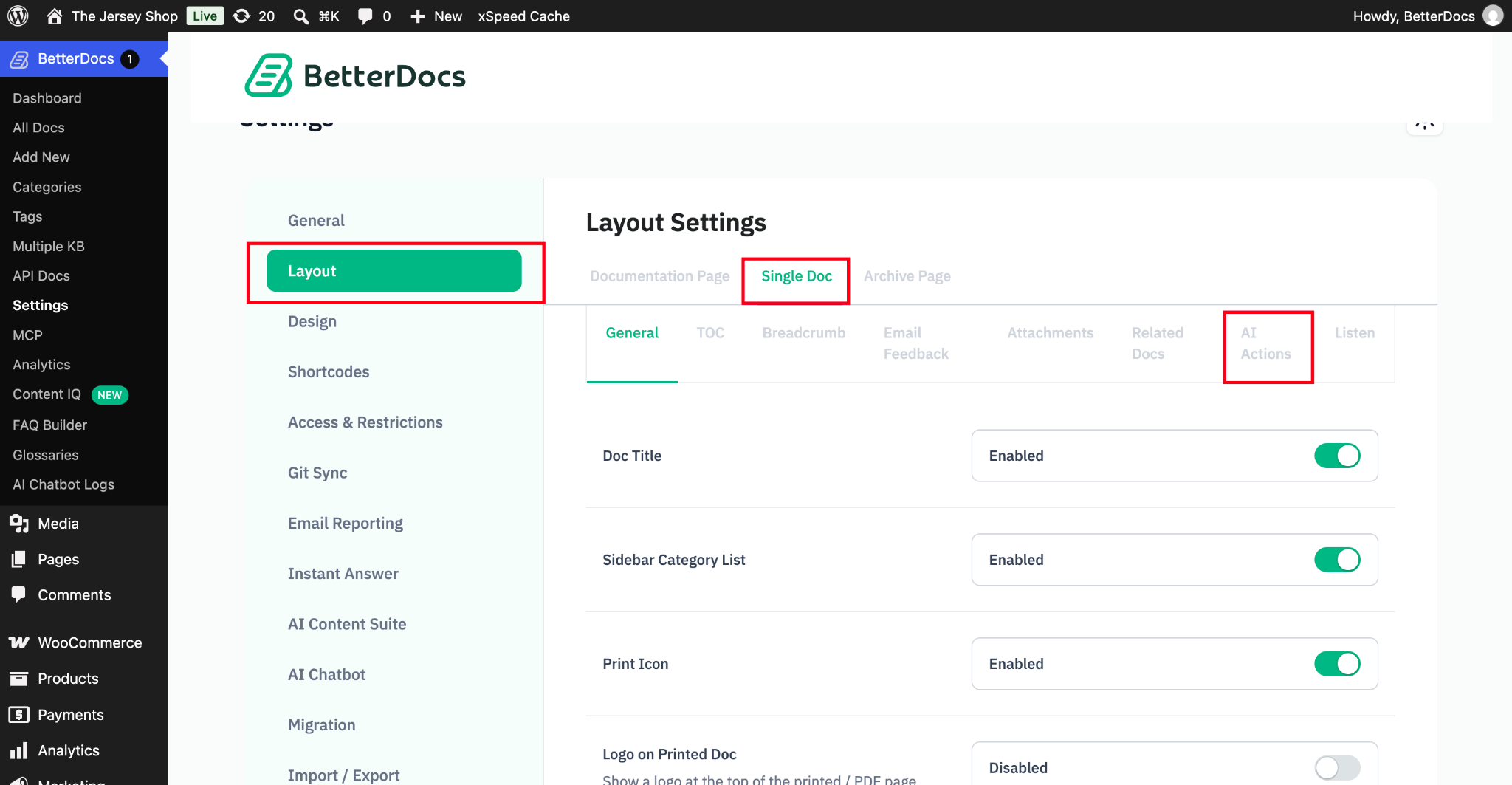
Step 1: Go to Single Doc Layout Settings #
पर जाए wp-admin → BetterDocs → Settings अपने WordPress डैशबोर्ड से। पर क्लिक करें ‘Layout’ tab, then select ‘Single Doc’ from the top. From the settings tabs that appear, click on ‘AI Actions’.
Step 2: Enable AI Actions #
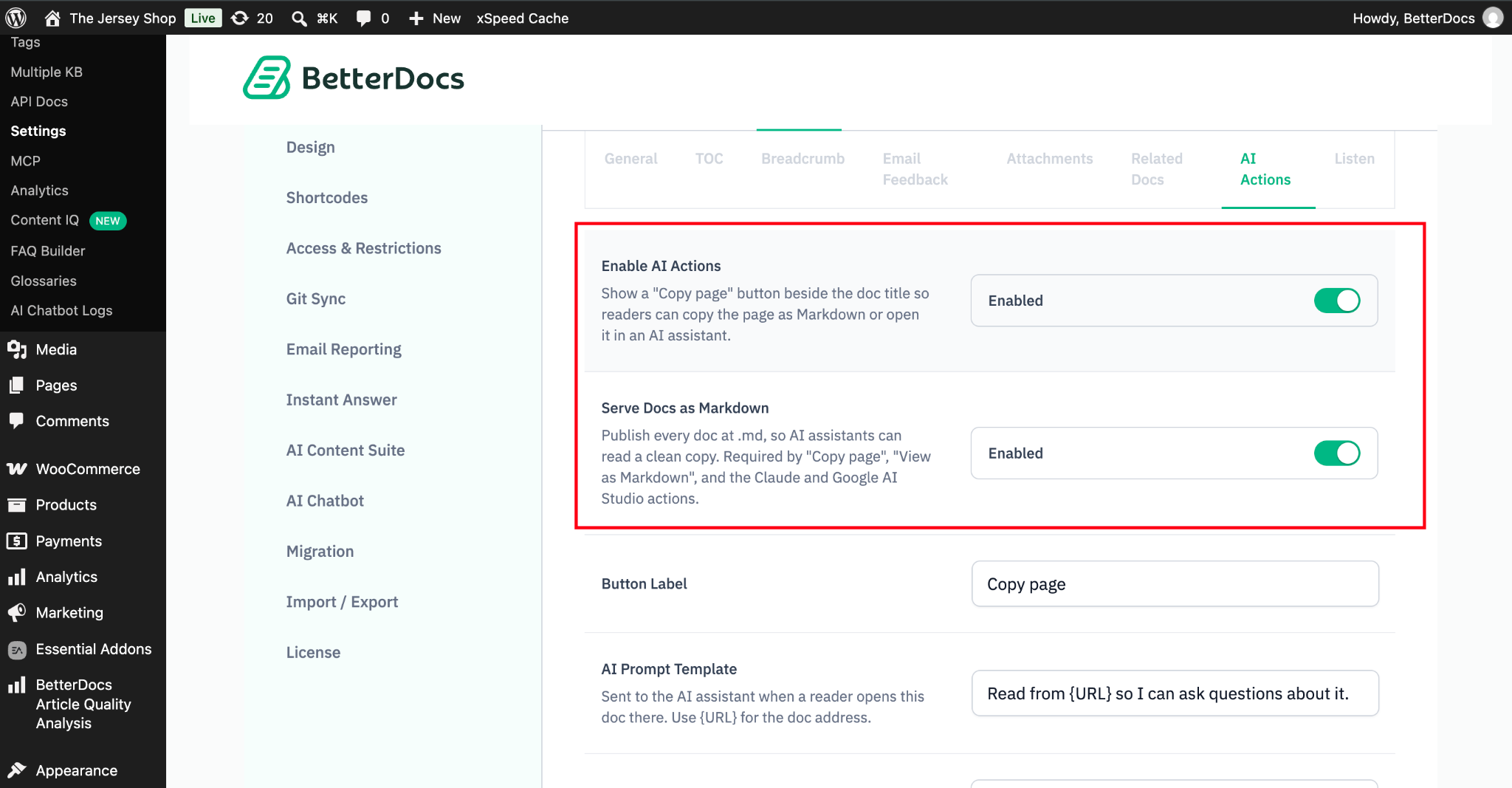
In the ‘AI Actions’ tab, turn on the following two options:
- Enable AI Actions: Shows a ‘Copy page’ button beside the doc title. Readers can use it to copy the page as Markdown or open it in an AI assistant.
- Serve Docs as Markdown: Publishes every doc at a .md address, so AI assistants can read a clean copy of it. Keep this enabled, because the ‘Copy page’, ‘View as Markdown’, Claude and Google AI Studio actions all depend on it.
Step 3: Set the Button Label And AI Prompt Template #
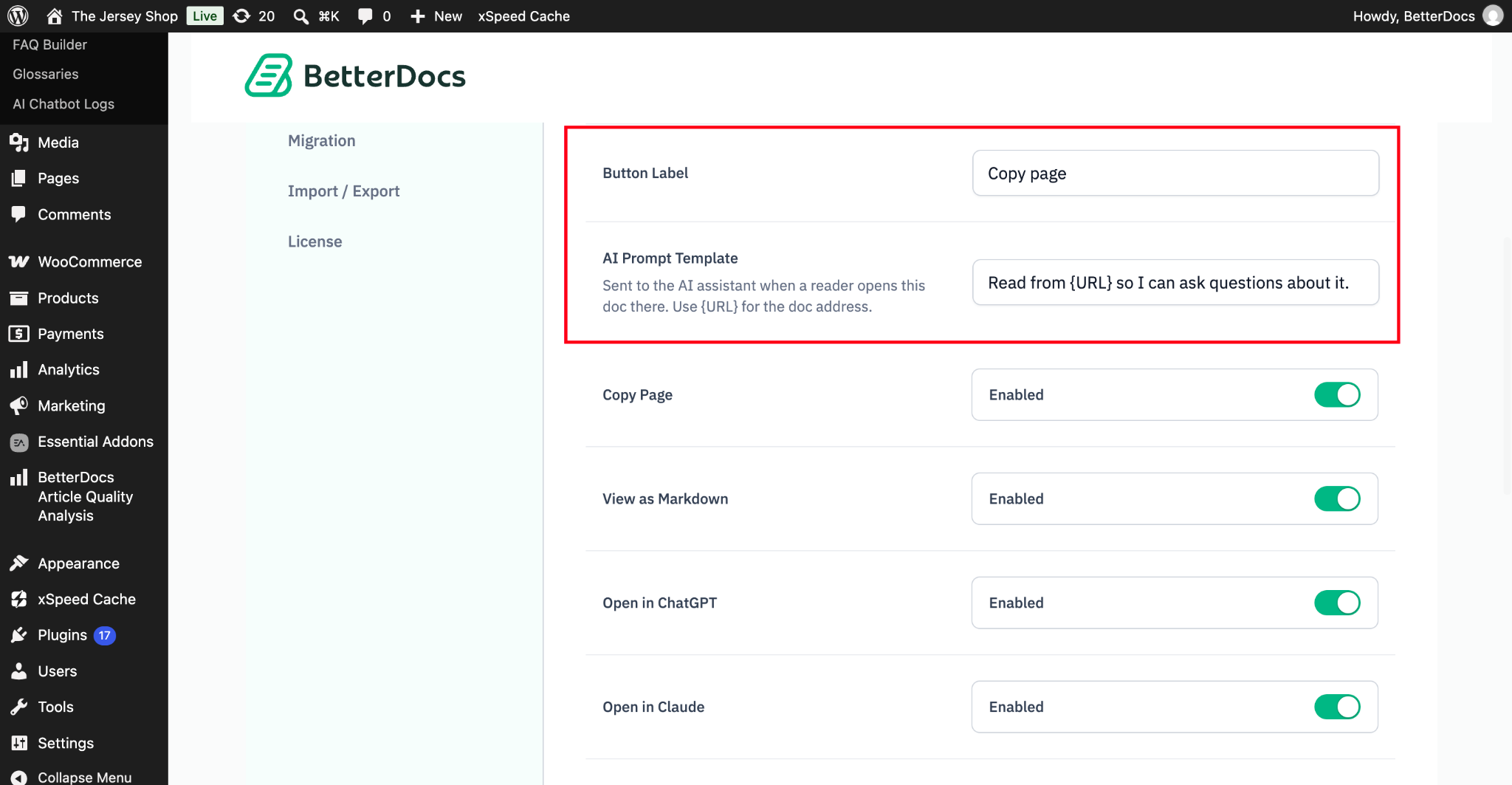
Next, customize how the button appears and what gets sent to the AI assistant.
- Button Label: Enter the text you want readers to see on the button. The default label is ‘Copy page’.
- AI Prompt Template: This is the prompt sent to the AI assistant when a reader opens the doc there. Use {URL} as a placeholder for the doc address. The default template is: Read from {URL} so I can ask questions about it.
Tailor the prompt to your audience if needed. For example, you can ask the assistant to answer as a support agent for your product.
Step 4: Choose Which Actions to Show #
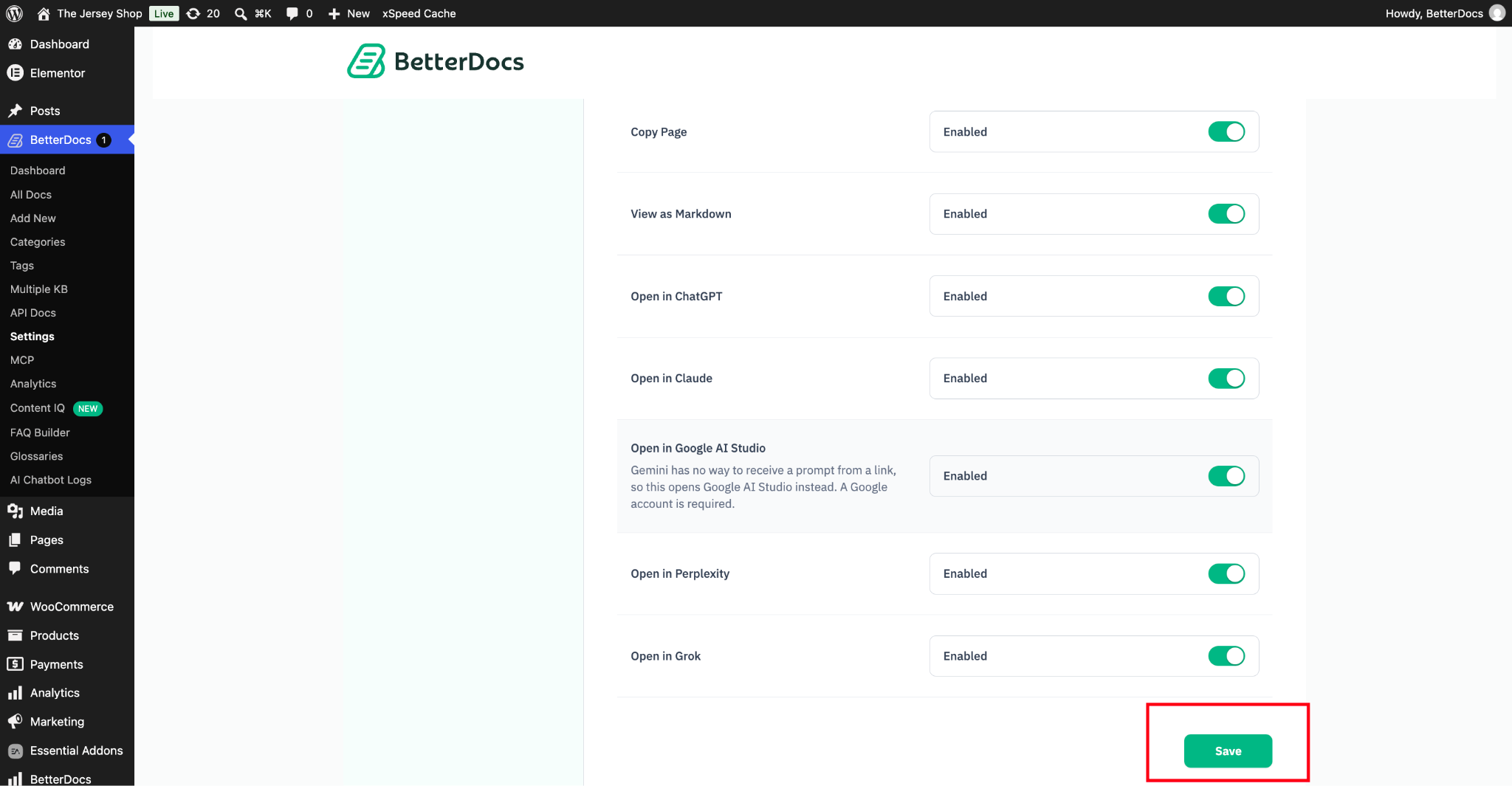
Now, enable the actions you want to show in the ‘Copy page’ dropdown. Toggle each one on or off as needed:
- Copy Page: Copies the page as Markdown so readers can paste it into any LLM.
- View as Markdown: Opens the page as plain Markdown.
- Open in ChatGPT: Opens the doc in ChatGPT so readers can ask questions about it.
- Open in Claude: Opens the doc in Claude so readers can ask questions about it.
- Open in Google AI Studio: Gemini can’t receive a prompt from a link, so this action opens Google AI Studio instead. Readers need a Google account to use it.
- Open in Perplexity: Opens the doc in Perplexity so readers can ask questions about it.
- Open in Grok: Opens the doc in Grok so readers can ask questions about it.
Once you’re done, click the ‘Save’ button to apply your changes.
अंतिम परिणाम #
Your single doc pages now show a ‘Copy page’ button beside the doc title. Readers can click the dropdown to copy the page, view it as Markdown or open it in their preferred AI assistant.
This is how, with the help of BetterDocs’ AI Actions, you can make your documentation ready for AI assistants in just a few clicks.
फँस गया हूँ? बेझिझक हमारे संपर्क करें समर्पित सहायता टीम.