You built a detailed knowledge base. You organized every topic. You covered every question your users might ask. And yet, most of them still leave without finding what they need. Sound familiar?
The problem is rarely the content itself. It is the friction. Friction psychology is the invisible resistance users feel when something is confusing, slow, or hard to trust. It kills documentation quietly and consistently. Research from the Nielsen Norman Group shows that users leave a web page within 10 to 20 seconds if they do not see clear value. In documentation, that window is even smaller because users arrive with a specific problem and zero patience for obstacles.
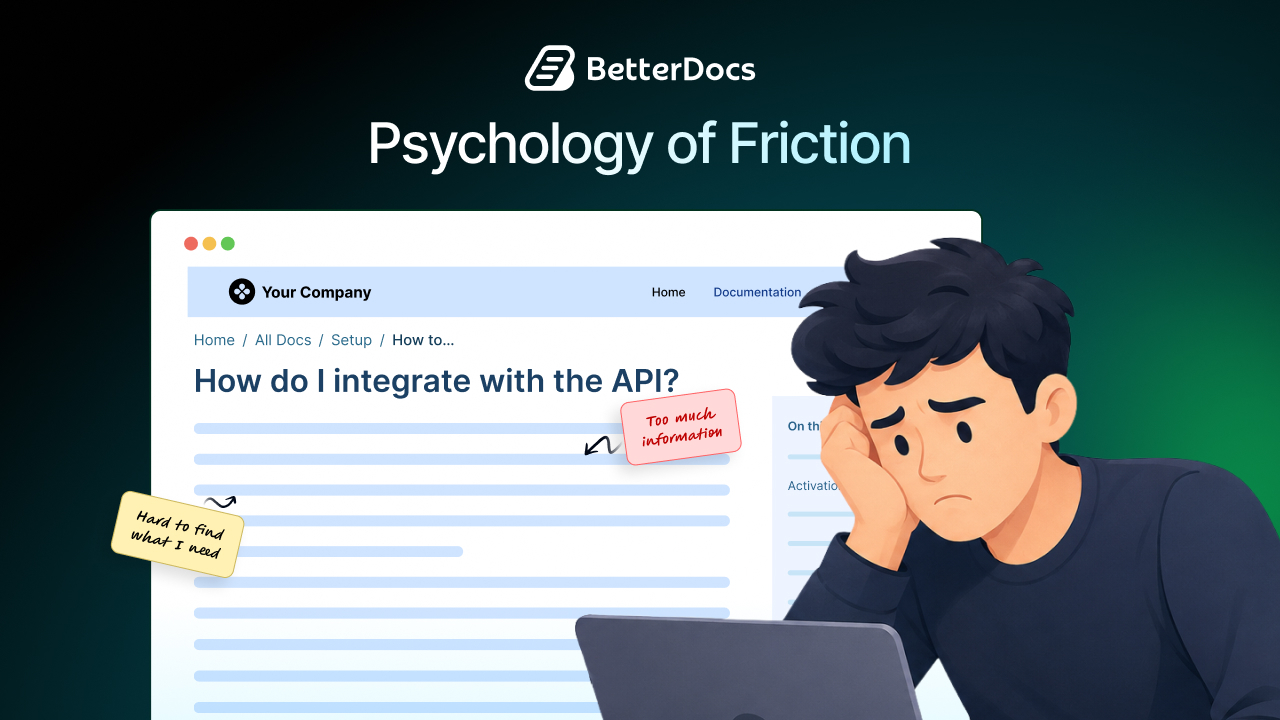
This blog breaks down the psychology of friction, why users abandon docs, what psychological triggers drive that decision and what you can do to fix it.
TL;DR: (Too Long, Did not Read)
Quick glimpse of friction psychology, why users abandon docs, and how to fix it:
| Problem | Psychological Trigger | Fix |
| Poor search results | Frustration, cognitive overload | Implement AI-powered search |
| Cluttered layout | Decision fatigue | Use white space and clear hierarchy |
| Outdated content | Loss of trust | Set a content review schedule |
| No clear starting point | Confusion and anxiety | Add a “Start Here” section |
| Walls of text | Mental exhaustion | Mix paragraphs with visuals and short sections |
| Slow page load | Impatience, exit behavior | Optimize for speed |
| No feedback mechanism | Helplessness | Add “Was this helpful?” prompts |
What Is “Documentation Friction” And Why Does It Matter?
This section sets the stage by defining the core concept. So what is documentation friction and why does it matter for user retention? Understanding friction as a psychological phenomenon, not just a design problem, is the first step toward fixing it.
Friction, in UX terms, refers to anything that slows a user down or makes a task harder than it needs to be. In documentation, friction shows up as poor navigation, dense writing, broken links, irrelevant search results, or a structure that makes no logical sense to someone new.
But here is the important part: friction is not just a usability issue. It is a psychological one. When users hit friction repeatedly, they do not just get mildly annoyed. They enter a mental state called “learned helplessness,” where they stop trying because they expect to fail. At that point, they leave. They open a competitor’s docs. They post in a forum. They submit a support ticket. The cost of that friction is real.
According to a Forrester Research report, every support ticket costs a business an average of $7 to $13 to resolve. If your docs push users to support instead of helping them self-serve, that cost adds up fast.
The 7 Cognitive Reasons Users Abandon Documentation

Here we go deeper into the specific psychological mechanisms that cause users to give up on docs. Each reason is grounded in how the human brain actually processes information under pressure.
1. Cognitive Overload from Too Much Information at Once
The human brain has a limited working memory capacity. According to cognitive load theory, developed by educational psychologist John Sweller, people can only hold about four chunks of information in working memory at any given time. When a documentation page throws 15 subheadings, 6 nested bullet lists and 800 words of dense text at a user, the brain shuts down.
Users do not read docs the way they read a novel. They scan. If scanning is hard, they leave.
Intrinsic vs. Extraneous Cognitive Load: What Documentation Designers Get Wrong
Most people think cognitive load is simply about “too much information.” It is actually more specific than that, and understanding the distinction is directly useful for making better documentation design decisions.
Cognitive load theory identifies two types of load that are especially relevant here.
- Intrinsic cognitive load is the effort required to understand the actual subject matter. If you are explaining how to configure a webhook, some mental effort is unavoidable. The topic itself is complex. That is intrinsic load, and it is largely fixed. You cannot eliminate it without oversimplifying the content.
- Extraneous cognitive load is the effort caused by how information is presented, not by the information itself. This is the load generated by confusing layouts, inconsistent terminology, hard-to-scan walls of text, unclear navigation, and poorly structured steps. Unlike intrinsic load, extraneous load is entirely within your control. It adds mental effort without adding any learning value.
Here is where most documentation teams go wrong. They focus almost entirely on adding more content, more detail, more coverage, without ever asking whether the way they are presenting that content is creating unnecessary mental effort. The result is docs that feel exhausting even when the underlying topic is not that complicated.
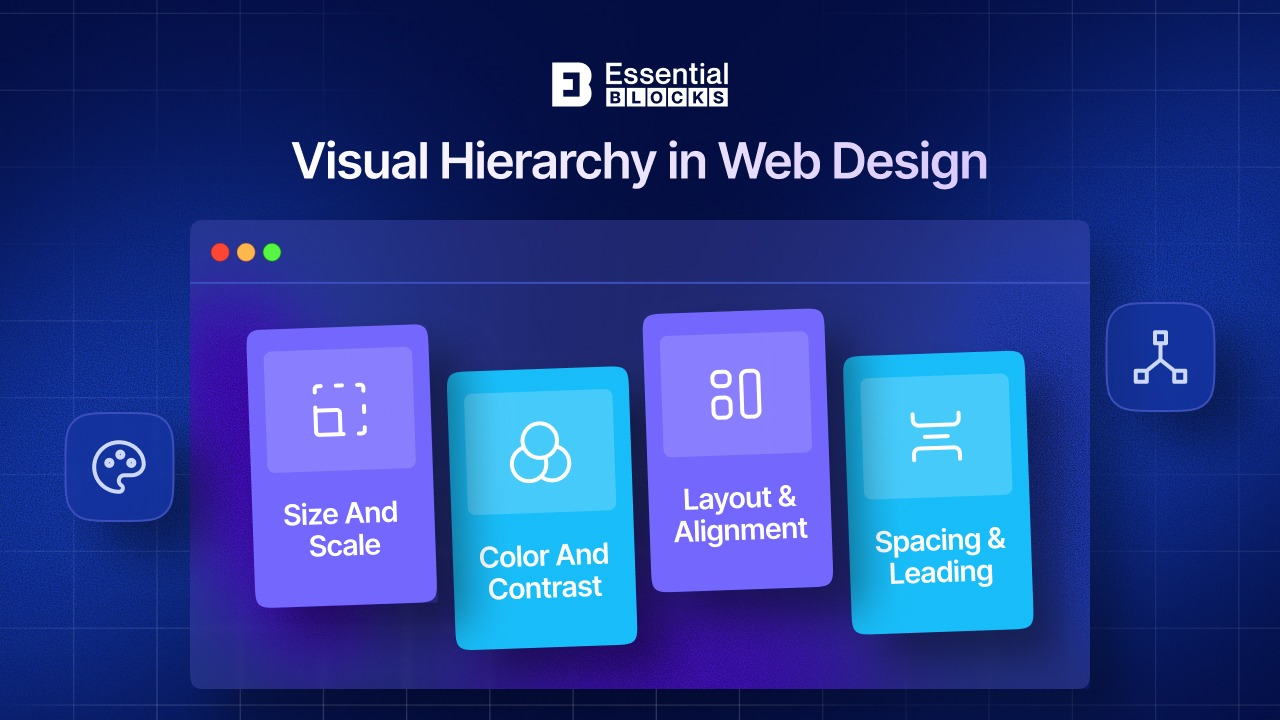
The practical design implication is this: your job is not to make complex topics seem simple. It is to make sure that the only mental effort your users are spending is on understanding the topic itself, not on figuring out your layout, decoding your navigation, or parsing your sentence structure. Every unnecessary click, every ambiguous heading, every wall of unbroken text is an extraneous load you have added to your user’s experience.
Reduce extraneous load through clear visual hierarchy, consistent terminology, short paragraphs, and logical step sequences. Let the intrinsic load of the topic do the only work it needs to do.
2. Decision Fatigue from Poor Navigation
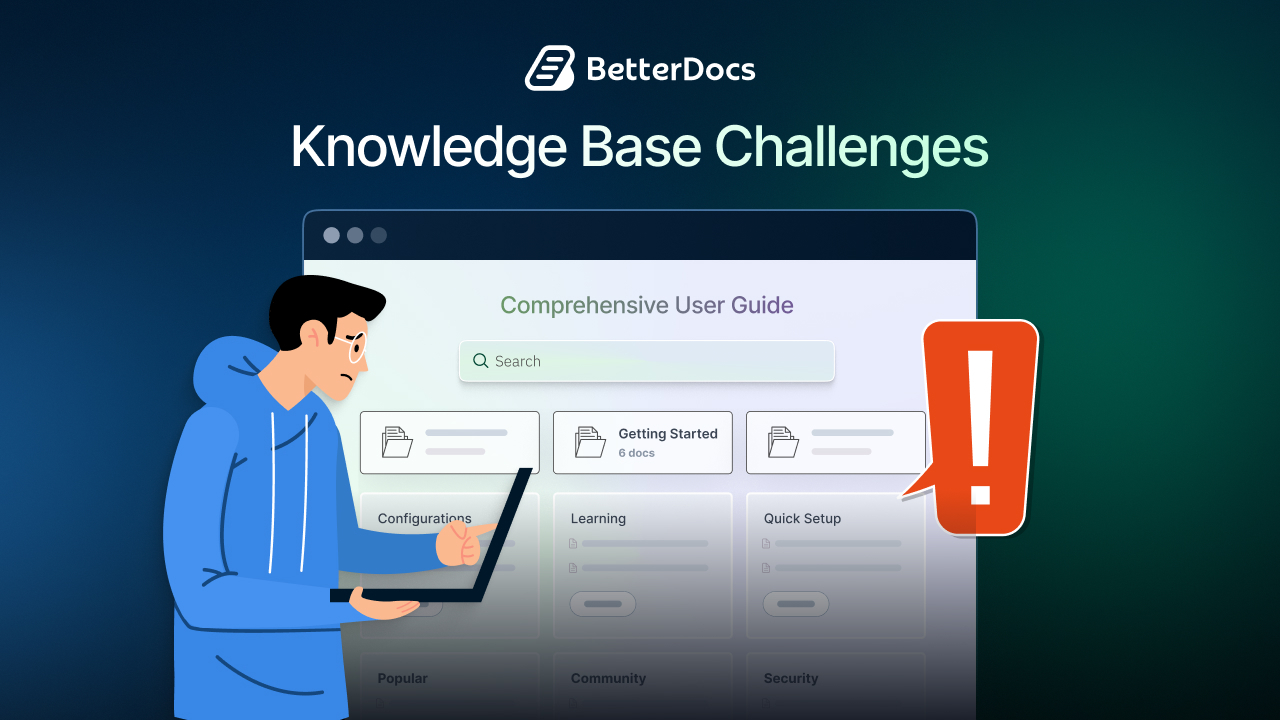
When users land on a knowledge base and see dozens of categories with no clear hierarchy, they face too many decisions at once. This is called decision fatigue. The more choices a person has to make without guidance, the more mentally exhausted they become, and the more likely they are not to decide at all. In documentation, “no decision” means closing the tab.
3. Trust Erosion from Outdated or Inconsistent Content
This is one of the most underestimated friction points. When a user follows a step-by-step guide and something does not match what they see on their screen, they do not blame the outdated doc at first. They blame themselves. They try again. Then they realize the doc is wrong. At that moment, trust in your entire documentation system collapses. They stop reading and start looking elsewhere.
A survey by Statista found that 88% of users say they are less likely to return to a website after a bad experience. Outdated docs are a guaranteed bad experience.
4. Search Anxiety from Irrelevant Results
Think about what happens when a user types a question into a knowledge base search bar and gets back results that have nothing to do with their question. Their brain immediately registers this as a sign that the system is broken or unreliable. They try one more search, maybe two. Then they leave. This pattern is called “search anxiety,” and it is one of the top drivers of documentation abandonment.
Poor search is not just a technical failure. It is a psychological trigger that tells users, “This tool cannot help you.”
5. Reading Fatigue from Dense, Jargon-Heavy Writing
Long sentences. Technical jargon without explanation. No paragraph breaks. These are documentation sins that cause reading fatigue. The Flesch-Kincaid readability formula measures how easy content is to read. Most technical documentation scores far too low, meaning it is written at a graduate-school reading level when most readers need something much simpler.
When reading becomes effortful, users quit. It is not laziness. It is biology.
6. Anxiety from a Lack of Structure or Entry Point
New users coming to a knowledge base for the first time often feel anxious. They do not know where to start. If the documentation offers no clear “Start Here” o “Getting Started” path, users feel lost before they have even begun. This anxiety is a powerful motivator to leave. People avoid situations where they feel incompetent, even when the incompetence is caused by bad design, not by them.
7. Helplessness When There Is No Feedback Loop
When a user reads an article and it does not answer their question, what do they do? If there is no feedback option, no “Was this helpful?” prompt, no way to flag an issue or ask a follow-up question, they feel stuck. This feeling of helplessness is a strong exit trigger. Users want to feel like they have options. When docs offer none, they leave.
How Poor Documentation Design Increases Support Costs
This section connects friction directly to business outcomes. Understanding the cost of bad docs helps teams justify the investment in fixing them.
The math is straightforward. Every user who cannot find an answer in your docs becomes a support burden. Zendesk’s Customer Experience Trends Report has consistently shown that customers prefer self-service options when they are easy to use. The keyword is “easy.” When self-service is frustrating, users default to human support every time.
Consider a SaaS company with 50,000 users. If even 10% of them submit a support ticket because of friction in the docs and each ticket costs $10 to resolve, that is $50,000 in avoidable support costs. Now factor in user frustration, churn risk, and lost word-of-mouth referrals. The real cost is far higher.
The Role of Search in Documentation Abandonment
Search is the single most important feature in any knowledge base. This section explains why most search implementations fail users and what a better approach looks like.
Most users go straight to the search bar when they land on a documentation page. They skip the navigation entirely. This means if your search is broken, your docs are broken, regardless of how good the content is.
The typical keyword-based search fails for several reasons. Users rarely search using the exact terminology that appears in documentation. A user might type “why is my dashboard not loading,” while the relevant article is titled “Resolving Display Errors in the Analytics Panel.” A keyword search will miss this entirely.
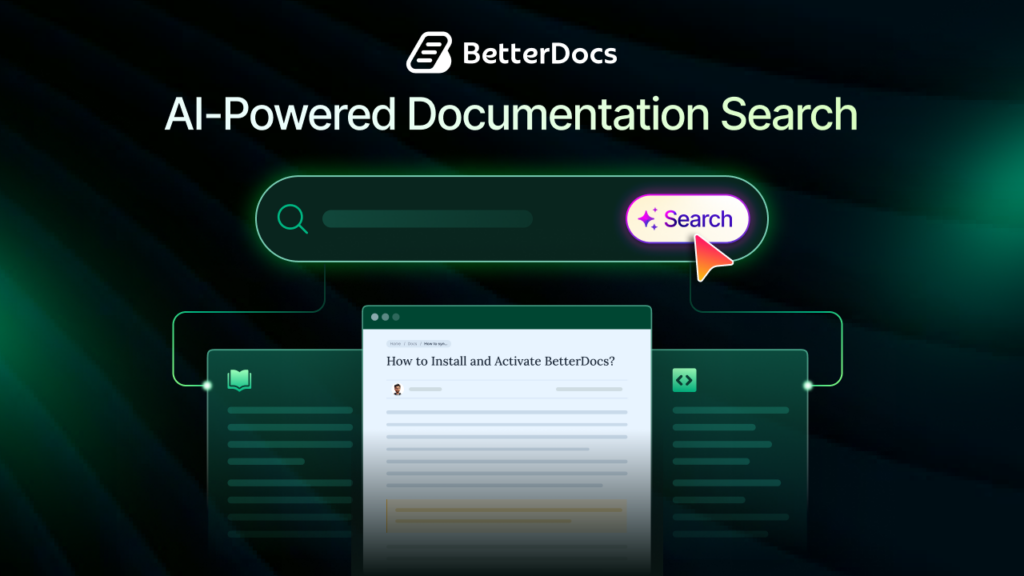
AI-powered search changes this. It understands intent, not just keywords. It surfaces the right article even when the user phrases their question differently from the article title. This is the kind of search experience that reduces friction meaningfully.
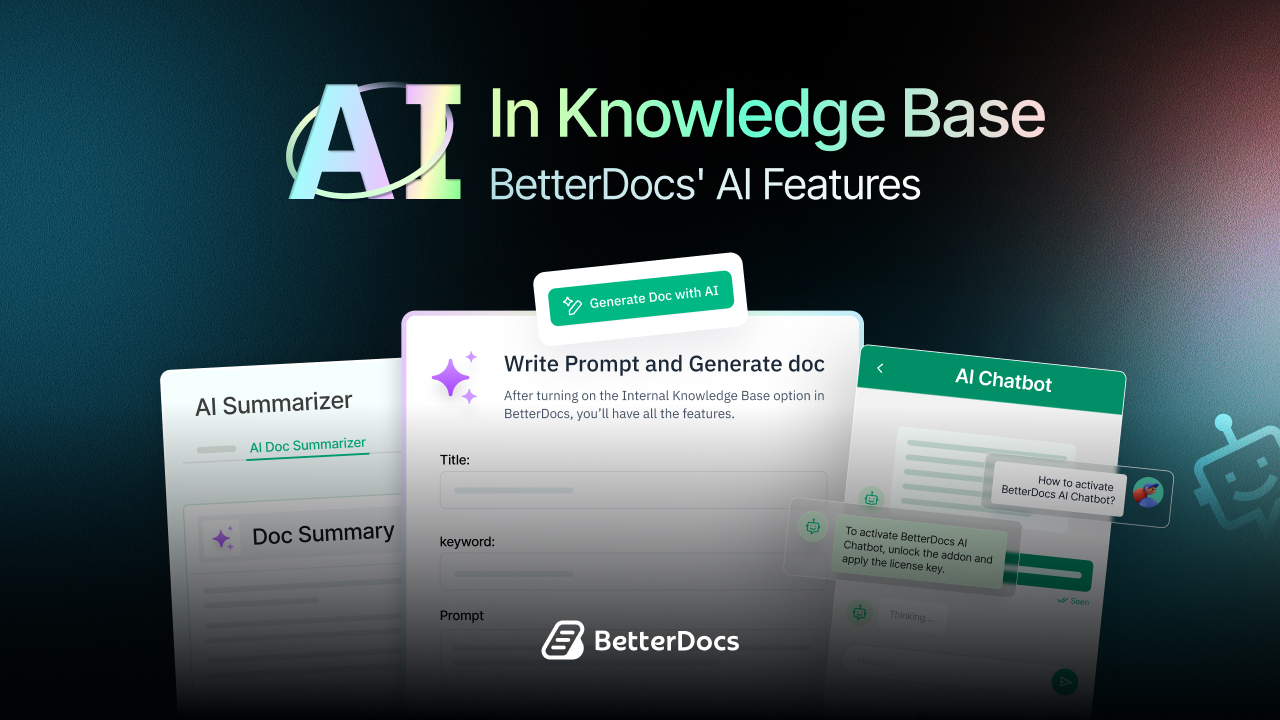
Solutions like BetterDocs, an AI-powered WordPress knowledge base plugin, address this directly. BetterDocs includes an instant AI search that understands natural language queries, helping users find what they need without frustration. When search works well, abandonment rates drop significantly because users stay engaged instead of hitting a dead end.
How to Fix Documentation Friction: 8 Proven Strategies
This is the most actionable section of the blog. Each strategy is grounded in cognitive psychology and UX best practices, giving readers clear steps they can implement.
1. Start with a Clear “Getting Started” Path
Every knowledge base needs a visible, welcoming entry point for new users. Create a dedicated “Getting Started” section that walks users through the basics in a logical sequence. This removes the anxiety of not knowing where to begin. It also signals to first-time visitors that the documentation was designed with them in mind.
2. Use Progressive Disclosure
Do not dump everything on one page. Progressive disclosure is the design principle of showing users only what they need at each stage. Start with a simple overview, then offer links to deeper details. This reduces cognitive load without removing information.
3. Write at a Reader-Friendly Reading Level
Aim for a Flesch-Kincaid reading ease score above 60 for most documentation. Use short sentences. Avoid jargon unless it is necessary, and always define it when you use it. Write the way you would explain something to a smart colleague who is new to the topic.
4. Upgrade Your Search Experience
Replace keyword search with AI-powered semantic search. The goal is for users to ask questions in plain language and get the right answer immediately. This single change can reduce documentation abandonment more than almost any other improvement.
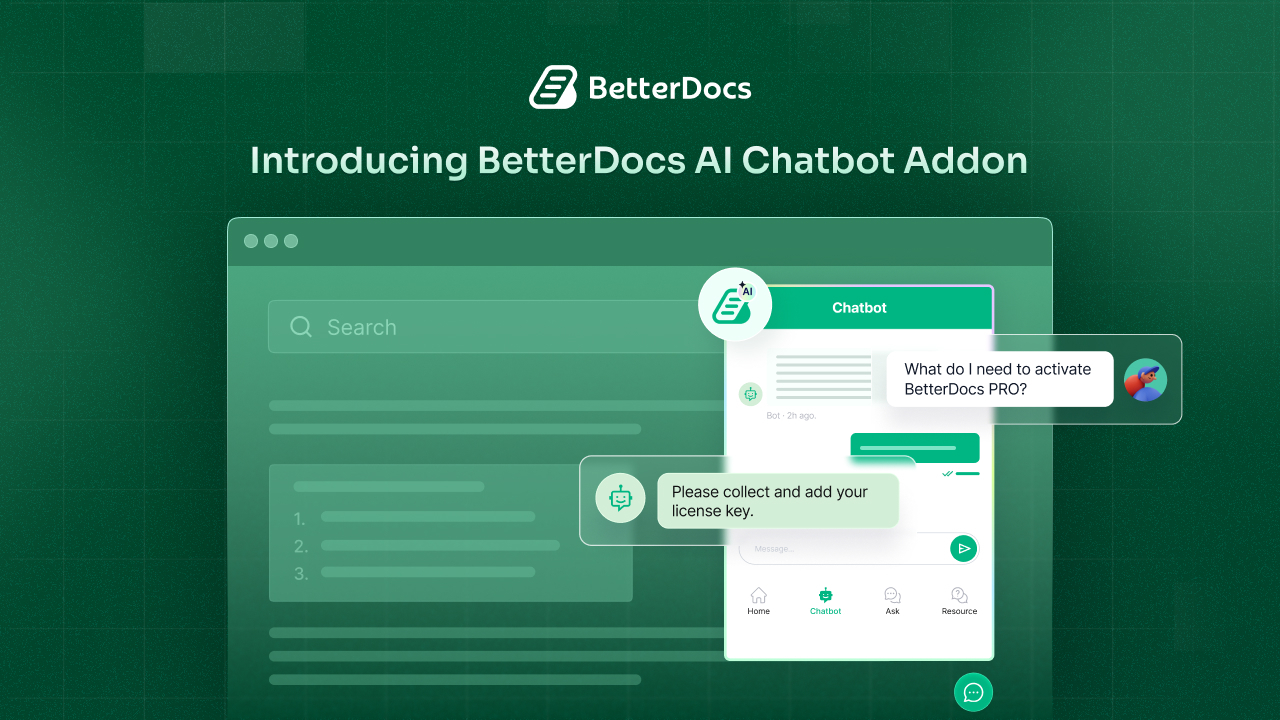
BetterDocs offers an AI-powered chatbot that can answer user queries conversationally, directly inside your knowledge base. Instead of reading through multiple articles to piece together an answer, users can ask a question and get a direct, contextual response. This dramatically reduces friction for complex or multi-step questions.
5. Break Up the Wall of Text
Combine short paragraphs with visuals, tables and step-by-step numbered instructions. A well-placed screenshot or diagram can communicate in seconds what a paragraph of text cannot. Visuals also give readers a visual “anchor” as they scan, which helps them stay oriented in the content.
6. Keep Content Fresh And Audit It Regularly
Set a content review schedule. Mark articles with a “Last reviewed” date so users know the content is current. When a product changes, update the docs immediately. Even a small inconsistency between your docs and your actual product can shatter user trust completely.
7. Add a “Was This Helpful?” Feedback Mechanism
Give users a way to signal when an article did not answer their question. This serves two purposes. First, it reduces the feeling of helplessness by offering a path forward. Second, it gives your team data on which articles are underperforming. Act on that data.
8. Optimize for Speed And Mobile
A documentation page that takes more than 3 seconds to load loses users. Google’s research shows that 53% of mobile users abandon a page that takes longer than 3 seconds to load. Make sure your knowledge base is fast, responsive and easy to read on any device.
BetterDocs is built with performance in mind, offering fast-loading, mobile-responsive article pages and a clean, distraction-free reading layout out of the box. This reduces the technical debt that often slows documentation platforms down.
Information Architecture: How Structure Reduces User Abandonment
Good documentation structure is invisible to the user. Bad structure is all they can see. This section explains how to organize your knowledge base so users always know where they are and where to go next.
Information architecture (IA) is the practice of organizing, structuring and labeling content. In documentation, good IA means that users can predict where to find something before they even search for it. It means category names make intuitive sense. It means articles are grouped by user goal, not by internal product structure.
A common mistake is to organize documentation around how your team thinks about the product rather than how users experience it. Your users do not care about your internal taxonomy. They care about solving their problem.
To build better IA, start by mapping out your users’ most common jobs-to-be-done. What are they trying to accomplish? Group your documentation around those goals. Use clear, plain-language category names. Add a table of contents to long articles. Include “Related articles” links at the bottom of every page to guide users to their next step.
BetterDocs makes this kind of structured organization easy with its intuitive category management and customizable layout options. Its built-in analytics also show which articles users visit most and which ones they leave quickly, so you can make data-informed decisions about your IA.
Real-World Impact: What Happens When You Reduce Documentation Friction
Reducing friction in your docs is not just a UX improvement. It is a business transformation. When users can find answers quickly and confidently, several things happen. Support ticket volume drops. User satisfaction scores rise. Product adoption increases because users actually learn how to use features. Churn decreases because users who understand your product stay longer.
A report from the Consortium for Service Innovation found that companies with excellent self-service support options see a 40% reduction in support costs and a measurable improvement in customer retention. That is not a marginal gain. That is a strategic advantage.
Documentation is often treated as an afterthought. Teams build it after the product ships, staff it minimally and update it inconsistently. But the organizations that treat documentation as a core product experience invest in reducing friction, and they see the results in their retention and revenue numbers.
Measuring Documentation Friction: Metrics That Actually Matter
You cannot fix what you cannot measure. This section gives readers a practical framework for identifying friction in their existing documentation.
Most teams track page views and that is it. Page views tell you almost nothing about documentation effectiveness. Instead, focus on these metrics:
- Deflection rate: What percentage of users who visit your docs do not submit a support ticket afterward? A high deflection rate means your docs are working.
- Search exit rate: How often do users search for something and then leave without clicking any result? A high search exit rate signals that your search is failing.
- Article abandonment rate: How far do users scroll on an article before leaving? If most users bail halfway through, the article may be too long, too confusing, or structured poorly.
- Time to resolution: How long does it take a user to find an answer from the moment they land on the knowledge base? Longer times indicate more friction.
- Feedback score: If you have a “Was this helpful?” prompt, track the ratio of positive to negative responses per article.
Tools like Google Analytics, Hotjar, and purpose-built knowledge base analytics can help you track these metrics. BetterDocs includes built-in analytics that track article views, searches, and negative feedback, giving you a clear picture of where friction exists without needing a separate analytics tool.
If you found this guide valuable, the next step is to audit your own documentation for friction points using the metrics framework above. Start with your search exit rate and article abandonment data. Those two numbers will tell you more about your documentation health than anything else.
Documentation Friction Audit Checklist: Find And Fix the Gaps in Your Knowledge Base
Before investing in a full documentation overhaul, you need to know exactly where friction lives. This checklist gives you a structured way to audit five critical areas of your knowledge base and identify the specific friction points that are costing you users.
Work through each area honestly. If you answer “no” or “not sure” to a question, that is a friction point worth investigating.
Search
- When users type a natural language question, does the search return relevant results even when exact keywords do not match?
- Is the search bar immediately visible without scrolling on both desktop and mobile?
- Does your search handle common misspellings and synonyms gracefully?
- Are there zero-result searches happening frequently? (Check your search analytics.)
- Does search suggest related articles as users type?
Navigation
- Can a first-time user identify where to start without reading anything?
- Are your category names written in plain language that reflects how users think, not how your internal team labels things?
- Is the navigation hierarchy no deeper than three levels for most topics?
- Do breadcrumbs or a visible path tell users where they are at all times?
- Are “Related articles” links present at the bottom of every page?
Content Freshness
- Does each article display a “last reviewed” or “last updated” date?
- Do you have a scheduled review cycle, at minimum quarterly, for your core articles?
- Is there a documented process for updating docs immediately when the product changes?
- Have you checked your most-visited articles against the current state of your product in the last 90 days?
- Is there a way for users to flag outdated content directly from the article page?
Readability
- Do your articles score above 60 on the Flesch-Kincaid reading ease scale?
- Are paragraphs kept to four sentences or fewer in most cases?
- Is technical jargon defined the first time it appears?
- Do step-by-step instructions use numbered lists rather than running prose?
- Are screenshots or visuals used wherever a process involves a UI action?
Mobile Experience
- Do all documentation pages load in under 3 seconds on a mobile connection?
- Is the font size readable without zooming on a standard smartphone screen?
- Are tables and code blocks horizontally scrollable rather than broken on small screens?
- Does the search bar work smoothly on a mobile keyboard?
- Is the navigation accessible via a clean mobile menu rather than a cluttered sidebar?
If this audit surfaces multiple gaps, prioritize search and content freshness first. Those two areas have the highest direct impact on abandonment rates. Then work through navigation, readability, and mobile in order of where your analytics show the most drop-off.
Build a Friction-Free Knowledge Base That Users Actually Trust
Friction is a quiet problem. It does not announce itself with error messages or crash reports. It just slowly bleeds your user retention, inflates your support costs and erodes the trust users have in your product. But here is the encouraging part: friction is fixable. Every cause listed in this blog has a clear, actionable remedy. Better search closes the gap between what users ask and what your docs contain. A cleaner structure eliminates the anxiety of not knowing where to start. Fresher content rebuilds the trust that outdated articles destroy. Feedback mechanisms turn dead ends into actionable improvement data. Your knowledge base should be the most reliable colleague your users have. Build it that way.
Let us know your thoughts. We will be delighted to listen to you. For more updates, or tips and tricks, don’t forget to subscribe to our blog and join our friendly Facebook community.
Frequently Asked Questions (FAQs)
Q1. What is the main reason users abandon online documentation?
The primary reason is friction. This includes poor search, confusing navigation, dense writing, and outdated content. When users cannot find what they need quickly, they leave. The psychological triggers include cognitive overload, trust erosion, and learned helplessness.
Q2. How does AI-powered search reduce documentation abandonment?
AI-powered search understands natural language and user intent, not just exact keyword matches. This means users can phrase their questions the way they naturally think, and the search will return relevant results even if the wording does not exactly match the article. This dramatically reduces the “dead search” experience that drives users away.
Q3. How often should I update my knowledge base content?
At a minimum, review your documentation every time your product changes. For core articles, a quarterly review is a good baseline. Set a “last reviewed” date on each article so users can see how current the information is. Outdated content is one of the fastest ways to lose user trust.
Q4. What is the ideal length for a documentation article?
There is no universal answer, but a practical guideline is to cover one topic thoroughly and stop. Use progressive disclosure to link to deeper content rather than packing everything into one article. For most topics, 500 to 1,000 words with clear headings and visuals is a good target. Complex technical topics may need more, but structure becomes even more important at that length.
Q5. How can I measure whether my documentation is actually helping users?
Track these key metrics: support deflection rate, search exit rate, article abandonment rate, time to resolution, and the results of your “Was this helpful?” feedback prompts. Together, these give you a picture of where users are struggling and where your docs are doing their job well.
Q6. What makes a knowledge base plugin like BetterDocs different from a standard FAQ page?
A standard FAQ page is static. A knowledge base plugin like BetterDocs offers AI-powered search, structured article organization, built-in analytics, an AI chatbot for conversational support, and customizable layouts. These features work together to create a self-service experience that actually reduces friction instead of just listing information. The result is a documentation system that scales with your product and your user base.