Writing documentation usually means bouncing between tabs. You draft in an AI assistant, copy the text, paste it into wp-admin, fix the formatting, assign a category and repeat for the next doc. MCP in BetterDocs removes that loop. BetterDocs now supports the Model Context Protocol (MCP), so AI assistants like Claude and ChatGPT can read and write your documentation straight from your chat window.
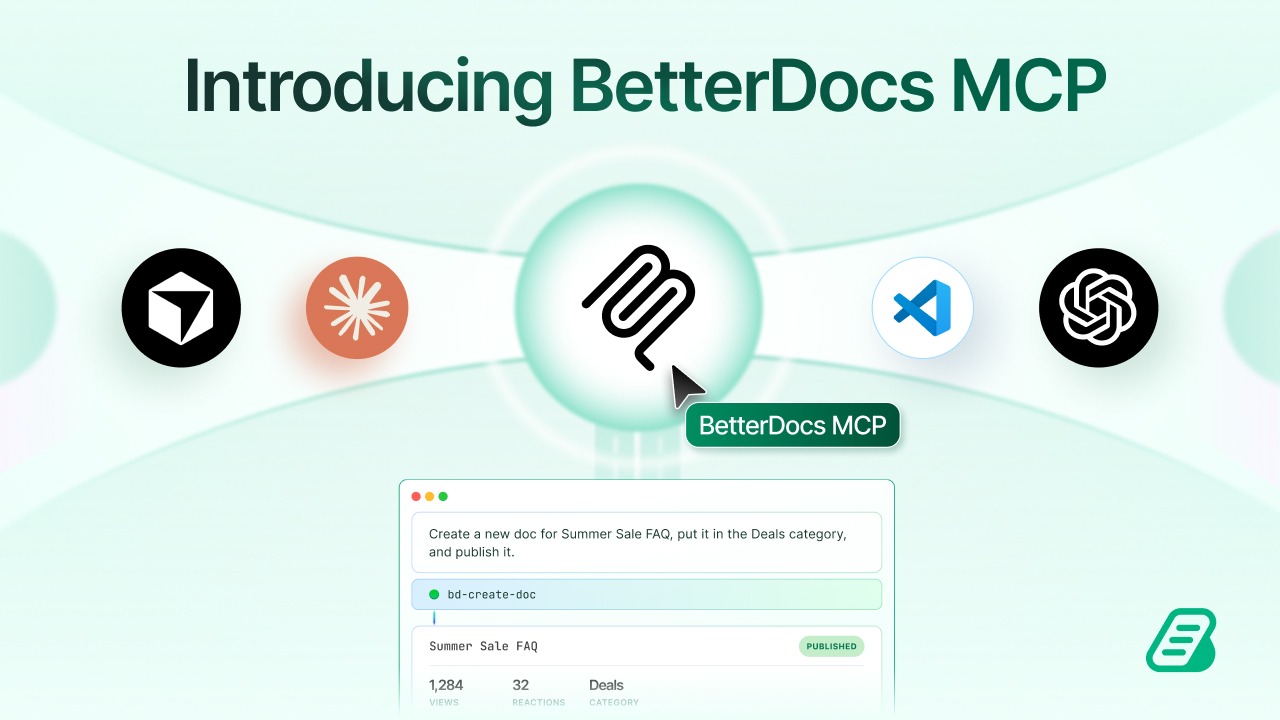
Once connected, you can ask your assistant to draft new docs, update existing ones, organize categories and FAQs, or pull your documentation analytics without opening wp-admin. In this blog, we will cover what MCP does for your knowledge base, how to enable it, how to connect Claude and ChatGPT and how to keep the connection safe.
What Is MCP And Why Does It Matter for Your Documentation?
MCP (Model Context Protocol) is a standard that lets an AI assistant connect to an external tool and use it on your behalf. Without it, an AI assistant only knows what you paste into the chat and it can only hand text back for you to move around yourself. With MCP, the assistant connects to your BetterDocs site and works inside your knowledge base directly. You describe what you need in plain language, and the assistant does the work in BetterDocs.
For anyone who maintains a knowledge base, the real cost of documentation is rarely the writing. It is the handling around it: copying content between tools, reformatting, filing docs in the right category, and keeping FAQs in sync. MCP in BetterDocs takes over that handling. Your AI assistant becomes a documentation teammate that can see your existing content, so it can extend and organize it instead of producing generic text in a vacuum.
What Can You Do with MCP in BetterDocs?
Once the connection is approved, your AI assistant can work with several parts of your BetterDocs setup. During approval, you will see the full list of what it can do, which includes creating and editing docs, managing categories and tags, managing FAQs, and reading analytics. Each area maps to something you already do in BetterDocs today.
Draft And Update Docs from Chat
Ask the assistant to create a new doc from details you provide, and it writes the doc into BetterDocs for you. For example, you could say: “Create a doc titled ‘How to Request a Refund’ for my knowledge base. Refunds are available within 30 days of purchase, and customers need to contact support with their order number.” The assistant drafts the article and adds it to your knowledge base, so you skip the copy-paste step entirely.
The same works for updates. Suppose your pricing changed and three docs mention the old plan names. Instead of opening each doc and editing it by hand, you can ask the assistant to find the affected docs and update the wording. If you already use Write with AI inside the editor, think of MCP as the same idea working from the outside: you stay in your chat and BetterDocs stays up to date.
Organize Categories, Tags And FAQs
Structure is what makes a knowledge base easy to search and browse, and it is also the part that gets neglected. With MCP, the assistant can help you manage categories and tags, so you can ask it to set up a category structure for a new product or tag a batch of docs consistently. This is useful right after a migration, when hundreds of docs may need tidying.
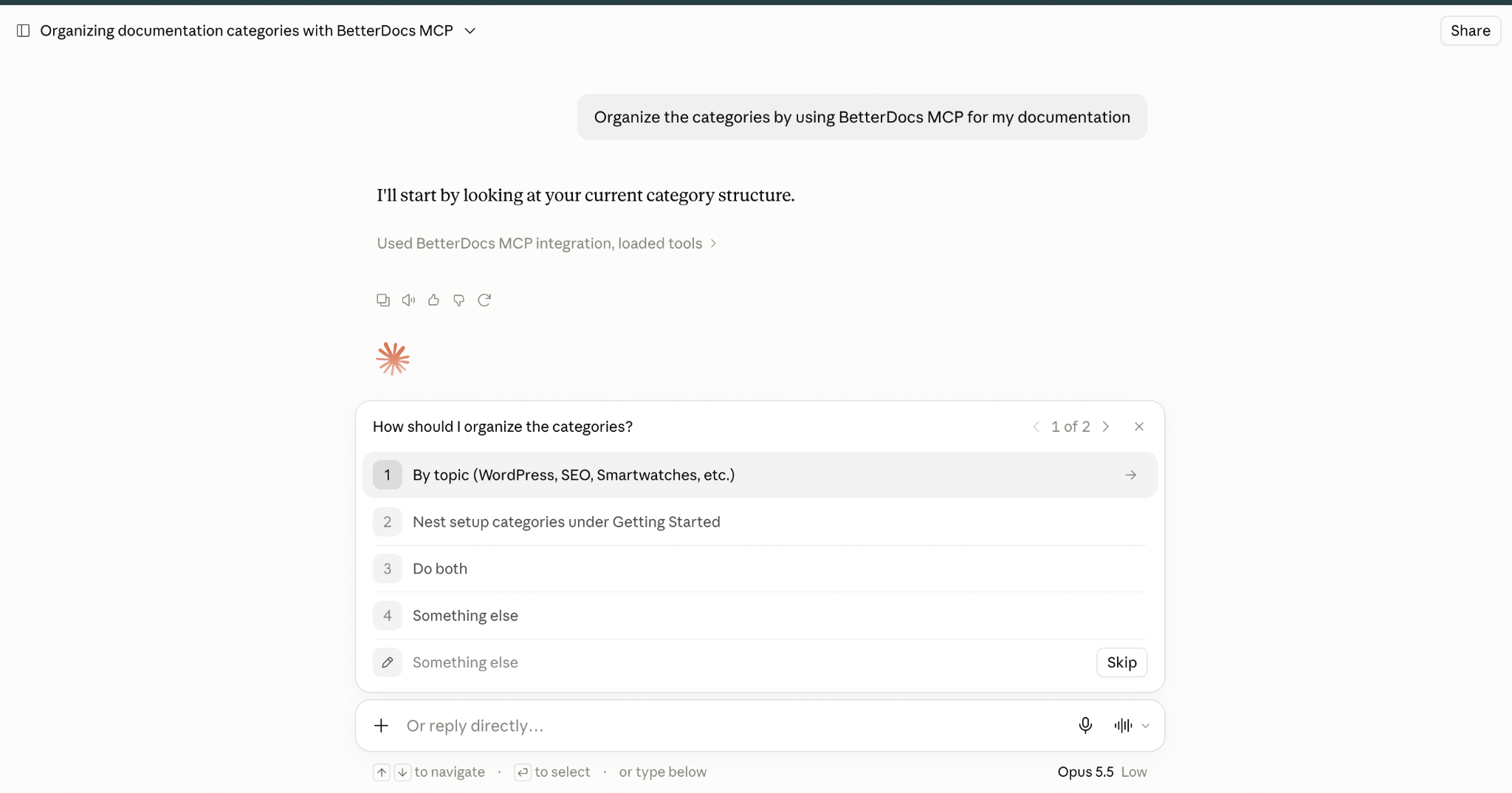
FAQs get the same treatment. You can ask the assistant to add questions and answers based on a doc it just wrote, which pairs well with the BetterDocs FAQ Builder and the AI-generated FAQ workflow you may already use.
Check Your Documentation Analytics
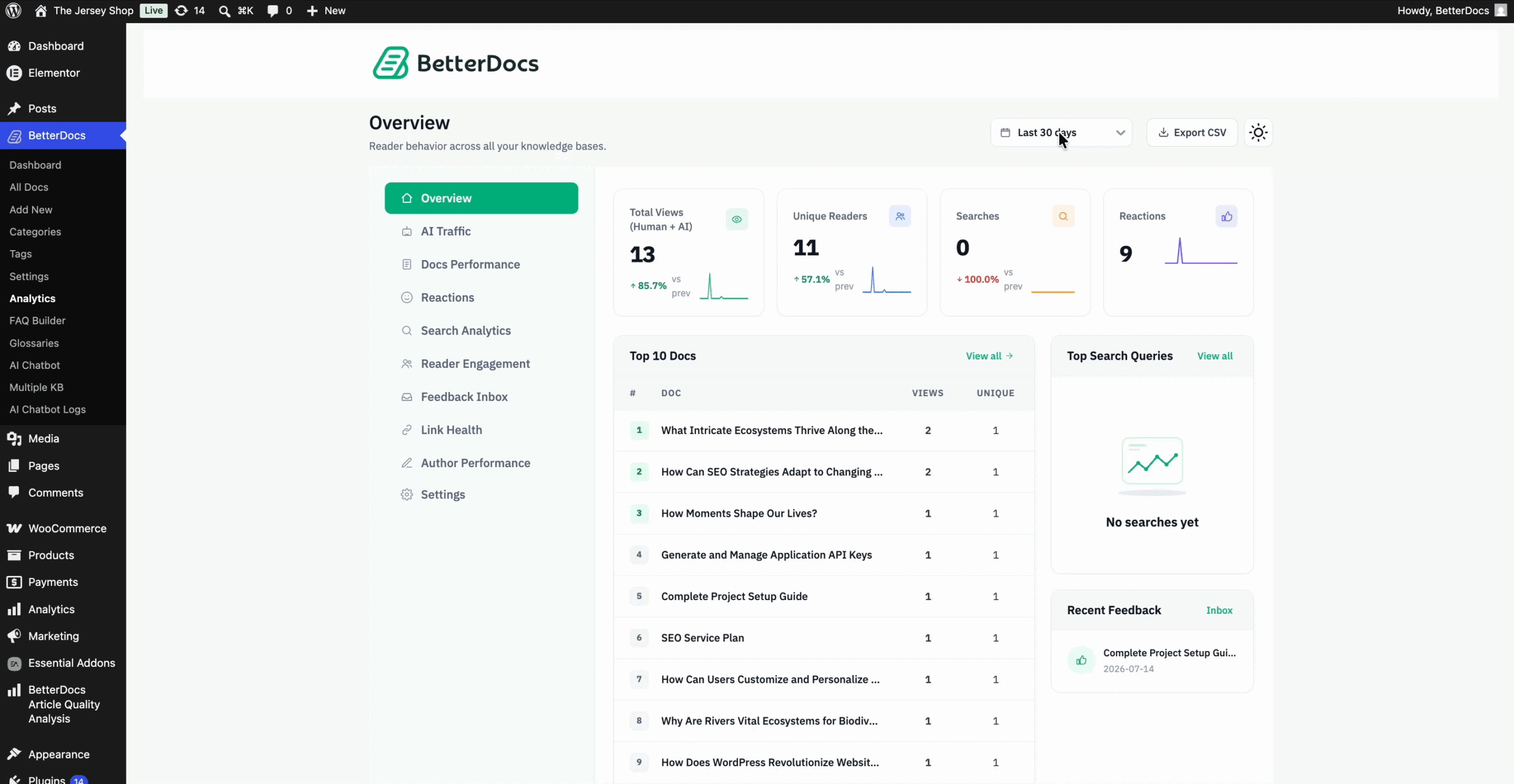
Your assistant can also read your BetterDocs analytics. Instead of opening the dashboard and interpreting charts yourself, you can ask a question like “Which of my docs got the most views this month?” sau “What are people searching for that I don’t have an answer for?” The assistant works from your BetterDocs analytics and gives you a plain-language summary. Because it can also edit docs, you can go from “this doc underperforms” to “let’s rewrite it” in the same conversation.
What You Need Before You Start
Before you connect anything, make sure two things are in place. You need an active Claude or ChatGPT account. You do not need to install a separate tool or write any code. The whole setup happens between your BetterDocs settings page and your AI assistant’s connector settings.
If you haven’t set BetterDocs up yet, start with the guide on how to install and activate BetterDocs. If you’re starting a fresh knowledge base, the Quick Builder can generate a starting structure with sample docs and FAQs, which gives your AI assistant something to work with from day one.
How to Enable MCP Access in BetterDocs
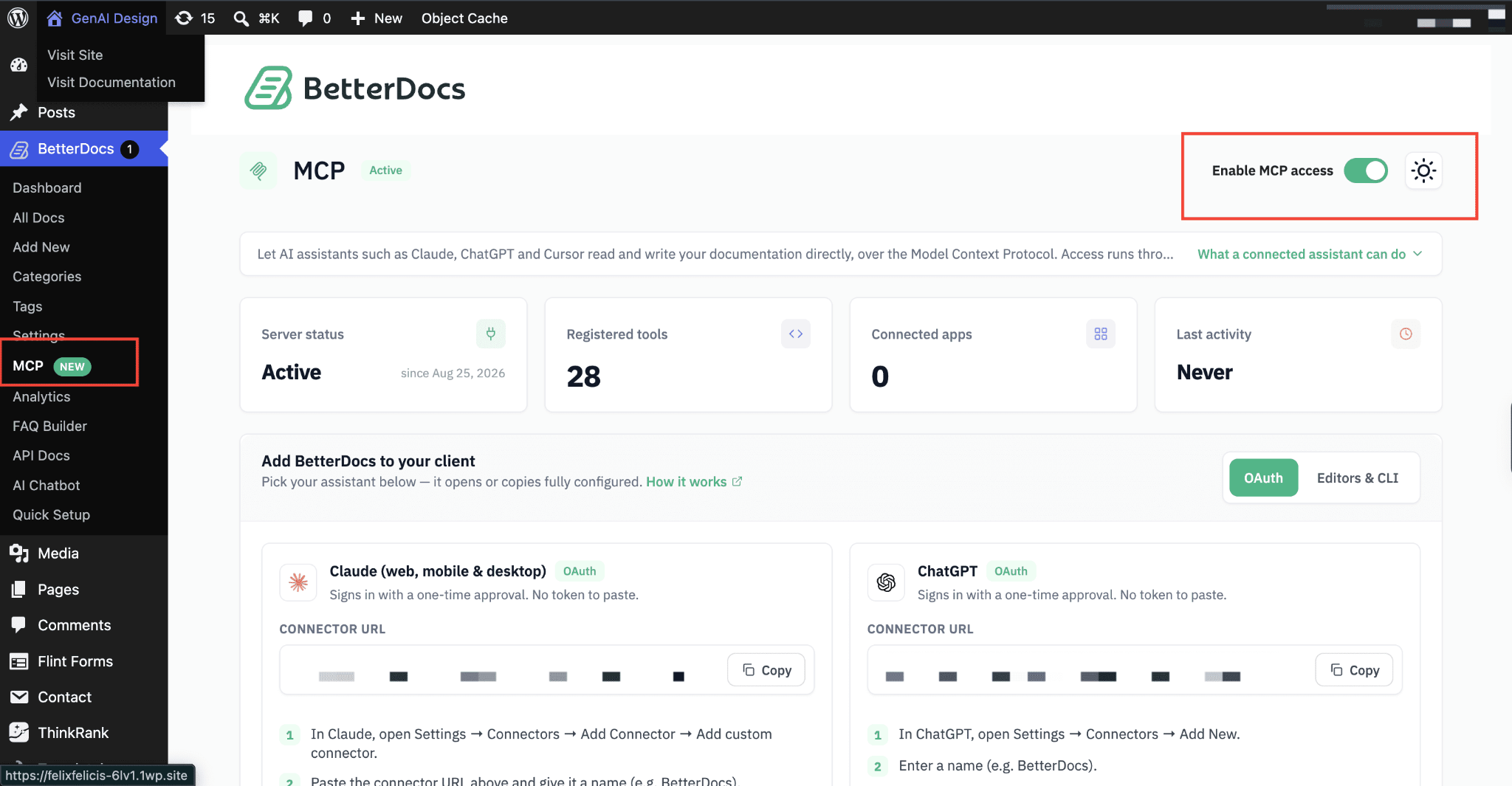
Enabling MCP takes a single toggle. In your WordPress dashboard, go to wp-admin → BetterDocs → MCP. At the top right of the page, switch on Enable MCP access. This activates your site’s MCP server and generates a connector URL, which is the address your AI assistant uses to talk to your documentation.
Keep this page open, because you’ll come back to it to copy the connector URL. It’s also where you’ll monitor and manage every connected app later. Until you enable this toggle, no AI assistant can reach your docs, so MCP stays off by default until you decide to turn it on.
How to Connect ChatGPT to BetterDocs MCP
Here’s the good news: none of this requires a developer. If you’re a WordPress admin, you can have this running in a few minutes.
From there, grab the connector URL for ChatGPT (BetterDocs shows you exactly where to copy it from), turn on Developer mode in ChatGPT’s settings, and add BetterDocs as a plugin using that URL. Approve the permissions it shows you, and you are connected. Claude works the same way, just through Claude’s own connector settings instead.
Once it is approved, you will see it listed as a connected app back in your BetterDocs dashboard, so you always know exactly what is connected and can revoke access anytime.
That is really the whole setup. To learn more about how to connect with other AI assistants, check the full MCP in BetterDocs documentation.
Real-World Use Cases for MCP in BetterDocs
Features are easier to judge when you see them in the middle of an actual workday. MCP in BetterDocs is built for the moments when documentation work gets in the way of everything else: a launch is tomorrow, a pricing change just went live, or a support queue keeps repeating the same question. In each of these situations, the old process meant opening wp-admin, clicking through several screens, and moving text between tools. With MCP, you describe the outcome in one message and your AI assistant does the work inside BetterDocs. Here are the use cases where this makes the biggest difference. The prompts are examples, so adapt them to your own products and docs.
Launch Documentation for a New Feature in Minutes
Every product launch has the same scenario. The feature ships, customers start asking questions and the docs are still a to-do item. Writing the doc is only part of it. Someone also has to create it in wp-admin, choose the category and add FAQs for the questions everyone already expects. With MCP, you can brief your assistant once and let it handle all of that, so documentation goes out with the release instead of a week behind it.
Your assistant can draft the doc, place it in the right category, and add related FAQs in the same conversation. You review the result, adjust anything that needs your product knowledge and publish.
“Create a getting-started doc for our new invoicing feature. Cover how to enable it, how to create the first invoice, and the most common mistakes. Put it in the Invoicing category and add three FAQs.”
Keep Docs Accurate After a Product or Pricing Change
Outdated docs do quiet damage. A customer follows steps for a screen that no longer exists, gets stuck and opens a support ticket, which is exactly what the doc was supposed to prevent. The usual reason these docs stay outdated is effort. Finding every page that mentions an old plan name, feature label, or menu path means searching, opening, editing, and saving each one by hand, and that job keeps sliding down the priority list.
MCP turns this into a request instead of a project. Because your assistant can read your existing docs, you can ask it to find every doc that mentions the old wording and update it, then report what it changed so you can spot-check the results. It’s especially helpful after a rebrand, a redesign, or a plan restructure, when the same change needs to land across dozens of pages.
“Find every doc that mentions the ‘Starter’ plan and update the wording to ‘Basic.’ Give me a list of the docs you changed.”
Turn Support Conversations into Documentation
Your support team already knows what customers struggle with. The problem is that this knowledge lives in ticket threads and chat logs, where it helps one customer once and is then forgotten. Turning each resolved ticket into a doc is a good habit, but it takes time nobody has between tickets, so most solutions never make it into the knowledge base.
With MCP, an agent can paste a resolved conversation into Claude or ChatGPT and ask for a doc on the spot. The assistant writes the troubleshooting steps in a clear format, adds related FAQs, and files it in your knowledge base. Over a few months, this builds a knowledge base that grows directly from real customer questions instead of guesses about what people might ask. It also works well alongside the FAQ Builder, since the FAQs come from problems customers have already run into.
“Here’s how we solved a customer’s login issue after a password reset. Write a troubleshooting doc for it and add two FAQs for related questions.”
Clean Up And Reorganize a Growing Knowledge Base
Knowledge bases get messy in predictable ways. After a migration from another documentation plugin, or after a year with several contributors, you end up with overlapping categories, docs filed in the wrong place, and tags that follow no consistent pattern. Visitors struggle to browse, and search has a harder time surfacing the right answer. Cleaning it up manually is tedious, so it tends to get skipped until the mess is impossible to ignore.
Since your assistant can manage categories and tags, you can start a reorganization with a single conversation. Ask it to propose a cleaner structure, review the suggestion, and then have it apply the changes. This is much faster than moving docs one by one, and you stay in control because you approve the plan before anything is rearranged.
“Review our troubleshooting docs and suggest a cleaner category structure. Once I approve it, move the docs and tag each one by product.”
Use Analytics to Decide What to Write Next
Most teams have analytics they rarely act on. The dashboard shows what’s popular, but turning that into “here’s what we should write or fix next” takes time and interpretation. Often the numbers get glanced at, nodded at, and forgotten. The gap between seeing the data and acting on it is where documentation strategy usually stalls.
MCP closes that gap by letting your assistant read your documentation analytics and act on what it finds in the same conversation. You can ask which docs perform best, which searches come up empty, and what to write next, and then have it draft the first doc right away. Your roadmap follows what readers actually look for instead of what your team assumes they need.
“Which of my docs got the most views this month, and which searches returned no results? Suggest three new docs we should write, then draft the first one.”
Manage Documentation without Living in wp-admin
Not everyone who touches your documentation wants to work inside the WordPress dashboard. Founders, marketers, and product managers usually know exactly what needs to change, but they’d rather say it than navigate menus to do it. When editing docs requires learning the admin area, small fixes get postponed and typos live on for months.
With MCP, those updates can happen from Claude or ChatGPT, on the web, mobile, or desktop, whichever the person already uses daily. A quick correction between meetings becomes a one-line message instead of a login-and-navigate task. The same applies to an internal knowledge base: when adding or updating a process doc is as easy as sending a message, internal documentation stays current instead of drifting out of date.
“In our refund policy doc, change the refund window from 14 days to 30 days and make sure the FAQ at the bottom says the same.”
Fill Content Gaps Before Customers Find Them
A knowledge base can look complete and still leave obvious questions unanswered. Products have edge cases, integrations have quirks, and new users ask things the original authors never thought to cover. Spotting these gaps usually depends on someone noticing, which means customers find them first.
You can ask your assistant to review a set of docs and point out what’s missing, then draft the missing pieces. For example, it can compare your setup guide against your troubleshooting docs and flag steps that have no matching help article. Pairing this with BetterDocs’ Doc Quality Analysis gives you both a quality check and a fast way to close the gaps it finds.
“Look at our WooCommerce integration docs and tell me which common setup problems don’t have a doc yet. Draft the two most important ones.”
Who Gets the Most Out of MCP in BetterDocs?
MCP in BetterDocs is useful for anyone who owns or contributes to documentation, but some teams see the payoff faster than others. The common thread is a mismatch between how much documentation matters and how much time there is to maintain it. If that sounds like your team, here’s how MCP is likely to fit into your workflow.
Customer Support Teams
Support teams sit closest to customer problems, which makes them the best source of documentation and usually the group with the least time to write it. Every day they solve issues that could help hundreds of other customers, but writing those solutions up means leaving the ticket queue and learning the admin area. As a result, the same questions get answered manually again and again.
With MCP, an agent can turn a solved ticket into a published-ready doc in a couple of minutes without leaving their chat window. Over time, the knowledge base fills with the answers customers actually need and fewer repeat questions reach the queue. A team that handles password resets all day, for example, can document the fix once and link to it in every future reply.
SaaS And Product Teams
Product teams ship fast, and documentation tends to trail behind each release. The docs get written a week later, or never and customers discover new features without any guidance on how to use them. Because docs are usually owned by someone who is also busy with roadmap and launches, they get squeezed.
MCP lets a product manager or developer document a release in the same session where they finish the feature. A short brief to the assistant produces the getting-started doc, the FAQs and the right category, so documentation becomes part of the release instead of a follow-up task. Teams shipping frequent updates can also use it to revise existing docs whenever a screen or setting changes.
Solo Founders And Small Teams
When you are a team of one to five, nobody has “documentation” in their job title. Still, a good knowledge base is one of the best ways to handle support without hiring for it. The trouble is that founders wear every hat, and writing docs rarely wins against fixing bugs or closing sales.
For this group, MCP makes a professional knowledge base realistic without a dedicated writer. A founder can dictate what a feature does, ask the assistant to structure it into a clear doc, and move on in minutes. Combined with BetterDocs’ AI writing tools, it keeps a small team’s documentation on par with much larger companies.
Agencies And Freelancers
Agencies that maintain documentation for multiple clients face a different challenge: volume. Each site has its own docs, structure, and update requests, and the same small tasks repeat across projects. Time spent on routine edits is time not billed on higher-value work.
MCP speeds up the routine parts, such as applying a wording change across several docs, reorganizing categories after a client’s rebrand, or drafting first versions of new articles from a client’s notes. Because every connection is approved per site and can be revoked from the Connected apps table, agencies can also close access cleanly when a project ends.
Developer-Focused And Technical Teams
Technical documentation changes constantly, and it is often written by people who would rather be coding. Developers can document a new endpoint, parameter, or configuration option, but the extra steps of logging into wp-admin and formatting content break their flow. Docs then fall out of sync with the code.
MCP lets developers update documentation from the tools they already use. Claude Code and VS Code users can connect through the Editors & CLI option, which provides a terminal command. Teams can also combine this with API documentation generation to keep technical references accurate as the product evolves.
Content And Marketing Teams
Marketing teams often own the knowledge base’s tone, structure and SEO, but rely on others for the technical details. Getting content from a subject expert into a polished, well-organized doc usually means several rounds of edits and copy-pasting between documents.
With MCP, a marketer can take raw notes from an expert, ask the assistant to shape them into a doc with the right headings and category and add FAQs, all in one session. They stay in charge of the voice and quality, while the mechanical handling disappears. It’s a faster path from “here’s what the feature does” to a doc that’s ready for review.
Things to Keep in Mind to Secure Your Connection
Because MCP gives an AI assistant real write access, it deserves the same care as any admin account. A few habits keep things safe:
- Review the permission list before approving. The approval screen tells you exactly what the assistant can do.
- Start with Allow once. Switch to Always allow only after you trust how the assistant behaves in a given chat.
- Check the Connected apps table regularly. Revoke any app you no longer use.
- Rotate tokens if needed. If you use a token-based client such as Claude Code or VS Code and suspect a leak, use Rotate token.
- Review AI-written docs before they go live. AI drafts are a great starting point, but a quick human check keeps your knowledge base accurate.
If several teammates manage your docs, it is also worth reviewing who has access through user roles, since the connection acts as the admin who approved it.
Start Managing Your Docs from Chat with MCP in BetterDocs
MCP in BetterDocs turns your AI assistant from a text generator into a working member of your documentation team. You enable one toggle, connect Claude or ChatGPT in a few minutes, and from then on you can draft, update, organize, and analyze your knowledge base without leaving the conversation. That means less copy-pasting, faster updates, and a knowledge base that stays current.
Was this blog helpful for you? Do share your thoughts in our Facebook Community și subscribe to our blogs for more insightful articles like this.