
Con BetterDocs, you can add a Sticky Table Of Contents (TOC) to your Single Doc page in Shopify. If you use multiple headings (or heading tags) in your documentation, this knowledge base app will include the headings inside the Table of Contents box that will stay afloat over the documentation page. The TOC allows your users to bounce back and forth between different sections in your document.
How To Add A Sticky Table Of Contents With BetterDocs For Shopify? #
Follow the step-by-step guide below to learn how to add a sticky table of content in single docs in just a few steps.
Nota: You must have BetterDocs for Shopify installed and activated on your store to create the documents.
Step 1: Enable The Table Of Contents #
To enable and add a Table Of Contents in your single documentation using BetterDocs, you need to first navigate to the 'Configuraciones' tab from the app’s homepage. Then, click on the ‘Table Of Contents’ option from the side panel.
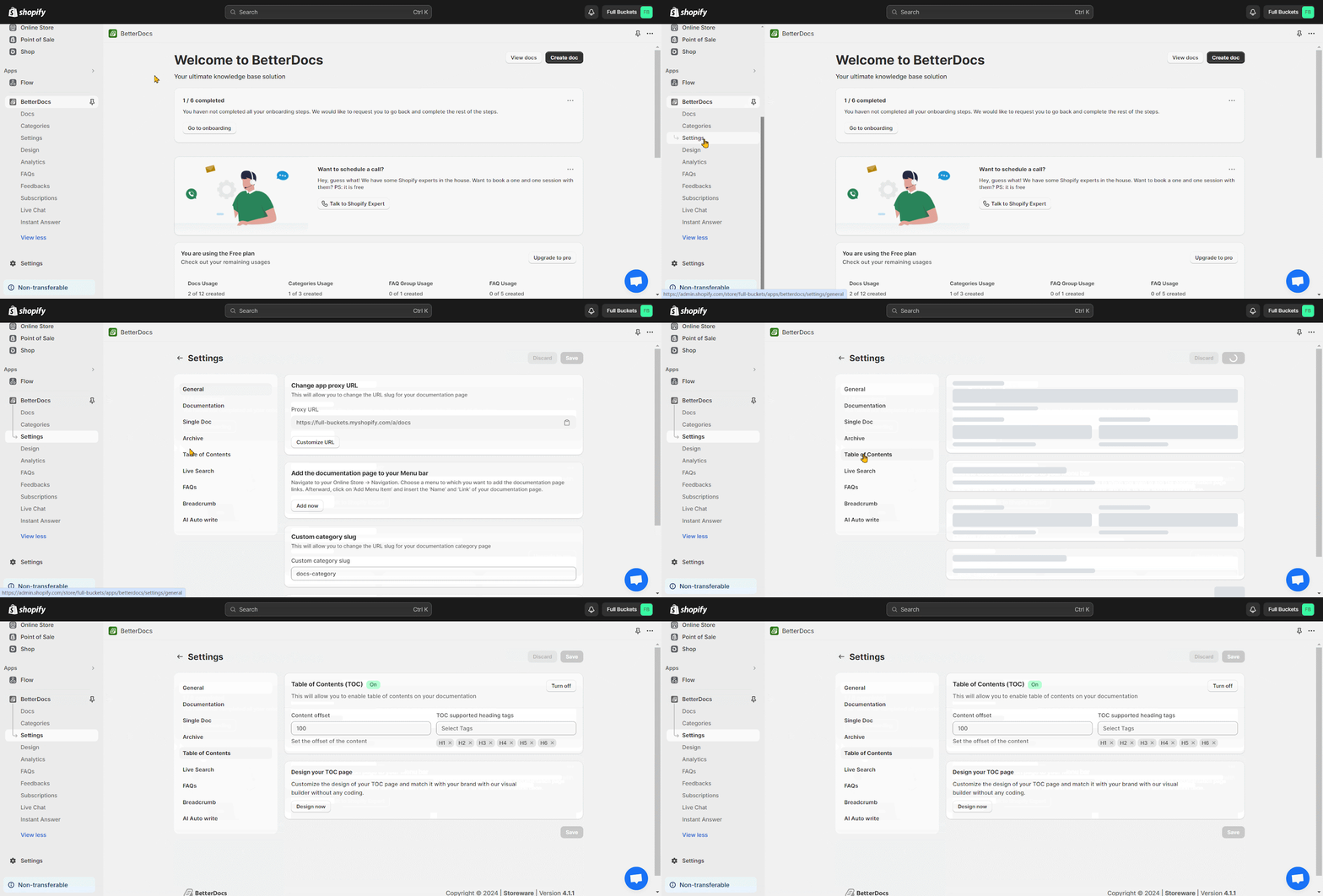
Now, ‘Turn On’ the ‘Table Of Contents’ button to show the table of contents on the document page.
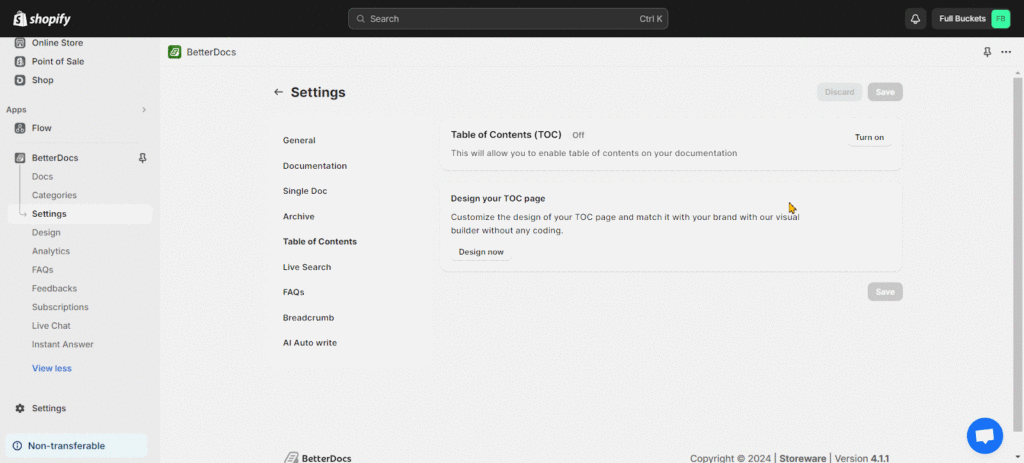
Afterward, you can adjust the ‘Content offset’ and ‘TOC supported heading tags‘ and click on the ‘Save’ button again.
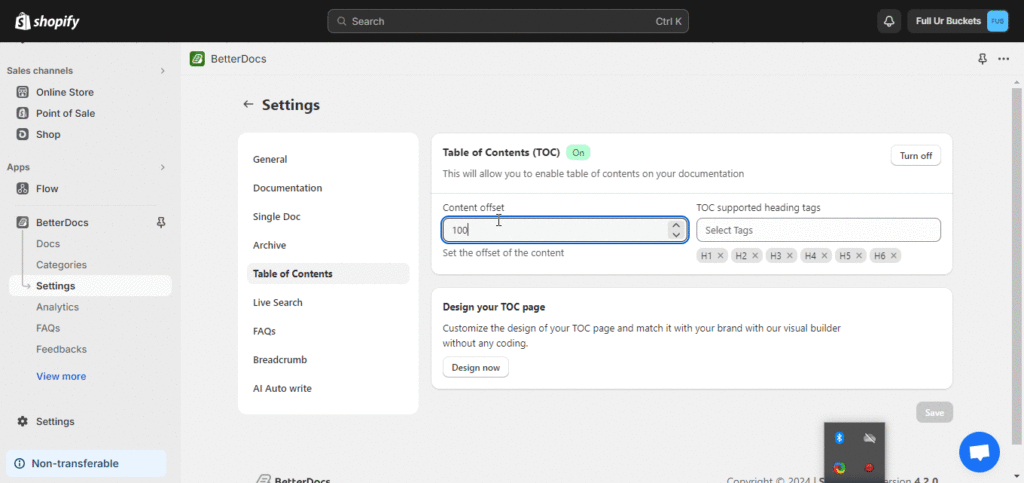
Step 2: Configure The Table Of Contents #
To configure the TOC, go to the ‘Design your TOC page’ section and press on the ‘Design now’ option.
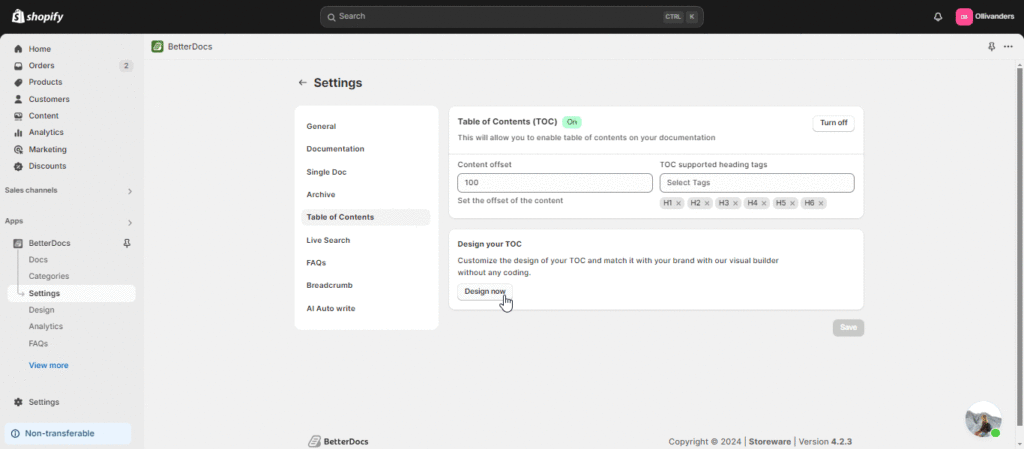
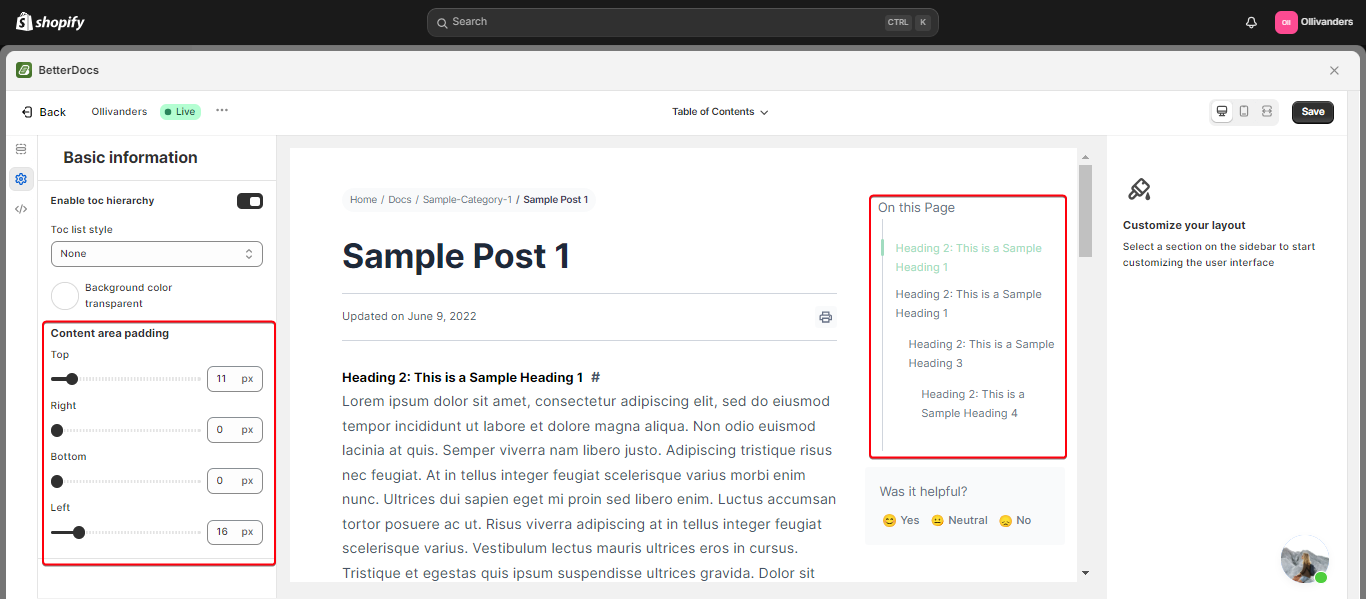
Now, navigate to the left sidebar and select the ‘Basic design’. From here you can toggle the on or off the ‘Enable toc hierarchy’, ‘Toc list number’, and ‘Enable sticky toc’ options.
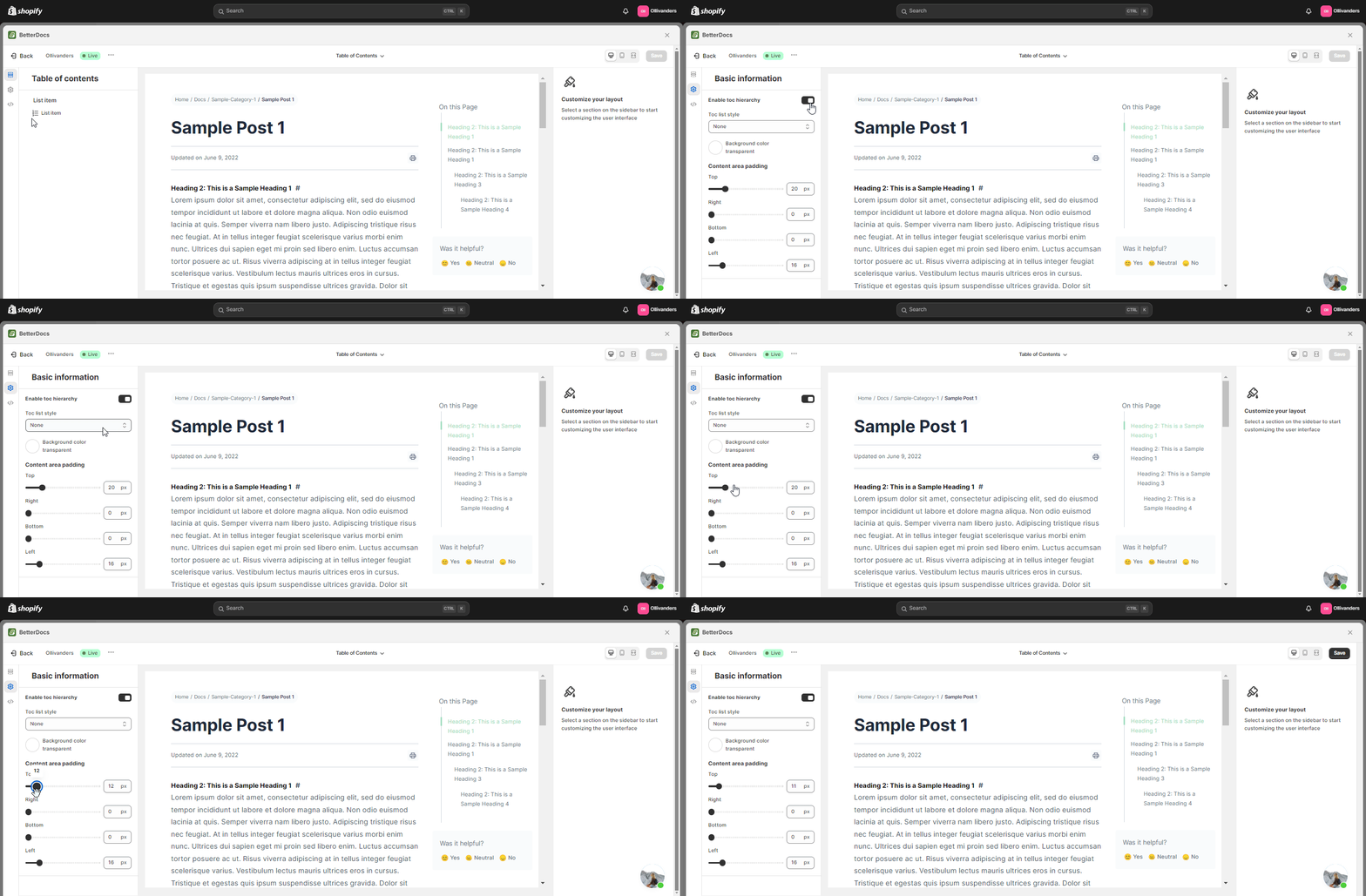
You can customize the ‘Sticky toc width’, ‘Sticky toc margin top’, ‘Background color’, ‘Content area padding’ etc and click on the ‘Save’ button to make the Table of content more stunning.
Step 3: Advanced Control to Design The Table Of Contents #
Once you have enabled the TOC, you can design different aspects of the Table Of Contents to match your store’s branding. To do so, click on the ‘Design’ → ‘List Item’ to customize them.
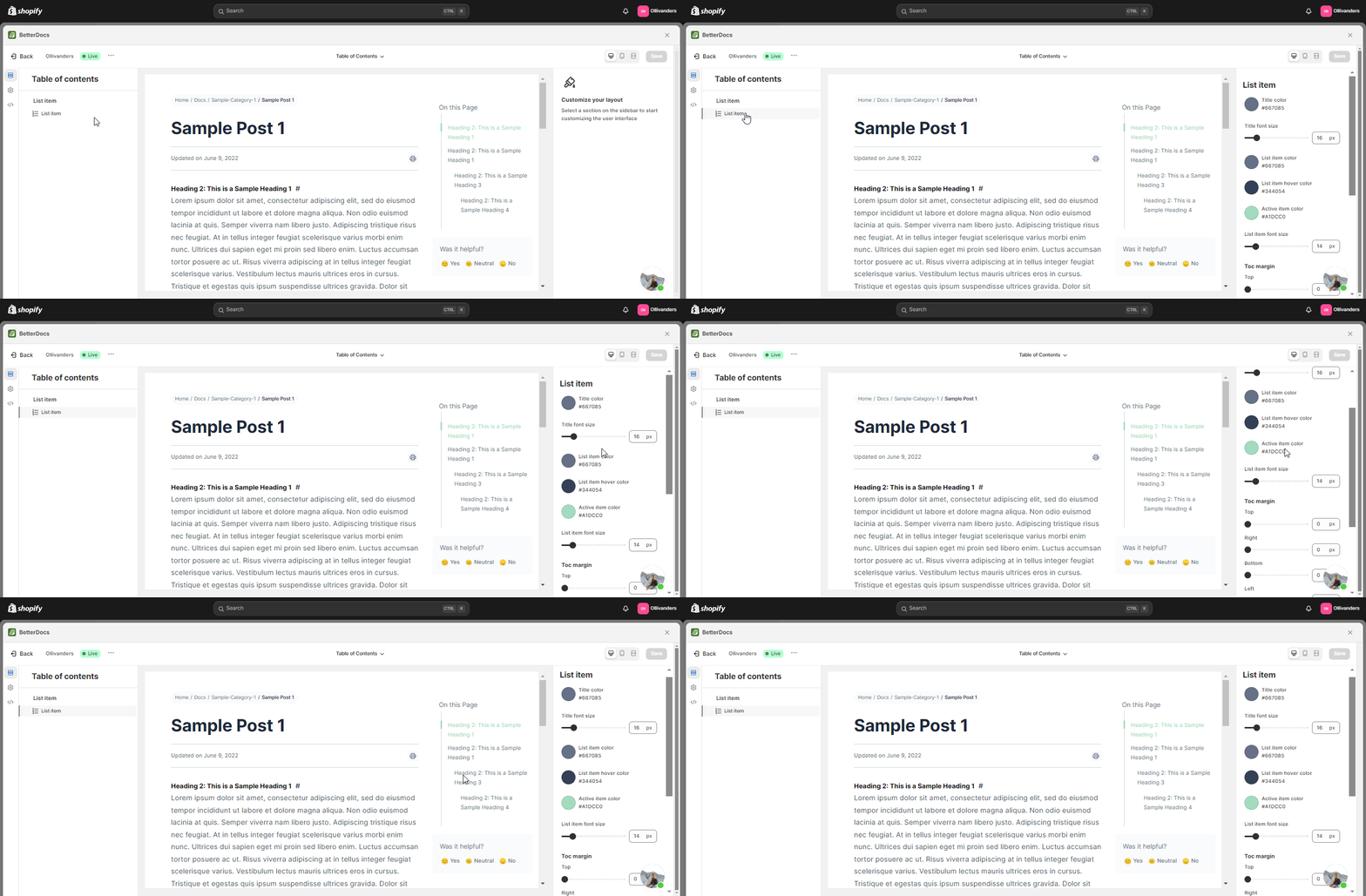
Now go to the right side and customize ‘Title font-size’, ‘List item font-size’, ‘TOC margin’ and more options to design the TOC as your to your preferences. After customizing just hit on the ‘Save’ botón.
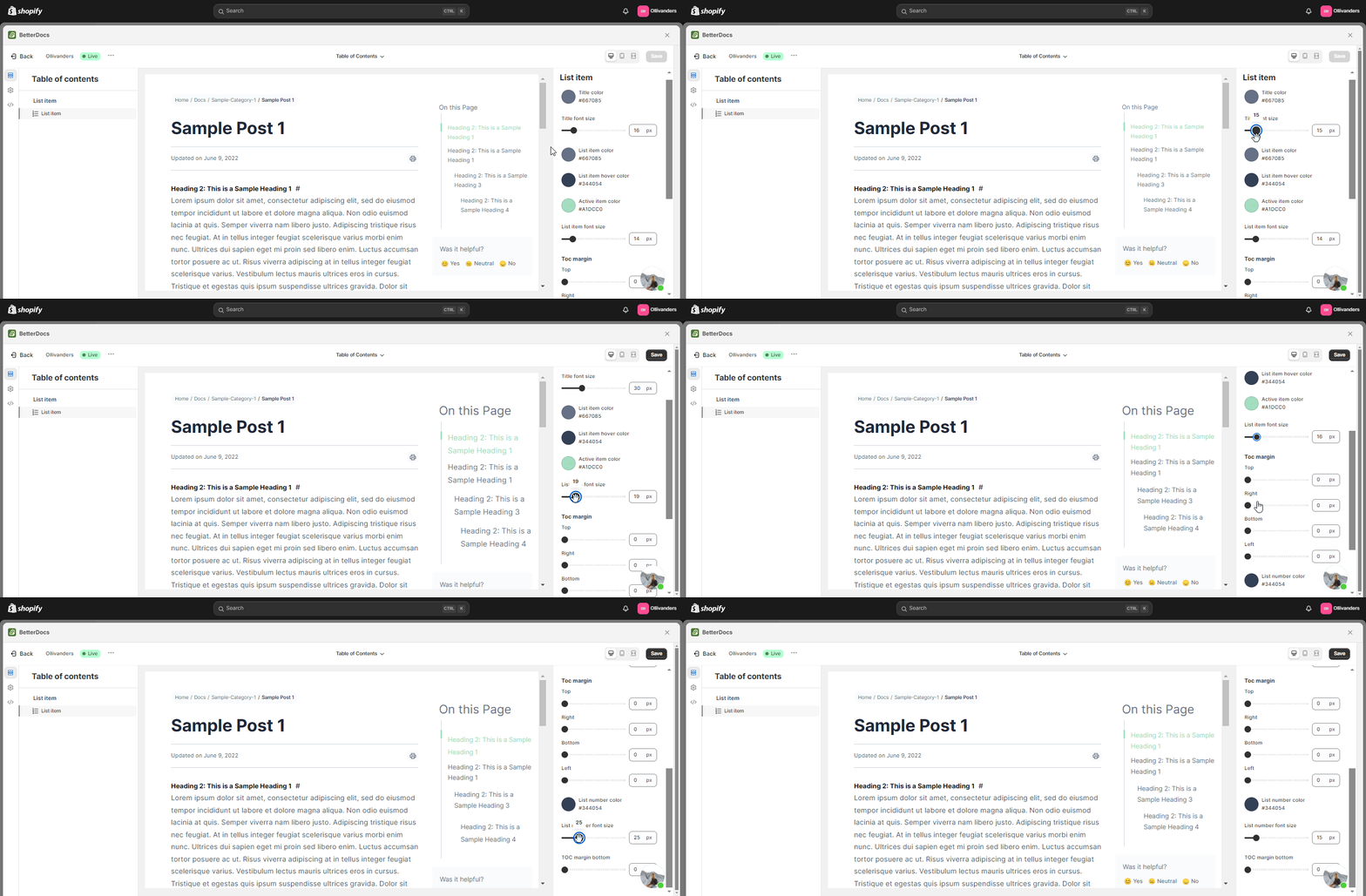
This is how easily you can add, configure, and design a Sticky Table Of Content on your Shopify account using BetterDocs.
Still, facing difficulties? Feel free to contact our dedicated support team.