
BetterDocs Pro te laisse manage multiple knowledge bases on your WordPress site simultaneously. It will help you to maintain separate online documentation for different products with full customization options. Check out this step-by-step guideline to manage your multiple knowledge base documentation with BetterDocs below:
Étape 1: Activer la fonctionnalité de base de connaissances multiple #
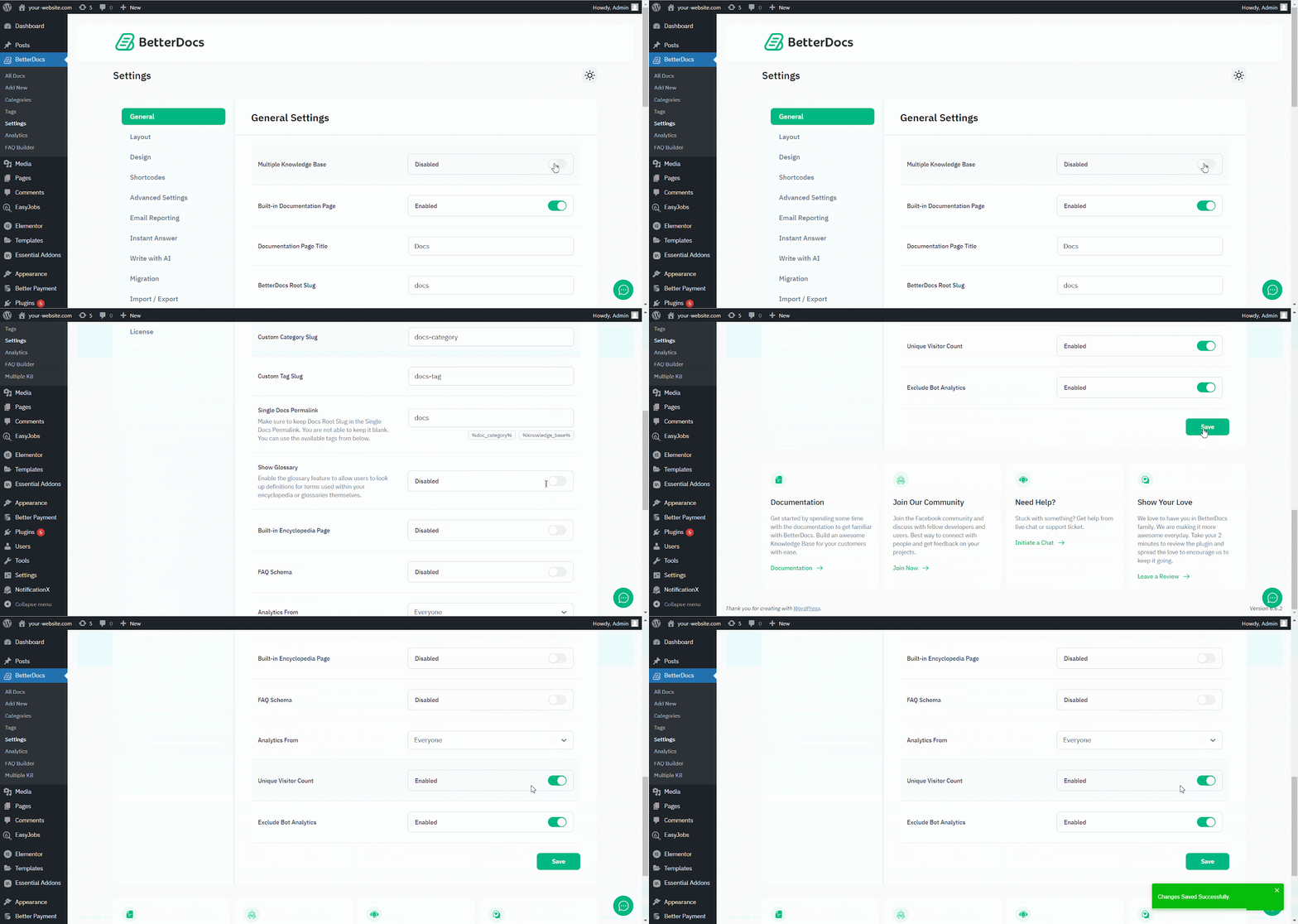
First of all, make sure to use the ‘Enable Multiple Knowledge Base’ option des paramètres généraux BetterDocs. Pour ce faire, accédez à wp-admin > BetterDocs > Settings > General, and turn on the ‘Enable Multiple Knowledge Base’ to proceed further.
Étape 2: créer plusieurs bases de connaissances #
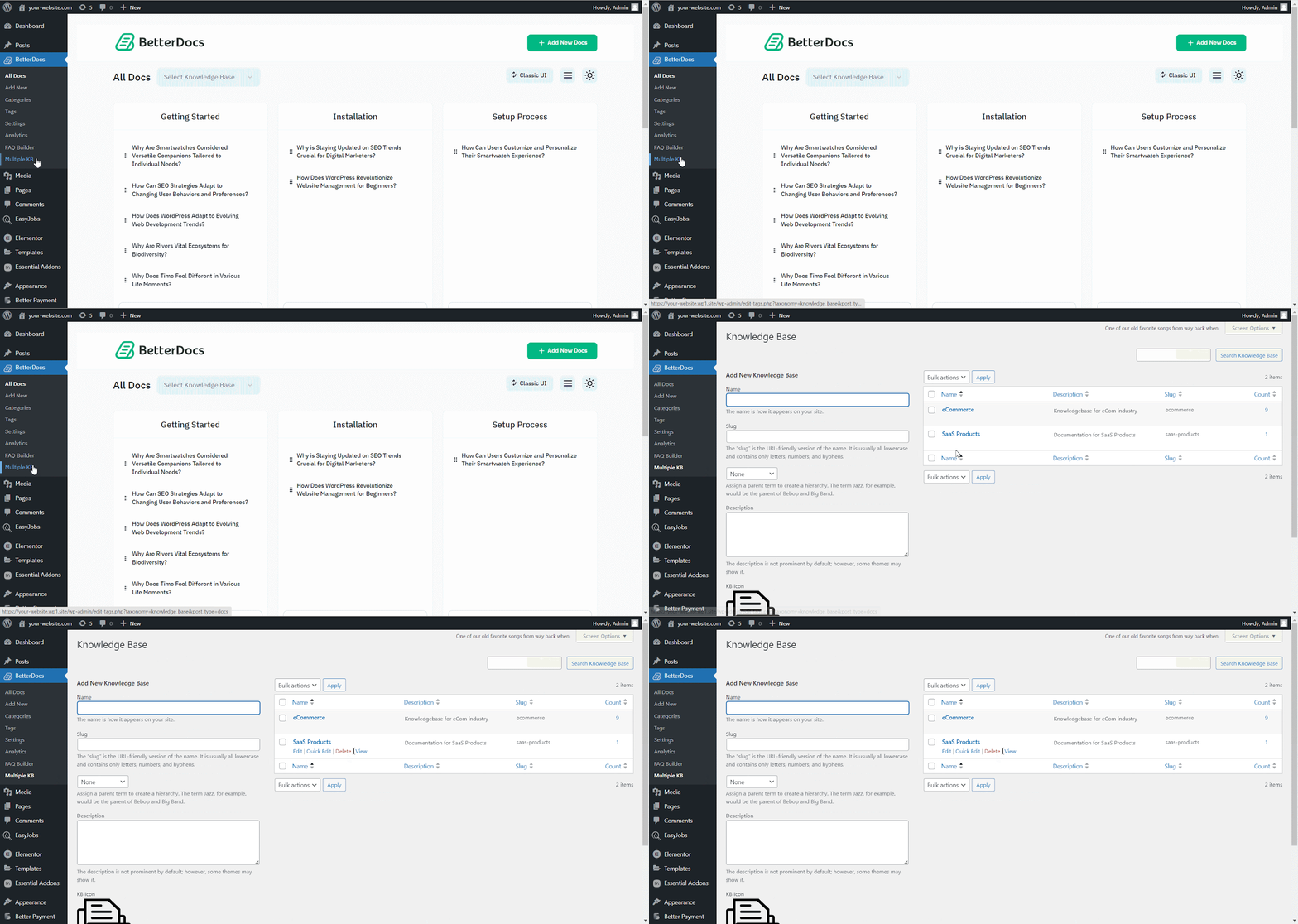
Après avoir activé la fonctionnalité de base de connaissances multiple, accédez aux BetteDocs ‘Multiple KB’ option pour commencer à créer vos bases de connaissances.
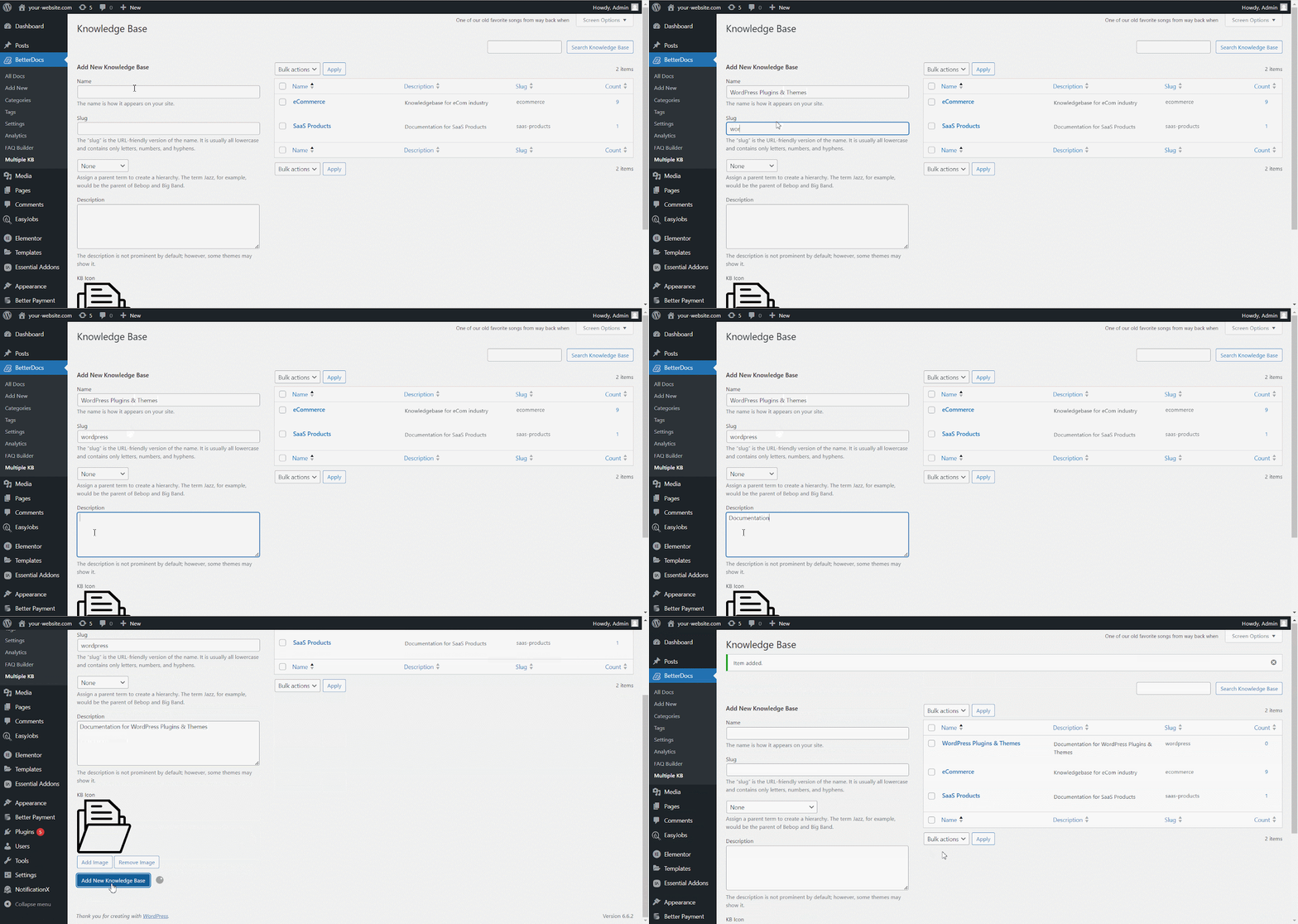
Du ‘Add New Knowledge Base’ section, you can insert ‘Name’ and ‘Slug’ for each documentation. Afterward, hit the ‘Add New Knowledge Base’ button to create your knowledge base.
Étape 3: Ajouter de nouvelles catégories #
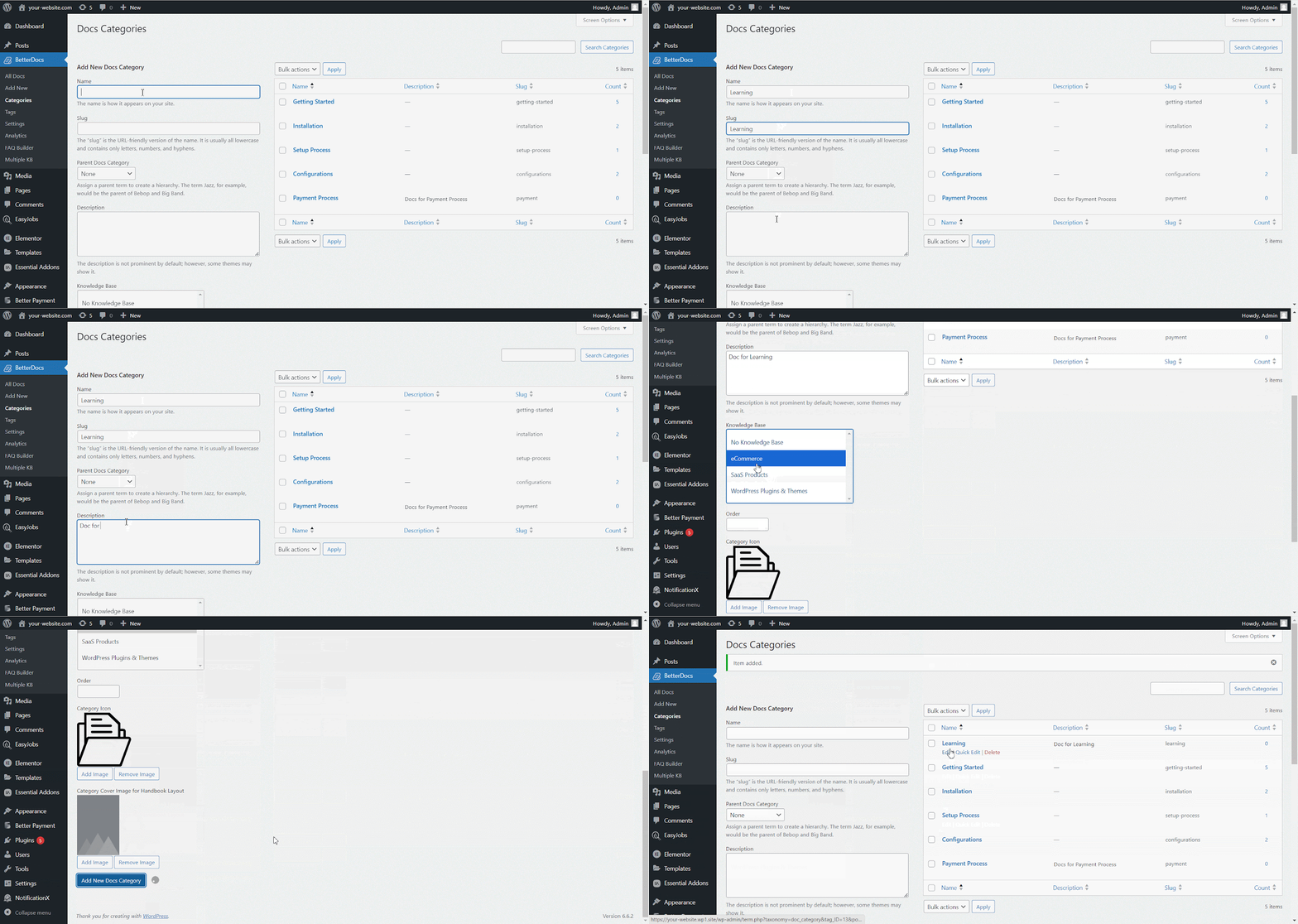
Maintenant, allez au BetterDocs ‘Categories’ to add a suitable category for your Knowledge Base.
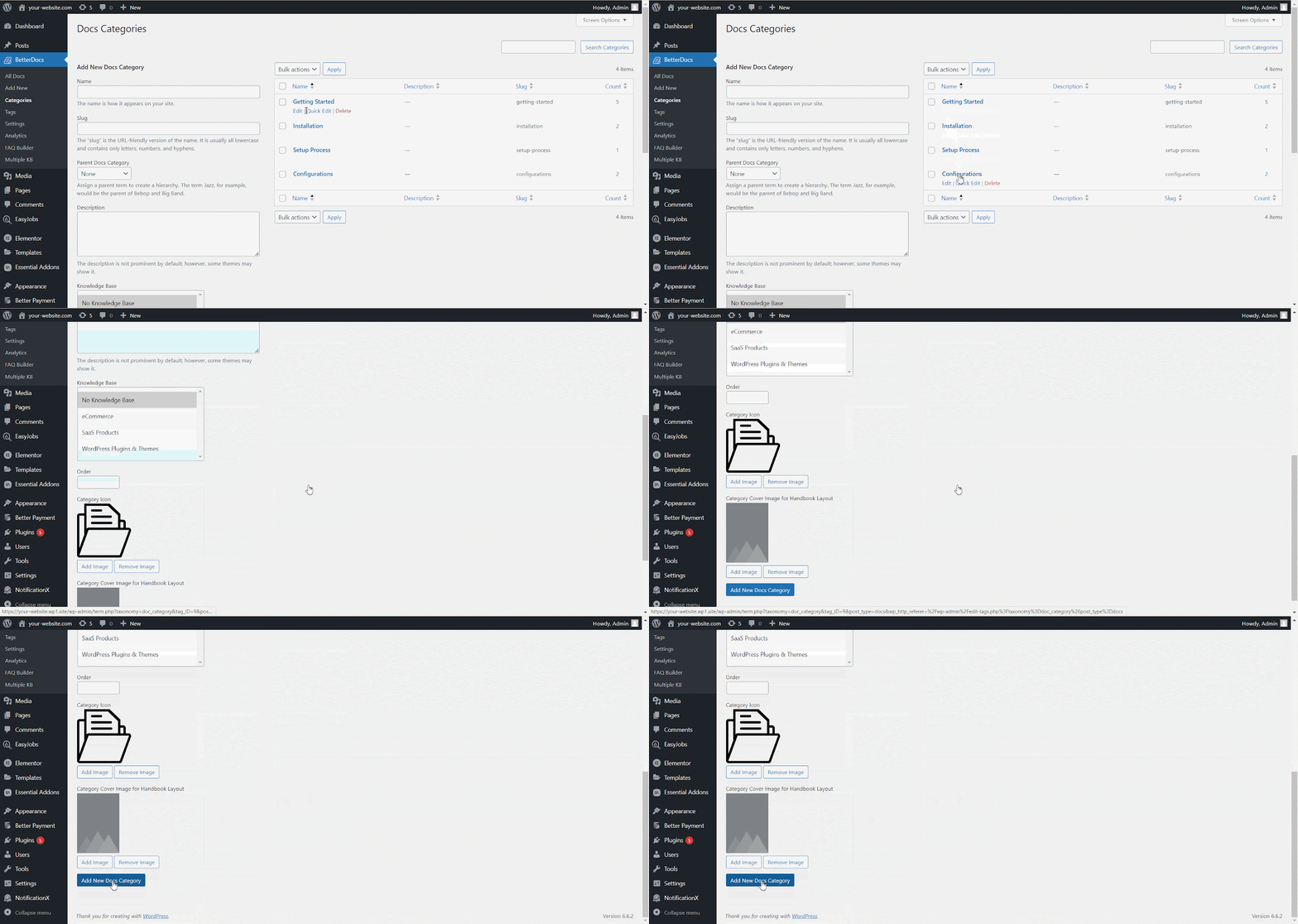
Du ‘Add New Docs Category’ section, you can create your Categories for your knowledge base. You can pick one or multiple knowledge bases for each category from the drop-down menu. Besides, you can insert icons for each category and pick their ‘Parent category’ si tu veux.
Étape 4: Ajouter une nouvelle documentation #
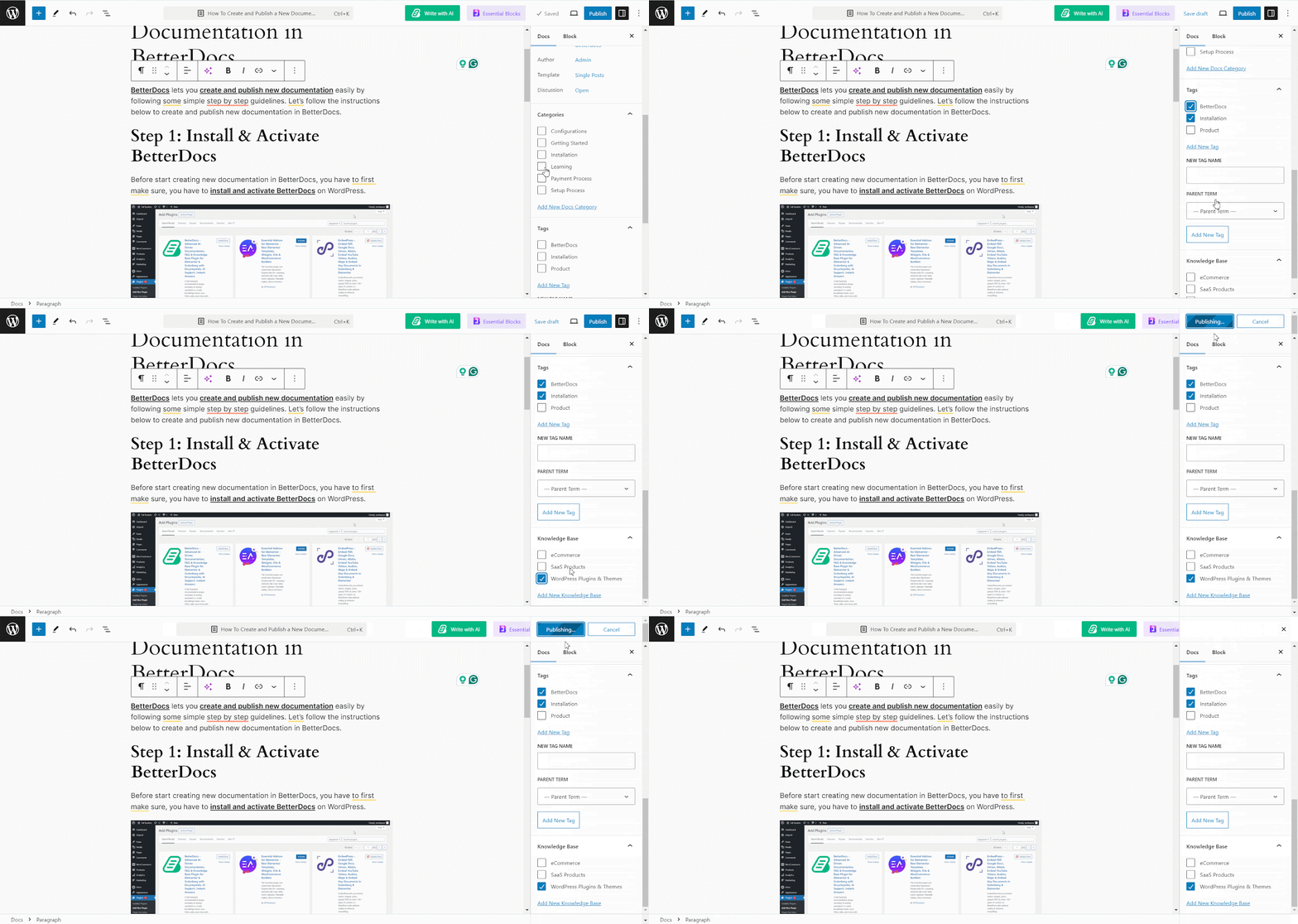
Now, let’s create new documentation from the ‘Add New’ section of BetterDocs. You can go ahead and add the preferred title and description and pick categories. To display this doc under the ‘Base de connaissances’ you have created, you will have to choose the ‘Base de connaissances’ option. You can pick multiple knowledge bases if you want. Afterwards, simply ‘Publish’ the doc.
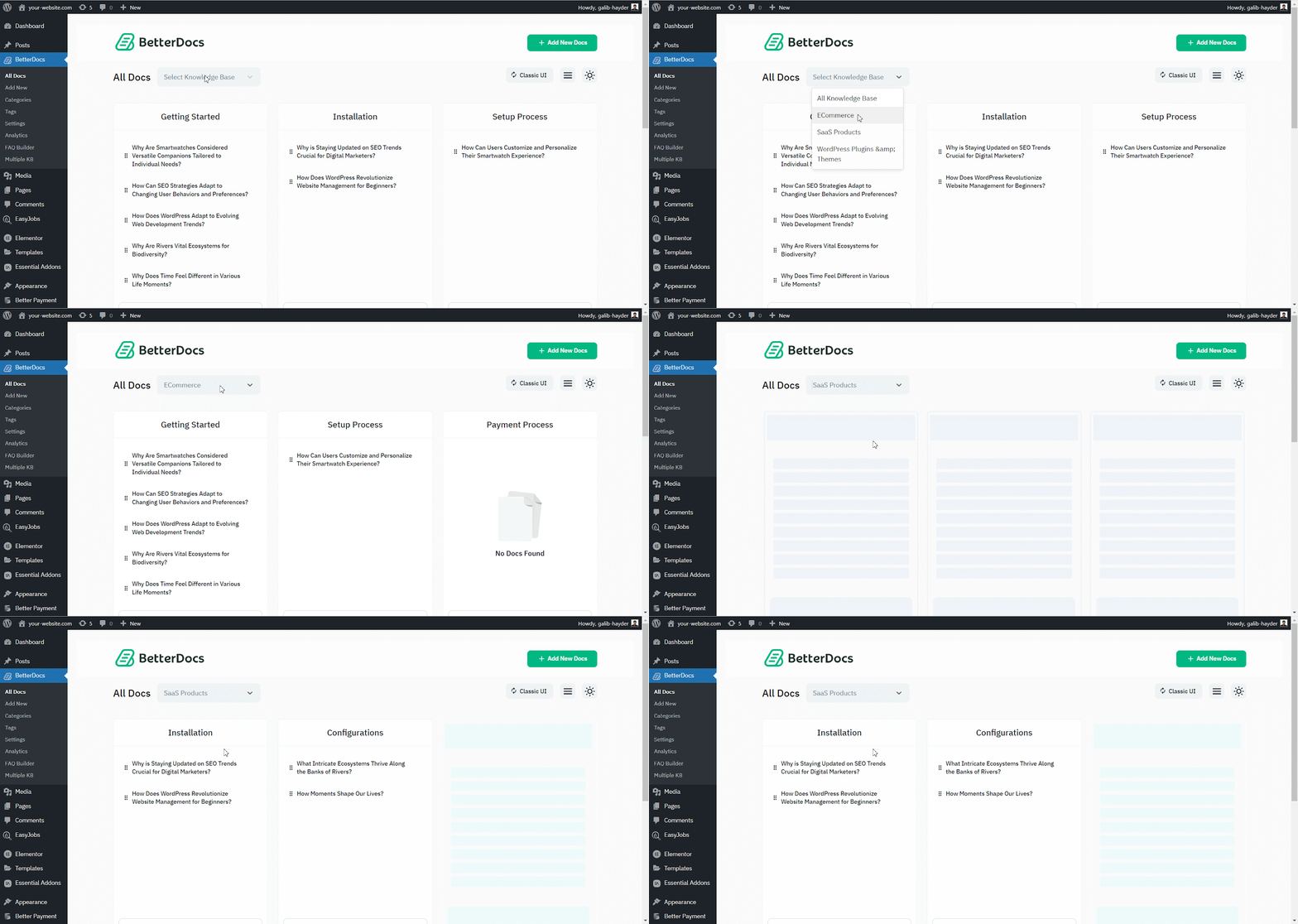
Du ‘All Docs’ section, you can use the drop-down menu to see your docs on their respective knowledge bases.
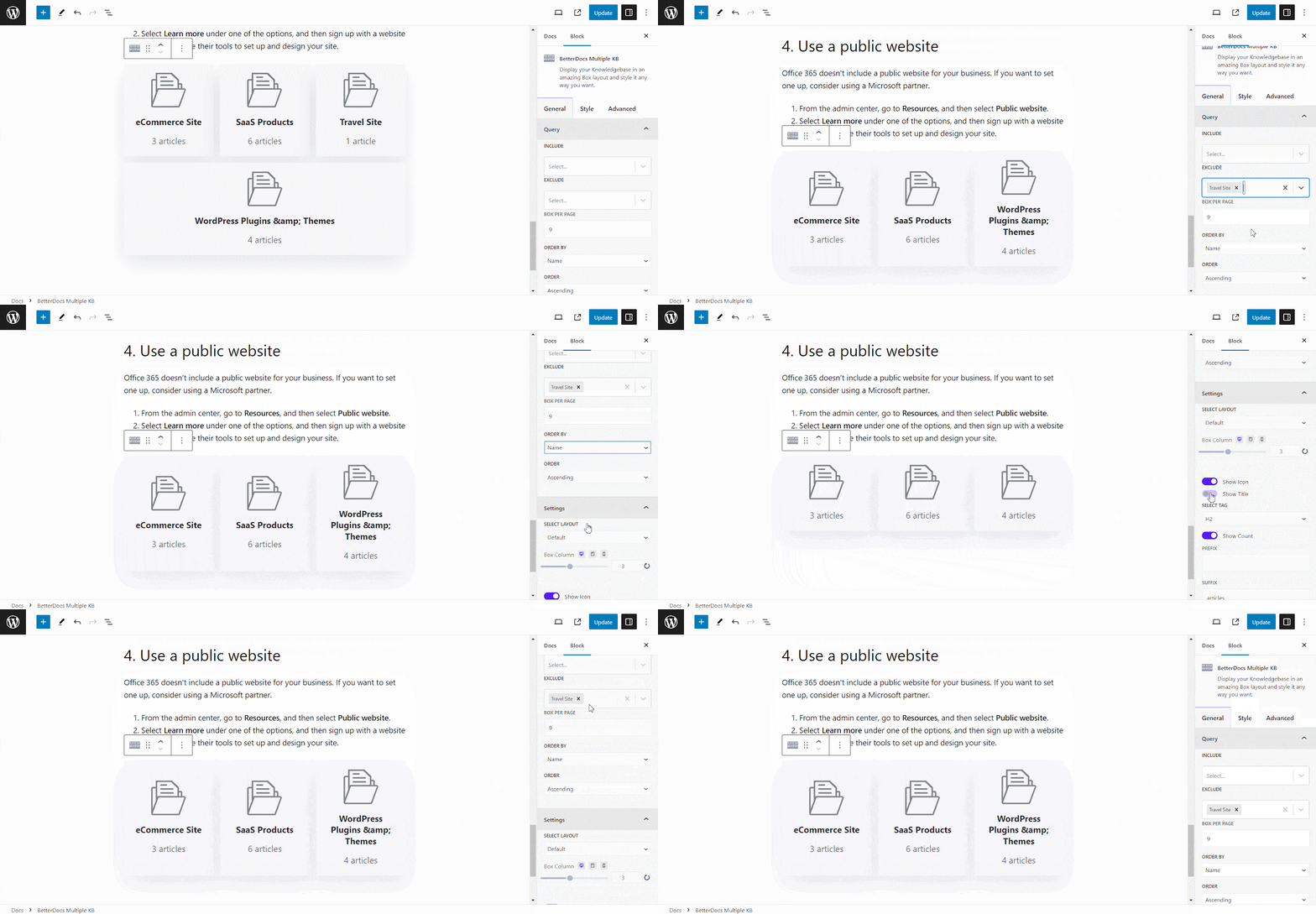
BetterDocs lets you add multiple knowledge base sections inside your existing documentation with a simple block in the Gutenberg editor. It will help your readers get access to other similar documents without having to look elsewhere. To add multiple knowledge bases in a document, simply search for ‘BetterDocs Multiple KB,’ and add the block.
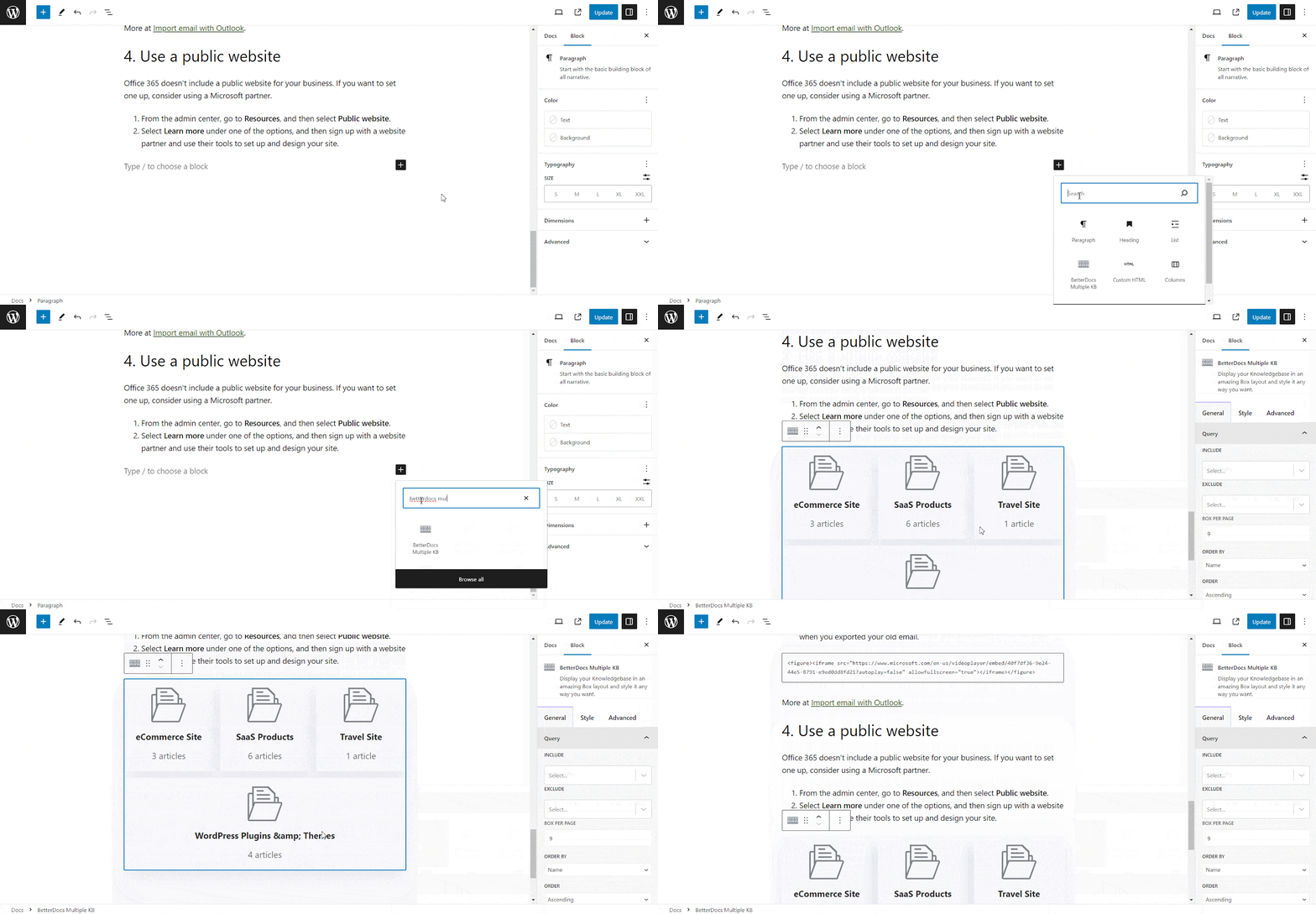
Here, you can customize the Multiple KB section with content and design needs. There are options to include or exclude a specific knowledge base. Additionally, you can set the display order, enable or disable icons, choose to show or hide the counts, and more. On the ‘Style’ tab, you will find options to change the height, width, background colour, image, etc., for the box, icon, title, and count.
Étape 5: Personnalisez l'apparence #
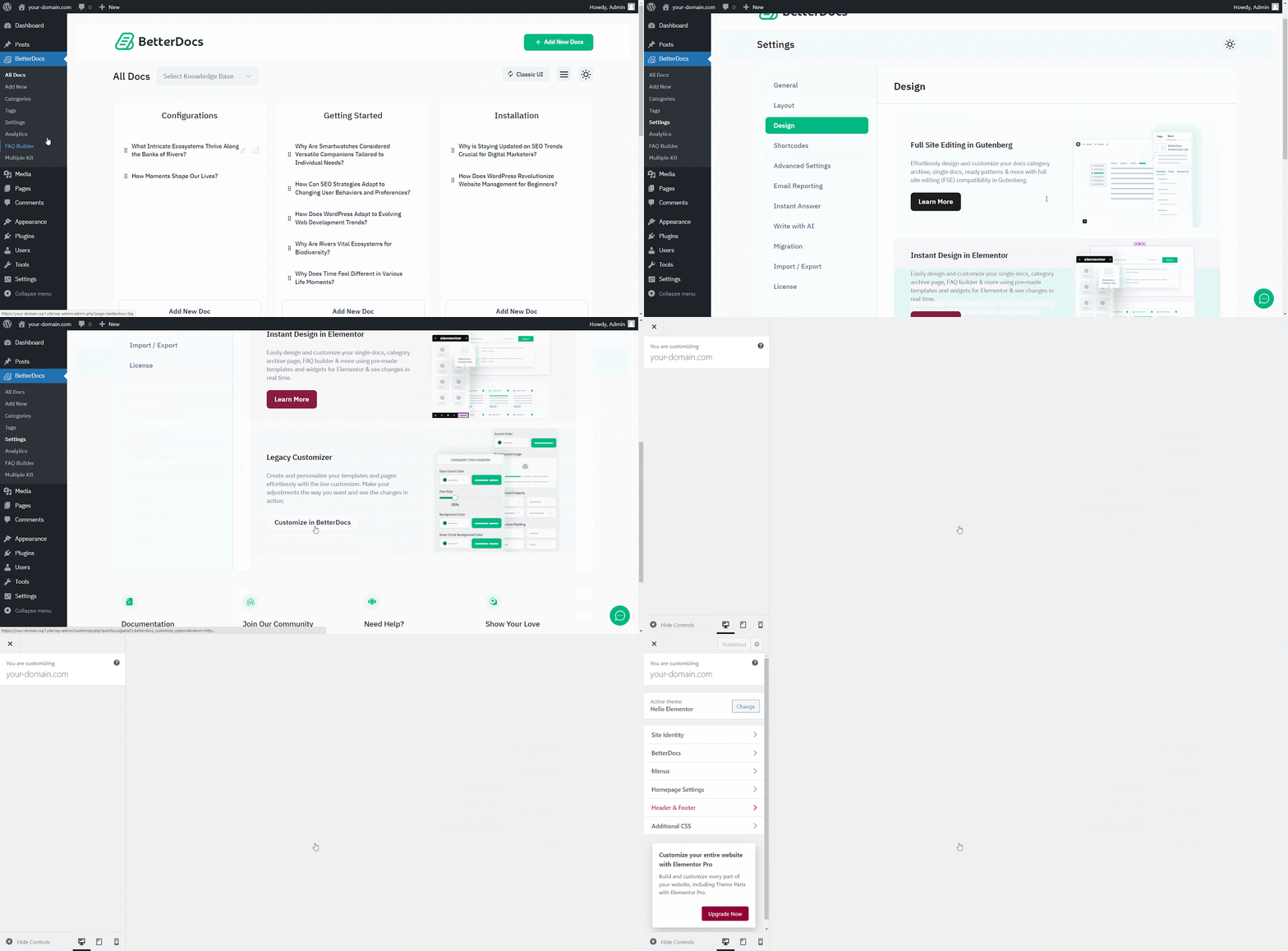
De plus, vous pouvez modifier les perspectives de la documentation en ligne en utilisant deux mises en page exclusives de BetterDocs pour le ‘Multiple KB’ fonctionnalités. Pour ce faire, vous devez vous rendre au BetterDocs > Settings > Design, and click on the ‘Customize in BetterDocs’ section.
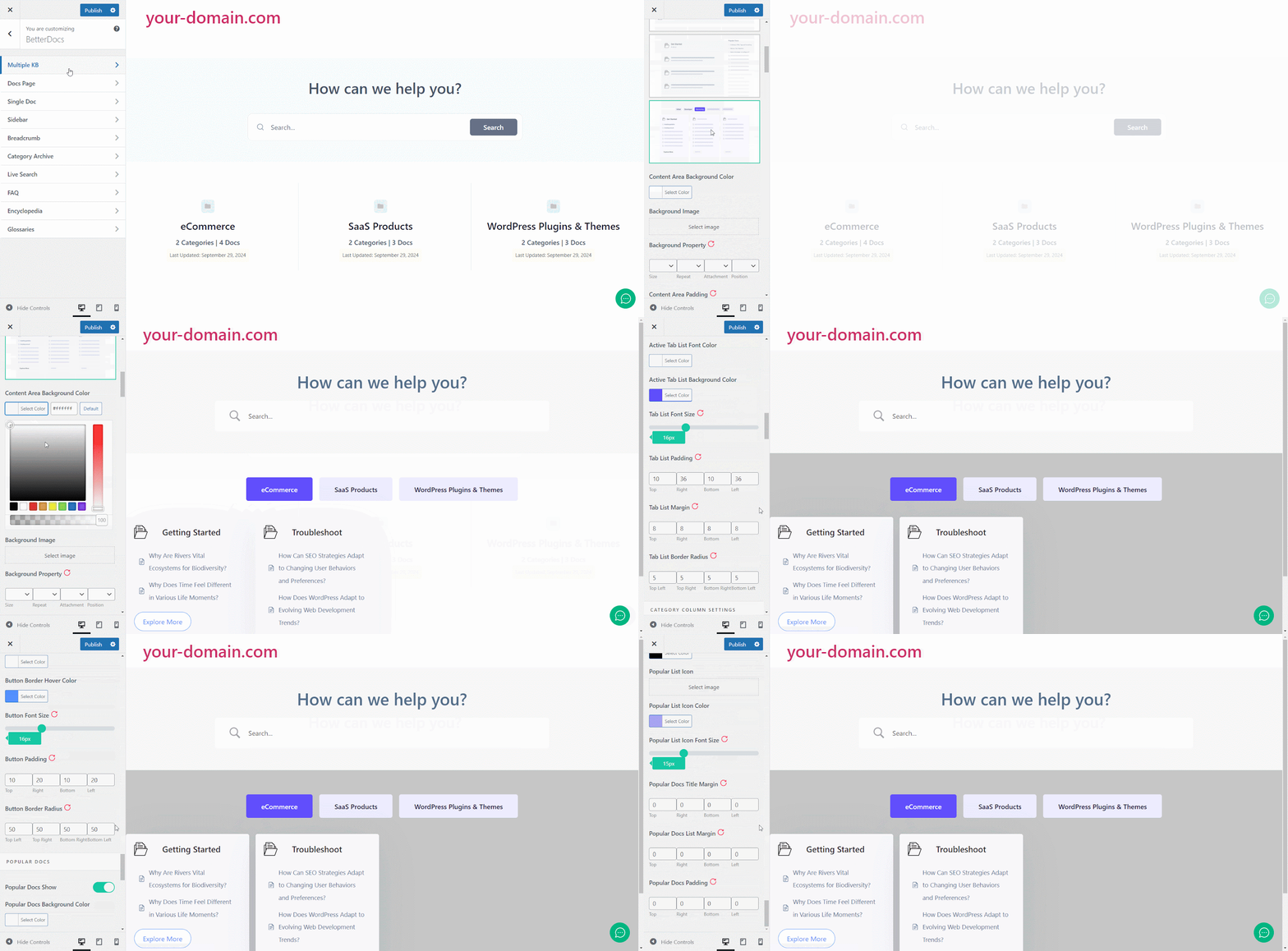
You will get a separate section named ‘Multiple KB’ to Personnaliser votre base de connaissances. Vous pouvez choisir parmi l'une des deux mises en page. De plus, vous obtiendrez d'autres caractéristiques de style exclusives to modify the background colour, add a background image, configure the title colour, font size, content spacing, and more to make the BetterDocs documentation site interactive for your website visitors.
Résultat final #
En suivant simplement toutes les étapes ci-dessus, vous pourrez ajouter et gérer multiple knowledge bases facilement avec BetterDocs sur votre site Web WordPress.
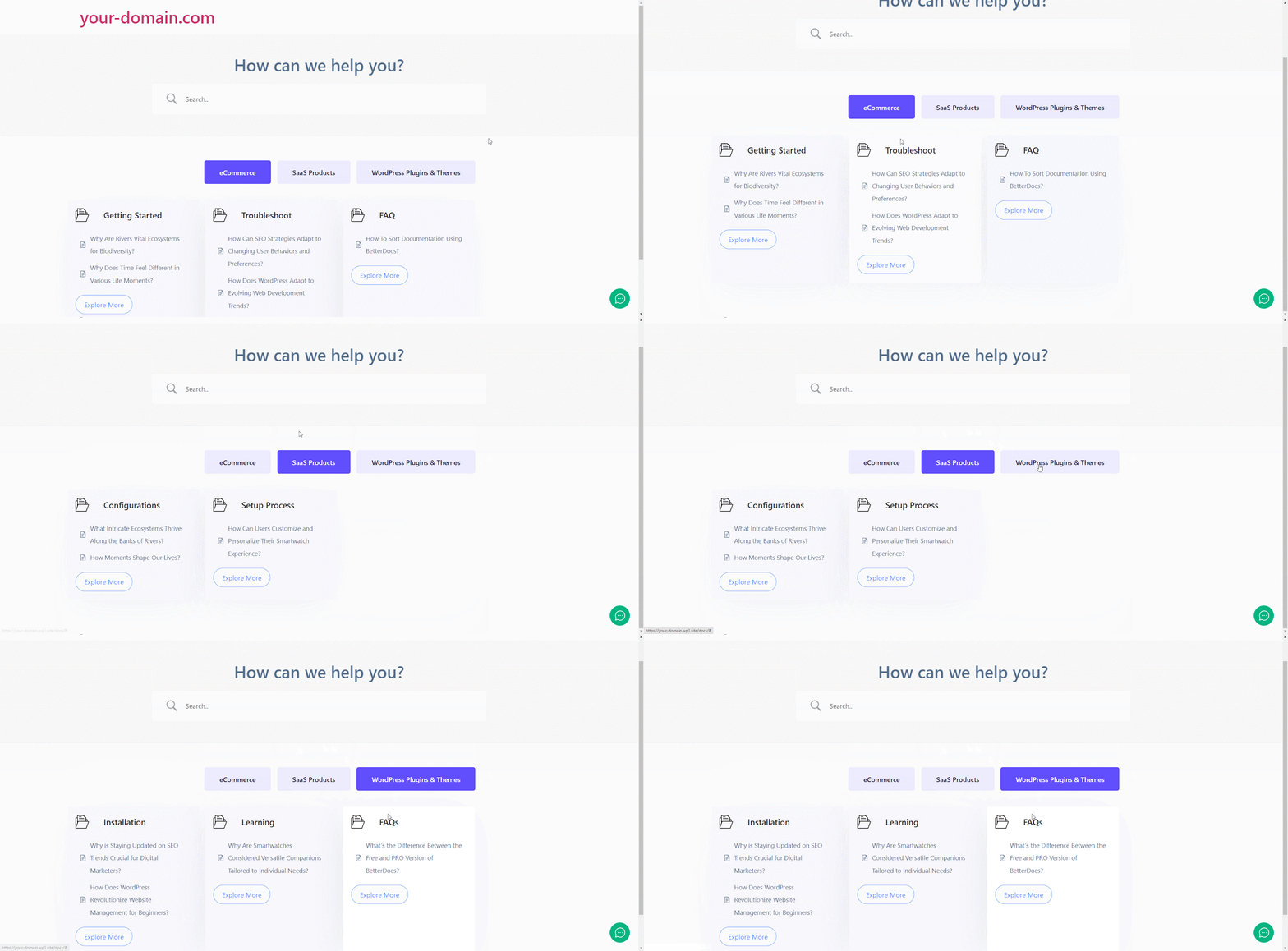
Avec l'aide de BetterDocs, this is how you can manage multiple knowledge bases on your WordPress website and reduce pressure on your support system.Getting stuck? Feel free to contact our équipe d'assistance dédiée.