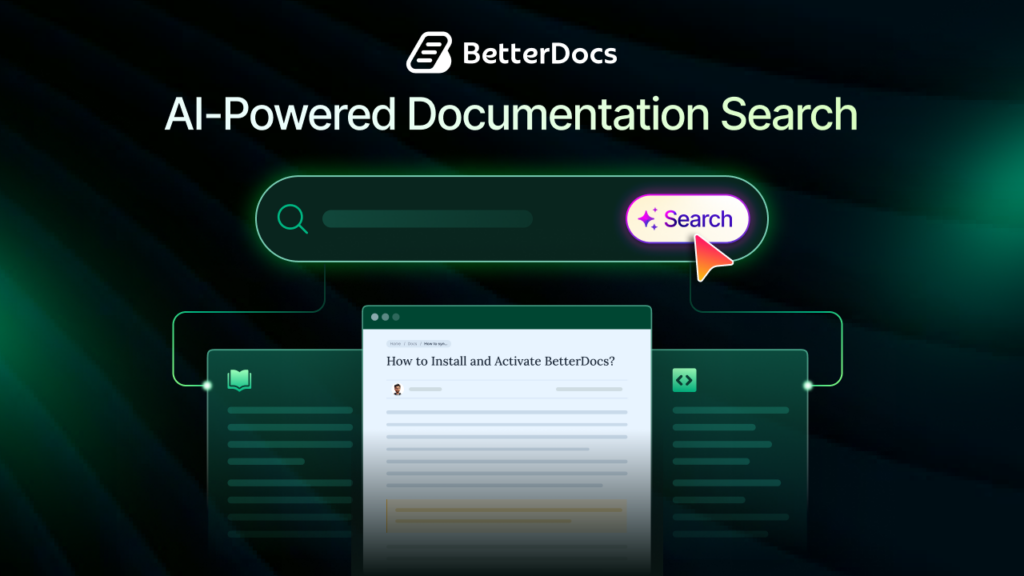
Modern users expect instant solutions. Even the most beautifully organized knowledge base can not always guarantee that visitors will find what they are looking for on the first try. This is where AI-powered chat support steps in. Imagine your visitors landing on your website with a quick question. Instead of scrolling through long documentation pages, they get the answer instantly simply by asking an AI-powered chatbot. This is exactly what BetterDocs AI Chatbot brings to your documentation experience.
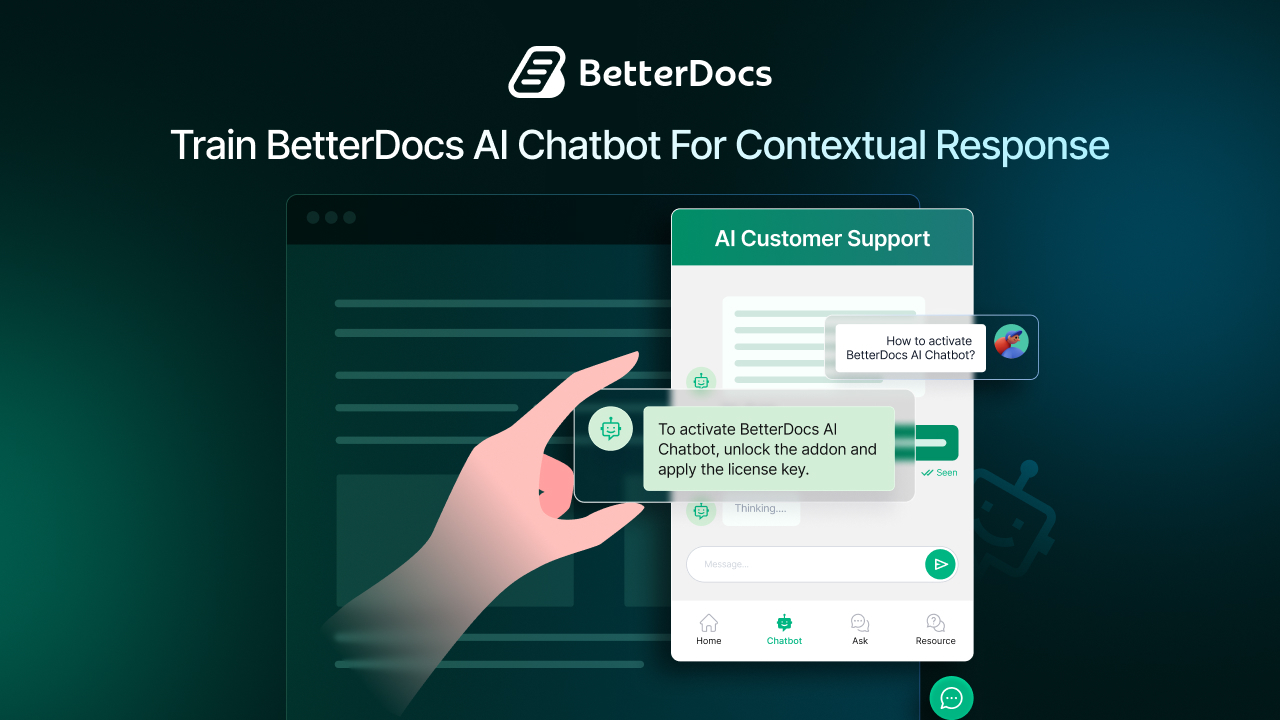
BetterDocs AI Chatbot transforms your knowledge base documentation into a dynamic, interactive help system. Instead of clicking through categories or using search bars, users can chat their way to answers based on a real-time understanding of your docs. This blog will show you how you can train an AI Chatbot in BetterDocs for improved responses.
Benefits of Training Your AI Chatbot for Contextual Responses
A well-trained chatbot does not just reply; it knows what the user means, even when the question is vague. This is where contextual training makes all the difference. When your chatbot understands your brand, your product, and the intent behind user queries, the entire support experience becomes smoother, faster, and far more accurate. So, why should you train an AI Chatbot and what are the core benefits?
Delivers More Accurate & Relevant Answers
Instead of giving generic responses, a trained chatbot uses your site description and documentation context to generate precise answers. This means fewer misunderstandings and more meaningful interactions.
- Understands your industry, product names, and terminology
- Responds based on your documentation instead of broad, unrelated information
- Reduces the need for follow-up questions from visitors
Improves User Satisfaction Instantly
When visitors get the exact answer they need without having to browse multiple pages, they feel more confident in your platform. Contextual responses create a smooth, human-like help experience.
- Faster solution discovery
- Users feel guided rather than lost
- Creates a positive impression of your brand’s support
Reduces Support Team Workload
A well-trained chatbot becomes your first line of support. It can handle most beginner and intermediate-level questions independently, leaving only complex issues for human agents.
- Fewer repetitive questions for your support team
- Lower ticket volume
- More time for your team to focus on critical issues
Strengthens Brand Consistency
When you add your brand details like name, description, tone, etc, the chatbot replies in a way that aligns with your brand identity. This helps build trust and maintain consistent communication across all channels.
- Replies sound more personalized
- Responses reference your brand correctly
- Helps maintain a cohesive support experience
Helps Users Discover the Right Documentation Faster
Context-trained chatbots do not just answer questions; they guide users to the correct documentation pages when necessary. This makes it easier for visitors to explore your docs without feeling overwhelmed.
- Suggests relevant resources
- Highlights specific document sections
- Saves users from manual searching
Enhances Long-Term Chatbot Performance
The more context you provide, the better the AI becomes over time. Training your chatbot today sets it up for smarter and more refined responses in the future. So, for BetterDocs, contextual training turns your BetterDocs AI Chatbot into a powerful, reliable support assistant that understands your content, your users and your brand, making your documentation truly work for you.
BetterDocs AI Chatbot feature lets your website’s visitors get quick and accurate information on your base di conoscenza or documentation. Based on their input by chatting with the AI-powered chatbot gives a response. However, you can train the AI chatbot for better contextual responses when you are configuring it.
While configuring BetterDocs AI Chatbot, you can add a concise site description. It makes the chatbot better informed. When you train an AI chatbot in BetterDocs with the right site description and contextual details does more than just “improve answers.” It changes how users interact with your knowledge base.
Now that you know the importance of training AI Chatbot, let us move on to the next section on how you can train an AI chatbot in BetterDocs for improved response.
How to Train AI Chatbot in BetterDocs for Better Response?
You can set up the BetterDocs AI Chatbot feature in just a few easy steps. This, in turn, makes your AI Chatbot more capable of answering more accurately. Follow the step-by-step guide below to learn how to configure this feature.
Nota: You need to install and activate BetterDocs & BetterDocs PRO on your website before getting started. After that, activate the BetterDocs PRO license key to proceed. Also, make sure you have your knowledge base created using BetterDocs.
Step 1: Download And Activate BetterDocs AI Chatbot Addon
First, you have to purchase and then download the BetterDocs AI Chatbot addon from the WPDeveloper store. The addon will be downloaded as a ZIP file.
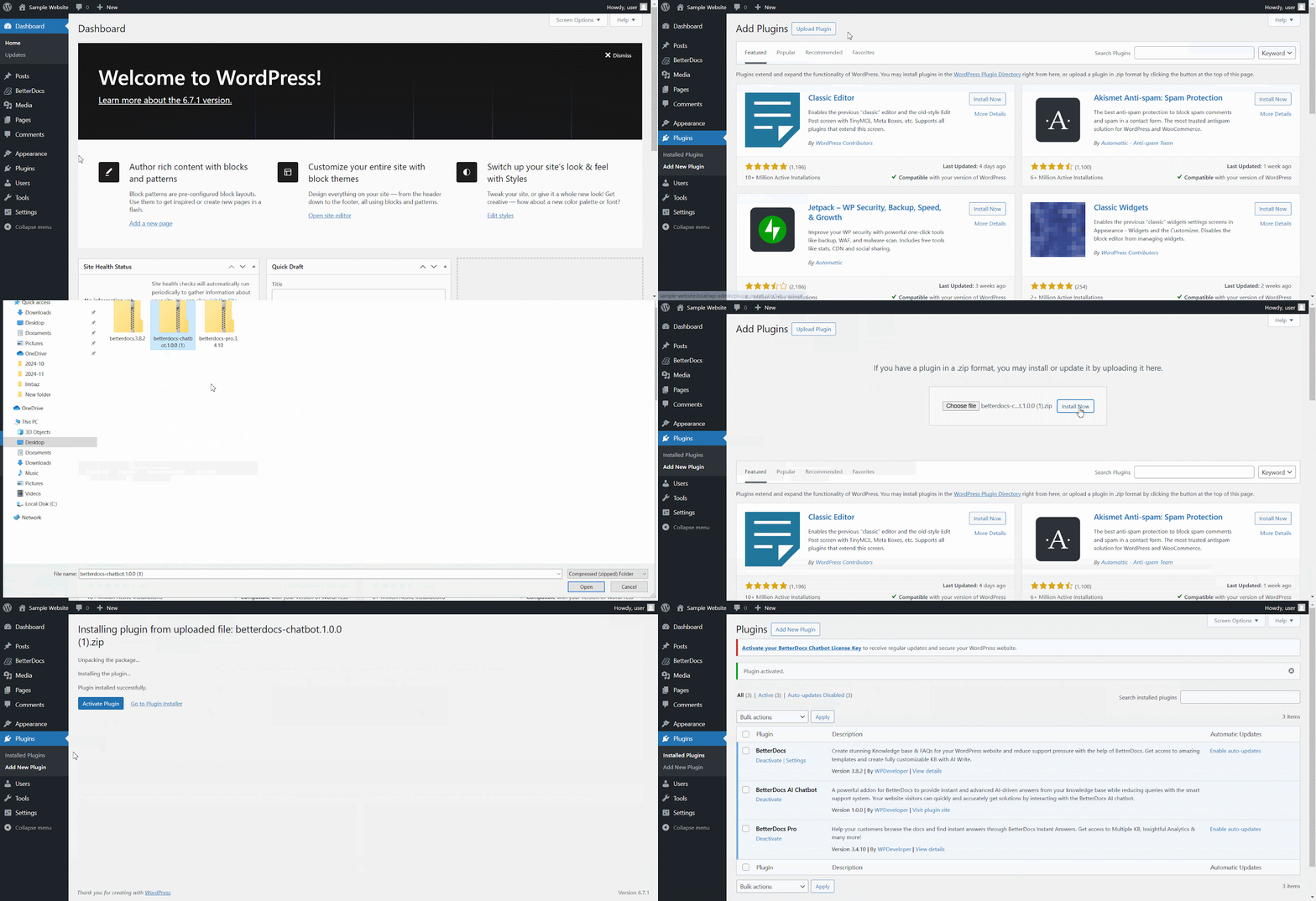
Once activated, go to the ‘plugin’ tab in the left side panel of your wp-admin. Now, click on the ‘Add New Plugin’ button. Next, hit the ‘Upload Plugin’ button and then the ‘Choose file’ to upload the BetterDocs AI Chatbot addon ZIP file. Click on the ‘Install Now’ button to install the addon. Then, hit the ‘Activate Plugin’ to activate the addon on your website.
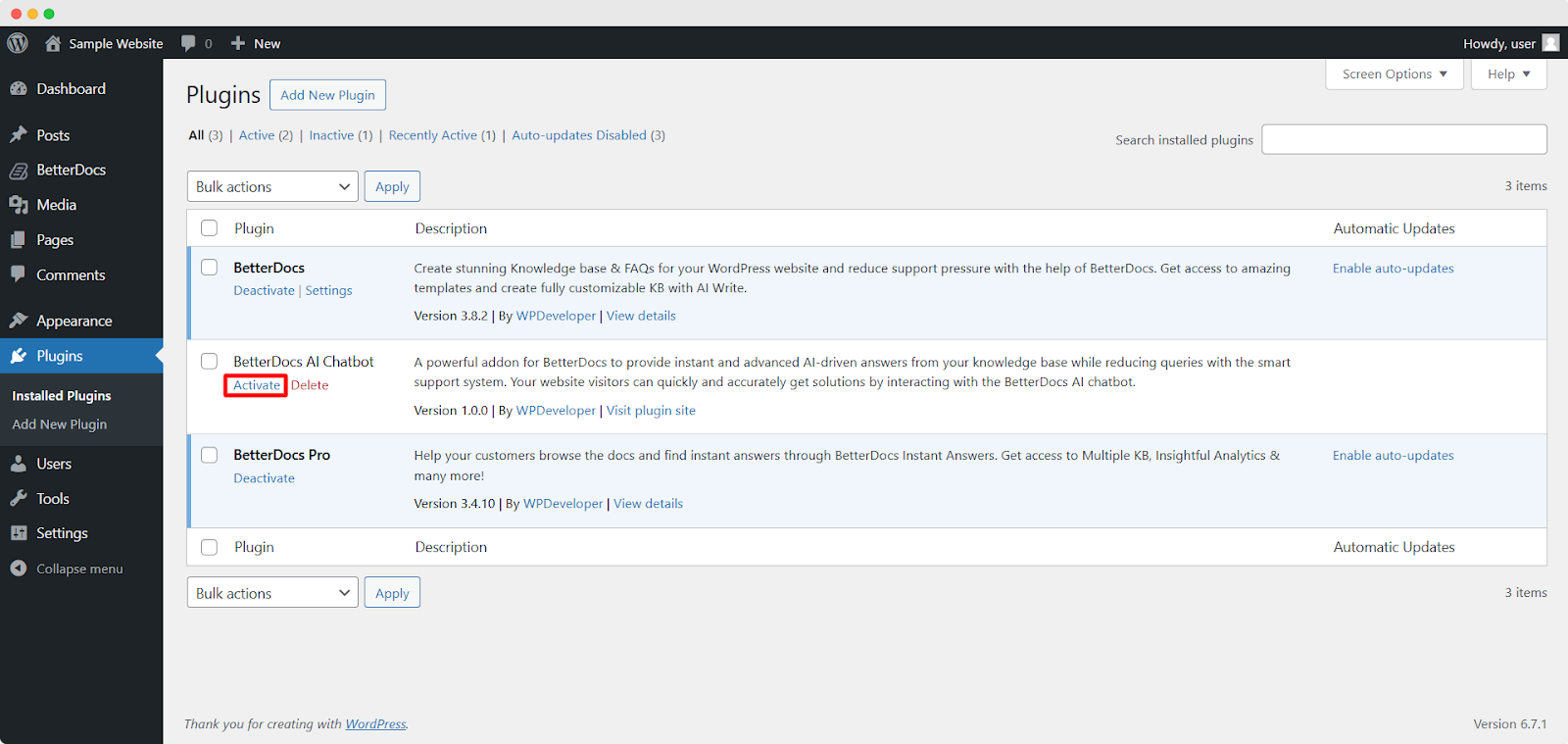
You can also activate the addon from your plugin list. From the ‘Installed Plugins’ option under the ‘plugin’ tab, find the installed addon from the list. Then, hit the ‘Activate’ button to activate the addon.
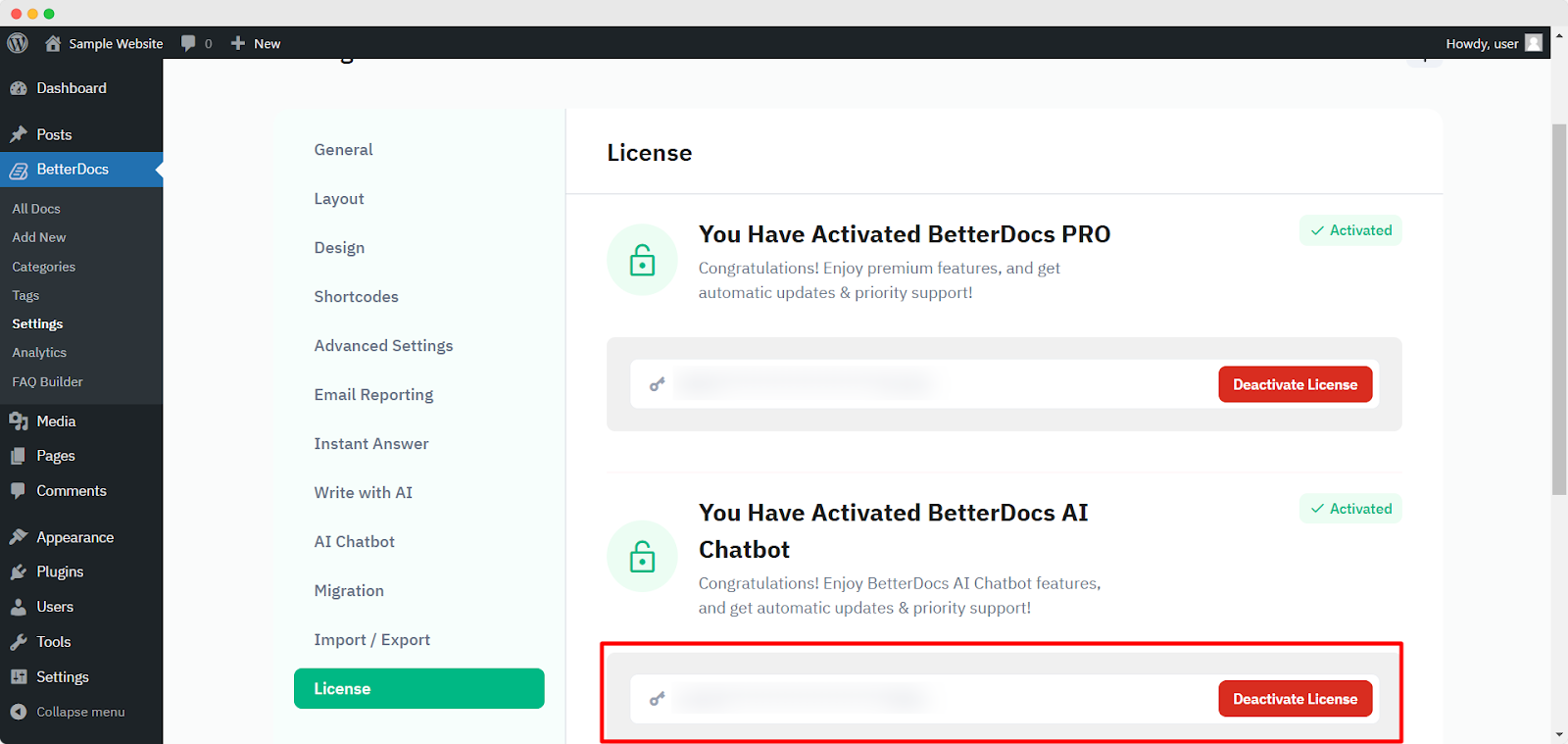
Now, navigate to ‘BetterDocs’ → ‘Settings’ → ‘License’. Paste the BetterDocs AI Chatbot license key in the designated field after copying it from your WPDeveloper store account.
Click on the ‘Attiva la licenza’ button. You will get a license verification code in your email. Enter this verification code in the designated field. After that, click on the ‘Verify’ button to complete the process.
Step 2: Add Your OpenAI API Key in BetterDocs AI Chatbot
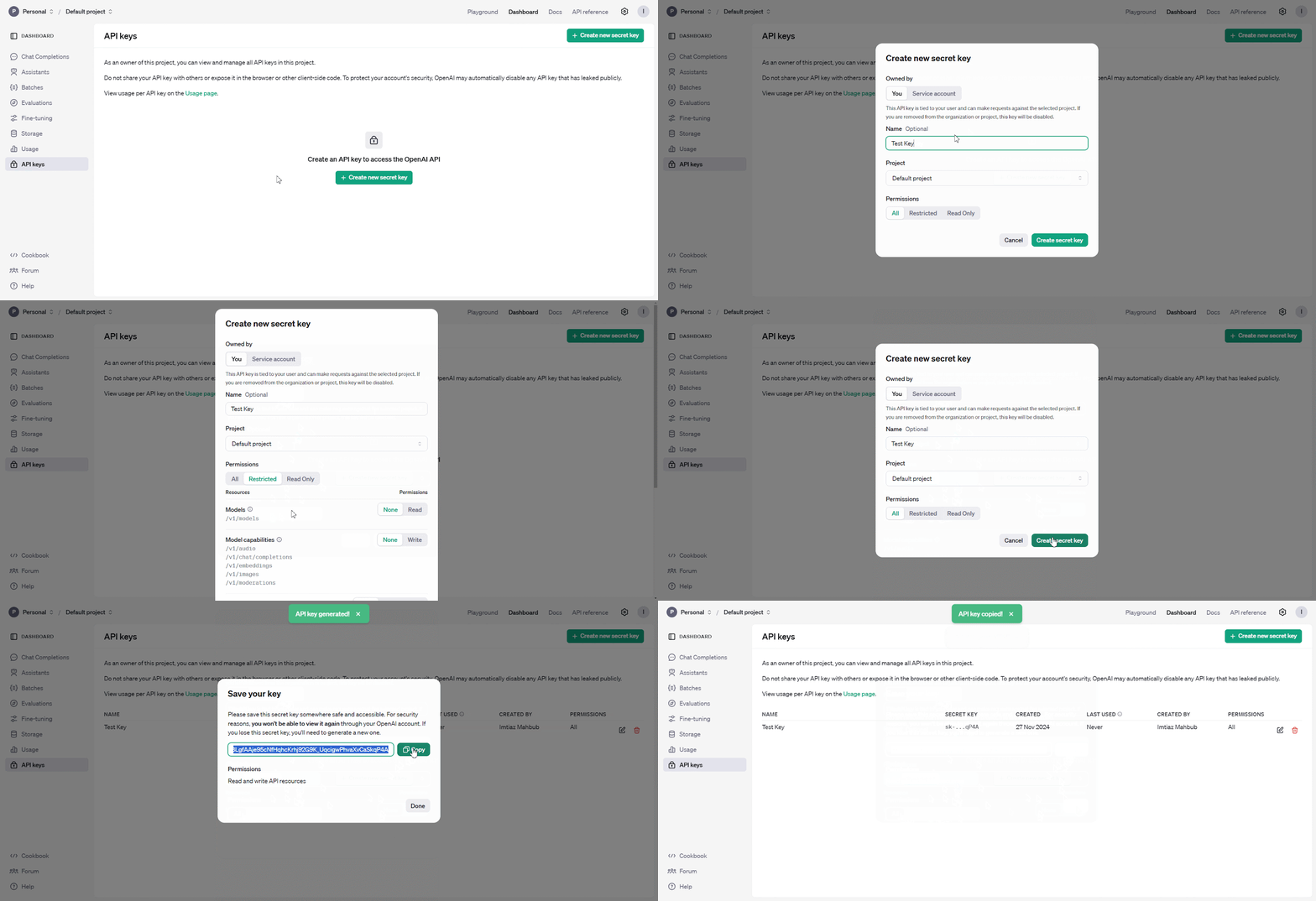
For the BetterDocs AI Chatbot to work, you have to collect and add your OpenAI API key. Go to the OpenAI platform’s API keys page. Now, click on the ‘Create new secret key’ button.
You can add an optional name and other details for the key. Hit the ‘Create secret key’ button and the key will be created. Copy the key and come back to the BetterDocs plugin.
Nota: You must have an OpenAI paid plan to use the BetterDocs AI Chatbot feature.
Navigate to ‘BetterDocs’ → ‘Settings’ → ‘AI Chatbot’. Toggle to enable the AI Chatbot feature. Paste your copied OpenAI API key in the designated field.
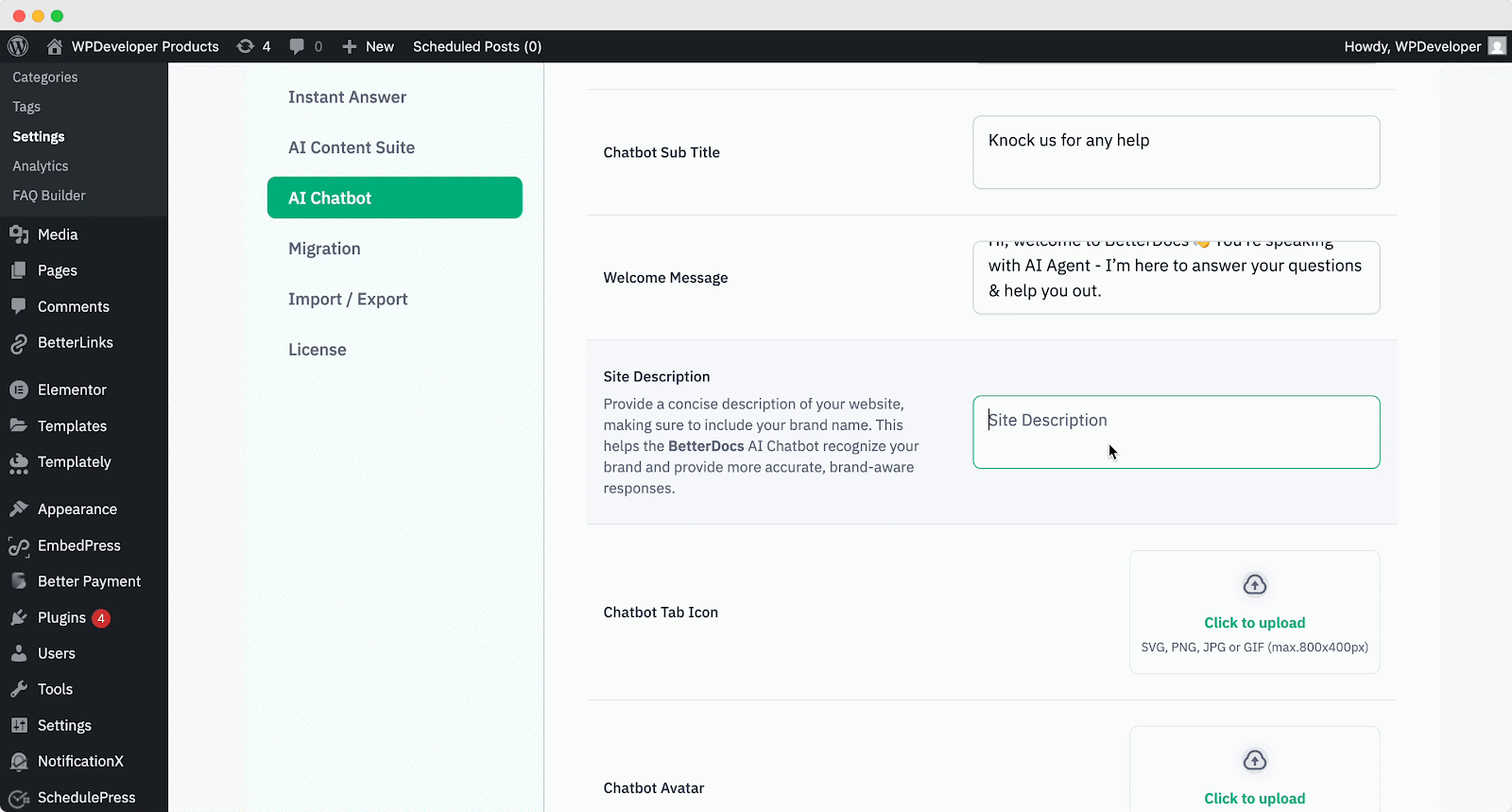
You will find fields to add ‘Chatbot Title’ e ‘Chatbot Subtitle’. From there, add a suitable title and subtitle as required. You can also choose a welcome message and site description for your website.
Step 3: Provide a Concise Yet Informative Site Description
Adding a proper site description trains the chatbot to give more contextual responses. So, provide a concise but informative description of your website, making sure to include your brand name. This helps the chatbot to recognize the brand and provide accurate information.
Step 4: Choose Your Preferred Embed Model
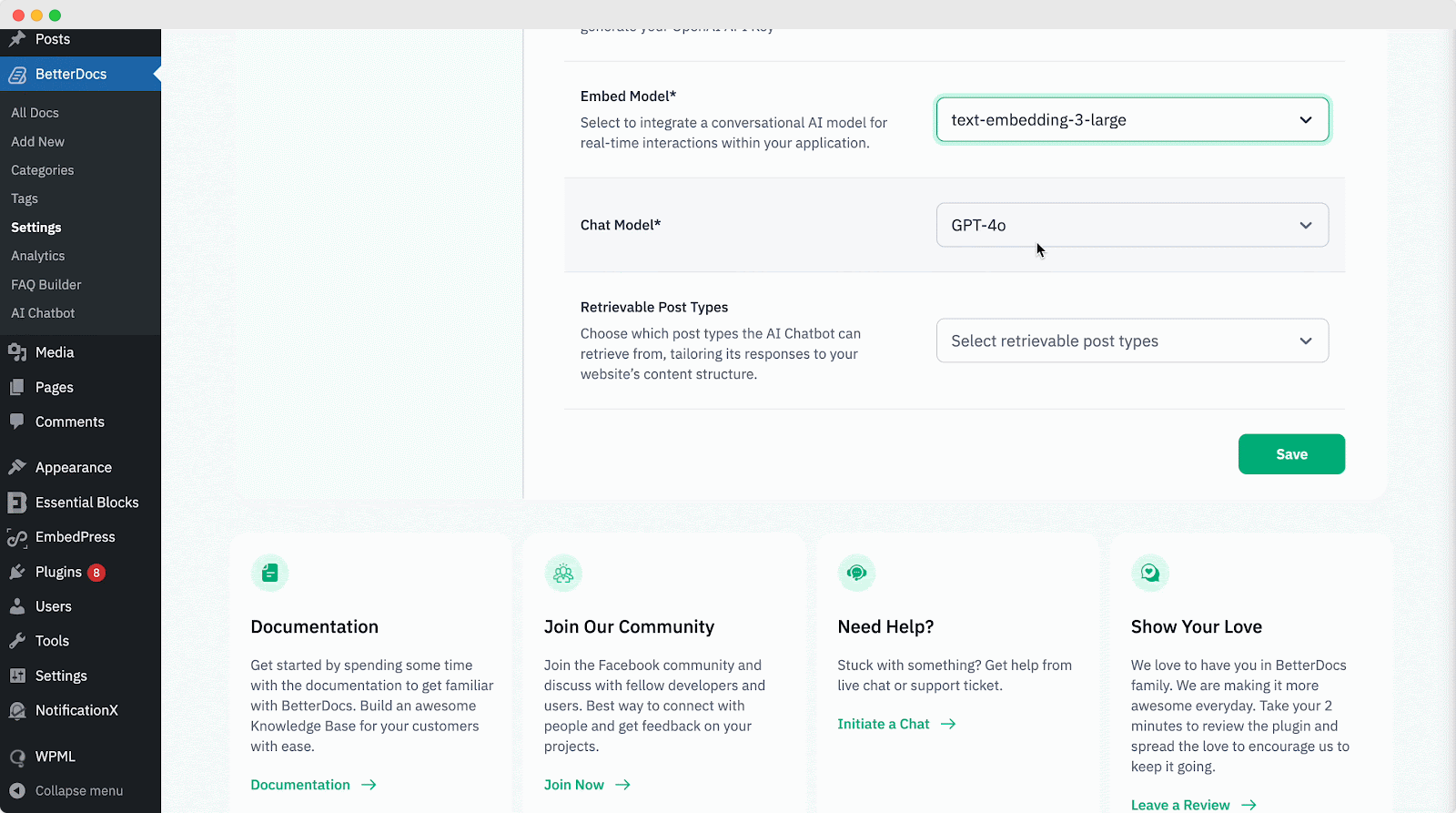
Next, choose your desired Embed Model and Chat Model from the options in the respective dropdowns. There are three embedded models to choose from.
- text-embedding-3-large: The most accurate model for understanding and responding to complex questions.
- text-embedding-3-small: A fast and efficient model for handling document-based queries with improved accuracy.
- ada v2: A reliable and cost-effective model for general document understanding tasks.
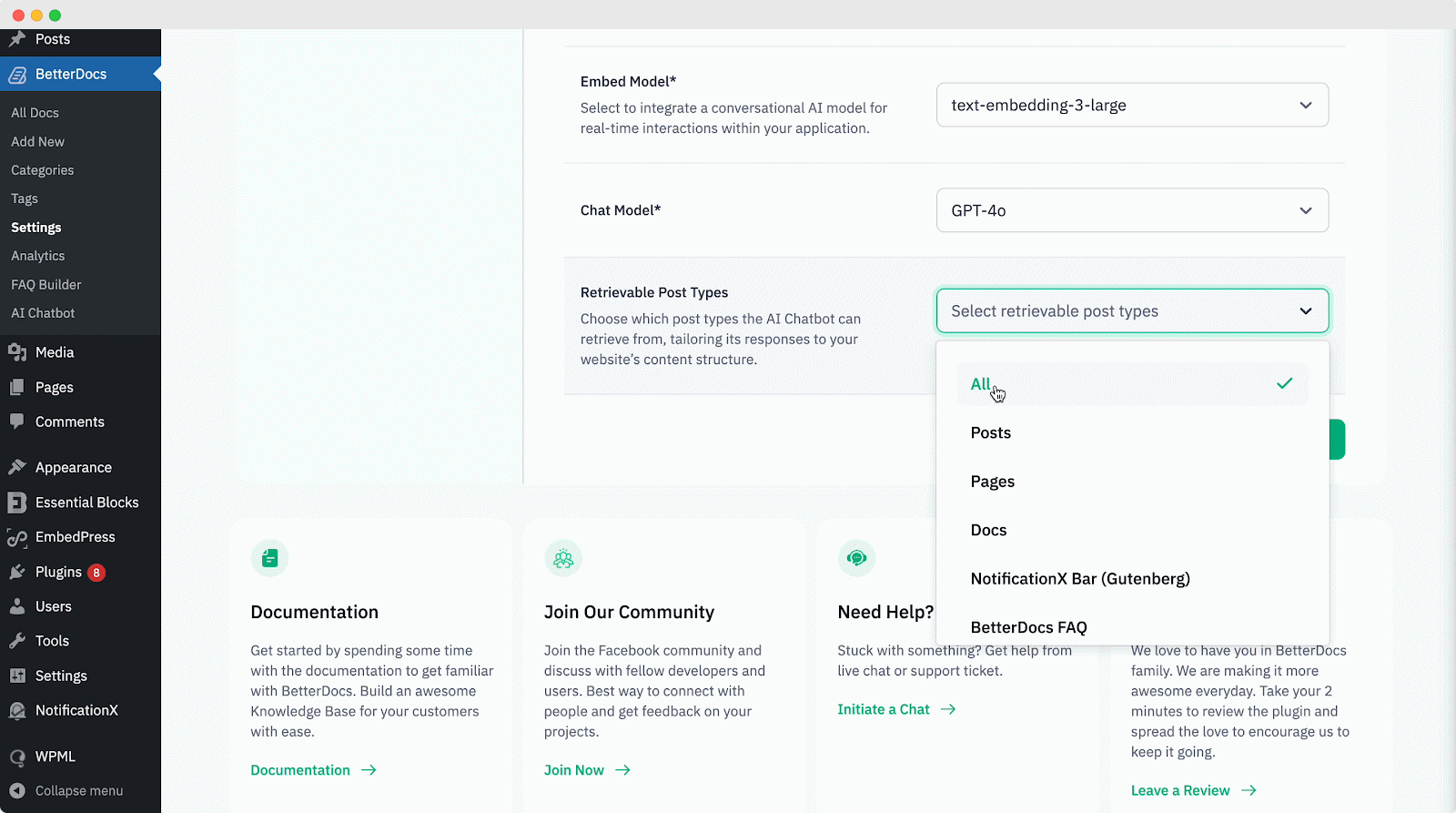
You will find another field named ‘Retrievable Post Types’. From there, you can choose which post types the AI Chatbot can retrieve from. This allows the chatbot to customize its responses to your website’s content structure. Click on the ‘Save’ button once done.
BetterDocs will now start processing the data from your documentation in the background for the AI Chatbot. Once the data processing is complete, you will see a success message.
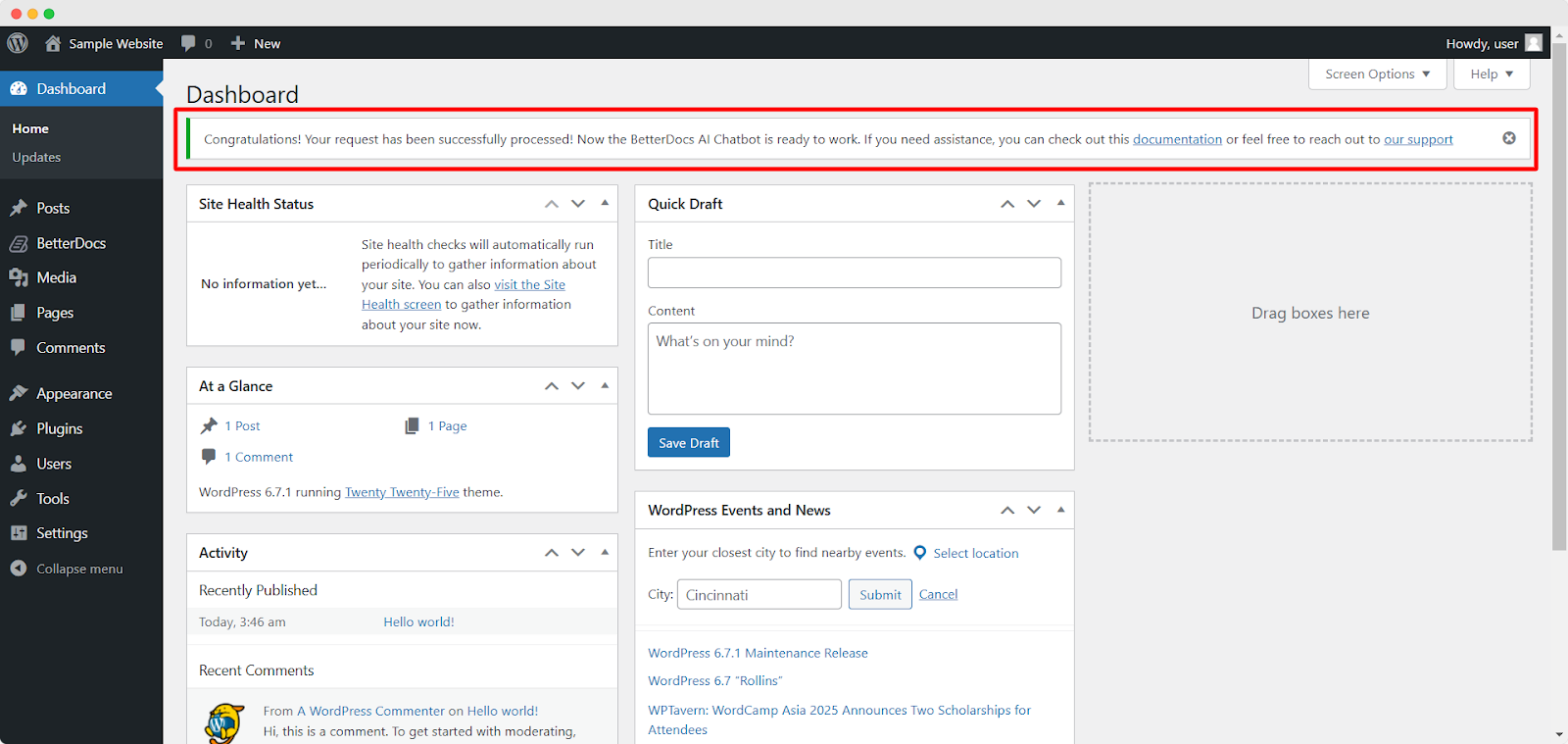
Now, your website’s visitors can start conversing with BetterDocs AI Chatbot. To interact with the chatbot, visitors have to click on the ‘BetterDocs Live Chat’ icon on the screen and go to the ‘Chatbot’ section. Here, they can enter their inputs to get instant, AI-generated replies based on your documentation’s data.
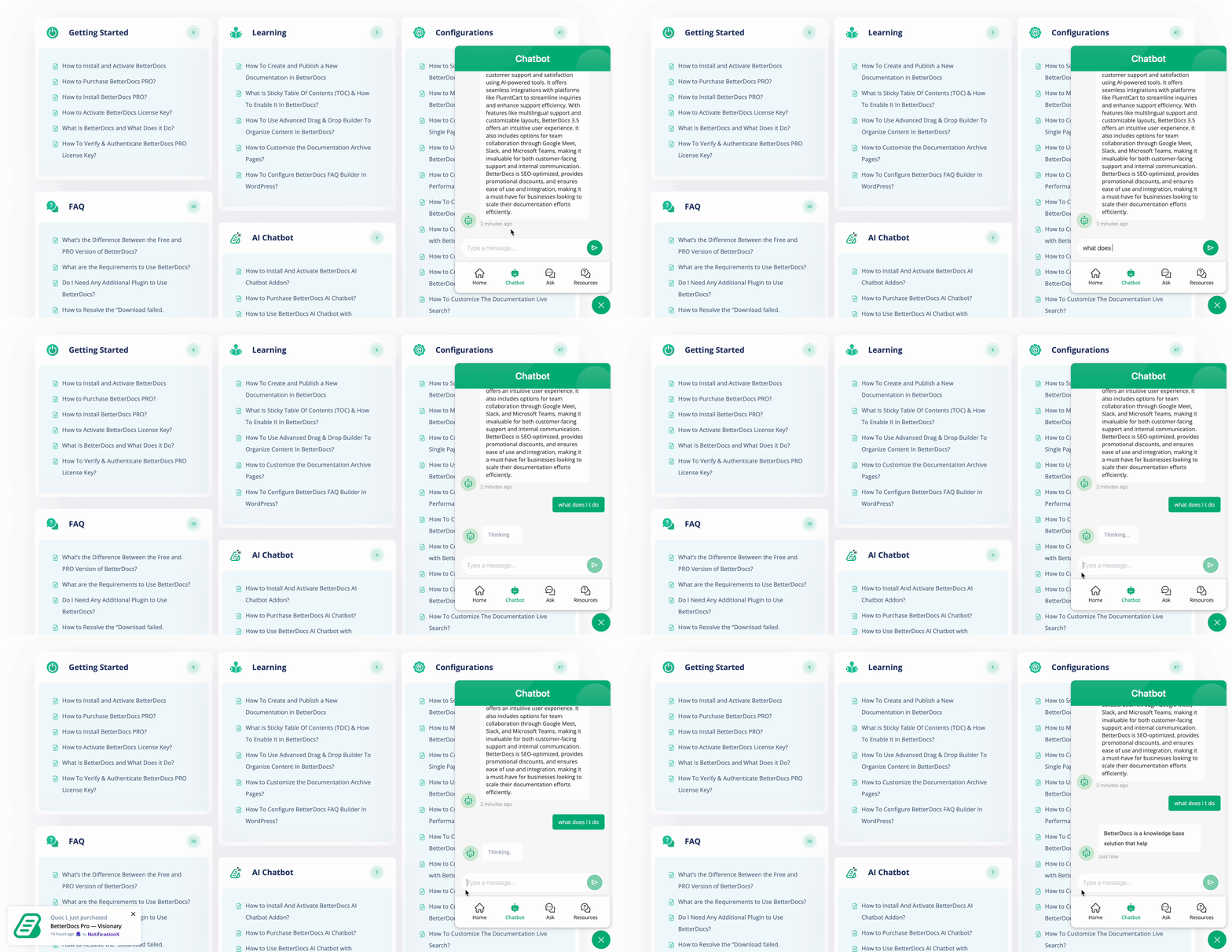
This is how easily you can train AI Chatbot in BetterDocs for your website’s visitors. Here is a note to keep in mind: we do not recommend changing the Embed Model when data processing has started. After choosing an Embed Model option, doing this might lead to issues due to the change of the Embed Model in the middle of the process.
Deliver Accurate, Contextual Responses to Your Visitors with BetterDocs AI Chatbot
Your documentation should not just be a static resource. It needs to be interactive and an AI-powered support assistant helps users find the information they need instantly. Let us quickly recap the benefits,
- Faster, more precise answers for your visitors
- Reduced workload for your support team
- Enhanced user satisfaction through personalized, brand-aware responses
- Smarter guidance that helps users navigate your documentation seamlessly
But this is just the beginning. BetterDocs AI features are getting stronger to uplift your knowledge base. From AI doc summarizer, AI documentation, to AI-powered chatbot and search, more are coming on the way. Explore these features to make your knowledge base and customer support experience even more dynamic and helpful.
Was this blog helpful? If you would like to explore more blogs like this, subscribe to our blog. Do let us know in our Facebook community.