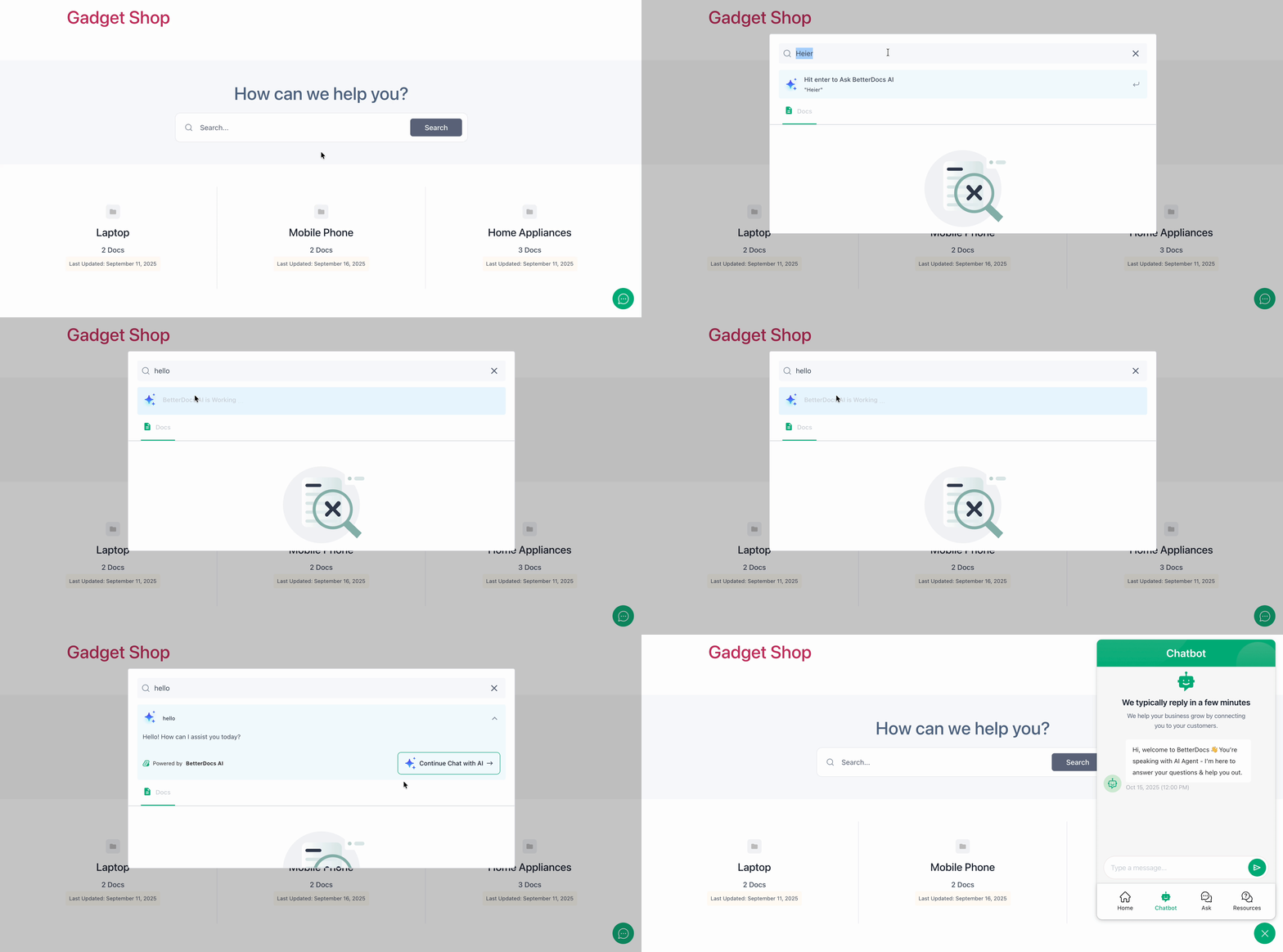
In BetterDocs, you can now find any documentation easily with AI-Powered Smart Modal Search. This will allow you to search and get the idea of the document in a faster way, and get into the AI chatbot directly for quick support. Follow the step-by-step guide on how to configure AI-powered smart modal search in BetterDocs.
Nota: Make sure you have installed and activated BetterDocs AI Chatbot addon to your WordPress website.
Step 1: Configure BetterDocs Settings #
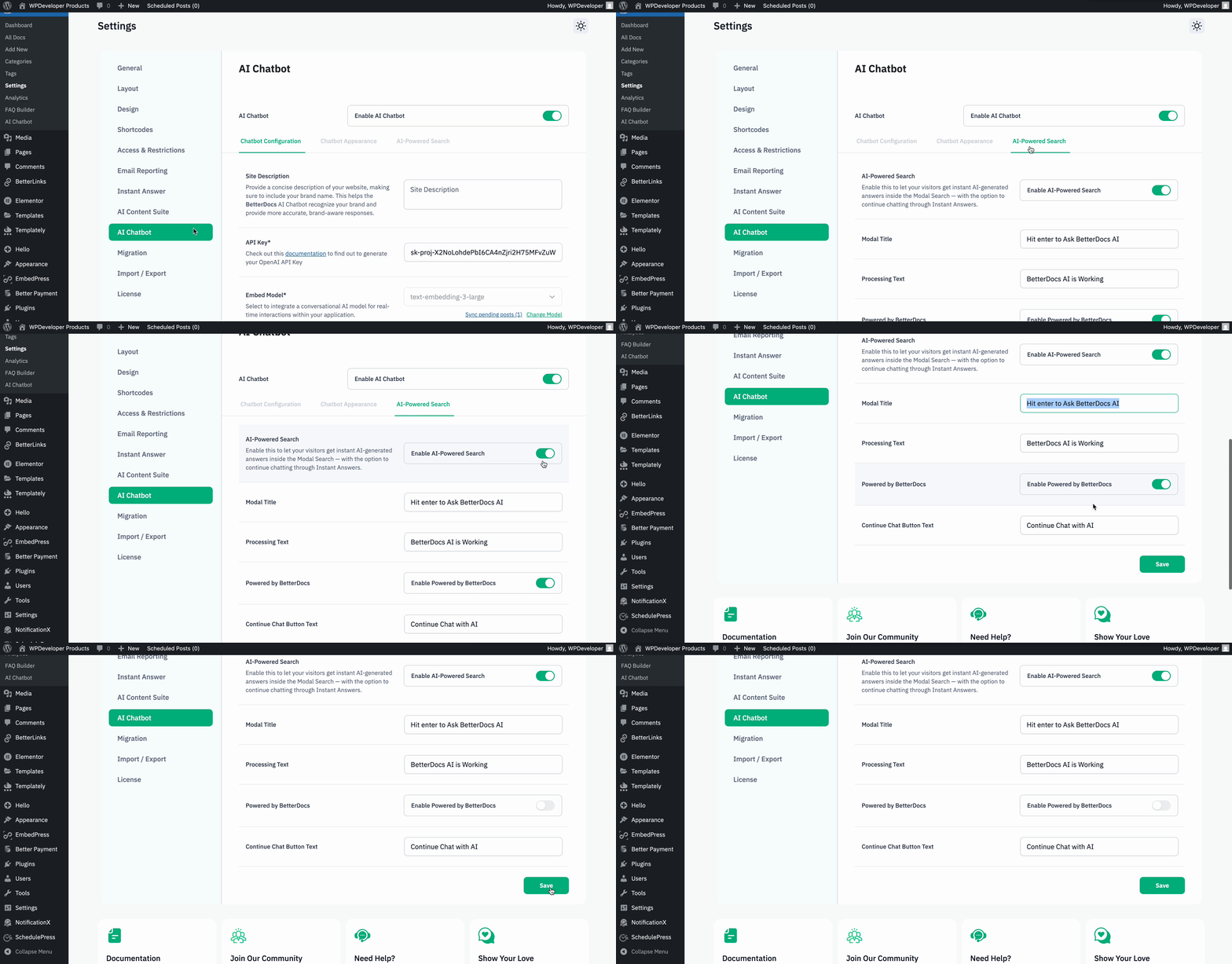
To find the AI-powered search, you will have to go to your WordPress Dashboard and then navigate to BetterDocs → Settings → AI Chatbot. Then, simply switch to the ‘AI-Powered Search’ scheda.
Dal ‘AI-Powered Search’ tab, toggle the button ‘Enable AI-Powered Search’. This lets your visitors get instant AI-generated answers inside the Modal Search.
Next, customize the search ‘Modal Title’, ‘Processing Text’, and ‘Continue Chat Button Text’. Toggle the button if you want to show the “Powered by BetterDocs” in your documentation. Click the ‘Save’ button to save the changes.
Step 2: Customize the AI-Powered Smart Modal Search Settings #
You can style the AI Modal Search as well. This styling is available for both the block editor and Elementor. Choose your preferred editor to do different styling to the modal search. Here is how you can do that.
From the WordPress dashboard, go to the ‘Appearance’ → ‘Customize’. Then navigate to the Templates, and then from there select ‘BetterDocs’. From there, select the page where you want to customize the search modal.

After that, select the search bar. Now, from the sidebar 'Generale' tab, select ‘Modal Layout’. There are three different layout options that you can choose for your documentation.
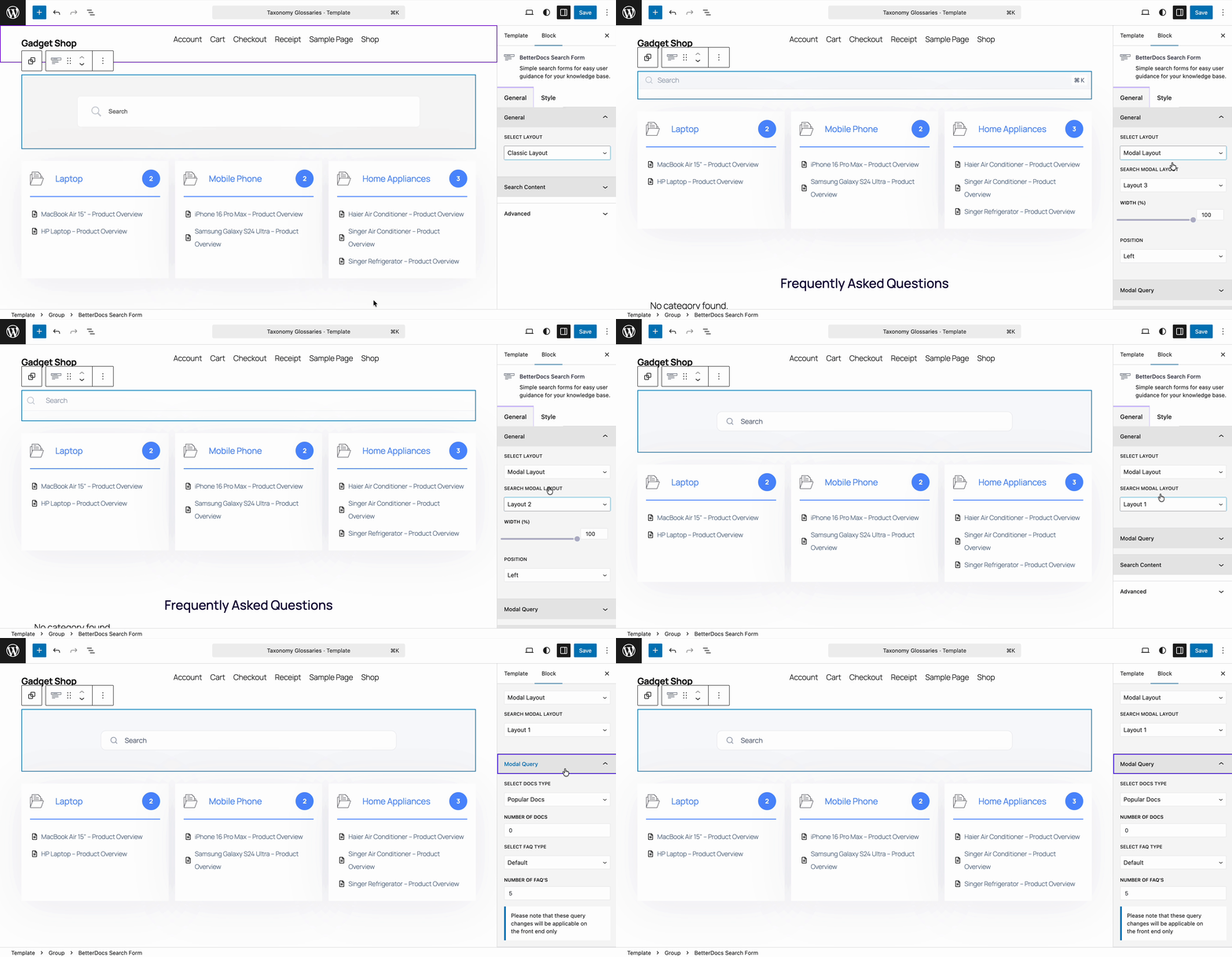
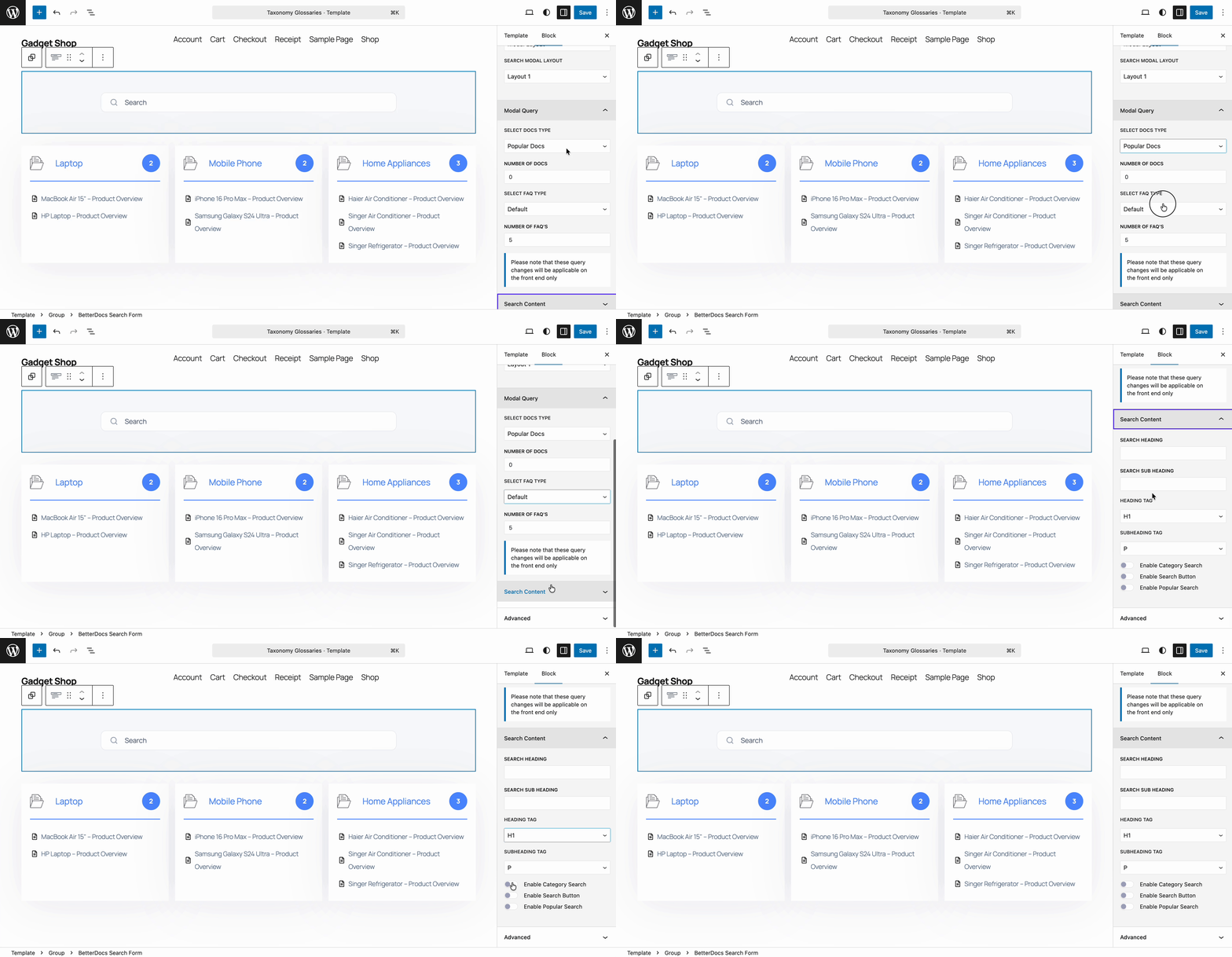
Dal ‘Modal Query’ option, you will find different options for the search, such as showing different types of docs, ‘Number of Docs’, ‘FAQ Types’ and how many FAQs you want to show on your documentation landing page.
Quindi, dal ‘Search Content’ option, you can enable or disable the ‘Category Search’, ‘Search Button’, and ‘Popular Search’ options.
Step 3: Style the AI Modal Search Settings #
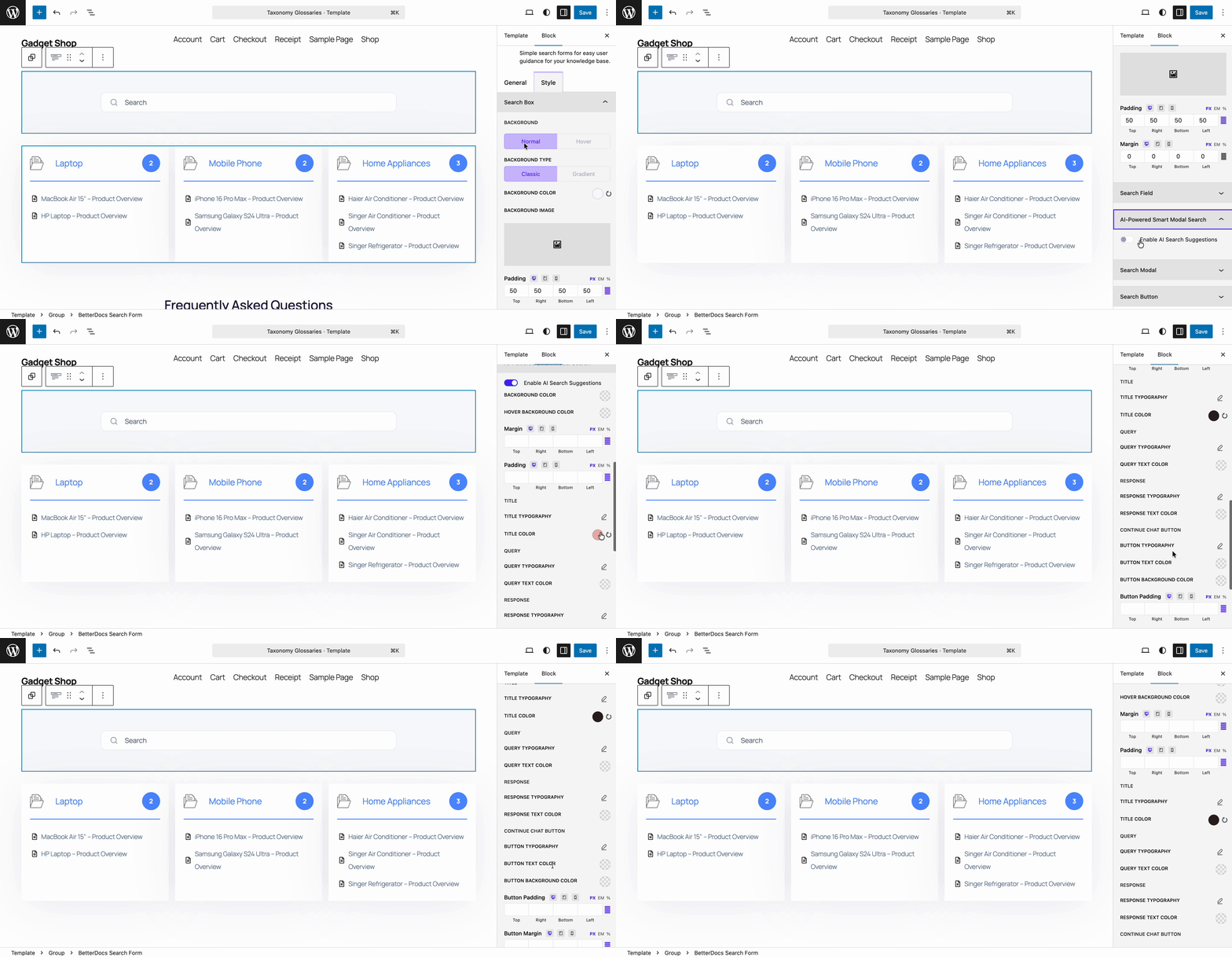
Then go to the 'Stile' tab, and from there go to the ‘AI Powered Smart Modal Search’. Toggle the ‘Enable AI Search Suggestions’ and you will find different styling options for choosing ‘Background Color’ and ‘Hover Color’.
Next, customize 'Titolo', ‘Query’, ‘Response’, ‘Continue Chat Button’, ‘Button Text’, typography, and color options. With this, you can customize the search modal based on your brand preference.
Esito finale #
That is how you can add an AI modal search and find your documentation quickly. Also, with this modal search, you can directly get into the chatbot and find your queries.
Getting stuck? If you face any difficulties, feel free to contact our support team.