Imagine a customer struggling to find an answer about your product late at night. There is no agent around, only an empty search box. Now imagine they do find the answer quickly,’ Thanks to your clear, well-written help center content. That is the power of a great knowledge base article. It solves problems on demand.
In this post, we will show you how to write a knowledge base article that truly helps customers by combining best practices, easy language and smart structure – just like BetterDocs recommends.

Why Customers Love Self-Service Support
Every customer expects quick answers. According to industry data, over 60% of customers prefer to solve simple issues themselves rather than wait for support. A knowledge base article (or help center article) is a web page that answers a specific question, walks through a task or resolves a common problem. When done right, it is like having a helpful 24/7 assistant in your store.
Most customers will search the help center content instead of calling or emailing. So, helpful knowledge base articles mean fewer support tickets and happier shoppers. In fact, a solid knowledge base can cut support cases by one-third or more. That frees your team to focus on harder issues. In short, good knowledge base content is great customer service.
Even a simple article with clear steps or images can give customers instant answers when they need them most. Clear documentation helps customers help themselves and reduces tickets.
Guide to Write a Knowledge Base Article to Help Customers
A helpful article does more than answer a question. It makes the next step clear, easy and less stressful for the customer. Let us walk through the simple process to write a knowledge base article that is useful, easy to follow and genuinely helpful.
Plan Your Article Before Writing
Before you start typing, take a moment to plan. Ask yourself what the customer needs:
- What exactly is the problem or question?
- Who is this article for (new users, advanced users)?
- What outcome should it achieve (e.g. “How to change a password”, “Troubleshoot an error”)?
Answering these helps ensure your content stays on track. Documentation experts recommend knowing the purpose of each article. When you write a knowledge base article, imagine a real user scenario and write for that.
For example, if customers often ask “How do I reset my password?”, your article should have a direct title and answer that. Good titles match actual questions customers ask. In other words, use the exact words they would use.
Next, outline the steps. If it is a process (like “Setup Guide” or “How to Install”), list out each action the user must take. If it is an FAQ-style answer, jot down the key points to include. This outline keeps you focused.
- Identify common issues: Check support tickets or forum posts to find frequent questions (billing issues, setup problems, etc).
- Choose a clear title: Phrase it as the user’s question or need (like, “How do I update my shipping address?”). A clear title is crucial.
- Define the goal: Know what success looks like. For a “How to” article, the goal might be a finished setup. For troubleshooting, it is an error-fixing article.
By preparing like this, you ensure each help center article has a clear focus. This is the first of the knowledge base best practices: understand your customer’s problem before you write.
Write in Simple, Customer-Friendly Language
Once you have a plan, it is time to write. The golden rule is: make it easy. Write as if you are explaining things to a friend or a 5th grader. Avoid jargon. If you must use a technical term, explain it in plain words or link to another article that explains it. BetterDocs highly recommends that knowledge base articles should be “jargon-free and easy to understand”.
Use short sentences and simple words because customers might have as much product knowledge as you. For example, instead of “Authenticate your login credentials via the portal,” say “Log in using your email and password.” Short, choppy sentences can actually be easier to read in a KB context. But do not make all sentences super short. Vary the length for a natural flow – mix punchy lines with longer, explanatory ones.
Break up text into digestible paragraphs. As you write, keep paragraphs around 3-4 sentences. If a paragraph feels too long, try splitting it. This makes the content less intimidating and more conversational. Readers often scan documentation; big walls of text lose them quickly.
Also, write from the customer’s perspective. Use “you” (the customer) and “we” (the company) to make it friendly. For example: “If you see the error message above, here is what you can do next.” This helps readers connect with the content and trust it.
Structure Your Article for Easy Scanning
A well-structured article is easy for customers to scan and find the part they need. Use headings, subheadings, bullet points and numbered lists generously. ScreenSteps recommends formatting so it is “easy to follow” and using bulleted lists or subheadings. Here is a simple way to structure most articles:
- Introduction: One or two sentences about what the article covers (and why it matters). Keep it very short.
- Steps or Sections: Break down the task into numbered steps or clearly labeled sections. If it’s a “how-to”, use “Step 1, Step 2…” numbering. If it’s a troubleshooting guide, use headings for different symptoms or parts of the solution.
- Examples and Tips: Where helpful, highlight tips, notes, or common pitfalls in italics or a colored box. (BetterDocs has “Tip:” callouts in its examples.)
- Summary/Next Steps: End with any final checks, what to do next, or a link to related articles for advanced help.
This structure matches the readers’ eyes. They can quickly skim the list of steps. Never expect them to read your whole article word-for-word. A bullet or numbered format is friendlier to a skimmer.
If the article is long, include a short table of contents at the top, or use BetterDocs’ built-in Sommario to make navigation easier. That way, readers can jump to the section they need. For example, list links like “1. Reset Your Password”, “2. Change Payment Method”, etc., at the top of a longer KB article.
Use Visuals and Links to Enhance Understanding
A picture can be worth a thousand words in a KB article. Screenshots, diagrams and videos break up the text and guide the reader visually. For how-to steps, show them exactly what they should see. Even a simple annotated screenshot can clear up confusion (for example, circle a button or highlight where to click).
BetterDocs encourages adding images and interactive media to improve readability. For example, if you are describing a step in the WordPress dashboard, include a screenshot of that dashboard area. Not only does this help visual learners, but it also builds trust – customers see that you really know the interface.
Also, link to other help articles when it makes sense. Do not repeat information. If part of the solution is covered elsewhere (for example, “Learn more about shipping options”), just link the text to that article. BetterDocs advises strategic linking to avoid redundancy. This improves your KB’s usefulness: one article points to others.
Follow Knowledge Base Best Practices
Following these best practices helps ensure your article actually helps. It should feel friendly and straightforward, not like a complicated manual. Because the goal of knowledge base content is customer self-service support, focus on solutions, not sales pitches. To recap the main knowledge base best practices when writing:
- Write like a customer: Use everyday language and common question phrasing.
- Be concise and helpful: Get straight to the point. If a question needs a quick answer, present it right away (before any fluff). Then elaborate if needed.
- One topic per article: Keep each article focused on a single issue or question. If you have multiple sub-questions, consider splitting them into separate KB articles.
- Use active voice: It sounds clearer. (“Click the button” instead of “The button can be clicked by you.”)
- Include a clear title and summary: At the top, make it obvious what the page covers. If it is a tutorial, say “How to X”. If it’s troubleshooting, say “Fixing X error”. This is important for SEO and quick identification.
- Optimize for search: Think of likely search queries. Use keywords customers would use. For example, include “knowledge base article” naturally in content to match common phrasing.
- Proofread and test: After writing, go through the steps yourself. Make sure each instruction is correct and no steps are missing. Check grammar and spelling – a small typo can confuse readers (or appear unprofessional). Ask a colleague or friend to read it as well.
Good vs. Great: Reviewing Examples
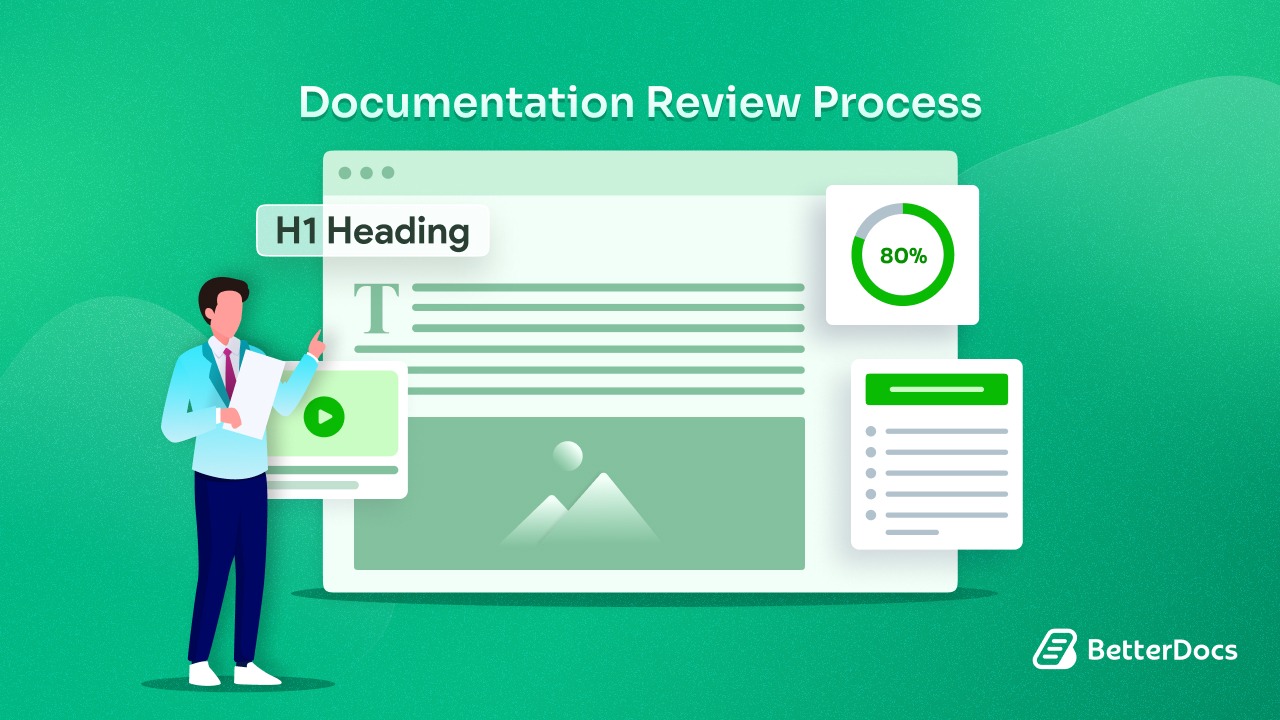
Sometimes the best learning is by example. Look at a couple of well-done knowledge base articles (BetterDocs has several on its site). Notice how they start with a clear intro, break tasks into steps and end with a resolution.
Example 1: A great article might begin:
“Overview: This article explains how to update your billing information. Changing your payment method ensures your subscription stays active.” Then it jumps into steps.
Example 2: Another starts:
“Problem: You are seeing an error: ‘File not found.” Solution: This can happen if… [explain reasons and fix steps].”
Each example stays focused on the user’s problem or goal. They incorporate images or even bullet points. And they never bury the answer. If a user scans quickly, they can spot an “Expected outcome” or a Note to understand the result before diving in.
Update and Maintain Your Articles
Writing an article is just the start. A knowledge base article should grow with your product or service. Whenever something changes (UI update, new policy, etc.), update the article. Outdated help content frustrates customers more than no content at all.
You might add a note if you know of a new browser issue, or reorganize steps if the interface has changed. Also, collect feedback: allow customers to rate or comment on each article. Use analytics to see if readers are still finding it (or if they get lost).
In practice, treat your KB like a living document. Make updates part of your routine release process. And if one article depends on another, link them rather than duplicating info. This way, your knowledge base stays accurate and helpful over time.
Use BetterDocs to Simplify Writing Knowledge Base Articles
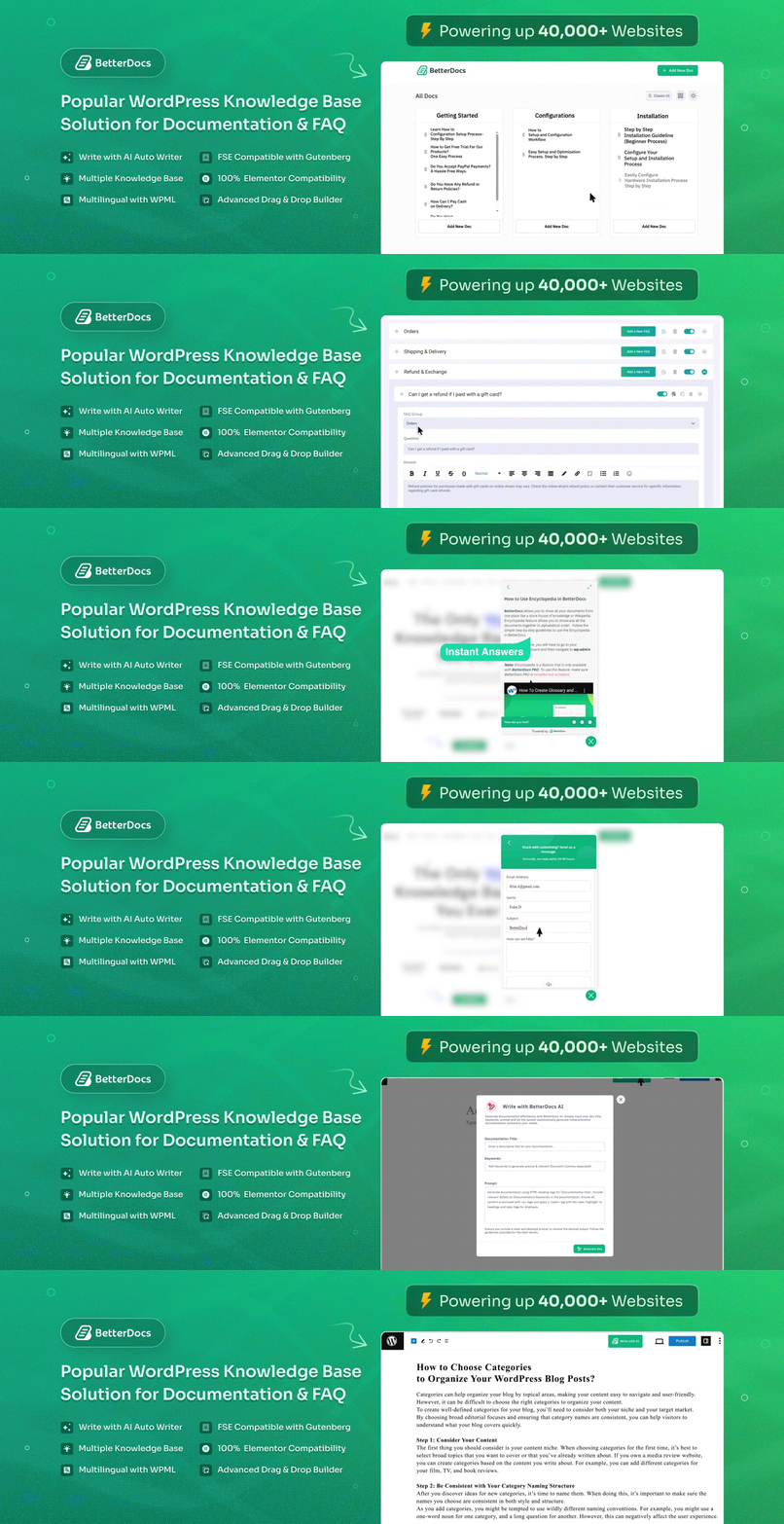
While these tips apply broadly, the BetterDocs plugin can make your documentation workflow much easier on WordPress. BetterDocs comes with ready templates for Gutenberg and Elementor, supports the WordPress Full Site Editor and includes features like Write with AI, Table of Contents and Analytics to help you create and improve documentation more efficiently.
- Write with AI: Quickly generate detailed documentation & FAQs in a few clicks.
- Teady Templates & Layouts: BetterDocs offers ready templates and layouts for Gutenberg and Elementor so you can present your documentation in a clean, structured way.
- Full Site Editor Support: With BetterDocs compatibility for WordPress Full Site Editor, you can customize your documentation layout and design using templates, blocks and patterns.
- Categories & Tags: Organize articles by category (“Getting Started,” “Billing,” “Troubleshooting”, etc.), so customers navigate logically.
- Table of Contents: With BetterDocs, you can insert an automatic TOC so readers jump to the part they need quickly.
- Analytics: Track article views and search terms to see what knowledge base examples are popular or where searches fail.
- Instant Answer: BetterDocs lets you add an instant answer toolbar so visitors can quickly search documentation and find helpful articles without extra clicks.
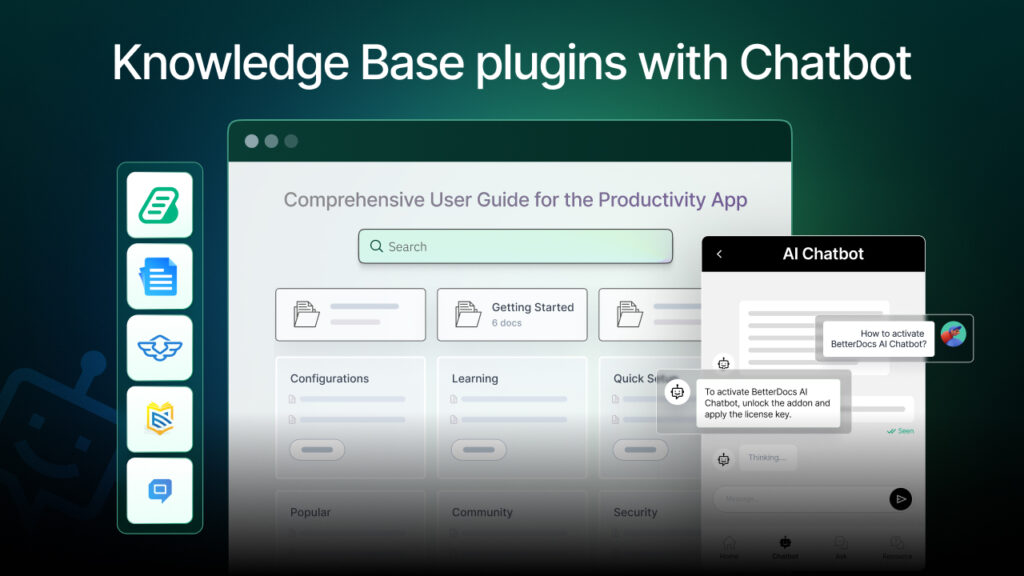
- AI Chatbot: BetterDocs also offers a separate AI Chatbot addon that can respond to visitor questions using content from your website and documentation.
Using BetterDocs or a similar knowledge base solution lets you apply all the above writing best practices without hassle. Its features are built around creating effective articles. For instance, when you write a knowledge base article, BetterDocs can automatically format it nicely and surface it in searches on your site.
Empower Your Customers with Great KB Articles
To write a knowledge base article that truly helps, focus on clarity, structure and usefulness. A strong knowledge base article starts with a clear purpose, uses simple language and follows knowledge base best practices so readers can find answers fast. When you understand how to write a help center article well, you create better help center content, stronger customer support documentation and a smoother path to customer self-service support.
You do not need to overcomplicate it. Learn from good knowledge base examples, stay focused on one problem at a time and keep improving your content as customer needs change. When you write a knowledge base article with care, you make support easier for your team and much better for your customers.
If you have found this blog helpful, share your opinion with our Facebook community. Puoi subscribe to our blogs for valuable tutorials, guides, knowledge, tips and the latest WordPress updates.