
BetterDocs Playbooks let you decide how your AI Chatbot talks and acts. With Guidance rules, you can set the tone, list topics to decline and add lines the bot should always mention. With Procedures, you can add step rules for chatbot actions, like “refunds only within 30 days, otherwise sent to Human Support”. This way, your chatbot stays on-brand, avoids risky answers and follows your business policies in every conversation.
Uwaga: Make sure the BetterDocs AI Chatbot is already set up and your docs are synced. If you haven’t done that yet, follow this guide on how to configure BetterDocs AI Chatbot.
Step 1: Navigate to Playbooks #
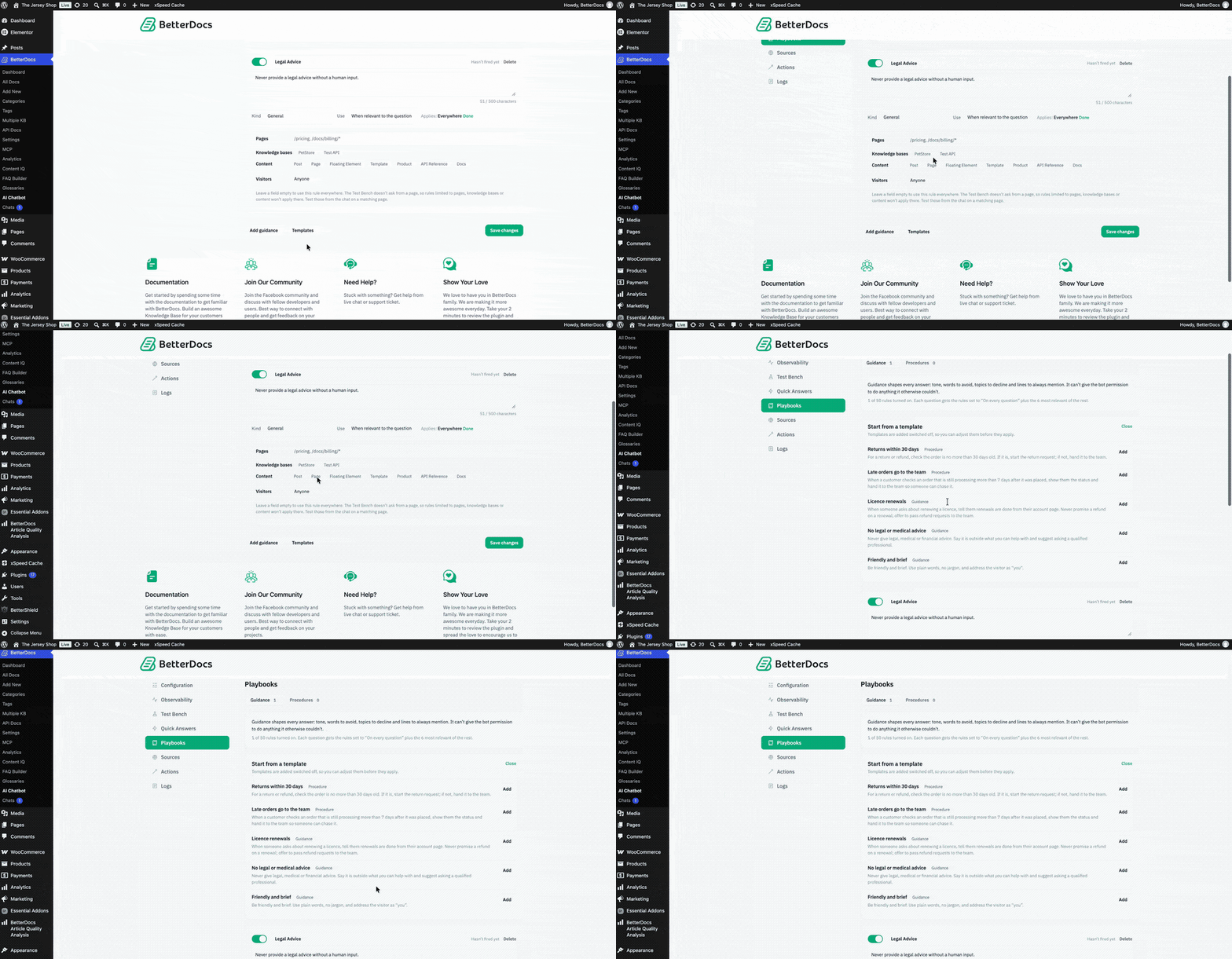
From your WordPress dashboard, go to wp-admin → BetterDocs → AI Chatbot. From the left panel of the AI Chatbot settings, click on ‘Playbooks‘.
You will find two tabs here: ‘Guidance' i 'Procedures‘. The number beside each tab shows how many rules you have added.

Step 2: Add a Guidance Rule #
Stay on the ‘Guidance‘ tab. Guidance shapes every answer: tone, words to avoid, topics to decline and lines to always mention. It can’t give the bot permission to do anything it otherwise couldn’t.
You can add up to 50 Guidance rules. For each question, the chatbot uses the rules set to ‘On every question’ plus the 6 most relevant of the rest.
Click ‘Add guidance‘ to create a new rule, then fill in the details:
- Rule name: give the rule a short name, for example ‘Legal Advice’.
- Rule text: write the instructions for the chatbot, for example ‘Never provide legal advice without a human input.’ Each rule can have up to 500 characters.
- Toggle: turn the rule on to make it active. The rule card also shows whether the rule has been fired yet, and you can click ‘Delete’ to remove it.

Step 2.1. Choose the Rule Kind #
Click the ‘Kind‘ dropdown to tell the chatbot what type of rule this is. You can choose from:
- General: a general instruction for the chatbot
- Always mention: a line the chatbot should always include
- Never discuss: a topic the chatbot should decline
- Tone: how the chatbot should sound
- Send to Human Support when: a situation where the chatbot should hand the conversation to your team

Step 2.2. Set When the Rule Is Used #
Click the ‘Use‘ dropdown to decide when the rule applies:
- On every question: the chatbot follows this rule in every answer
- When relevant to the question: the chatbot uses this rule only when it matches the question
Use ‘On every question’ for rules that must never be skipped, such as tone or compliance rules.

Step 2.3. Limit Where the Rule Applies #
By default, a rule applies everywhere. To narrow it down, click next to ‘Applies‘ and set the scope:
- Pages: add page paths where the rule should apply, for example /pricing or /docs/billing/*
- Knowledge bases: pick the knowledge bases the rule should cover
- Content: choose the content types, such as Post, Page, Product or Docs
- Visitors: choose which visitors the rule applies to, for example Anyone
Leave a field empty to use the rule everywhere. Click ‘Done‘ when you finish.
Uwaga: The Test Bench doesn’t ask from a page, so rules limited to pages, knowledge bases or content won’t apply there. Test those rules from the chat on a matching page instead.

Step 3: Save Your Changes #
Once your rules are ready, click ‘Save changes‘. Your Guidance rules will now shape the chatbot’s answers based on the kind, use and scope you set.
Want a quick start? Click ‘Templates‘ to add ready-made rules and adjust them to fit your site.
Step 4: Add a Procedure #
Click the ‘Procedures‘ tab. Procedures are step rules for the chatbot’s actions, like “refunds only within 30 days, otherwise send to Human Support”. Once turned into checks, your site checks them against the customer’s own order before the action runs, so the AI can’t skip them.
All turned-on Procedures share a limit of 2000 characters.
Click ‘Add a procedure‘ to write your own, or click ‘Templates‘ to start from a template. Templates are switched off, so you can adjust them before they apply. Available templates include:
- Returns within 30 days (Procedure): checks that the order is no more than 30 days old before starting a return or refund; if not, hands it to the team
- Late orders go to the team (Procedure): when an order is still processing more than 7 days after it was placed, shows the status and hands it to the team
- Licence renewals (Guidance): tells customers renewals are done from their account page and never promises a refund on a renewal
- No legal or medical advice (Guidance): declines legal, medical or financial advice and suggests asking a qualified professional
- Friendly and brief (Guidance): keeps answers friendly and brief, with plain words and no jargon
Click ‘Add‘ next to any template, adjust it if needed, turn it on and click ‘Save changes‘.

Your AI Chatbot now follows your own rules for tone, sensitive topics and order-related actions. It gives safer, on-brand answers and hands tricky cases to your team when needed.
This is how, with the help of BetterDocs AI Chatbot’s Playbooks, you can control how your chatbot answers and acts.
Getting Stuck? Feel free to contact our Dedykowany zespół wsparcia.


