Polish
 English
 Spanish
 German
 Dutch
 Russian
 French
 Italian
 Romanian
 Chinese
 Hindi
BetterDocs AI Chatbot answers most questions from your documentation on its own. But some questions need a person: a double charge, a broken account, a request your docs don’t cover. With Human Support, visitors can talk to a real person from your team in the same chat window, without starting over by email.
Your team gets the full conversation, a short AI summary and the visitor’s details, and replies from your WordPress dashboard. The reply appears in the visitor’s chat within seconds, or goes to their email if they have already left. In this documentation, we will show you how to set up Human Support in BetterDocs AI Chatbot and how to answer requests.
Uwaga: Before getting started, you need to install and activate BetterDocs, BetterDocs PRO and the BetterDocs AI Chatbot addon (version 2.0.0 or later), and configure the AI Chatbot. Instant Answer must also be enabled, because the chatbot appears inside it.
How Does Human Support Work in BetterDocs AI Chatbot? #
When Human Support is on, a ‘Talk to a person’ option appears in the chat in three ways:
- When the visitor asks for a person: The chatbot replies with a ‘Talk to a person’ button instead of guessing an answer.
- When the chatbot gets stuck: If the chatbot couldn’t answer two questions in a row, a ‘Still stuck? Talk to a person’ button appears under its reply, without the visitor having to ask.
- From the chat menu: Visitors can open the ‘⋯’ menu in the chat header and choose ‘Talk to a person’ at any time.
Requests can also start without the visitor asking: when a Playbook rule sends a case to your team, or when a chatbot Action needs your approval.
Each chat can have one open request at a time. If the visitor asks again while a request is open, their new note is added to the same request, so your team never answers the same person twice.
Step 1: Turn On Human Support #
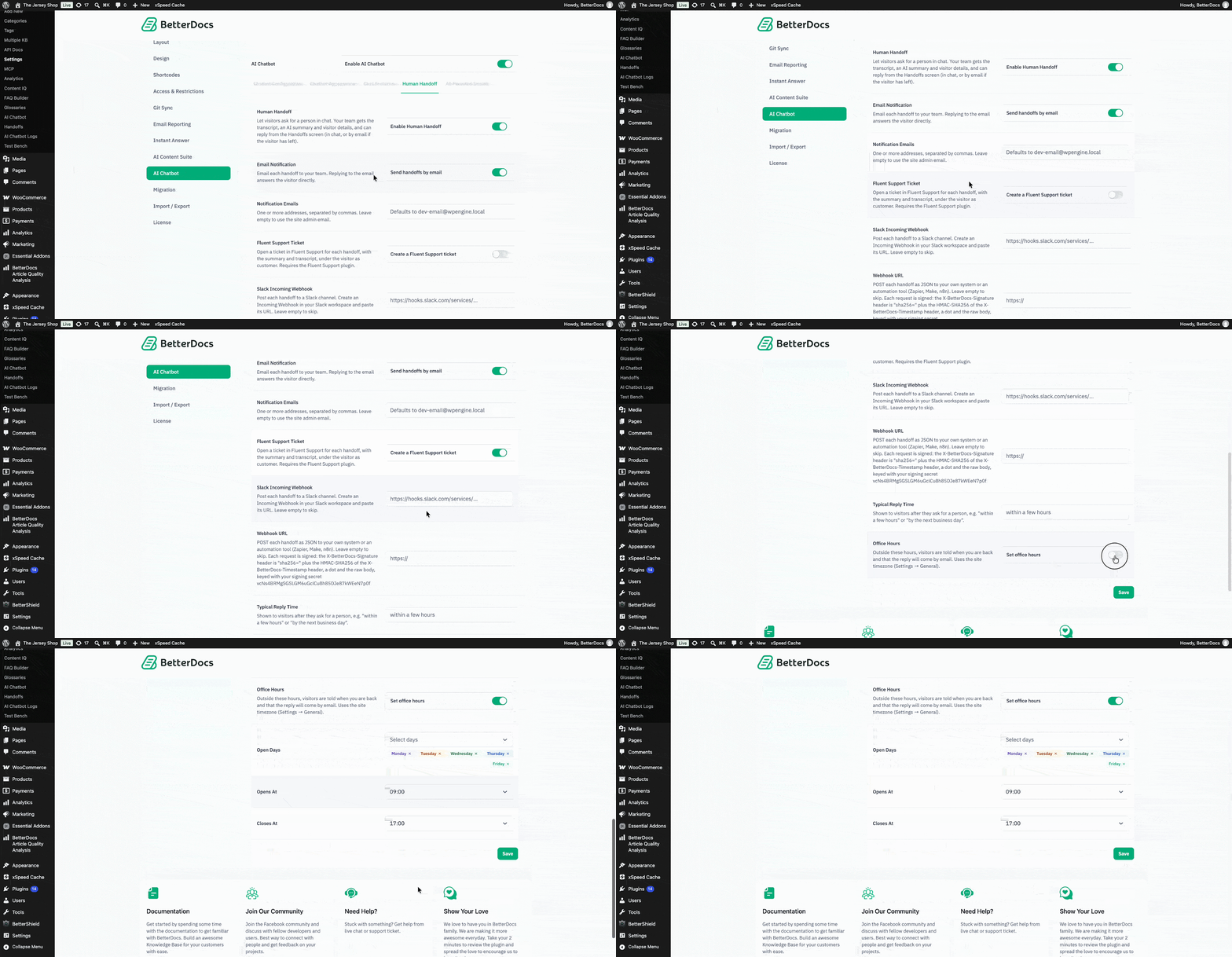
From your WordPress dashboard, navigate to ‘BetterDocs’ → ‘AI Chatbot’ → ‘Configuration’ and open the ‘Human Support’ tab. Make sure ‘Turn on Human Support’ is enabled. It is on by default after you install AI Chatbot 2.0.
Next, decide whether you want an AI summary with each request:
- AI Summary: Keep ‘Summarise each request with AI’ on to add a three-line note to every request: Issue (what the visitor needs help with), Tried (what the chatbot already suggested) and Needs (what your team should do). Your chat model writes it from the conversation, using one short AI request on your own AI key. Turn it off and your team gets the conversation and the visitor’s note without a summary.
Step 2: Choose Where Your Team Gets Requests #
Every request always appears in ‘BetterDocs’ → ‘Chats’. On the same tab, you can also send it to the tools your team already uses. Turn on as many as you need:
- Email Notification: Keep ‘Send Human Support requests by email’ on to email each request to your team. The email includes the AI summary, the visitor’s note and details, the docs the chatbot already shared, the full conversation and a ‘Reply in Chats’ przycisk.
- Notification Emails: Add one or more email addresses, separated by commas. Leave it empty to use your site admin email.
- Fluent Support Ticket: Turn on ‘Create a Fluent Support ticket’ to open a ticket for each request, with the summary and the conversation, and the visitor as the customer. This needs the Fluent Support plugin. If the visitor wasn’t logged in, the ticket is marked ‘(unverified email)’, so your team confirms who they are before changing anything on their account.
- Slack Incoming Webhook: Post each request to a Slack channel. Create an Incoming Webhook in your Slack workspace and paste its URL here. The Slack message shows the summary, the visitor’s name, email and page, and an ‘Open in Chats’ button. Leave it empty to skip.
- Webhook URL: Send each request as JSON to your own system or to an automation tool like Zapier, Make or n8n. Leave it empty to skip. Each request is signed, so you can check it came from your site: the
X-BetterDocs-Signatureheader issha256=plus the HMAC-SHA256 of theX-BetterDocs-Timestampheader, a dot and the raw body, keyed with the signing secret shown under this field.
Uwaga: Slack and webhook URLs must start with https://. After saving, they are shown masked for security. Leave the masked value as it is to keep the saved URL.
Step 3: Set Your Reply Time and Office Hours #
Let visitors know when to expect an answer:
- Typical Reply Time: Add the reply time visitors see after they ask for a person, such as “within a few hours” lub “by the next business day”. If you leave it empty, visitors see “within a few hours”.
- Office Hours: Turn on ‘Set office hours’, then select your ‘Open Days’ and set the ‘Opens At’ i ‘Closes At’ times (Monday to Friday, 9:00 to 17:00 by default). Outside these hours, visitors are told when your team is back and that the reply will come by email. Office hours follow your site timezone in ‘Settings’ → ‘General’.
Click on the ‘Save’ button once you are done.
Step 4: Reply to Human Support Requests from Chats #
Nawigować do ‘BetterDocs’ → ‘Chats’. The number next to the menu shows how many visitors are waiting. Click on the ‘Human Support’ filter to see only the conversations where a visitor asked for a person.
Open a conversation to see the request at the top: the AI summary, the visitor’s email, how the request started, the page they were on, their last order (for logged-in WooCommerce customers), the docs the chatbot already shared, and where your team was notified. Below it is the full chat, so nobody has to ask the visitor to repeat themselves.
Each request has a status: ‘Needs a human’, ‘Replied’ lub ‘Closed’. Write your answer in the reply box and click on ‘Send reply’. The hint above the box tells you where it will go:
- If the visitor is still in the chat, your reply appears there right away, with your name and a ‘Team’ badge.
- If the visitor has left, your reply is emailed to them, with a link back to the page they were on. They can answer by email or in the chat.
Three tools help you answer faster:
- Saved replies: Click on ‘Saved replies’ to insert an answer you send often. Choose ‘Manage saved replies’ to add up to 50, shared with your whole team. You can use placeholders such as
{{visitor_name}},{{site_name}}i{{agent_name}}. - Draft a reply: Let AI draft an answer from your docs and the conversation. Check it, fill in anything in [brackets], then click on ‘Use this draft’. Nothing is sent until you click ‘Send reply’.
- Edit with AI: Select text in your reply to improve it, fix grammar, shorten it or give your own instruction. This uses your AI Content Suite key, so Write with AI must be turned on in ‘BetterDocs’ → ‘Settings’ → ‘AI Content Suite’.

When the issue is solved, click on ‘Mark as closed’. The visitor’s chat shows that your team closed the request, and they can ask for a person again if they need to. Click on ‘Reopen’ to continue a closed request, or simply reply to it.
Uwaga: Only users who can manage BetterDocs settings can reply to and close requests. Other users who can open Chats see the conversation, but not the reply box.
What Your Visitors See #
When a visitor clicks on ‘Talk to a person’, a short form opens inside the chat. They enter their Name (optional) and E-mail (required, so your team can always reply), and can add a note under ‘Anything we should know?’, such as an order number or a deadline. Logged-in users find their name and email already filled in. They click on ‘Send to our team’ to send the request.
The chat then confirms the request and shows your typical reply time. Outside office hours, it tells the visitor when your team is back and that the reply will come by email. While the request is open, a ‘Messages go to our team’ banner sits above the message box. Visitors can switch back to the chatbot with ‘Ask the assistant’ while they wait, or cancel with ‘Cancel my request’ from the chat menu.
If they close the page and come back later, the whole conversation is still there, including your replies.
Read these documentations to learn more:
How to Configure BetterDocs AI Chatbot?,
How to Set Rules for Your AI Chatbot with BetterDocs Playbooks?
How to Set Up Actions in BetterDocs AI Chatbot?
Getting stuck? Feel free to contact our dedicated support team for further assistance.