
BetterDocs gives you the freedom to customize the Archive Pages and change their appearance any way you want. Now, let’s follow the below guidelines to personalizați paginile de arhivă de documentare în BetterDocs:
Step 1: Go to BetterDocs Settings #
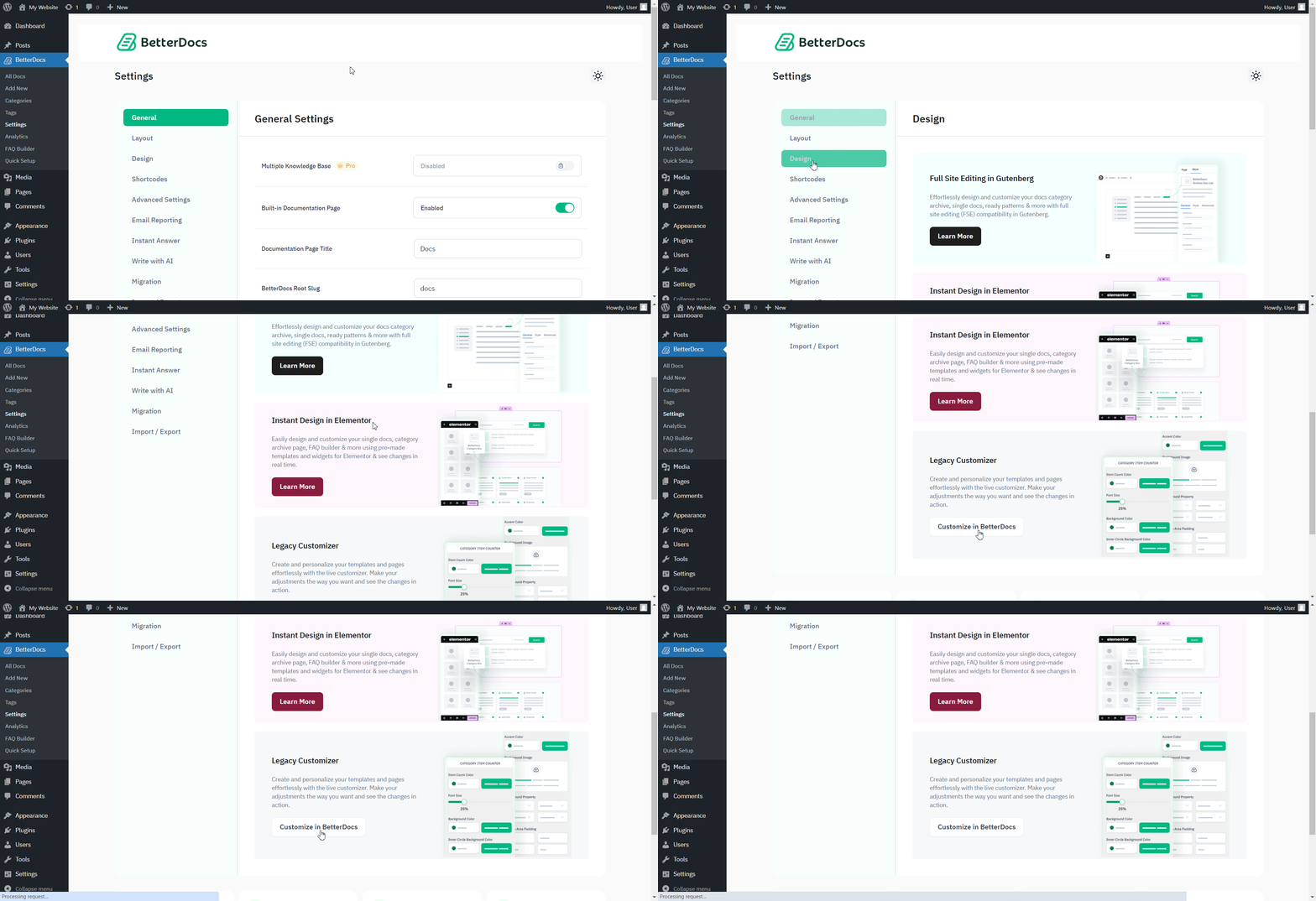
First of all, go to the BetterDocs Settings by navigating to wp-admin -> BetterDocs -> Setări. După aceea, deschideți 'Proiecta' tab. Under the ‘Legacy Customizer’ section, hit the ‘Customize in BetterDocs’ buton și veți fi redirecționat către pagina Personalizare.
Step 2: Configure Customize BetterDocs Option #
Din ‘BetterDocs Customizer’, you can pick the ‘Archive Pages’ option. You will then find all the styling options to modify the appearance of the Arhivați paginile opțiune.
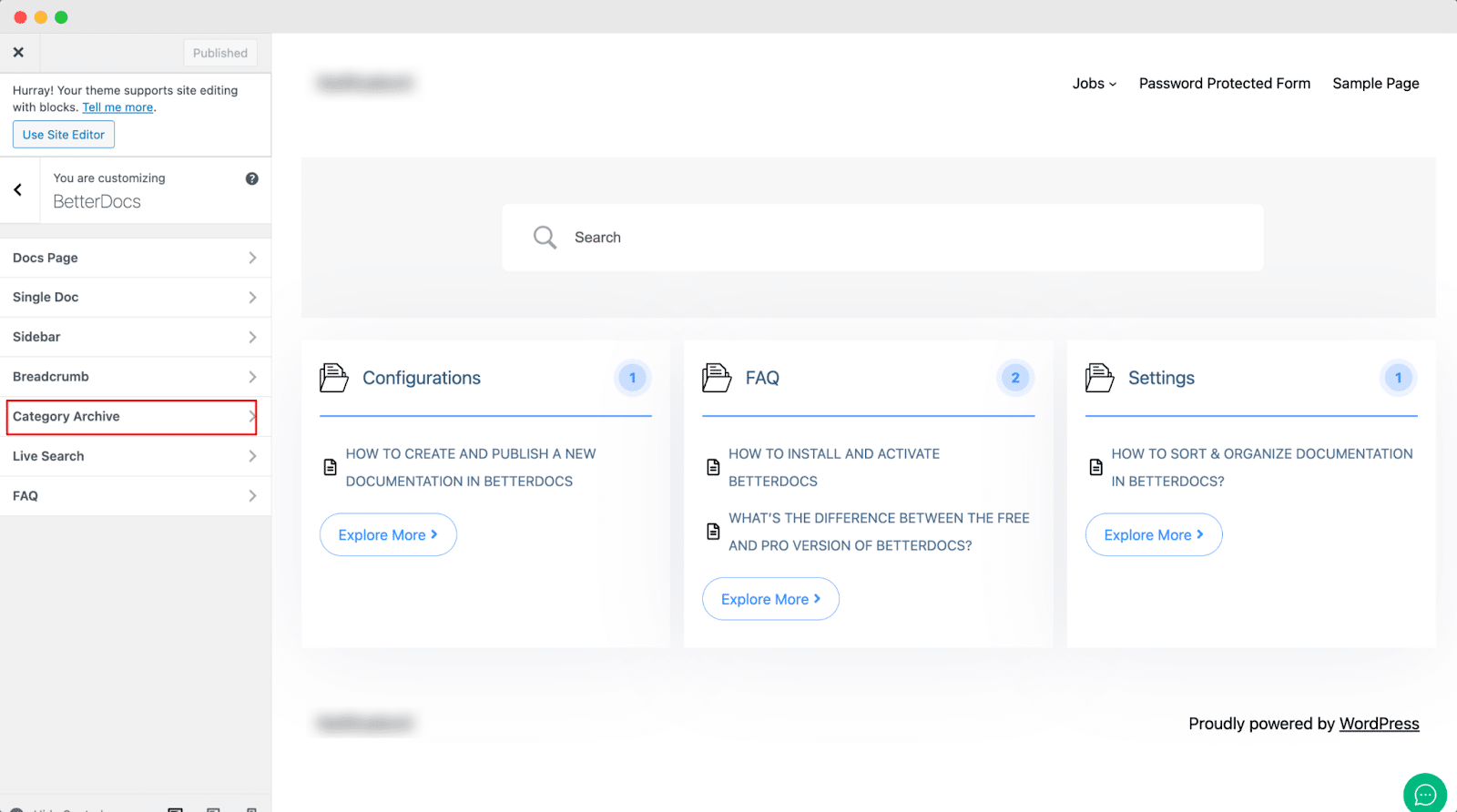
În mod implicit, Personalizator BetterDocs redirects you to the doc landing page as a preview. So, you can click on the ‘Category’ and you will be redirected to the respective archive pages. Afterward, you can check out the changes you make in real time.
După aceea, puteți merge mai departe și puteți schimba culorile pentru fundalul paginii, fundalul zonei de conținut, titlul, pictograma listă și multe altele. Dacă doriți, puteți adăuga chiar și un ‘Background Image’ and change its properties as well. Besides, you can play around with the Content Area Margin and Archive Title Margin. Make sure to hit on the 'Publica' pentru a salva modificările.
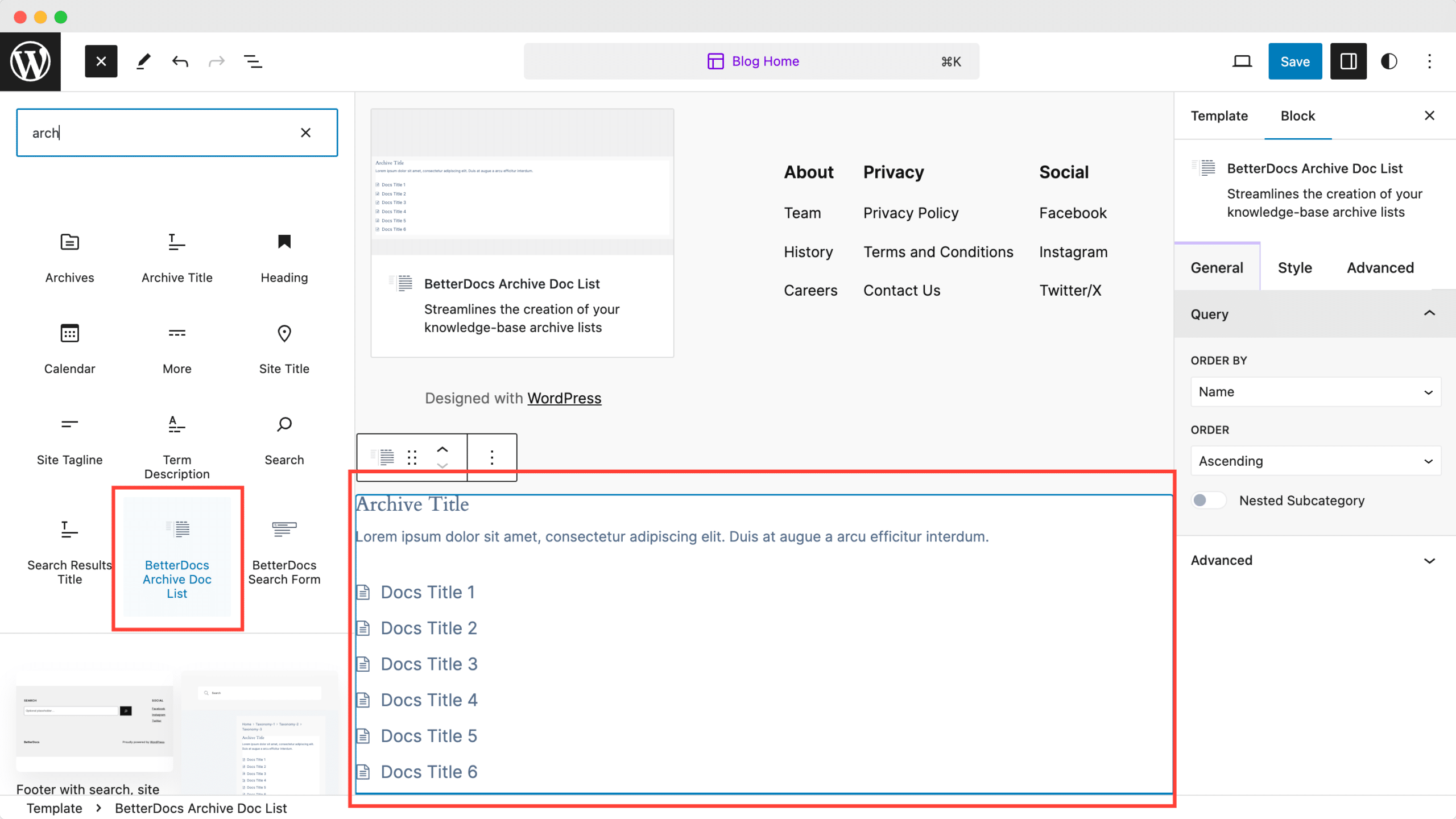
With the ‘BetterDocs Archive Doc List’ block, you can easily add the list of your archive documentation pages. Use this block to add the list anywhere you want on your page or post.
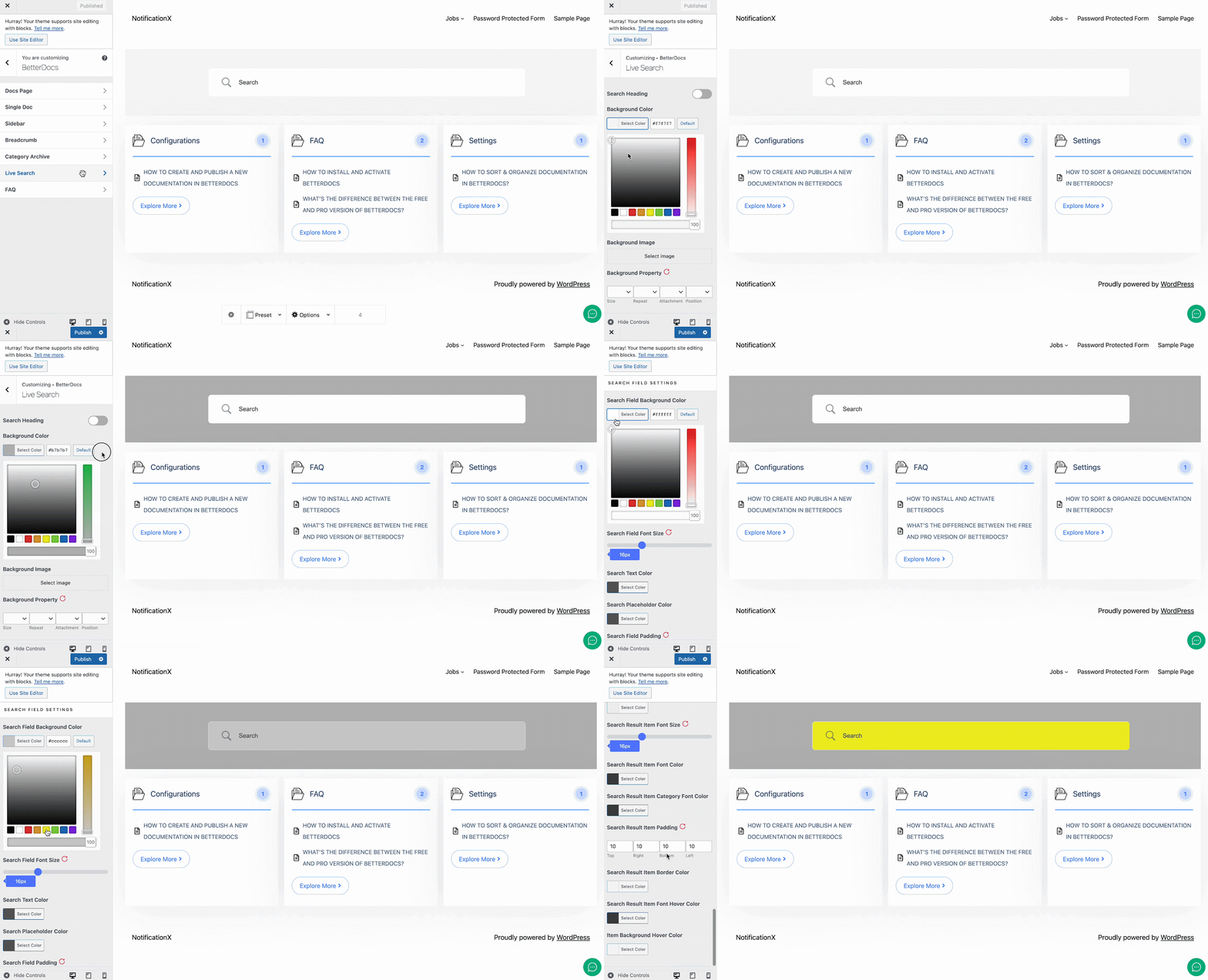
This is how easily you can customize the documentation archive pages with BetterDocs and enhance your user experience.
Moreover, BetterDocs provides a Full Site Editor compatible block of archive page list feature where you can select different orders and more. You can now choose different doc list designs directly using BetterDocs compatibility for the WordPress full site editor.
If you face any difficulties, feel free to contact our support team.