Managing documentation is already a challenge. Keeping it in sync with your development workflow makes it even harder. If your team works in GitHub o GitLab, switching between your code repository and your knowledge base to manually update docs wastes time and creates room for errors.
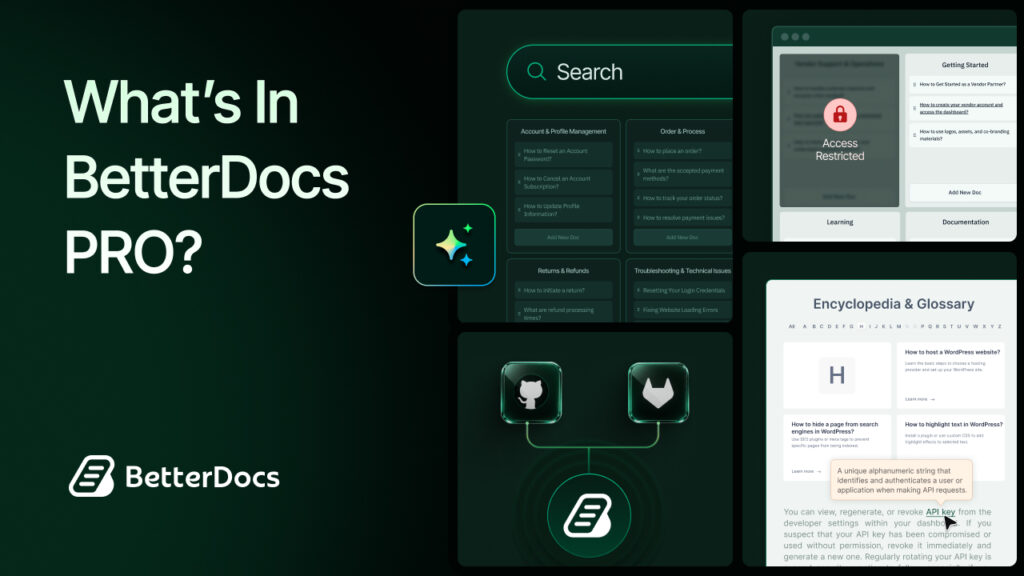
BetterDocs PRO has solved this with its new Git Sync feature. You can now connect your WordPress knowledge base directly to your GitHub and GitLab repository. Push docs, pull changes and import Markdown files without ever leaving your workflow. It is a seamless bridge between your documentation platform and your version control system.
This blog post will guide you through connecting GitHub and GitLab with BetterDocs to better sync docs.
TL;DR (Too Long, Didn’t Read?)
BetterDocs PRO now brings Git integration to your documentation workflow. Here is a quick snapshot of everything you need to know before diving into the full guide.
| What is new | BetterDocs PRO now supports Git integration with GitHub and GitLab |
| What you can do | Push docs, pull changes, import Markdown files, and enable auto-sync |
| Who it is for | Dev teams, agencies, and SaaS companies using Git-based documentation workflows |
| Authentication | GitHub uses OAuth login; GitLab uses Project ID and Access Token |
| Key benefit | Two-way sync between your BetterDocs knowledge base and your Git repository |
| Plan required | BetterDocs PRO |
Why Git Integration Matters for Documentation Teams
Documentation and code live in the same ecosystem. Developers write docs in Markdown, store them in repositories and update them alongside code changes. But most documentation tools sit outside that workflow entirely.
This disconnect causes real problems. Docs go outdated. Updates get missed. Teams end up maintaining two separate versions of the same content.
Git integration in BetterDocs closes that gap. Here is what it enables:
- Two-way sync: Push your BetterDocs documentation to GitHub or GitLab, and pull changes back when someone edits the repo directly.
- Markdown import: Bring existing Markdown files from your repository into BetterDocs with a few clicks.
- Auto-sync: Enable automatic syncing so that every time a doc is saved in BetterDocs, the changes are reflected in your Git repository instantly.
- Version control for docs: Every change committed to your repository is tracked. You get the full history and rollback capabilities of Git, applied to your documentation.
For development teams, agencies, and SaaS companies that already use GitHub or GitLab, this feature makes managing a WordPress knowledge base with BetterDocs a natural extension of the existing workflow rather than a separate tool to manage.
What Is BetterDocs And Who Is It For?
BetterDocs is an AI-powered WordPress knowledge base plugin. It helps businesses create fast, searchable and well-organized knowledge bases. Teams use it to build product documentation, internal wikis, developer guides and customer-facing help centers.
The PRO version of BetterDocs unlocks advanced features, including multiple knowledge bases, analytics and now, Git integration. The Git sync feature is specifically designed for teams that:
- Maintain documentation in a Git repository alongside their codebase
- Need documentation to stay current with product changes
- Want to collaborate on docs using Git workflows like branching, pull requests, and commit history
- Are migrating an existing Markdown-based documentation library into BetterDocs
Whether you are a solo developer or a documentation team at a growing company, Git integration removes the manual overhead of keeping two systems aligned.
BetterDocs GitHub Integration: How to Connect And Sync Docs Smarter
Connecting BetterDocs to your GitHub repository takes a few minutes. Below is the complete step-by-step process.
Step 1: Activate Git Sync Settings
Go to your WordPress dashboard and open BetterDocs Settings. Select the Git Sync tab. You will see a toggle to enable Git sync. Turn it on to activate the integration.
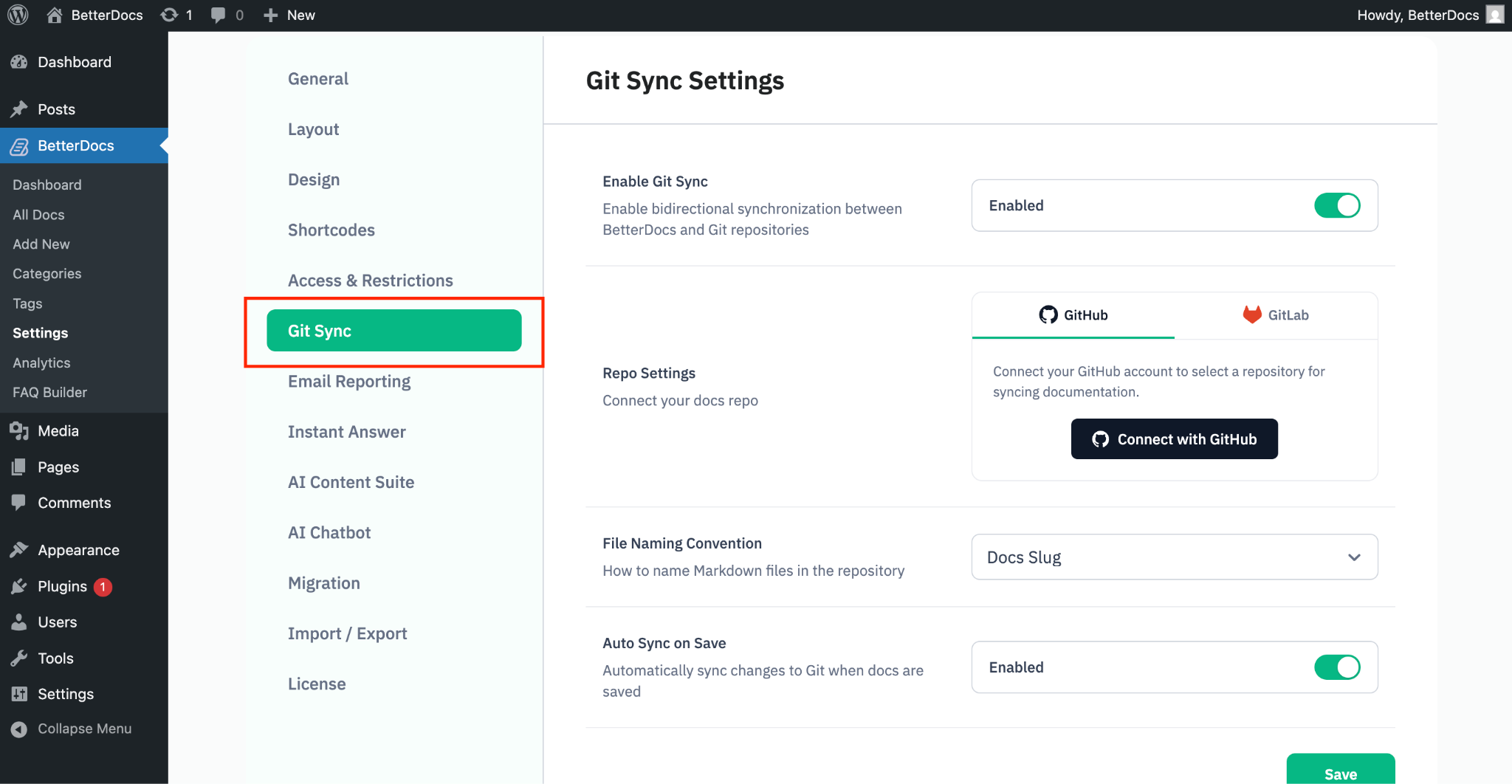
This is where all your Git-related configuration lives. You can manage your repository connection, sync preferences and file naming settings from this single tab.
Step 2: Connect Your GitHub Account
In the Repo Settings section, click the Connect with GitHub pulsante.
A login screen will prompt you to sign in to your GitHub account. Enter your GitHub username and password to authenticate.
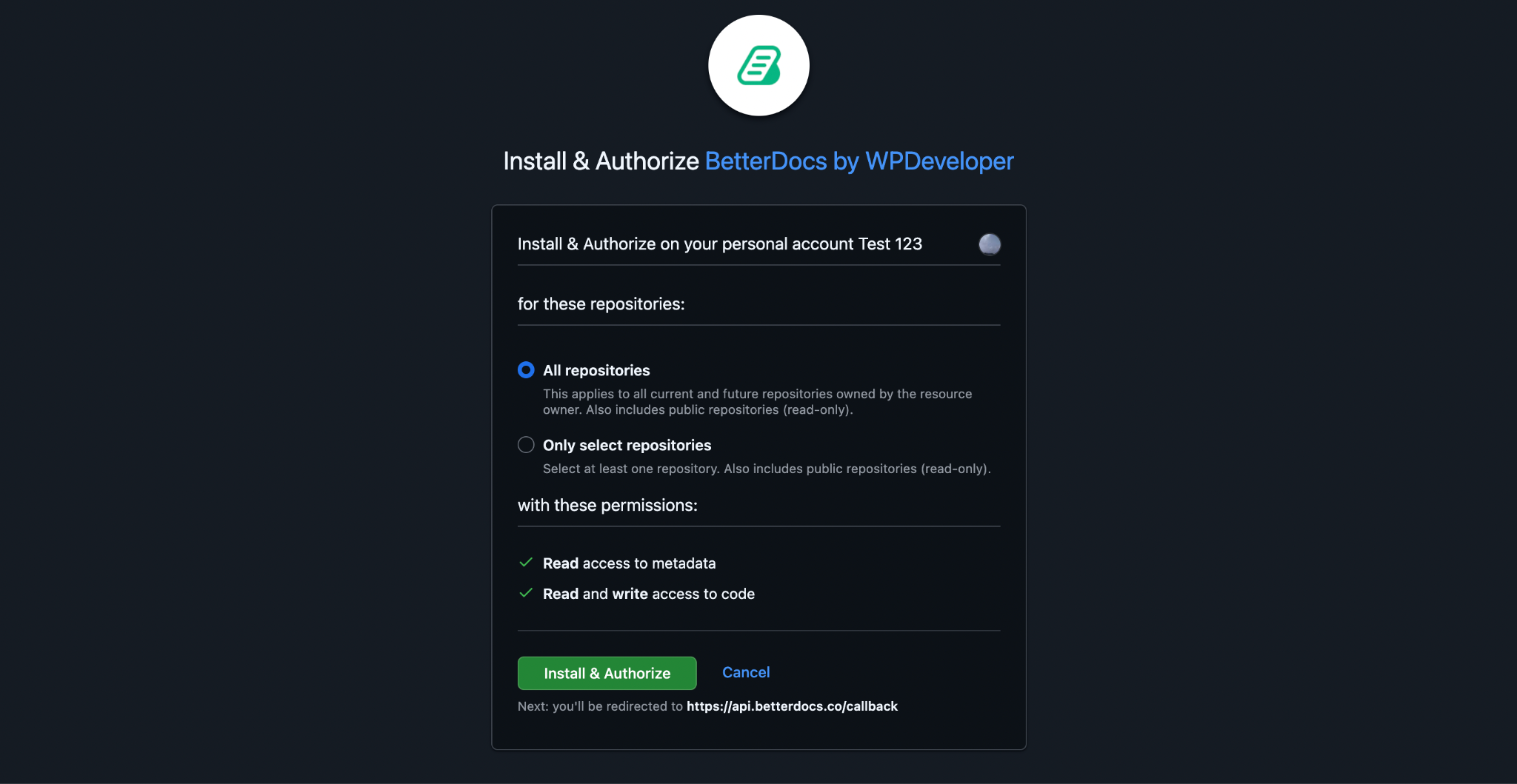
Once logged in, GitHub will display an authorization screen. Here you can select which repository you want to give BetterDocs access to.
📌 Important note on permissions: By granting repository access, BetterDocs receives read access to your repository metadata, along with read and write access to your code. BetterDocs does not access any data beyond what is necessary for the sync to work.
After selecting the repository, click the Install and Authorize button. This completes the connection between your GitHub account and BetterDocs.
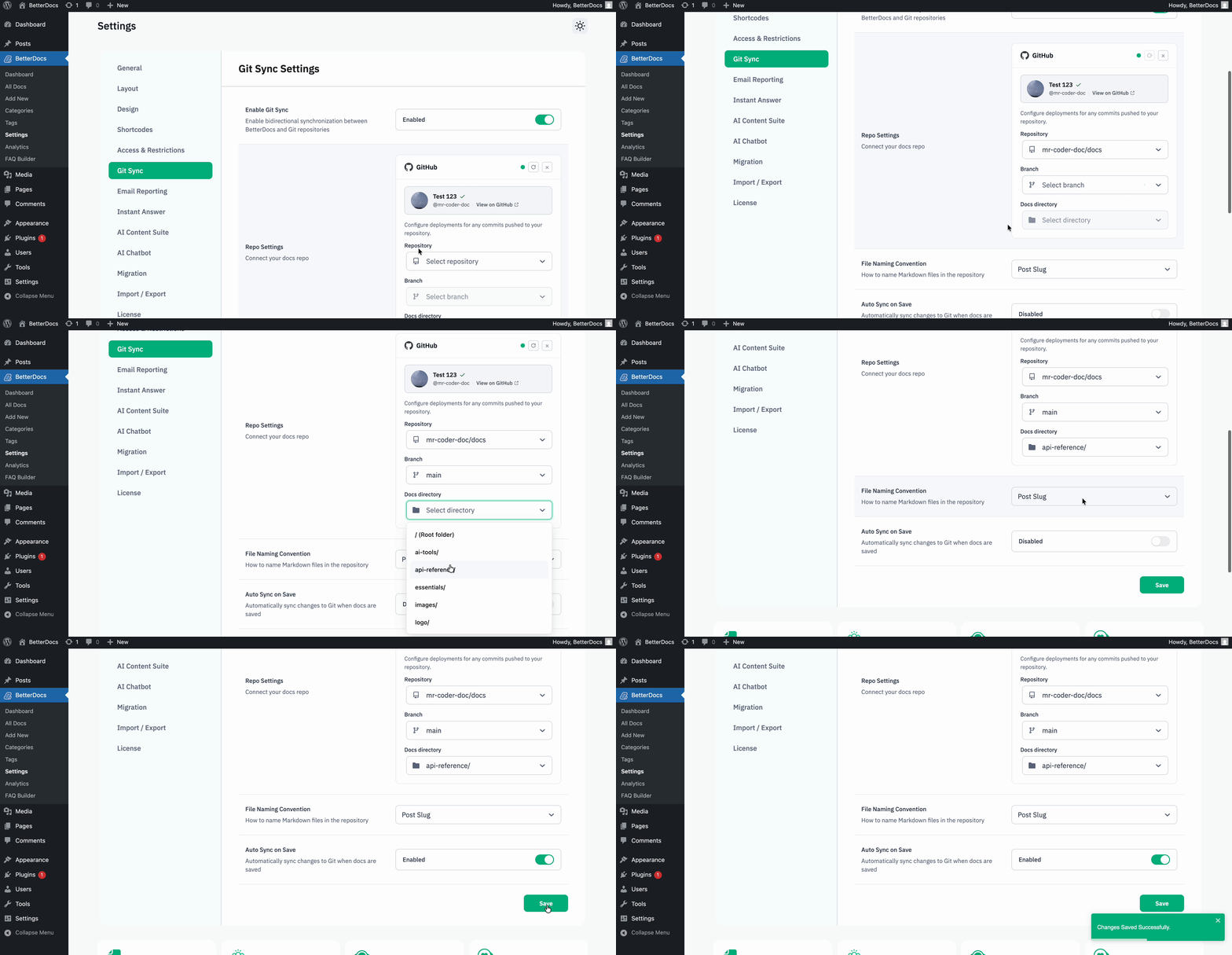
Step 3: Configure GitHub Integration Settings
With the GitHub account connected, you can now configure how the integration works.
Select your repository from the dropdown list. Then choose the specific branch you want to sync with and the doc directory within that branch where your documentation files live.
Next, configure the ‘File Naming Convention‘. This setting controls how BetterDocs names Markdown files when pushing them to the repository. Choose a naming format that matches your existing file structure or team conventions.
Finally, toggle the ‘Auto Sync‘ option based on your preference. When enabled, any changes you save to a doc in BetterDocs will automatically sync to the connected GitHub branch. When disabled, you control when each sync happens manually.
Click Save to apply your settings.
Step 4: Sync a Document to Your GitHub Repository
Navigate to the documentation page you want to sync. In the top right corner of the editor, you will see a GitHub Sync pulsante.
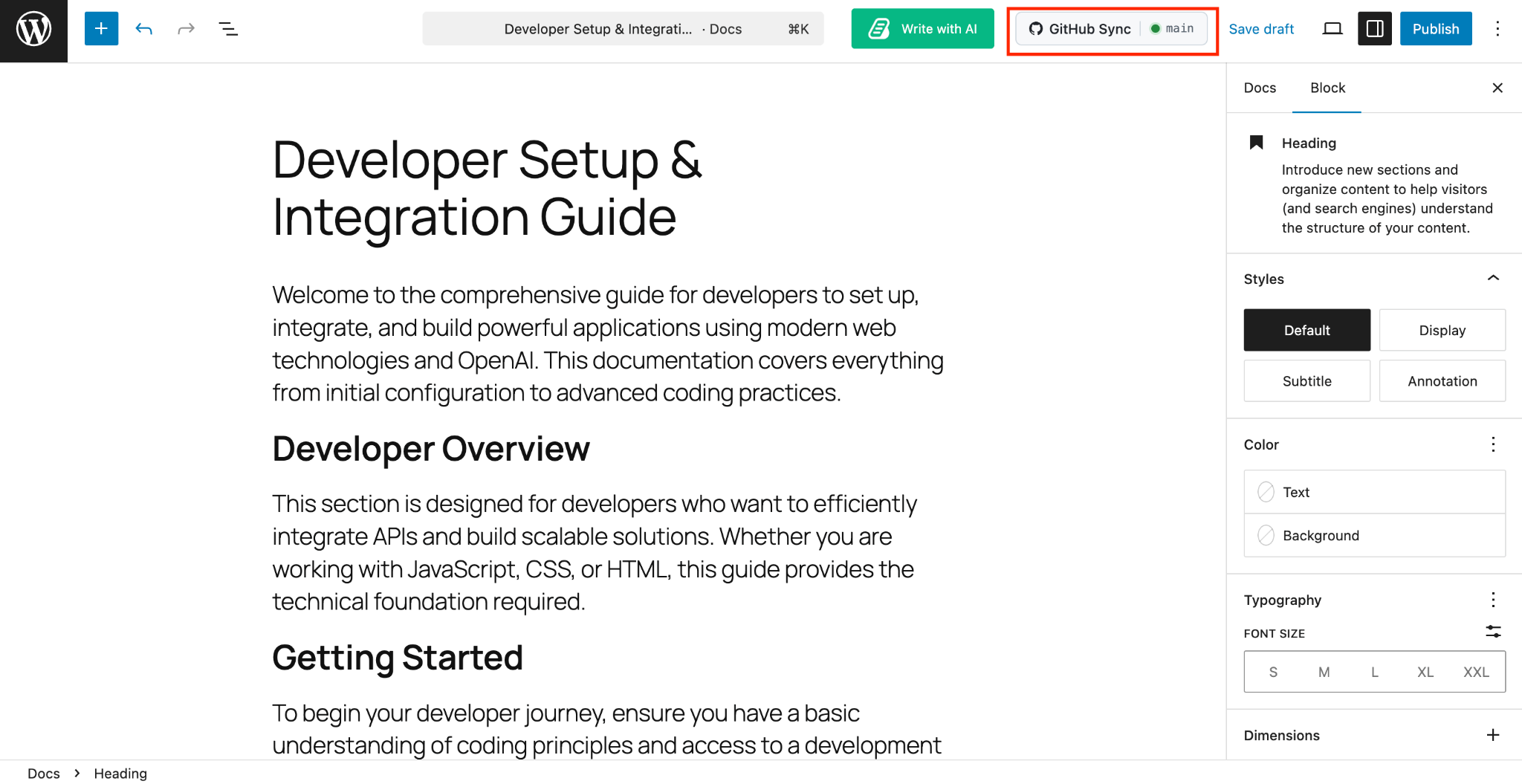
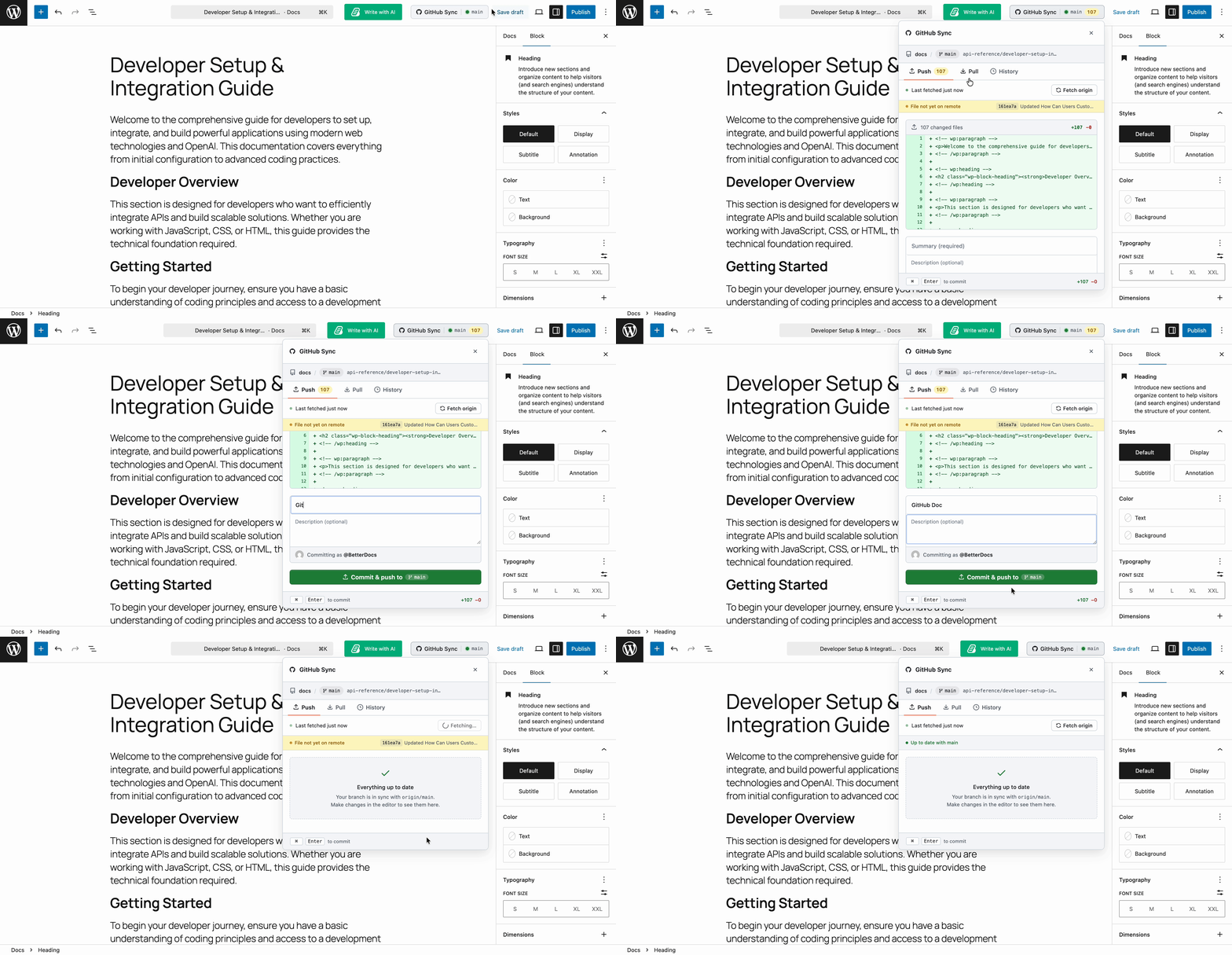
Click it. A panel will appear with options to push the doc to your GitHub repository.
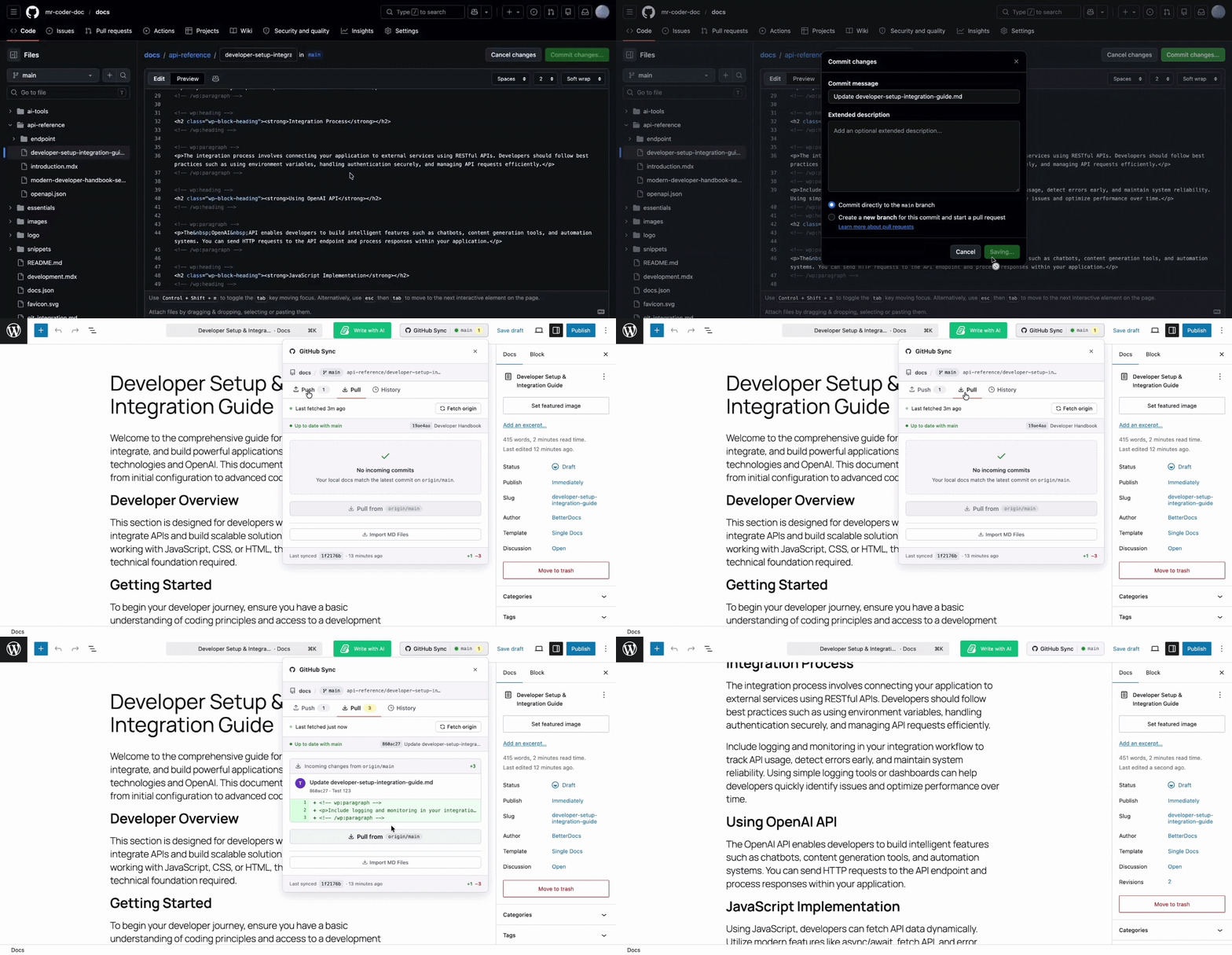
Select ‘Push’, and BetterDocs will fetch the document. Add a ‘Summary’ for your commit (a short description of what the documentation covers or what changed). You can also add a longer description if needed.
Click ‘Commit and Push to [branch name]’ to send the documentation to your selected branch. The file will now appear in your GitHub repository.
Pulling Changes from GitHub
If someone edits the documentation directly in the GitHub repository, you do not need to manually copy those changes back into BetterDocs. Simply click ‘Pull from GitHub’ from the GitHub Sync panel, and BetterDocs will automatically apply those updates to your documentation.
Importing Markdown Files from GitHub
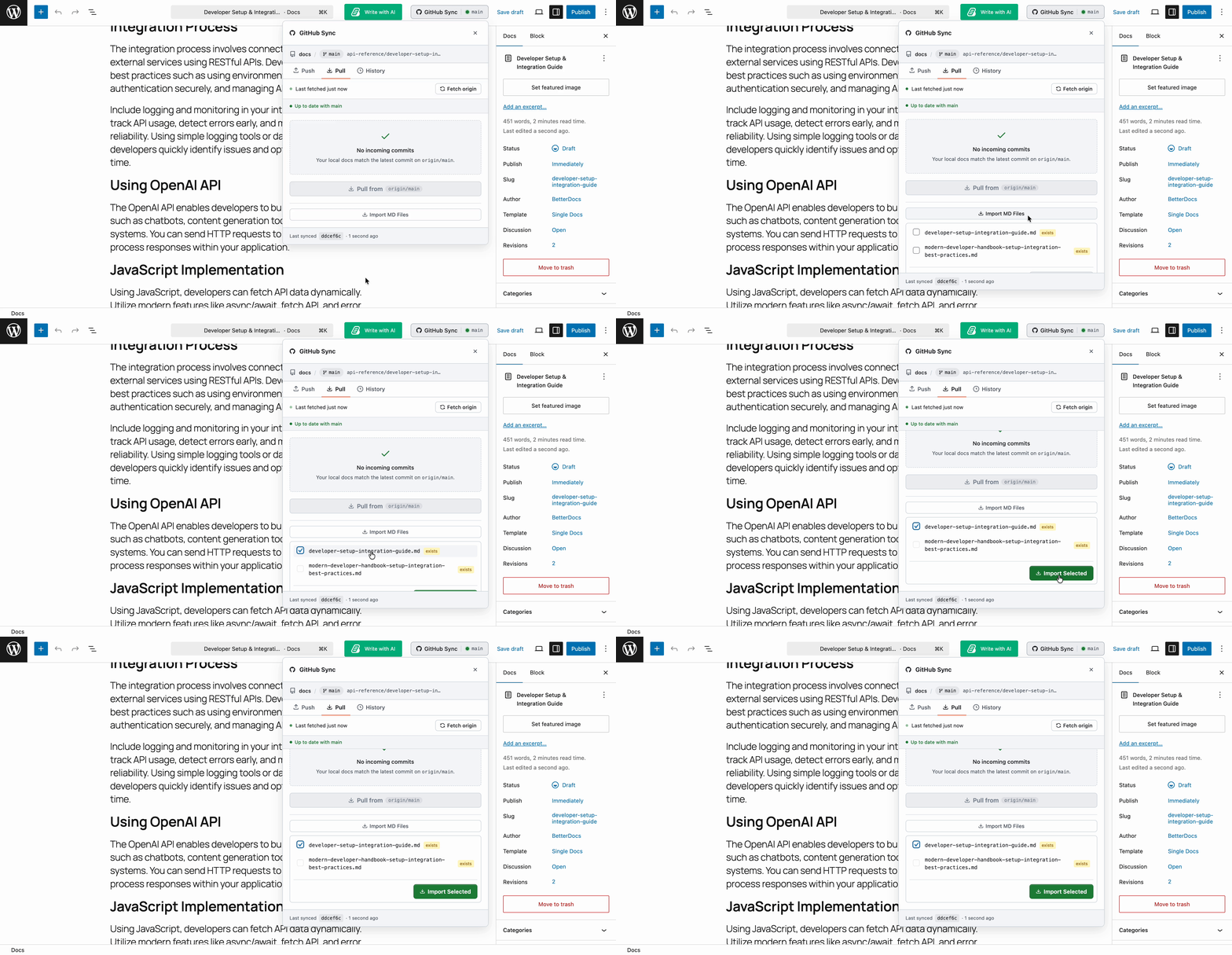
If you have existing Markdown files in your GitHub repository that you want to bring into BetterDocs, click Import MD Files. Select the files you want to import, then click ‘Import Selected‘. BetterDocs will pull those files in and create corresponding documentation entries.
To know more in detail about GitHub integration, check the documentation.
The GitLab integration follows a similar structure but uses a token-based authentication approach instead of the OAuth flow used for GitHub. For more details on connecting your GitLab account, you can also check out the documentation.
Key Features of BetterDocs Git Integration at a Glance
Both GitHub and GitLab integrations share a strong set of core features, but they differ in how authentication works. The table below breaks down exactly what each platform supports so you can plan your setup accordingly.
| Feature | GitHub | GitLab |
| OAuth-based connection | Yes | No |
| Token-based connection | No | Yes |
| Push docs to the repository | Yes | Yes |
| Pull changes to BetterDocs | Yes | Yes |
| Import Markdown files | Yes | Yes |
| Auto Sync on save | Yes | Yes |
| Branch and directory selection | Yes | Yes |
| File naming convention control | Yes | Yes |
Tips for Getting the Most Out of BetterDocs Git Integration
Setting up the integration is only half the job. How you use it day to day determines whether your documentation stays clean, consistent and in sync with your team’s workflow. Here are a few tips to follow:
- Use descriptive commit summaries: When pushing docs from BetterDocs to your repository, treat commit summaries like proper Git commit messages. Short, clear descriptions make it easier to trace changes later.
- Set up a dedicated doc directory: Keep your documentation files in a separate folder within your repository, such as /docs or /documentation. This makes it easier to manage file imports and keeps your repo organized.
- Use Auto Sync with caution on shared branches: If your team collaborates on a branch that others depend on, automatic sync might push incomplete drafts. Consider syncing manually to a documentation-specific branch and merging it in through a pull request.
- Plan your File Naming Convention upfront: Changing your naming convention after syncing several docs can cause mismatches. Decide on a consistent format before you start and stick to it.
- For GitLab users, store your token securely: GitLab access tokens are shown only once. Save it in a secure location, such as a password manager, before pasting it into BetterDocs.
BetterDocs Git Integration And Documentation Workflow: A Better Way to Work
The new Git integration feature in BetterDocs PRO reflects a shift in how documentation tools should work. Documentation is not separate from development. It lives alongside code, changes with the product and benefits from the same version control practices that developers already use.
By connecting BetterDocs to GitHub or GitLab, teams can:
- Keep documentation and code changes in sync within the same workflow
- Use familiar Git tools to review and approve documentation changes
- Maintain a complete version history for every document
- Import entire Markdown-based documentation libraries with minimal effort
This is especially valuable for developer-focused products, open-source projects and any team where documentation quality directly affects the user experience. If you run into any issues during setup, the BetterDocs support team is available to help. Also, if you found this blog helpful, you can subscribe to our blogs for more articles like this.
Frequently Asked Questions About BetterDocs Git Integration
1. Is the Git integration feature available in the free version of BetterDocs?
No. The Git integration feature is available exclusively in BetterDocs PRO. You will need an active PRO license to access the Git Sync settings and connect your GitHub or GitLab account.
2. Can I connect both GitHub and GitLab to BetterDocs at the same time?
The current integration allows you to configure one Git provider at a time within the Git Sync settings. You can switch between GitHub and GitLab by reconfiguring the connection, but simultaneous connections to both platforms are not supported in the current version.
3. What permissions does BetterDocs request when connecting to GitHub?
BetterDocs requests read access to your repository metadata and read and write access to your code. It does not access any data beyond what is needed to sync documentation files.
4. Does BetterDocs support syncing to private GitHub or GitLab repositories?
Yes. The integration works with both public and private repositories. For GitHub, you select the repository during the authorization process. For GitLab, the access token you generate will determine which repositories BetterDocs can access based on the permissions you set.
5. What happens if I edit a document in my Git repository directly? Will BetterDocs update automatically?
Yes, only if the ‘Auto Sync’ is enabled and the change originates from BetterDocs. If a team member edits a file directly in GitHub or GitLab, you will need to use the Pull from GitHub or Pull from GitLab option in BetterDocs to bring those changes into your knowledge base.
6. Can I import Markdown files that are already in my repository into BetterDocs?
Yes. Both the GitHub and GitLab integrations include an Import MD Files option. You can browse the Markdown files in your connected repository, select the ones you want to import, and BetterDocs will create corresponding documentation entries. This is useful for teams migrating existing Markdown documentation into BetterDocs.