
BetterDocs now supports MCP (Model Context Protocol), letting AI assistants like Claude and ChatGPT read and write your documentation directly, right from your chat window. Once connected, with MCP in BetterDocs you can ask the AI assistant to draft new docs, update existing ones, organize categories and FAQs, or check your documentation analytics, all without opening wp-admin. This saves you the back-and-forth of writing content elsewhere and pasting it into BetterDocs.
Note: You will need Administrator access on your WordPress site to approve the connection and an active Claude or ChatGPT account.
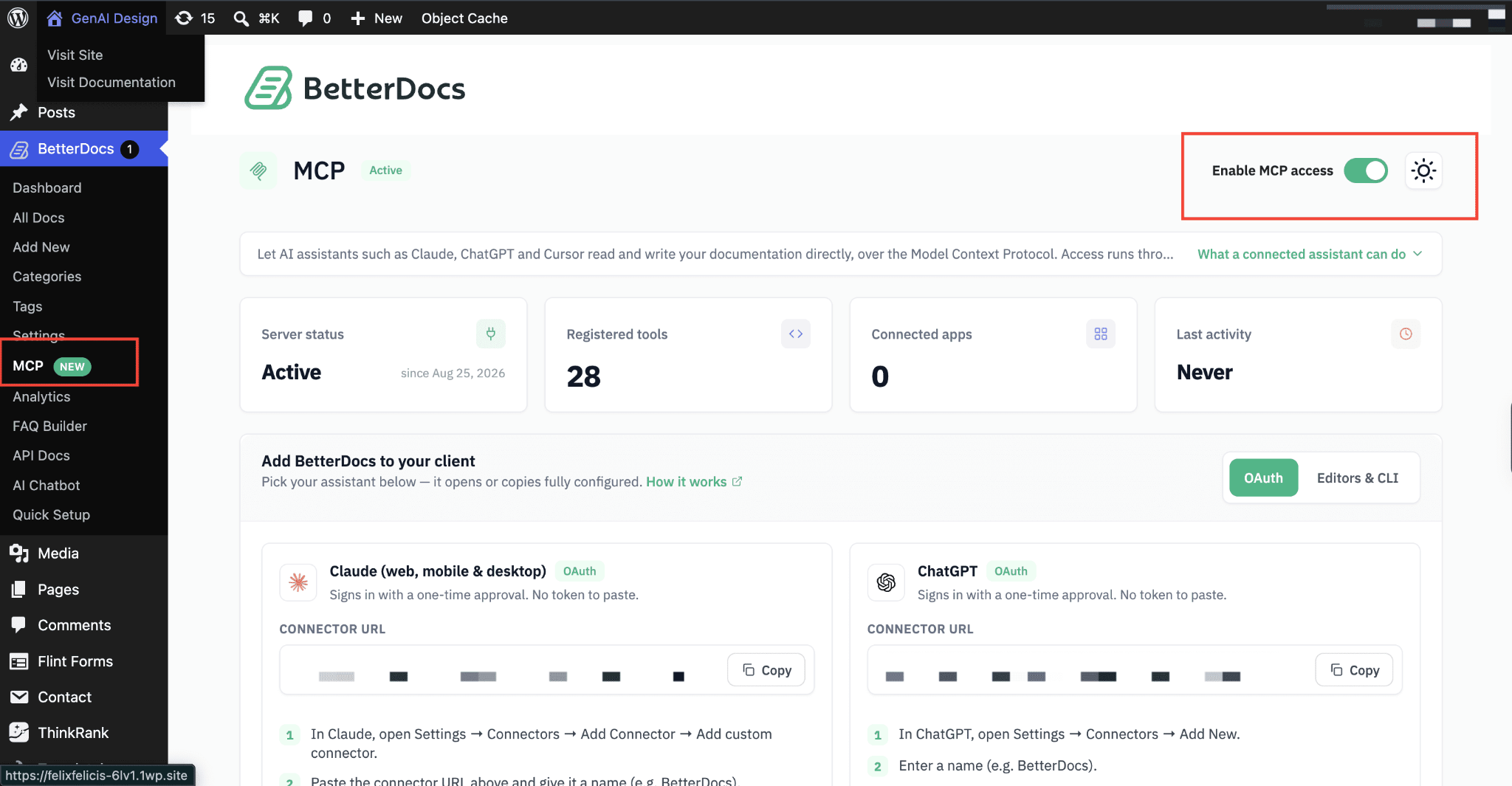
Enable MCP Access #
Go to wp-admin → BetterDocs → MCP. Toggle on ‘Enable MCP access’ at the top right of the page.
This activates your site’s MCP server and generates a connector URL that AI assistants use to communicate with your documentation.
How to Connect Claude to BetterDocs MCP #
Here, in the step-by-step learn more about how to connect Claude with BetterDocs MCP. You can also check the tutorial from here.
Step 1: Get Your Connector URL #
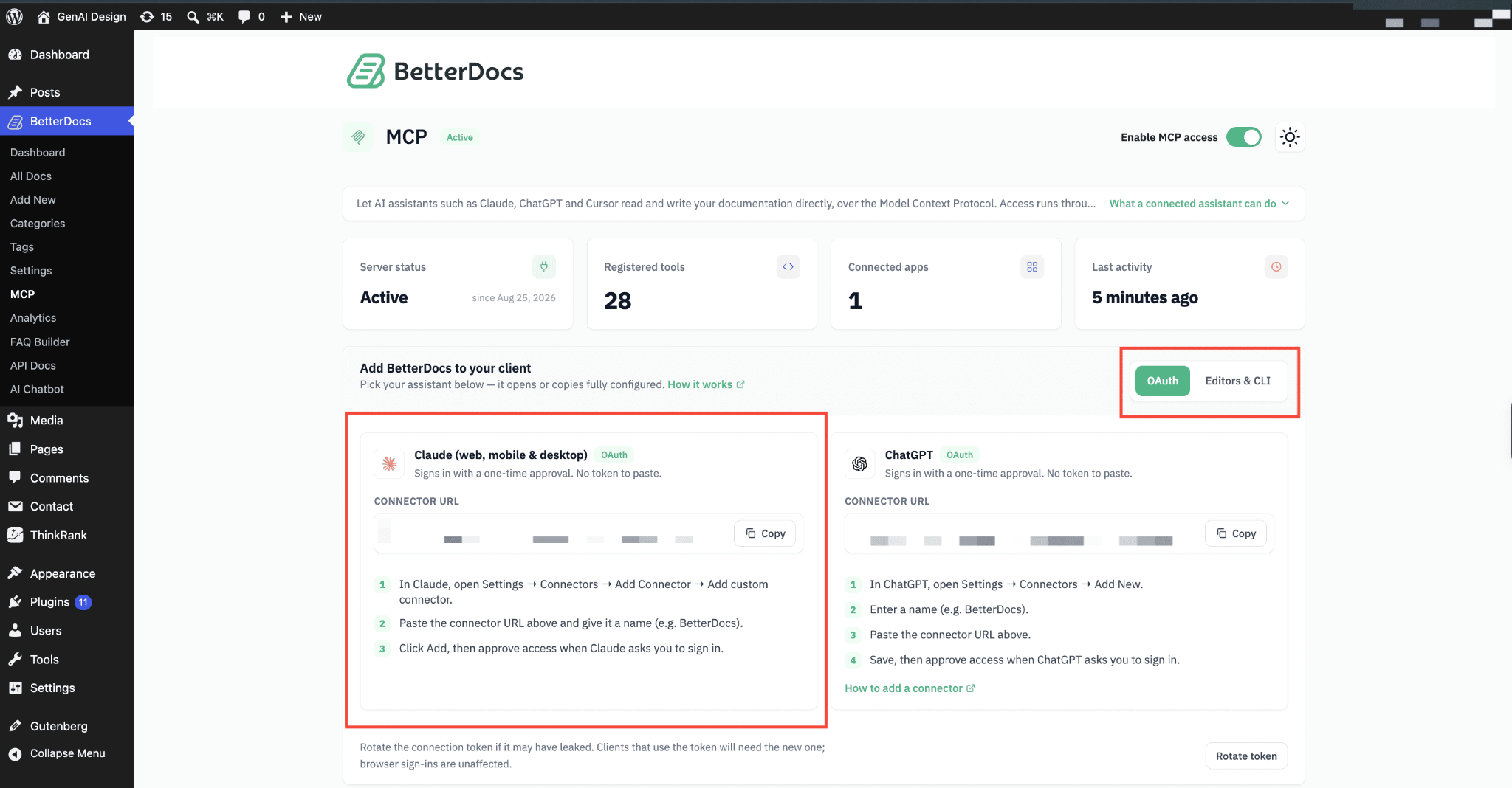
On the same MCP page, scroll to ‘Add BetterDocs to your client’. Select Claude (web, mobile & desktop) under the OAuth tab, then click ‘Copy’ next to the Connector URL field.
- Use the OAuth tab if you are connecting Claude’s web, mobile, or desktop app. This signs in with a one-time approval and no token to paste.
- Use the Editors & CLI tab instead if you are connecting Claude Code or VS Code; this gives you a terminal command to run.
Step 2: Add BetterDocs as a Custom Connector in Claude #
In this process, you will learn more about how to add a custom connector in Claude.
Step 2.1: Open the Connectors Menu #
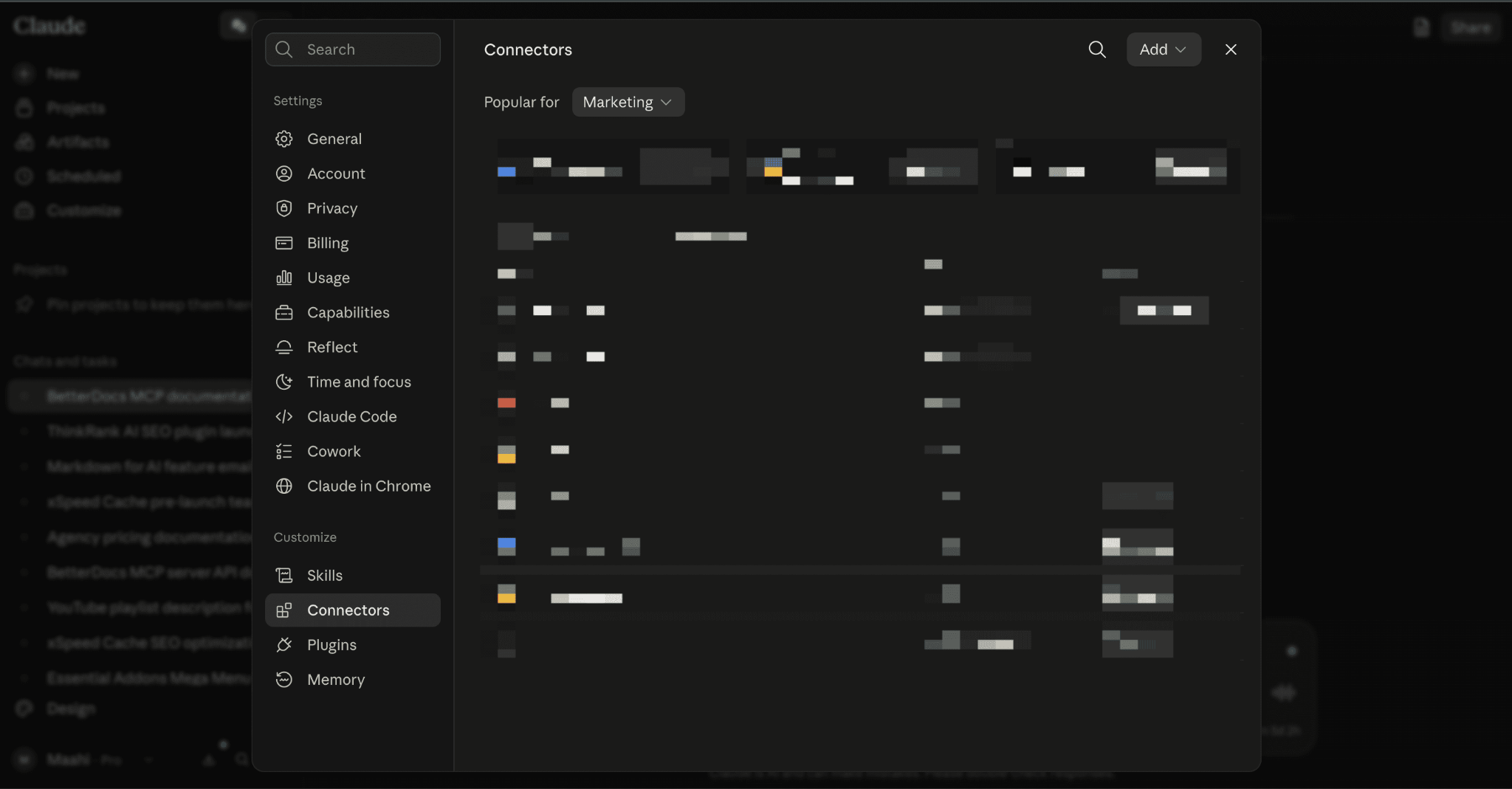
In Claude, click your profile at the bottom left, then go to Settings → Connectors.
Step 2.2: Add a Custom Connector #
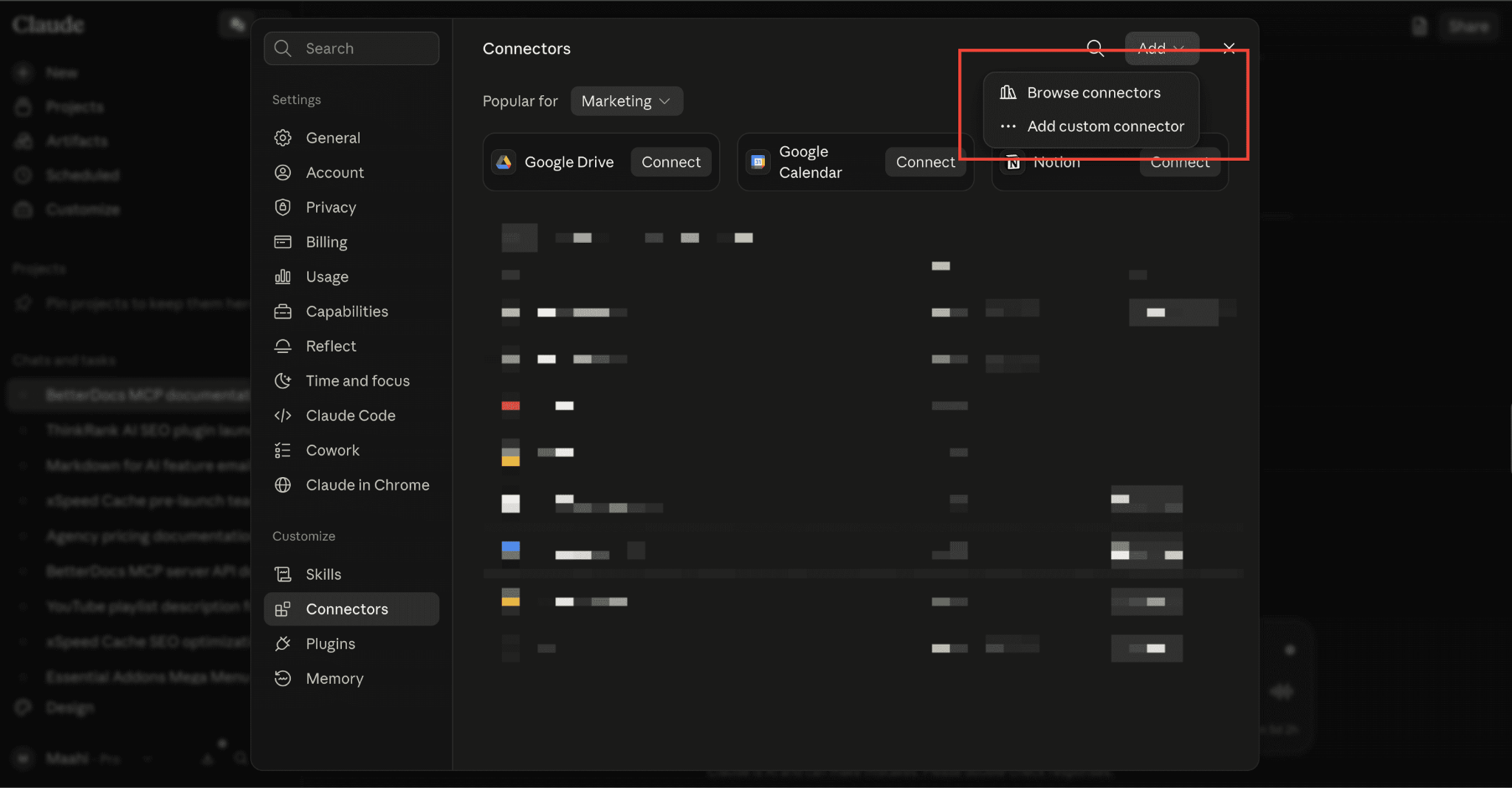
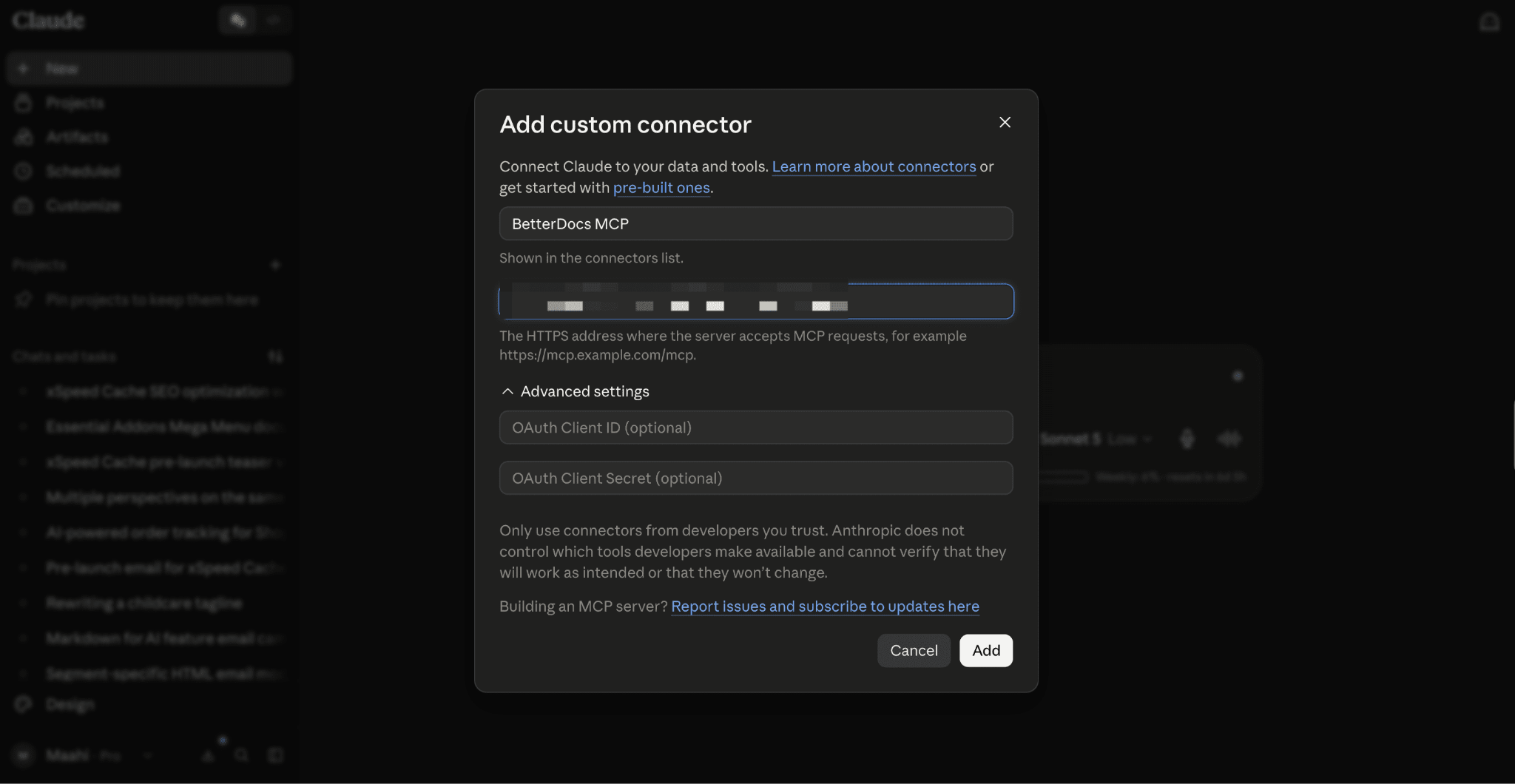
Click ‘Add Custom Connector’. A dialog box opens asking for your connector’s details.
Step 2.3: Enter the Connector Details #
First, enter a name, e.g., ‘BetterDocs MCP’. After that, paste the connector URL you copied in Step 2 into the HTTPS address field. Leave the Advanced settings (OAuth Client ID/Secret) blank unless your setup requires them. Click ‘Add’.
Step 3: Approve the Connection #
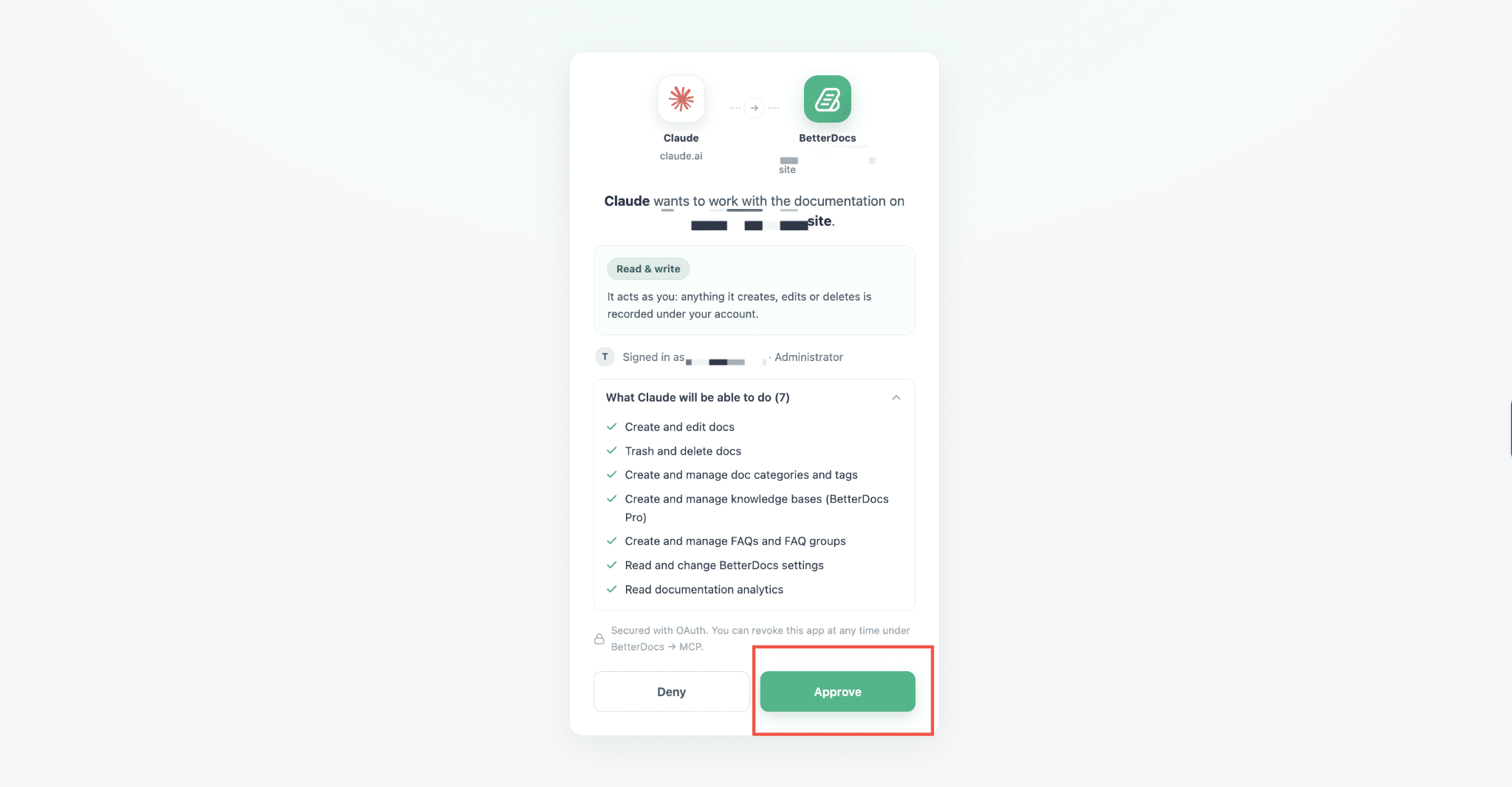
Claude will prompt you to sign in and approve access. You’ll see a confirmation screen showing:
- The permission level (Read & write): Claude acts as your account, so anything it creates, edits, or deletes is recorded under your admin user
- A full list of what Claude will be able to do, including creating/editing docs, managing categories and tags, managing FAQs, and reading analytics
Review the list, then click ‘Approve’.
Step 4: Verify the Connection #
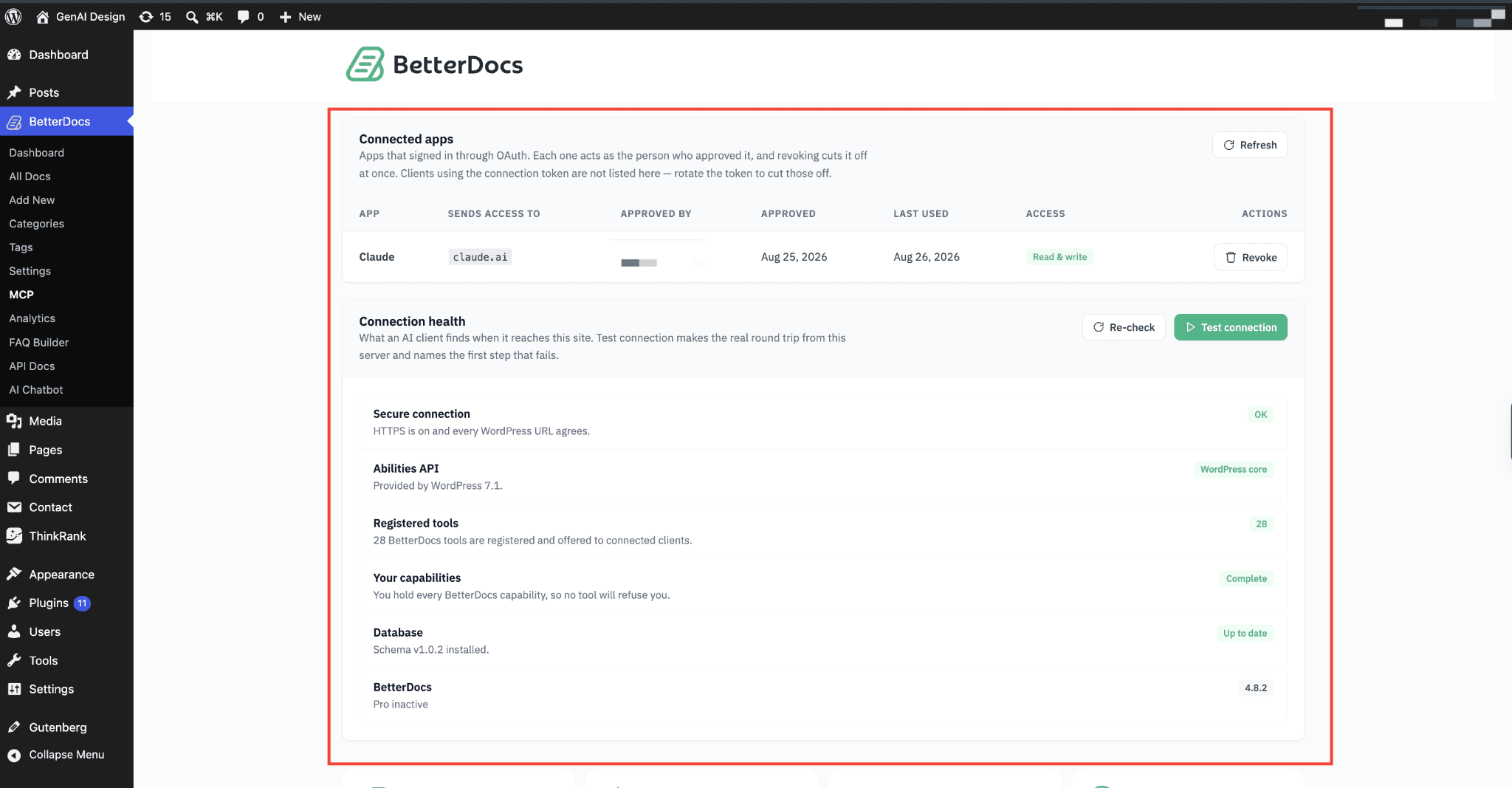
Back in wp-admin, go to BetterDocs → MCP and check the ‘Connected apps’ table. You should see Claude listed with Read & write access and today’s date under Approved.
From here you can:
- Click ‘Refresh’ to update the connection status
- Click ‘Revoke’ to disconnect Claude at any time
- Click ‘Rotate token’ if you are using a connection token (for CLI/editor clients) and it may have leaked. This doesn’t affect browser sign-ins like Claude’s
Step 5: Start Using Claude With Your Docs #
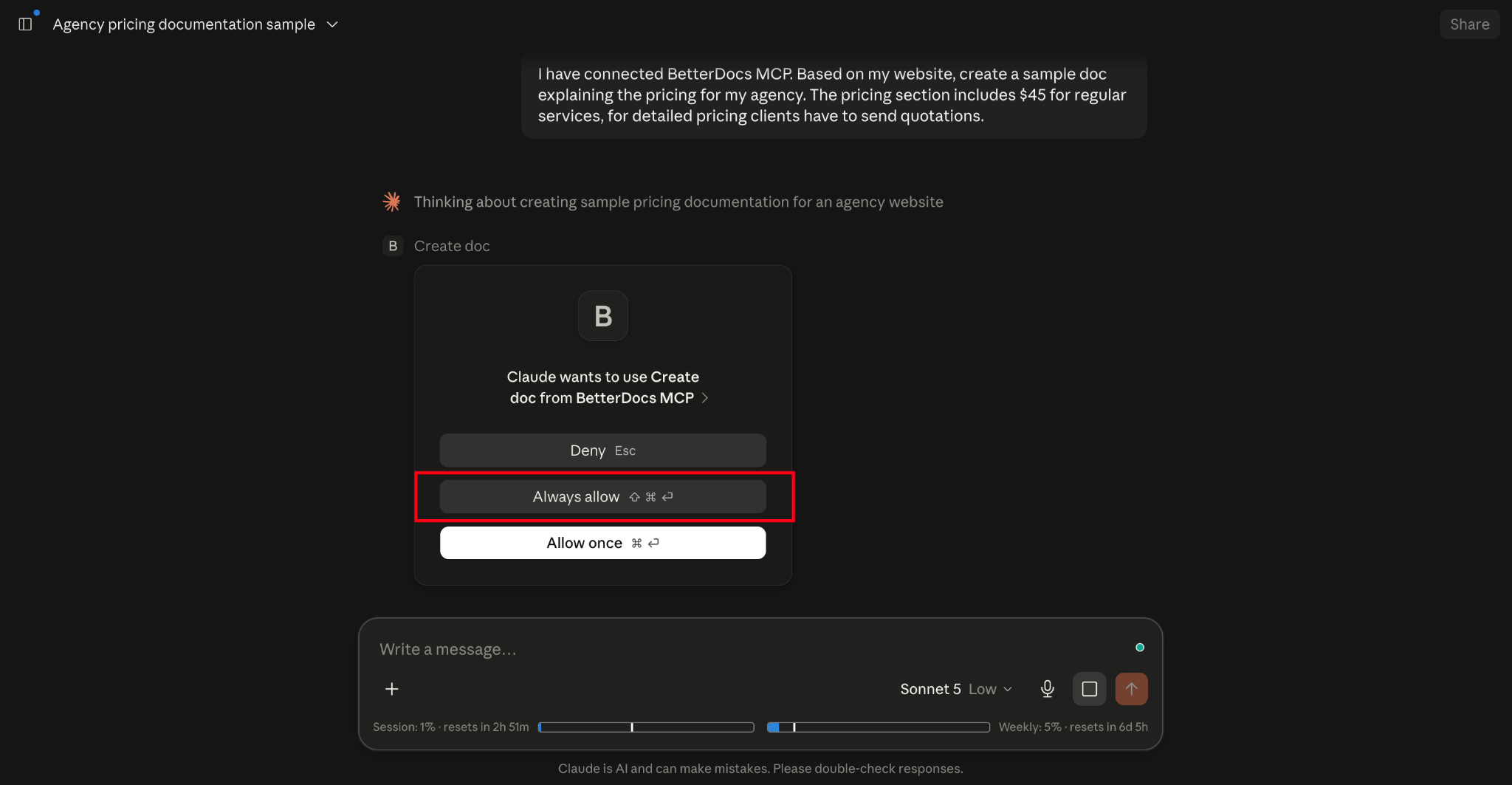
You can now ask Claude to work with your documentation directly in chat. For example, ask Claude to draft a sample doc based on details you provide. When Claude calls a BetterDocs tool for the first time, you will see a permission prompt.
- Choose ‘Allow once’ to approve just that single action
- Choose ‘Always allow’ to skip this prompt for future BetterDocs actions in that chat
How to Connect ChatGPT to BetterDocs MCP #
Connecting ChatGPT follows the same overall process as Claude, with a few differences in where the connector settings live.
Step 1: Get Your Connector URL #
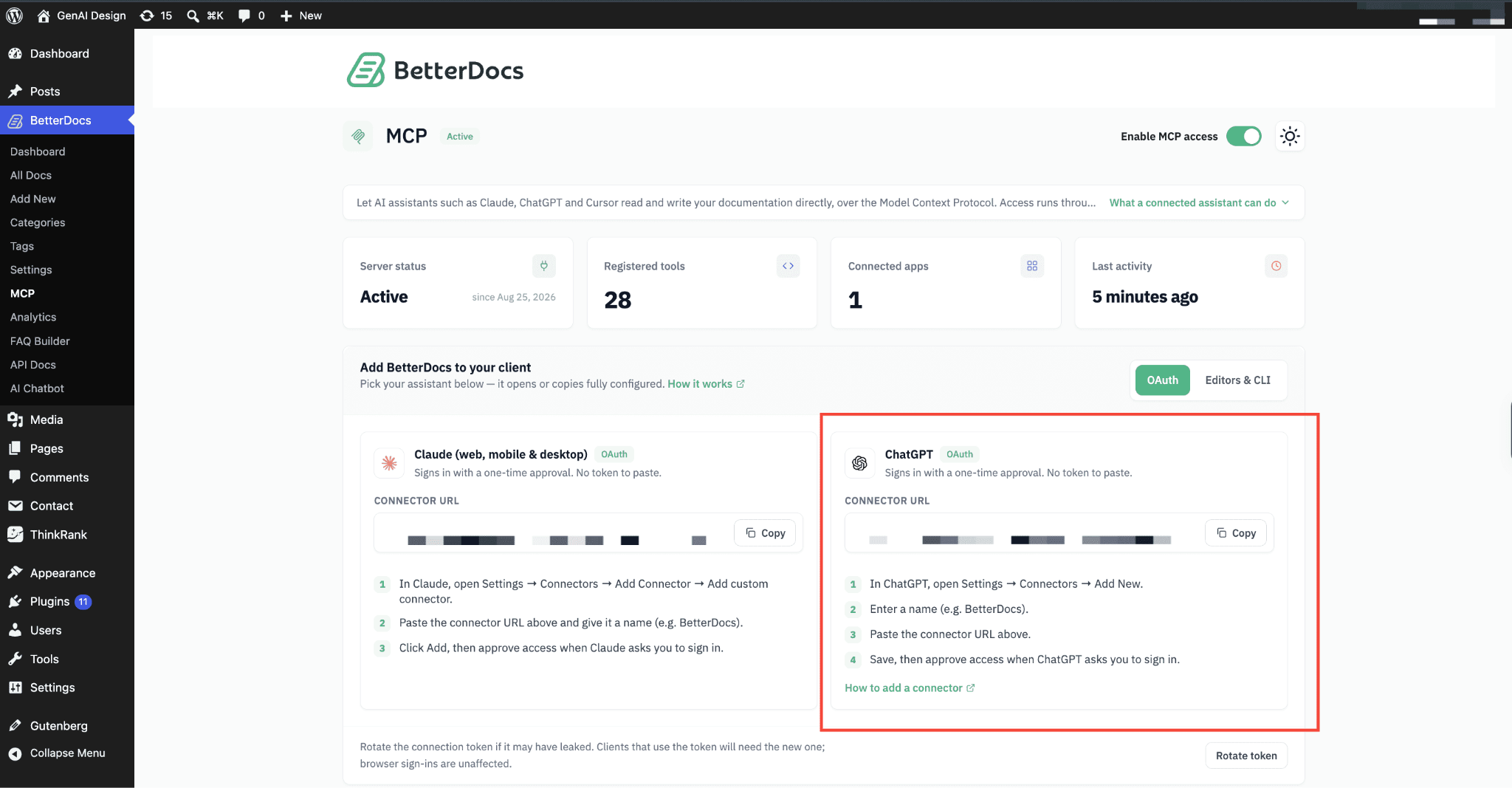
On wp-admin → BetterDocs → MCP, under ‘Add BetterDocs to your client’, select ChatGPT under the OAuth tab and click ‘Copy’ next to its Connector URL field.
Step 2: Open the Connectors Menu in ChatGPT #
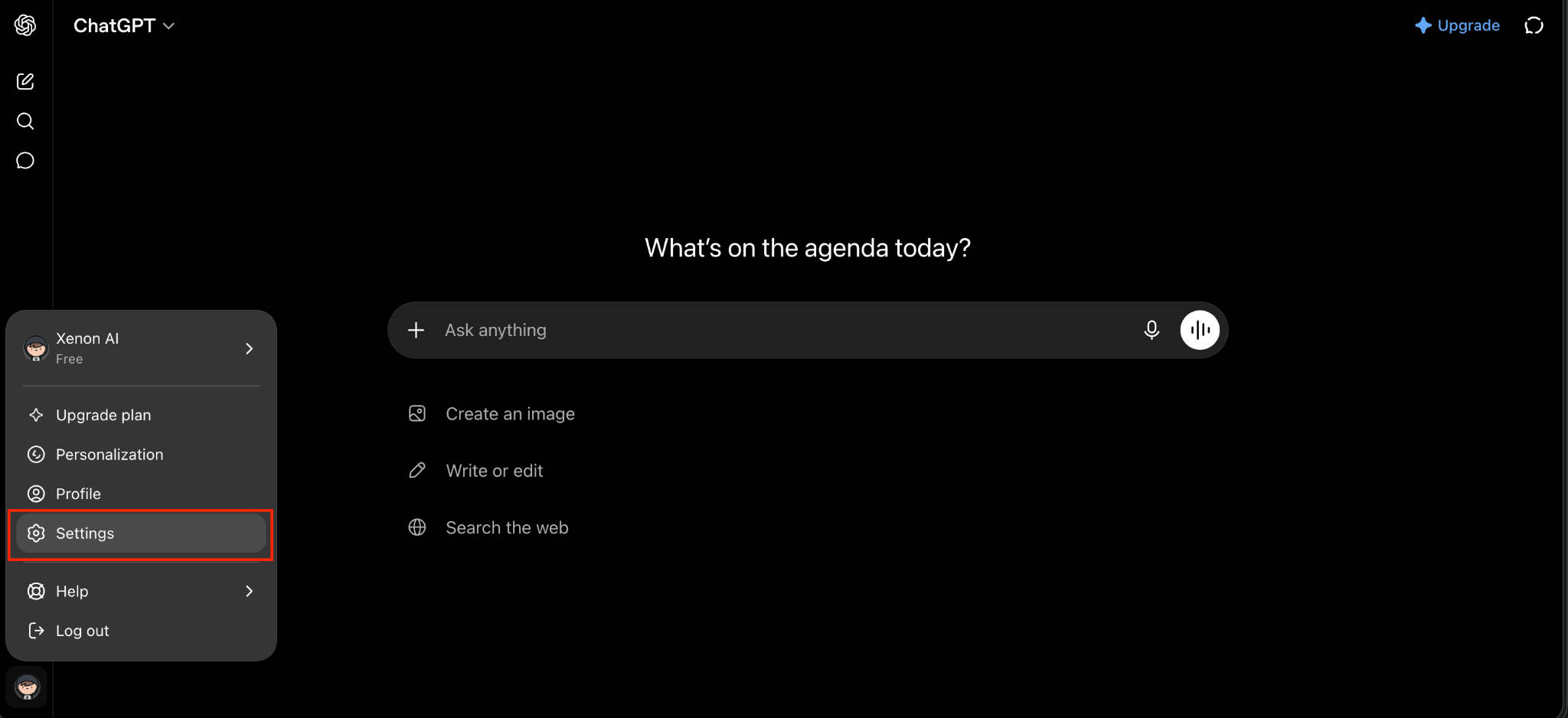
Open ChatGPT, click your profile icon in the bottom-left corner, and choose Settings.
Step 3: Turn On Developer Mode #
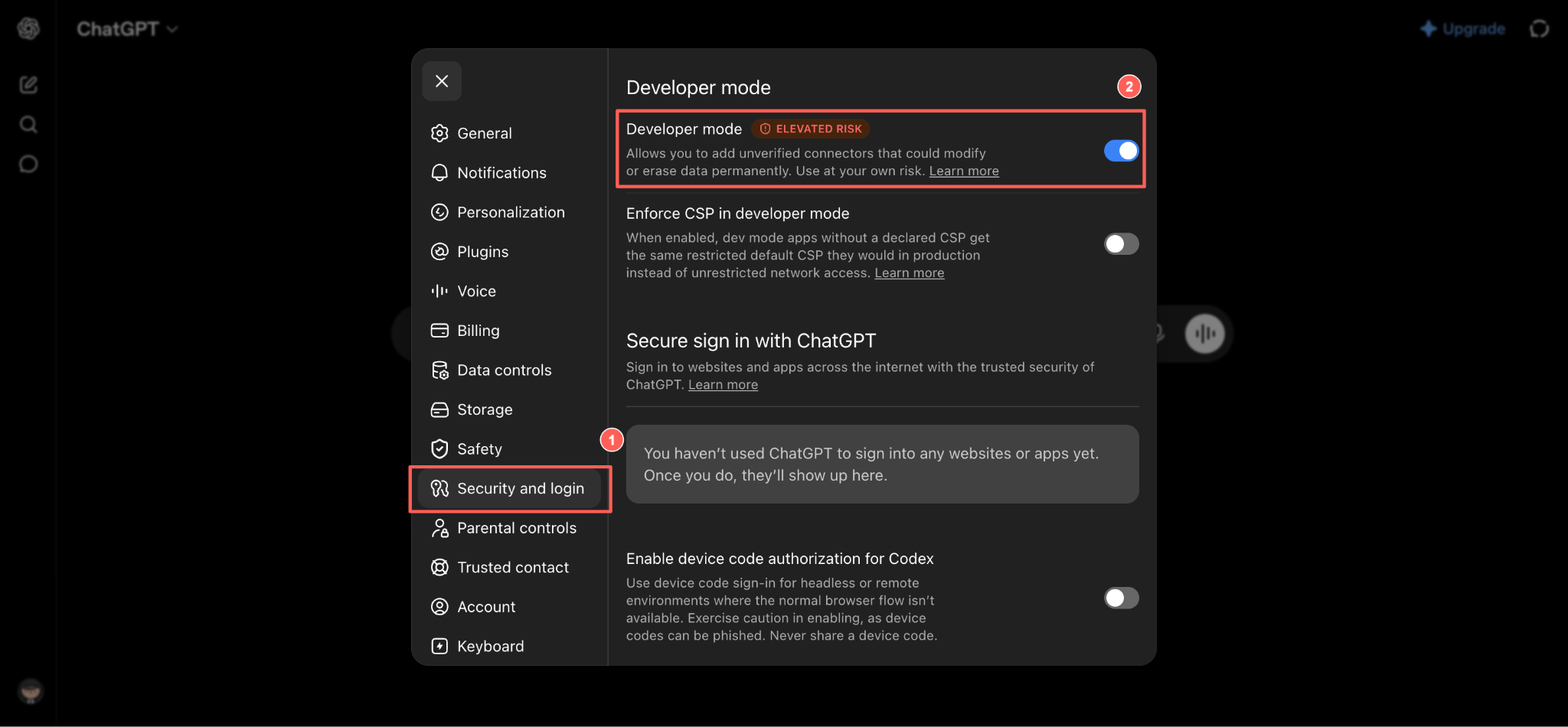
In Settings, open Security & Login from the sidebar, then turn on the Developer mode toggle at the top. This allows you to add a custom MCP server that is not listed in the official directory.
Step 4: Add a New Plugin #
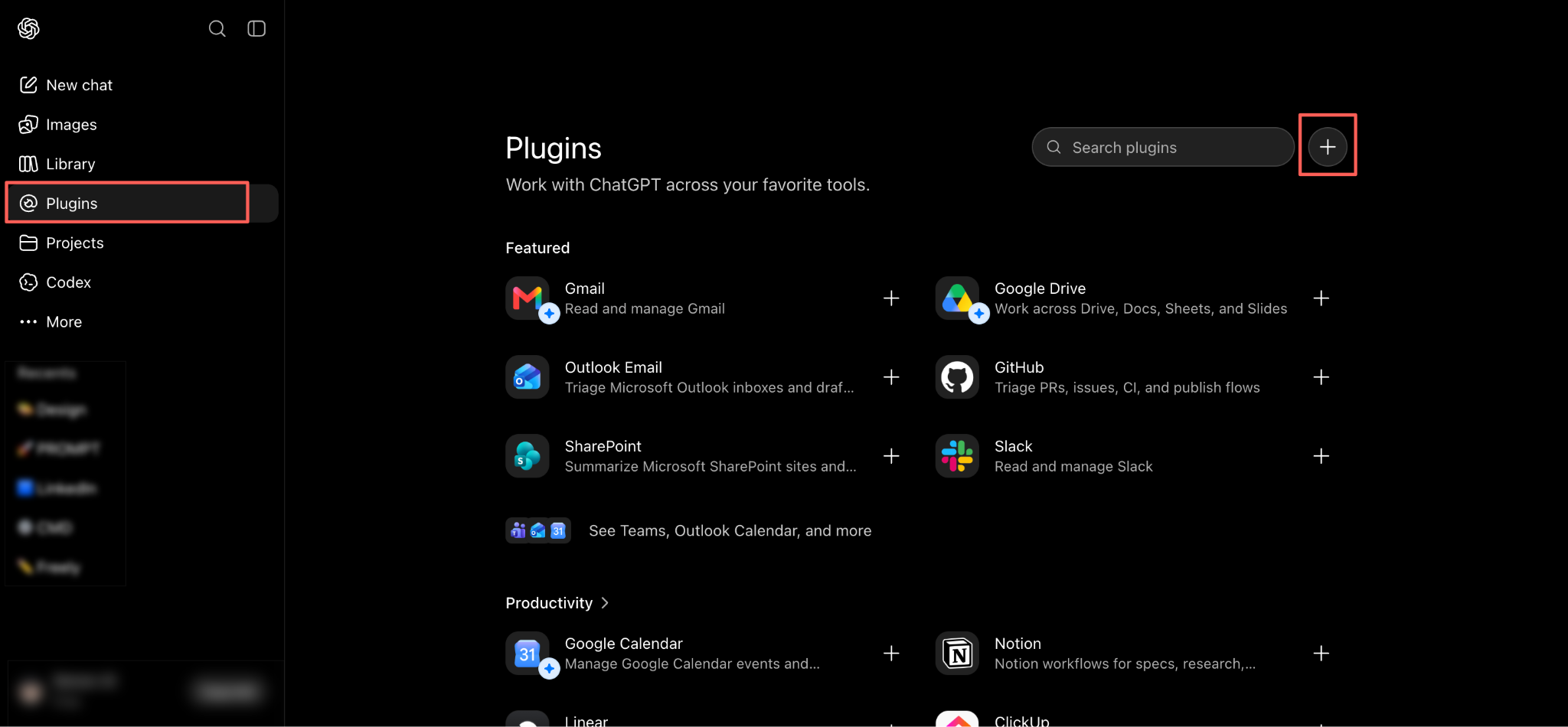
Open Plugins from the left sidebar to view the tools available in ChatGPT. Then, click the + button next to the search field in the top-right corner to create a new one.
Step 5: Fill In the Plugin Details #
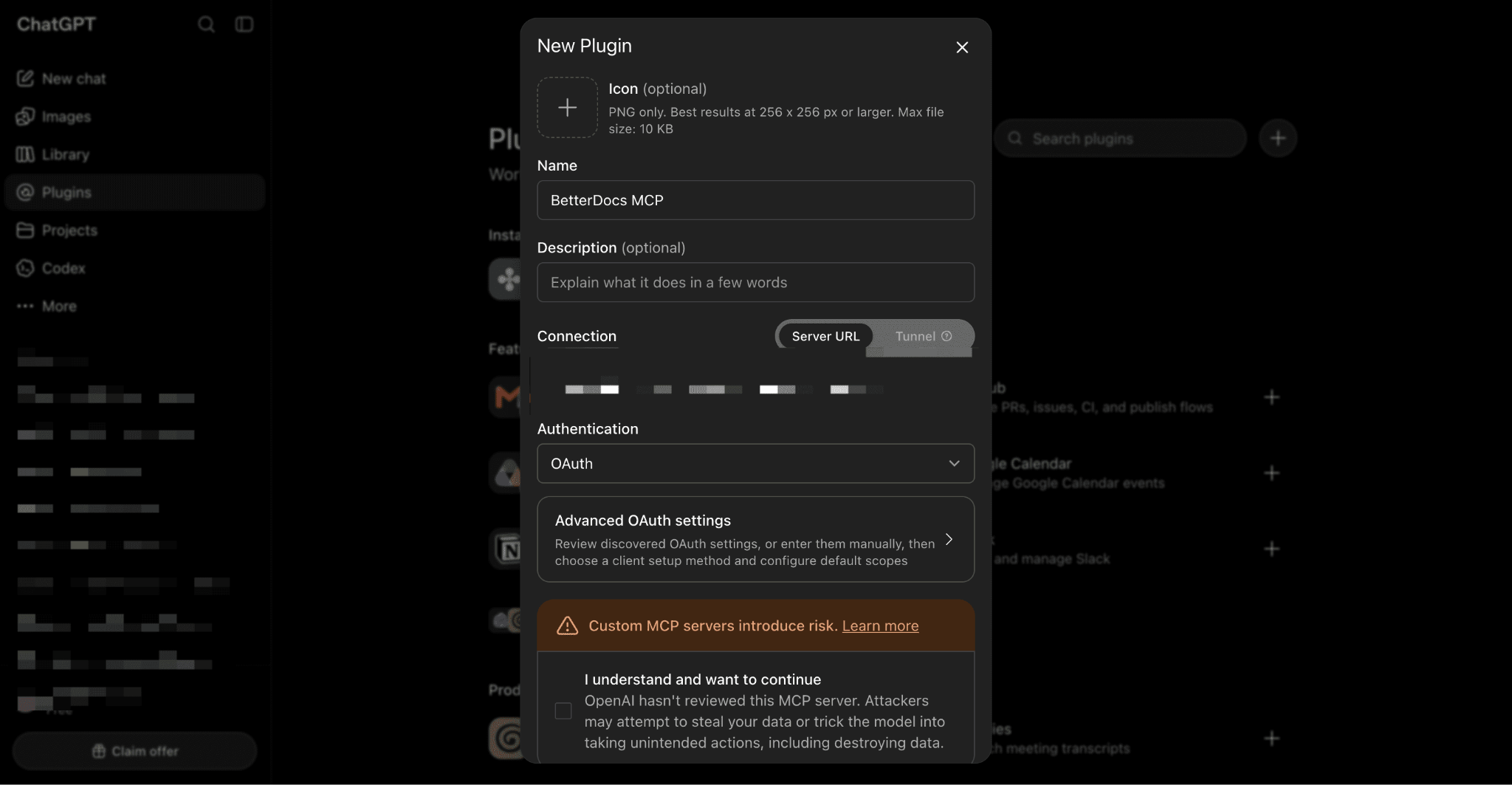
In the New Plugin dialog, enter a name such as BetterDocs MCP to identify the plugin later. Keep the Connection type set to Server URL, then paste the connector URL you copied in Step 2 into the field below. Leave Authentication to OAuth, which BetterDocs uses to verify the connection.
Note: Adding an icon or description is optional and will not affect the connection.
Final Outcome #
Claude and ChatGPT are now connected to your BetterDocs site and can create, edit, and organize your documentation directly from chat, turning a conversation into a published doc in seconds.
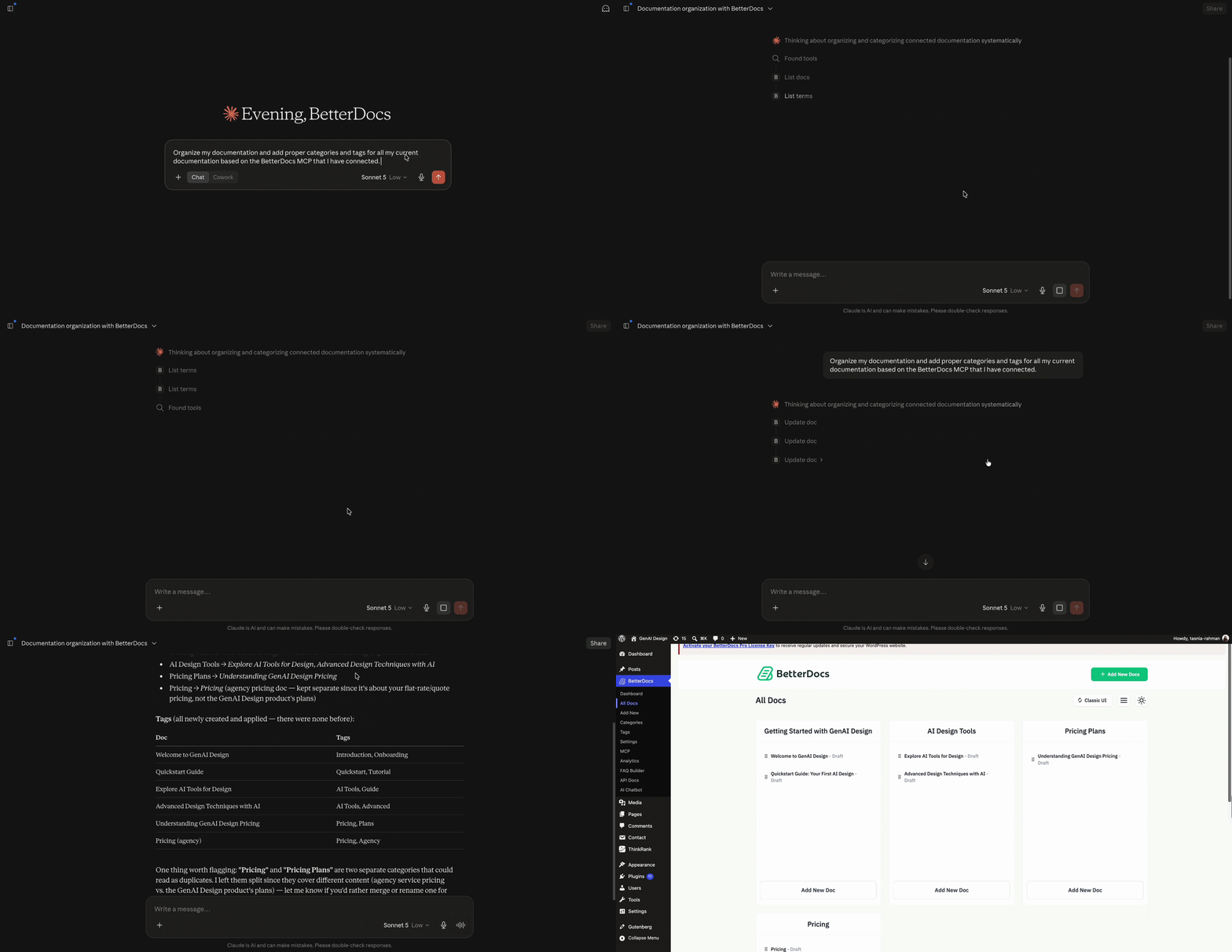
This is how, with the help of BetterDocs’ MCP integration, you can let AI assistants read and write your documentation without leaving your chat window.
Getting Stuck? Feel free to contact our Dedicated Support Team.