
BetterDocs AI Chatbot feature lets your website’s visitors get quick and accurate information on your documentation based on their input by chatting with an AI-powered chatbot. In this documentation, we will show you how to configure BetterDocs AI Chatbot.
How to Configure BetterDocs AI Chatbot Feature? #
In just a few easy steps, you can set up the BetterDocs AI Chatbot feature. Using this functionality, one can get in-depth or summarized details of your docs without exploring the entire doc section. This, in turn, offers the benefit of reducing the pressure on your support team. Follow the step-by-step guide below to learn how to configure this feature.
Note:Before getting started, you need to install and activate BetterDocs, BetterDocs PRO, BetterDocs AI Chatbot on your website. Then, activate the BetterDocs PRO license key to proceed. Also, make sure you have your knowledge base created using BetterDocs.
Step 1: Download And Activate BetterDocs AI Chatbot Addon #
First, you have to purchase and then download the BetterDocs AI Chatbot addon from the WPDeveloper store. The addon will be downloaded as a ZIP file.
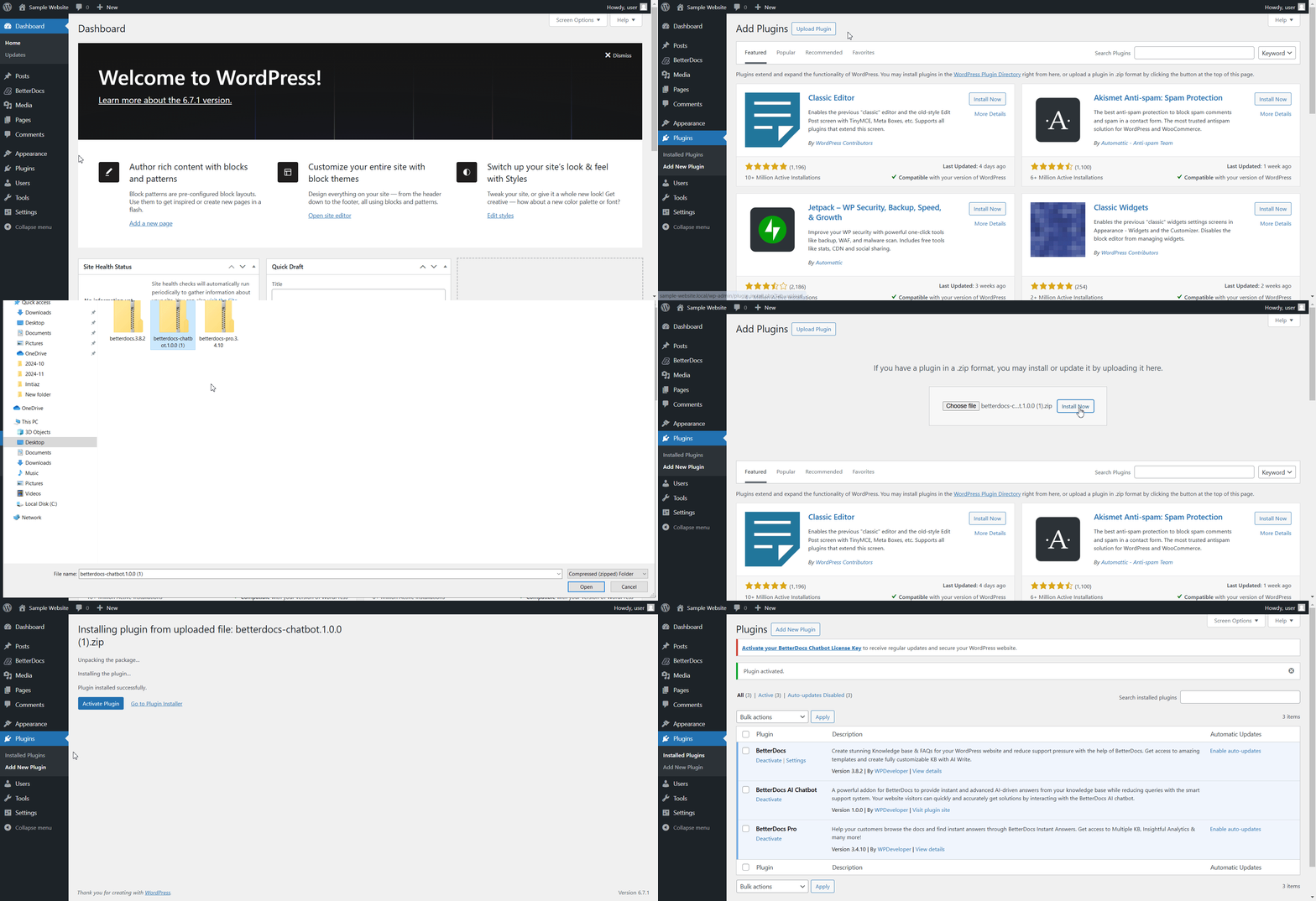
Now, go to the ‘Plugins’ tab in the left side panel of your wp-admin. Here, click on the ‘Add New Plugin’ button. Next, hit the ‘Upload Plugin’ button and then the ‘Choose file’ to upload the BetterDocs AI Chatbot addon ZIP file. Click on the ‘Install Now’ button to install the addon. Then, hit the ‘Activate Plugin’ to activate the addon on your website.
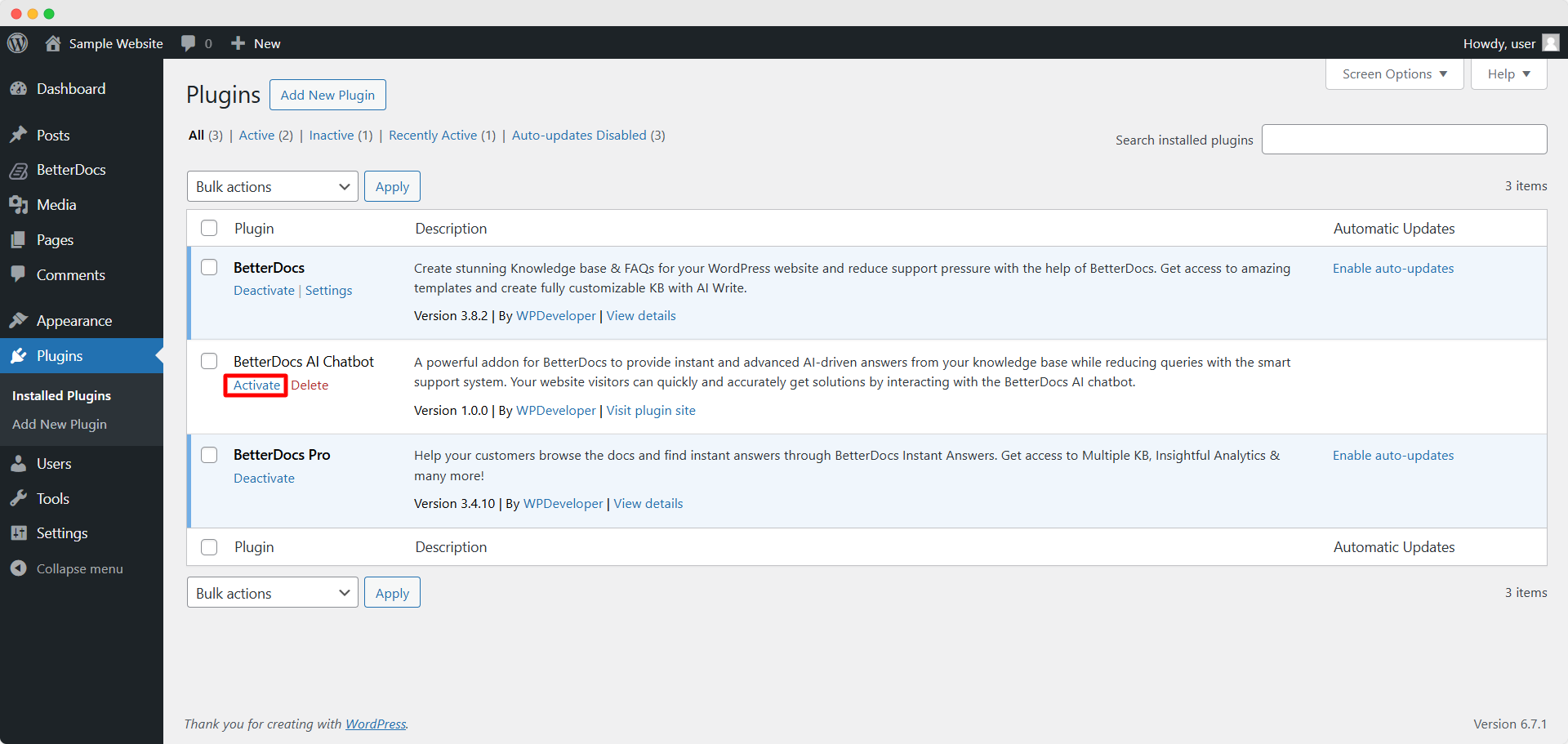
You can also activate the addon from your plugin list. From the ‘Installed Plugins’ option under the ‘Plugins’ tab, find the installed addon from the list. Then, hit the ‘Activate’ button to activate the addon.
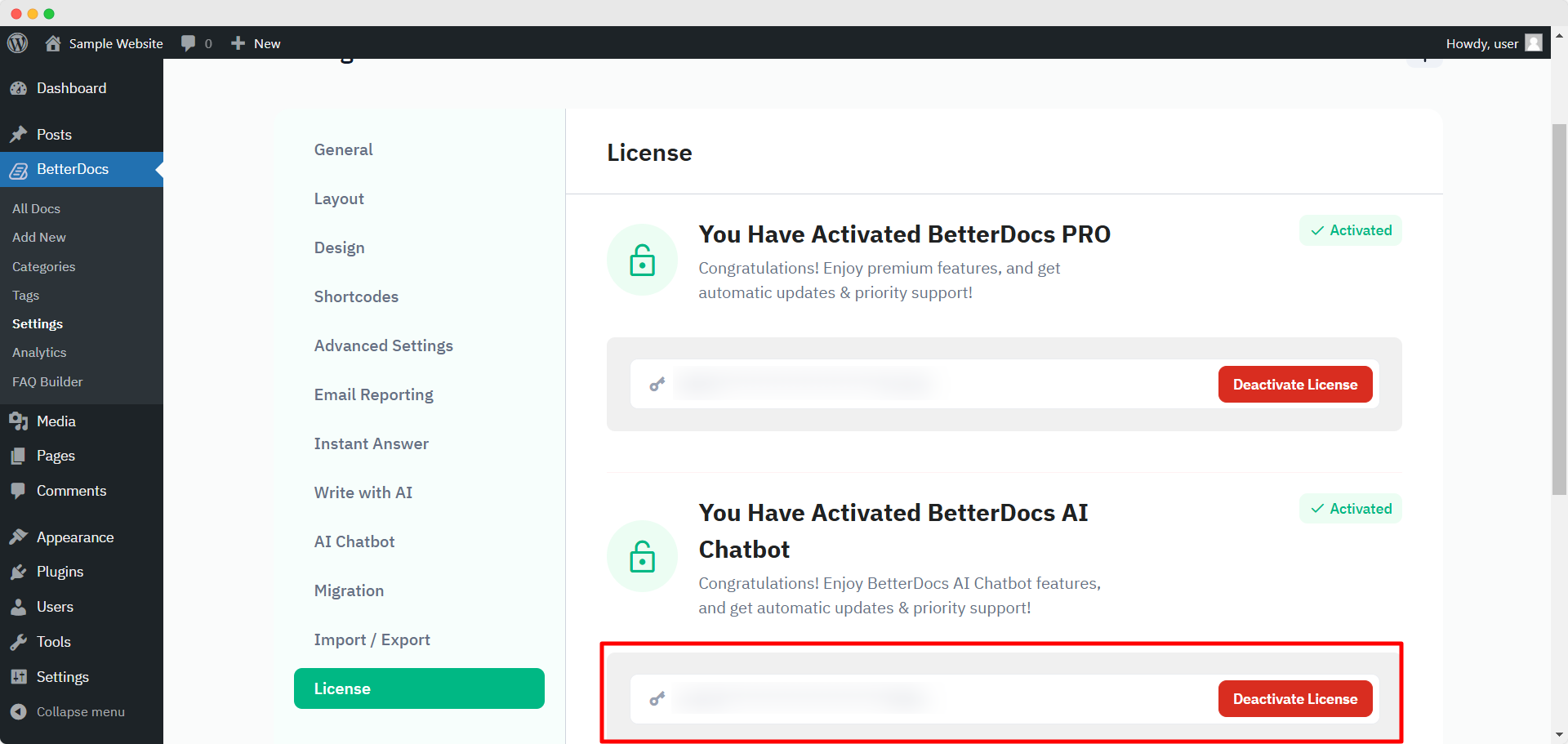
Now, navigate to ‘BetterDocs’ → ‘Settings’ → ‘License’. Here, paste the BetterDocs AI Chatbot license key in the designated field after copying it from your WPDeveloper store account. Hit the ‘Activate License’ button and you will get a license verification code in your email. Enter this verification code in the designated field and click on the ‘Verify’ button to complete the verification process.
Step 2: Add Your API Key in BetterDocs AI Chatbot #
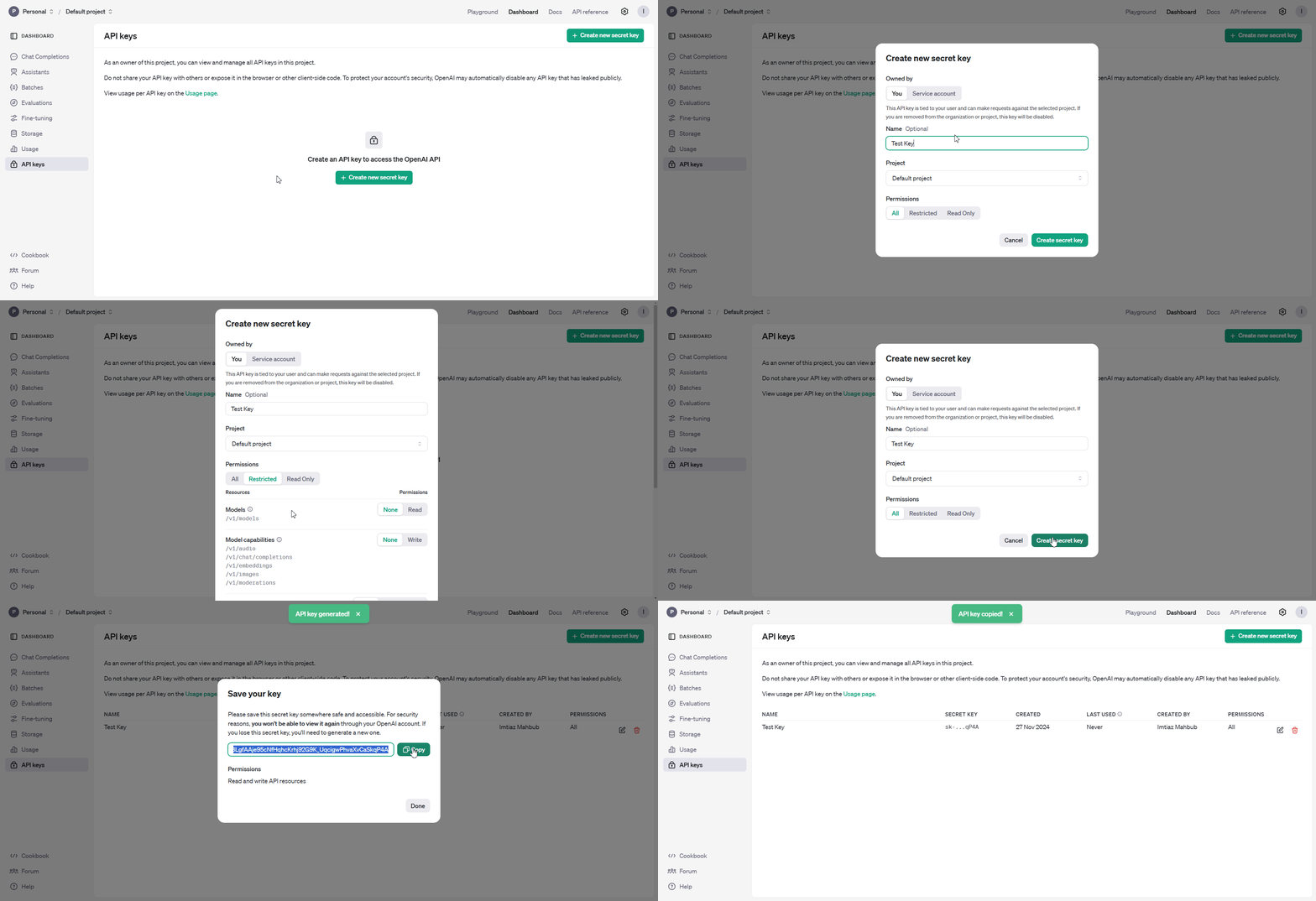
Now, you have to collect and add your OpenAI API key for BetterDocs AI Chatbot to work. Go to the OpenAI platform’s API keys page. Then, click on the ‘Create new secret key’ button. Provide an optional name and other details for the key. Hit the ‘Create secret key’ button to complete the key creation process. Copy the key and come back to the BetterDocs plugin.
Note: You must have an OpenAI paid plan to use the BetterDocs AI Chatbot feature.
Navigate to ‘BetterDocs’ → ‘Settings’ → ‘AI Chatbot’. Toggle to enable the AI Chatbot feature. Then, add your detailed ‘Site Description’ and paste your copied OpenAI API key in the designated field.
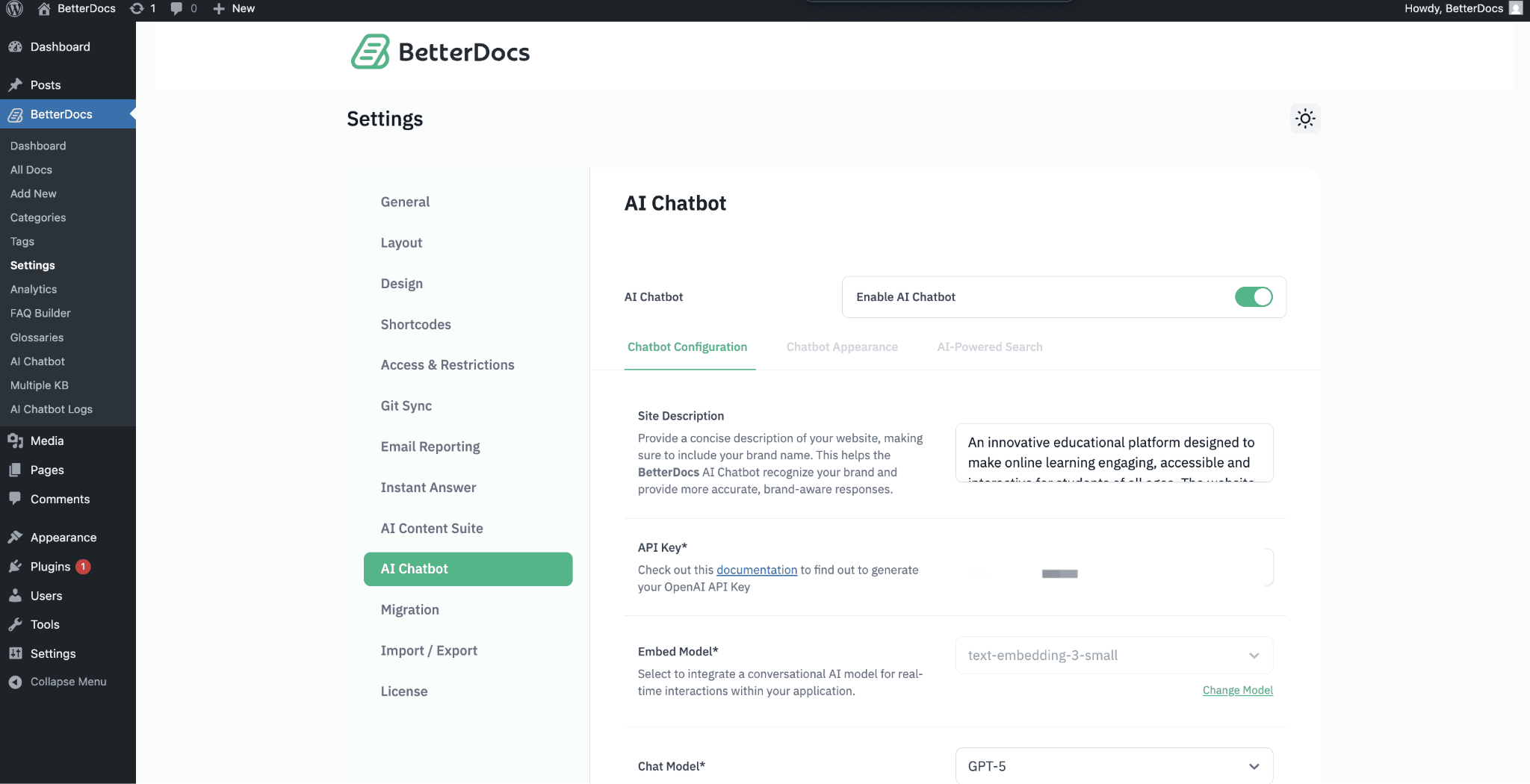
Next, choose your desired Embed Model and Chat Model from the options in the respective dropdowns. There are three embedded models to choose from.
- text-embedding-3-large: The most accurate model for understanding and responding to complex questions.
- text-embedding-3-small: A fast and efficient model for handling document-based queries with improved accuracy.
- ada v2: A reliable and cost-effective model for general document understanding tasks.
Note: We do not recommend changing the Embed Model when data processing has started after you have chosen an Embed Model option. Doing this might lead to issues due to the change of the Embed Model in the middle of the process.
If you want to add Gemini API key select the ‘Google Gemini’ from the AI platform.
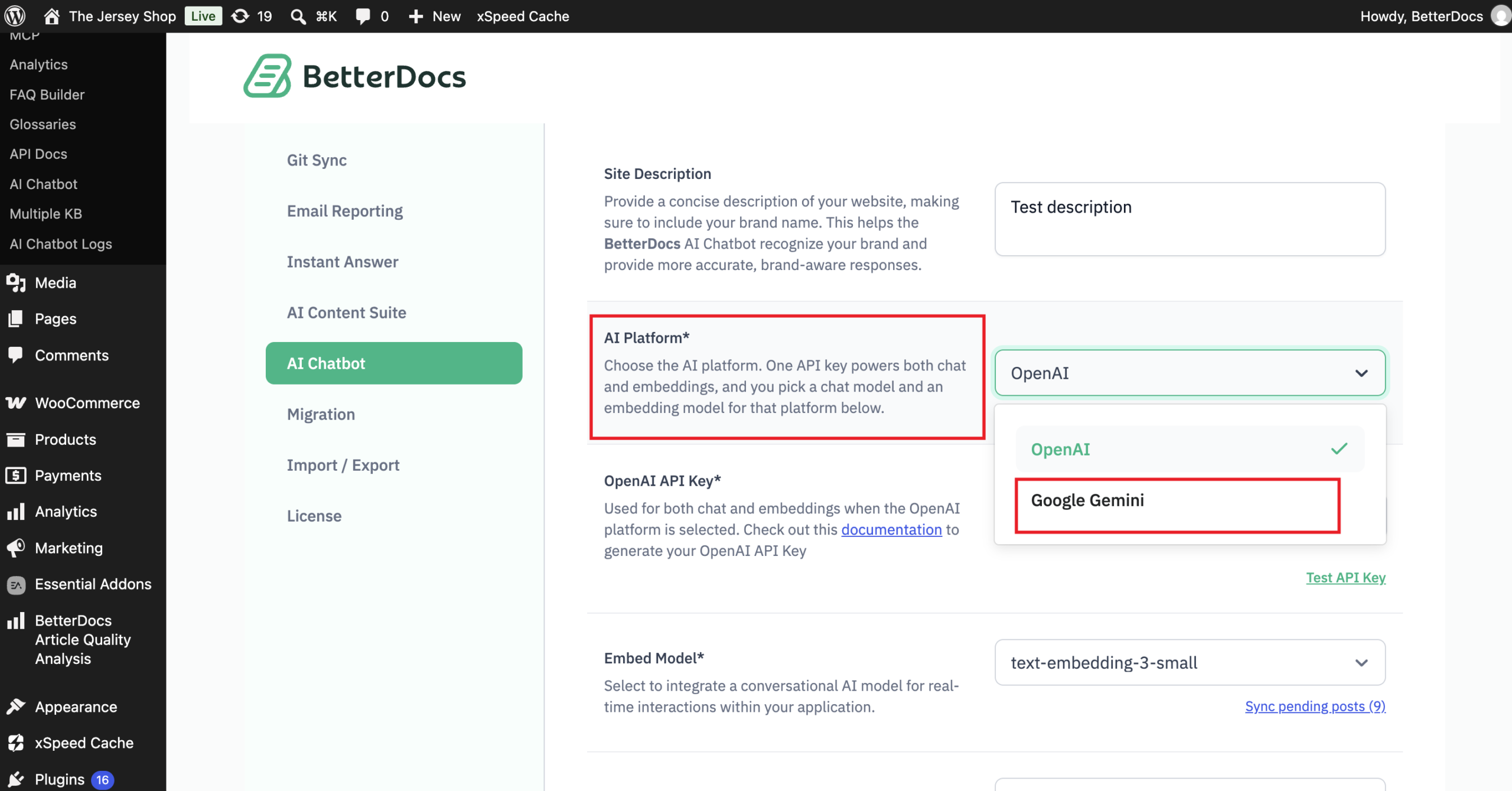
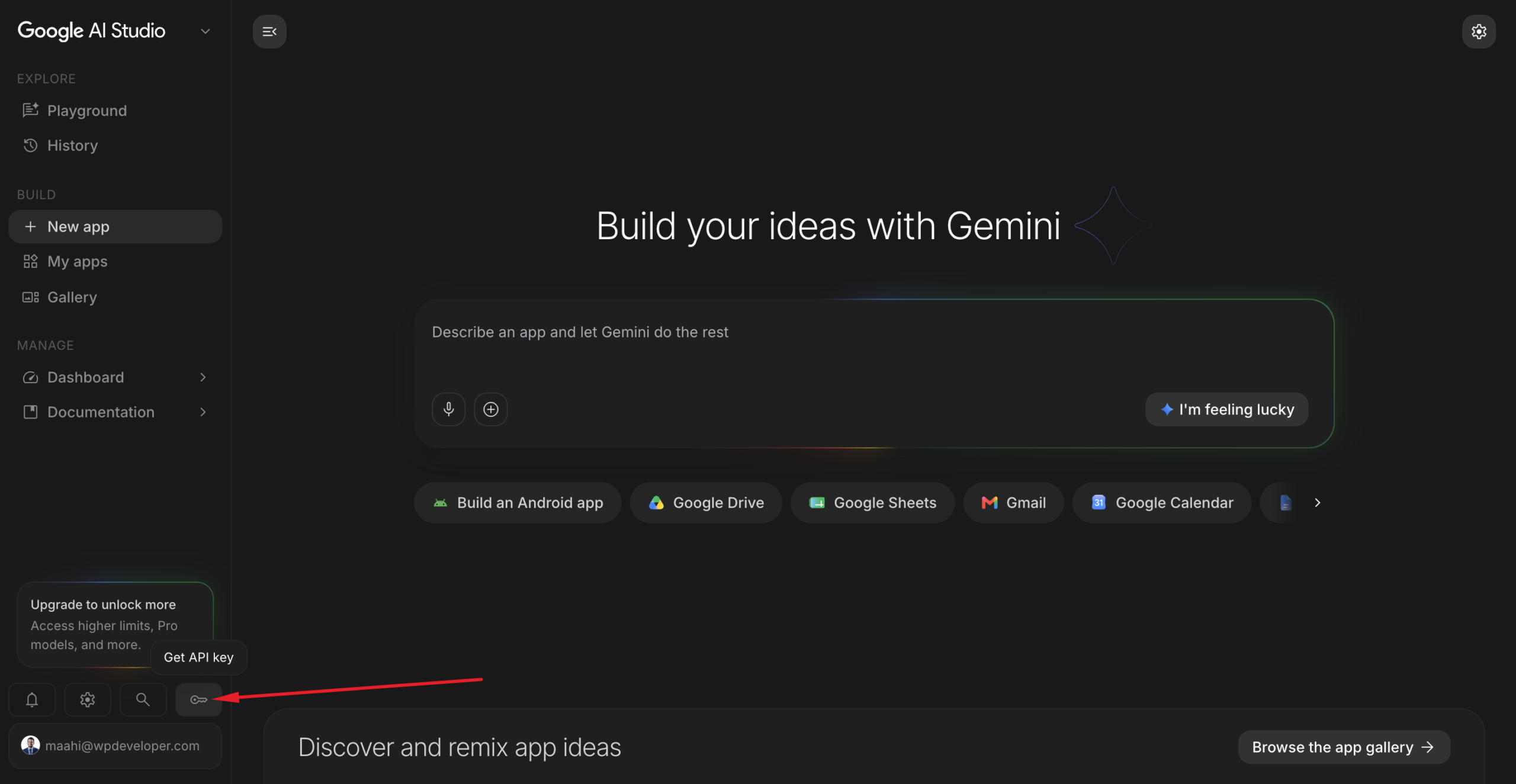
To get the Gemini API key, go to your Google AI Studio dashboard. From there sign in to your Google account. From the dashboard click on the key icon on the bottom of left sidebar.
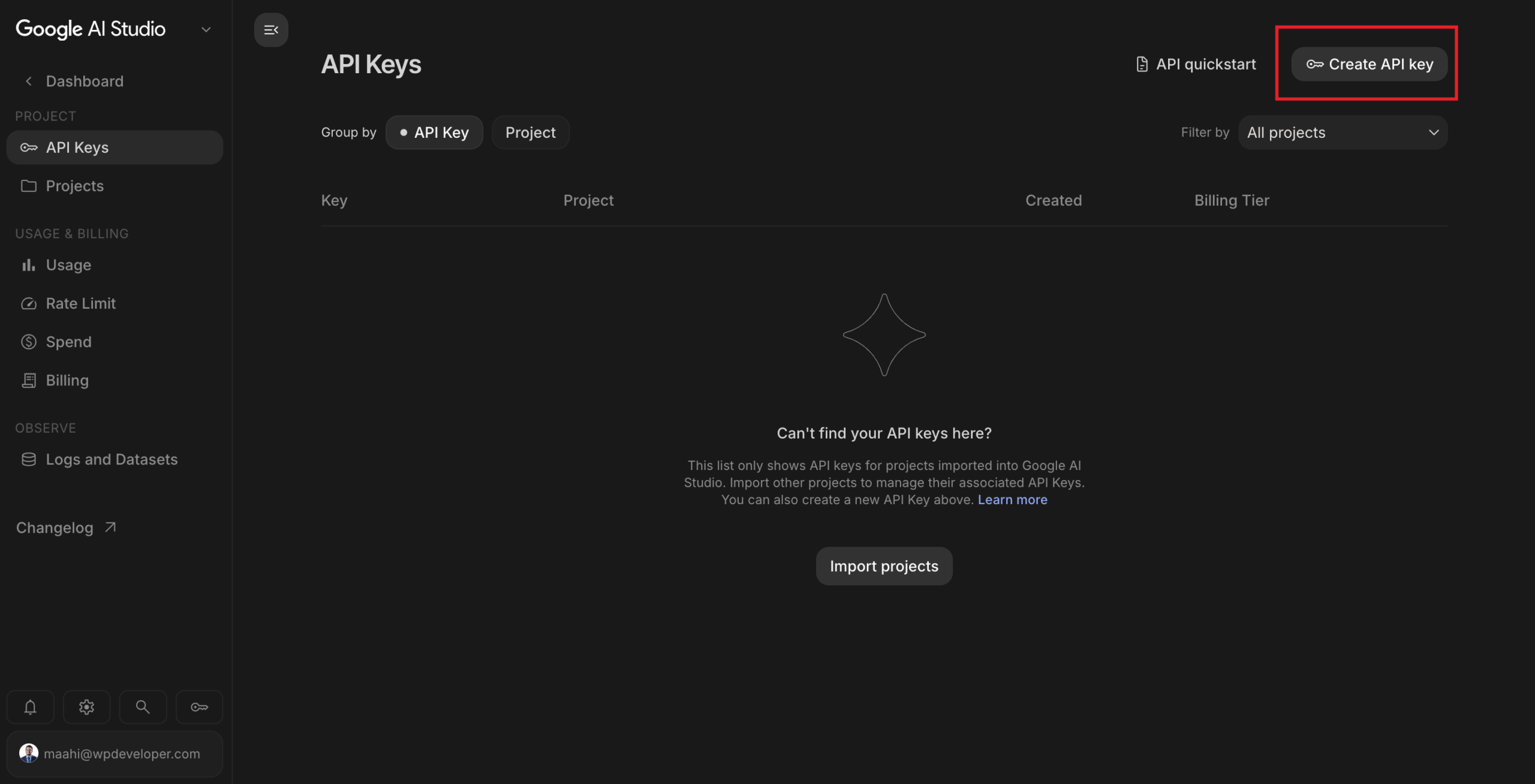
Then click on the ‘Create API key’ button.
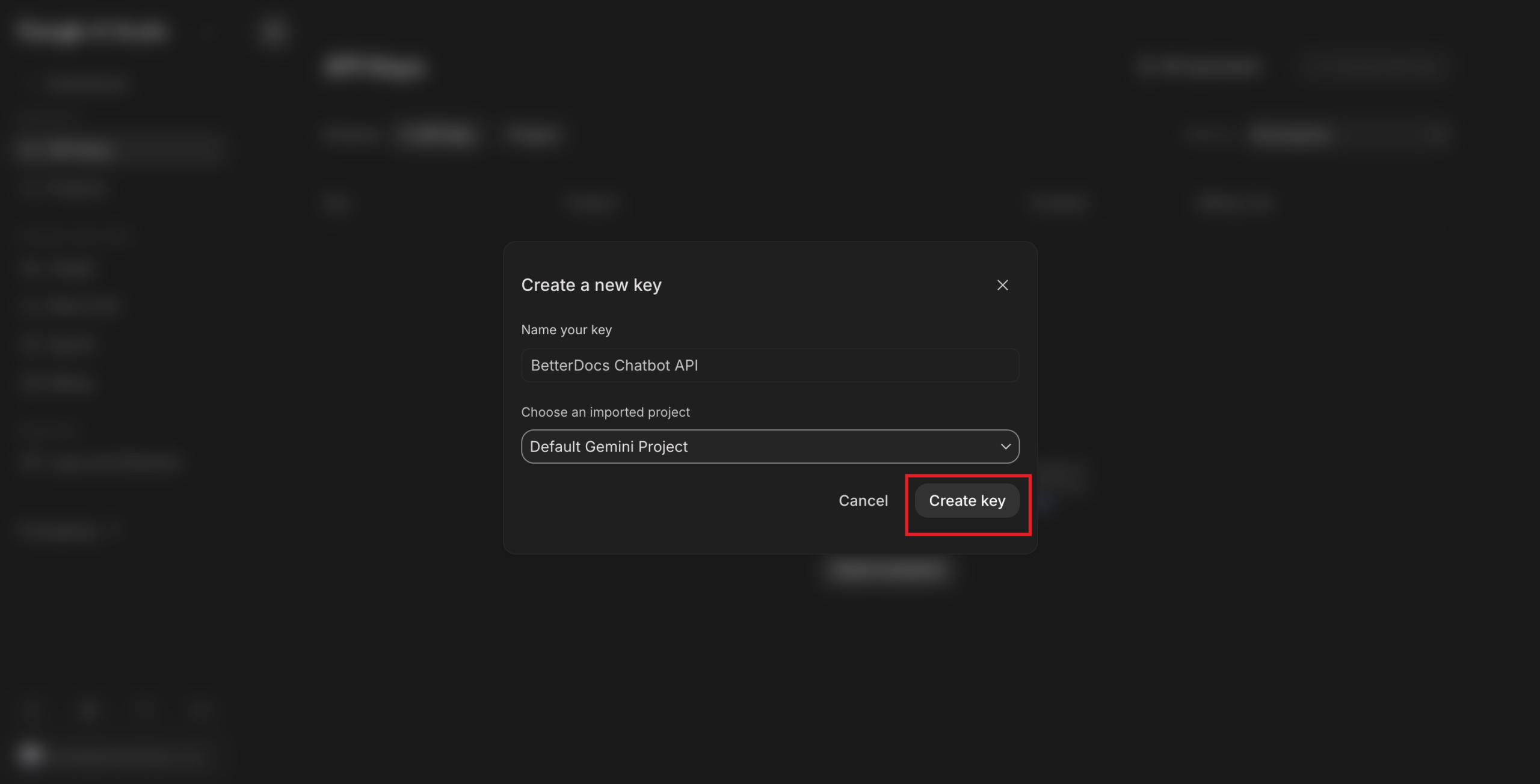
After clicking on the button give a name to your ‘API key’ and click on create button.
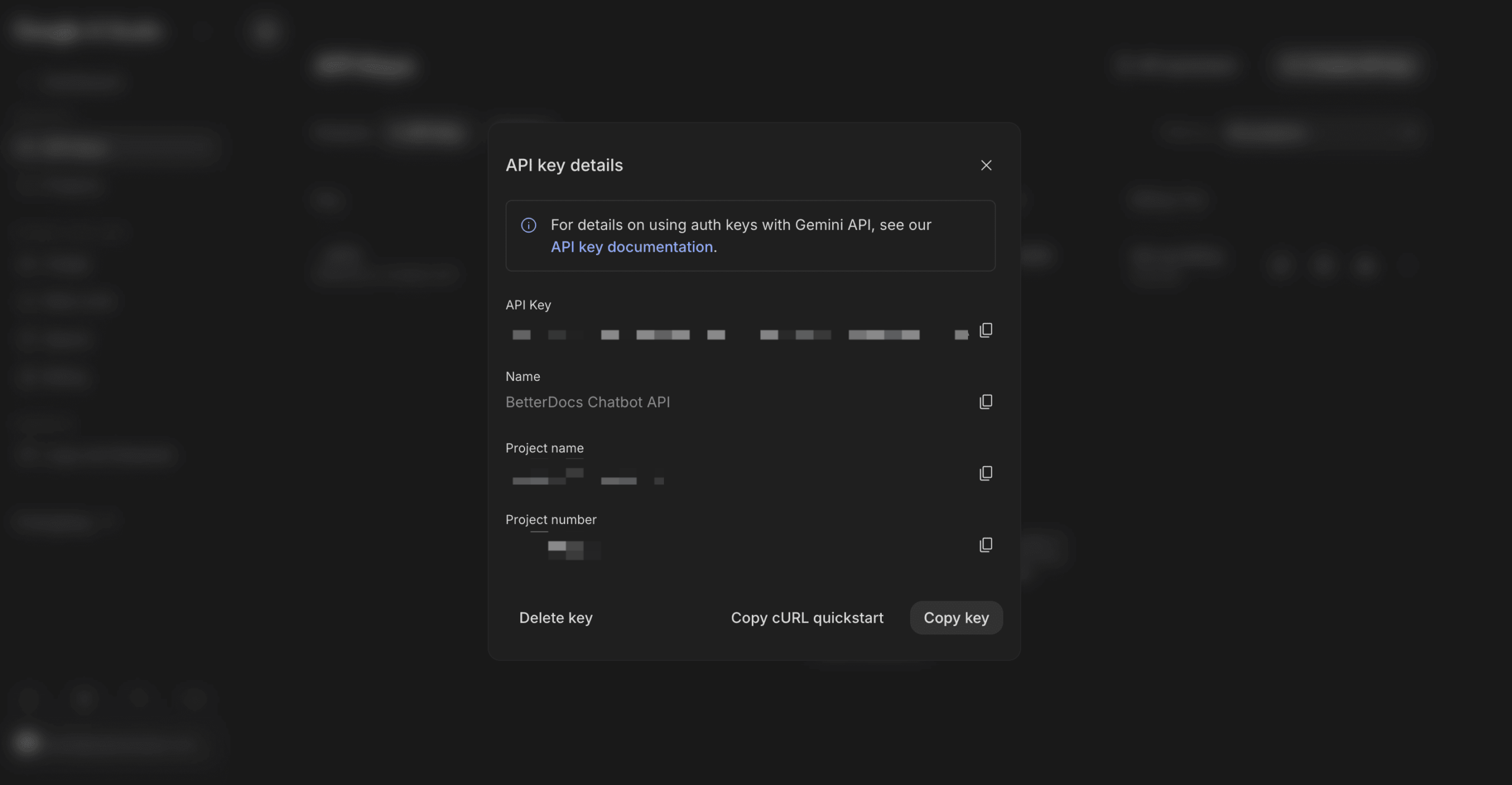
After that, your Gemini API key will be generated. Simply copy the key and paste it into your BetterDocs dashboard.
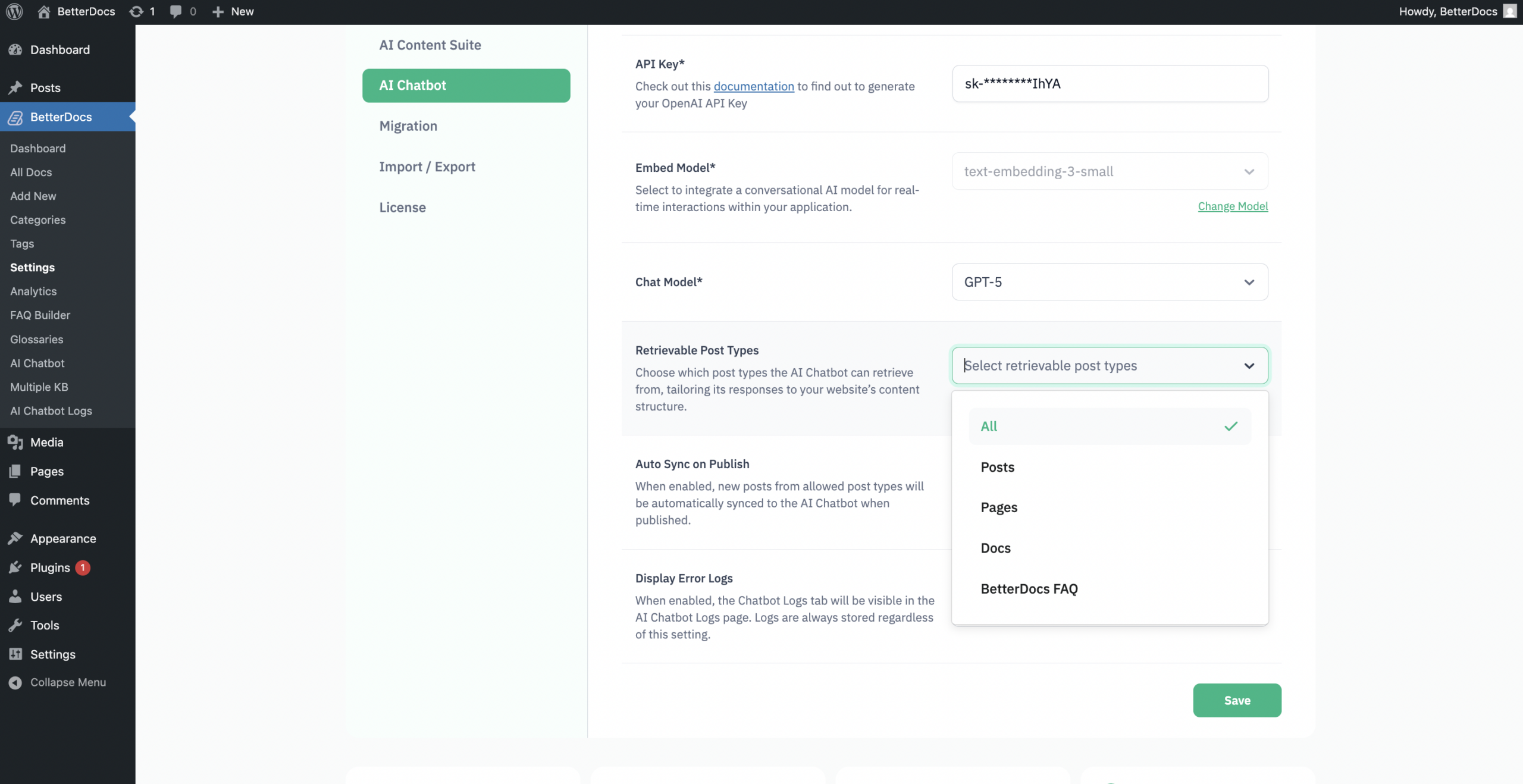
You will find another field named ‘Retrievable Post Types’. From there, you can choose which post types the AI Chatbot can retrieve from. This allows the chatbot to customize its responses to your website’s content structure.
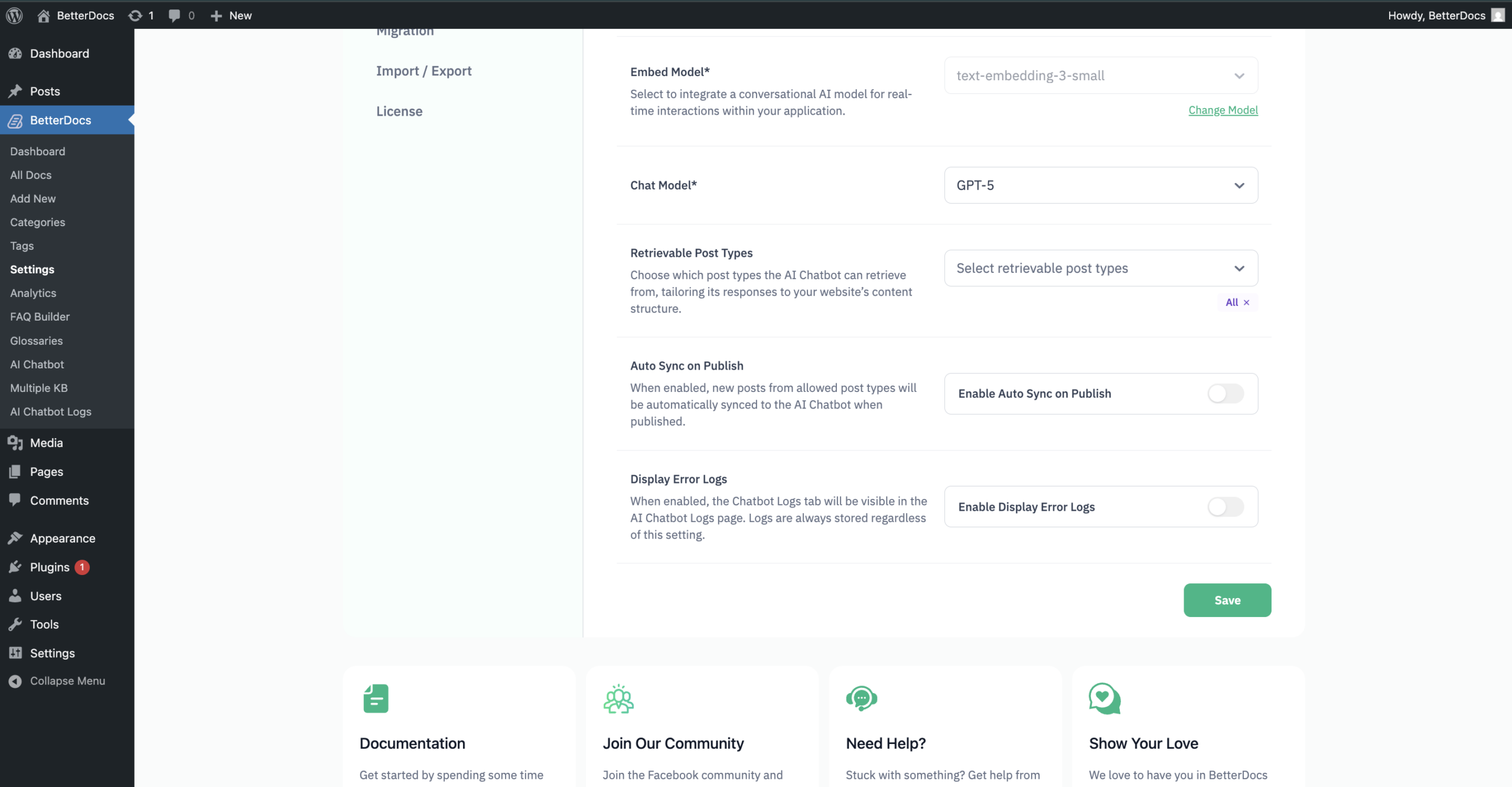
You will also be able to “Auto Sync on Publish” to automatically sync all the documentation information directly to your chatbot. You can also enable or disable the “Display Error Logs” so that Logs are always stored regardless of this setting.
Click on the ‘Save’ button once done.
How to Customize AI Chatbot Appearance #
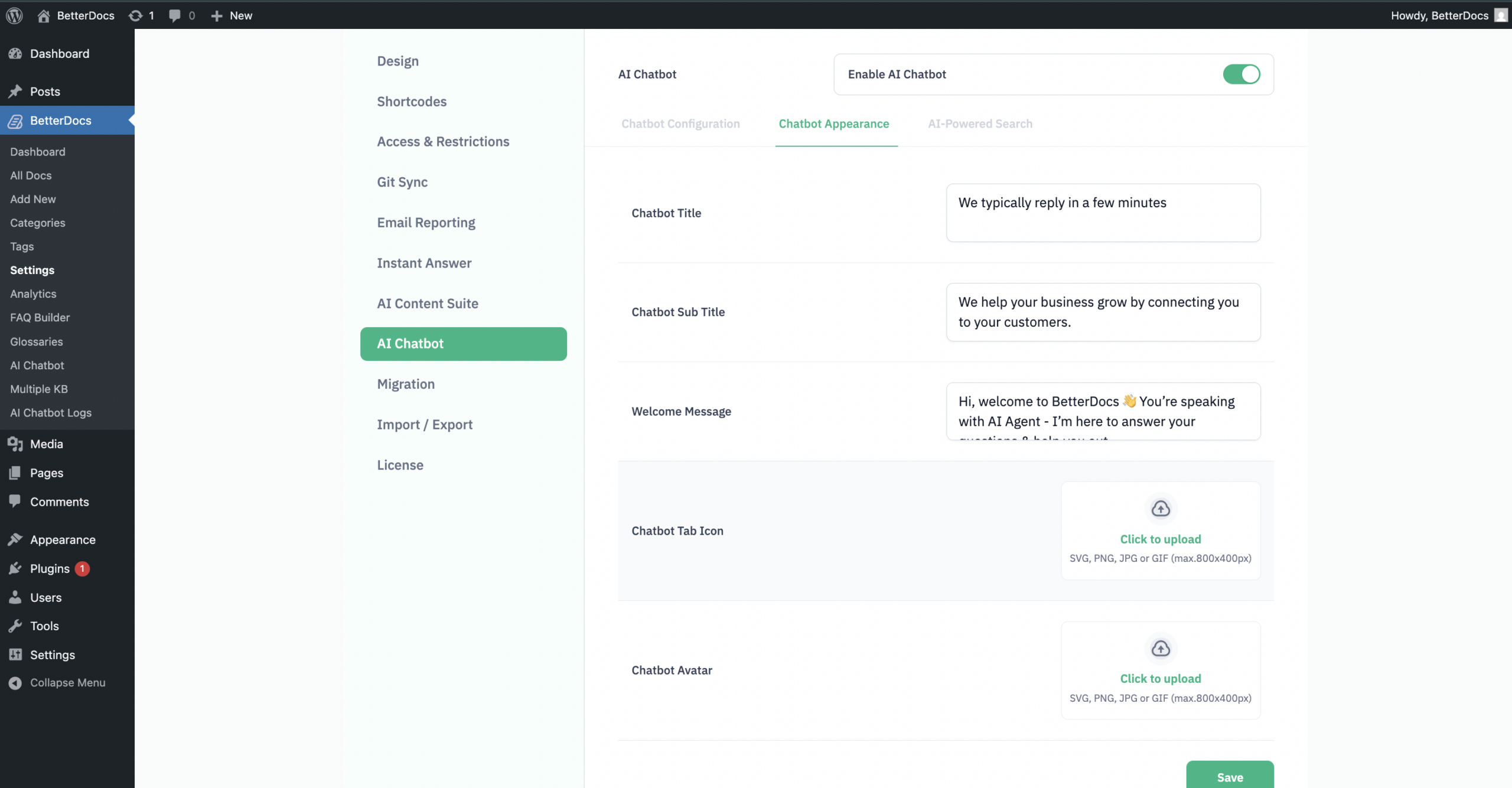
After setting up the chatbot, move to the ‘Chatbot Appearance’ tab. You will find fields to add ‘Chatbot Title’ and ‘Chatbot Subtitle’, ‘Welcome Message’. From there, add a suitable title and subtitle as required.
You can also choose a welcome message and site description for your website. Adding a proper site description trains the chatbot to give more contextual responses.
So, provide a concise but informative description of your website, making sure to include your brand name. This helps the chatbot to recognize the brand and provide accurate information.
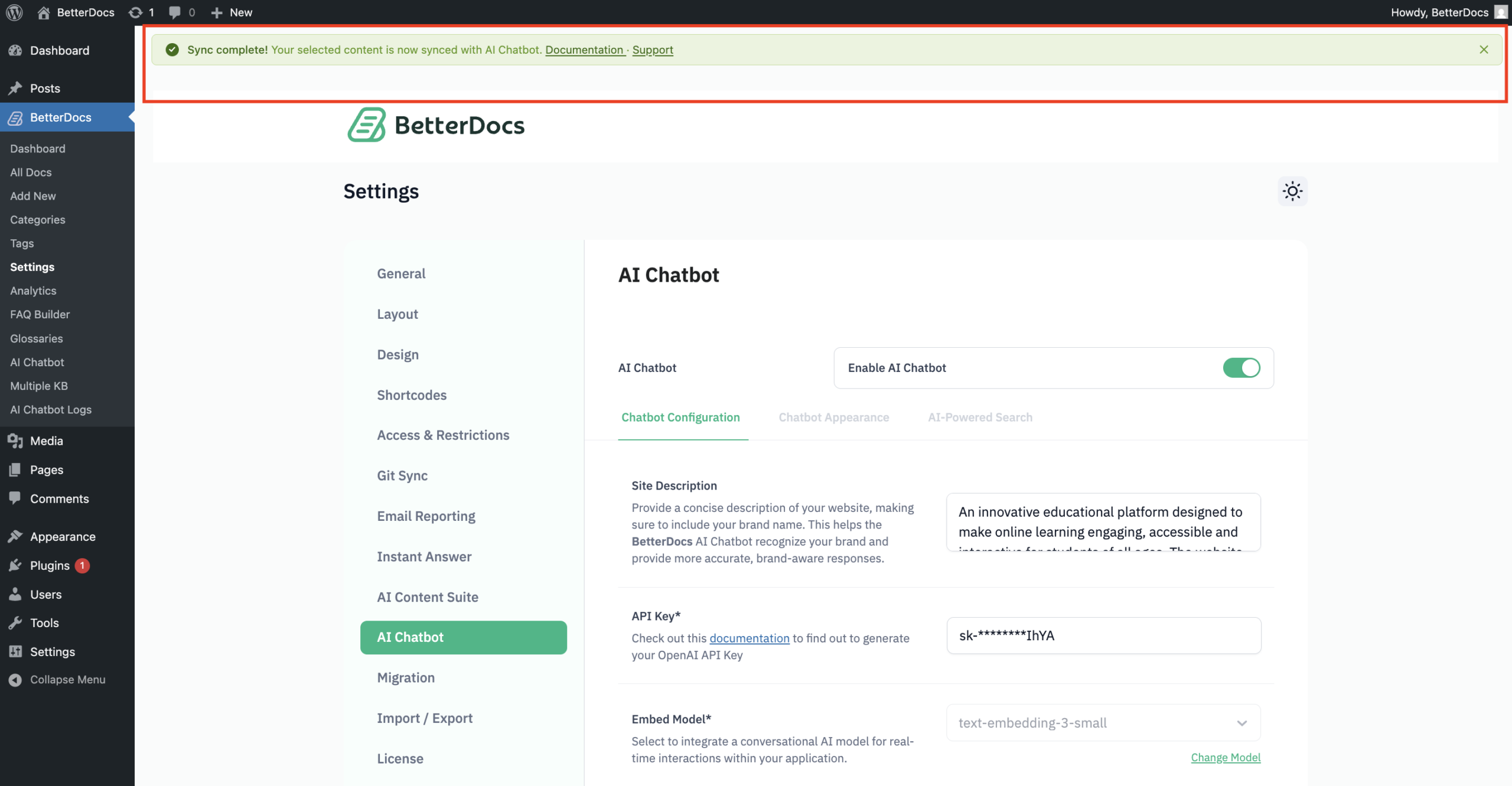
BetterDocs will now start processing the data from your documentation in the background for the AI Chatbot. Once the data processing is complete, you will see a success message.
How to Download or Send a Transcript from the Chatbot #
In BetterDocs AI Chatbot, you can either send a transcript or download it in TXT format. To do this from your website on the chatbot, click on the three-dot option on the chatbot. Then you will find two options to download the transcript or send it to an email. You can also click on ‘Start a New Chat‘ to start a fresh conversation.
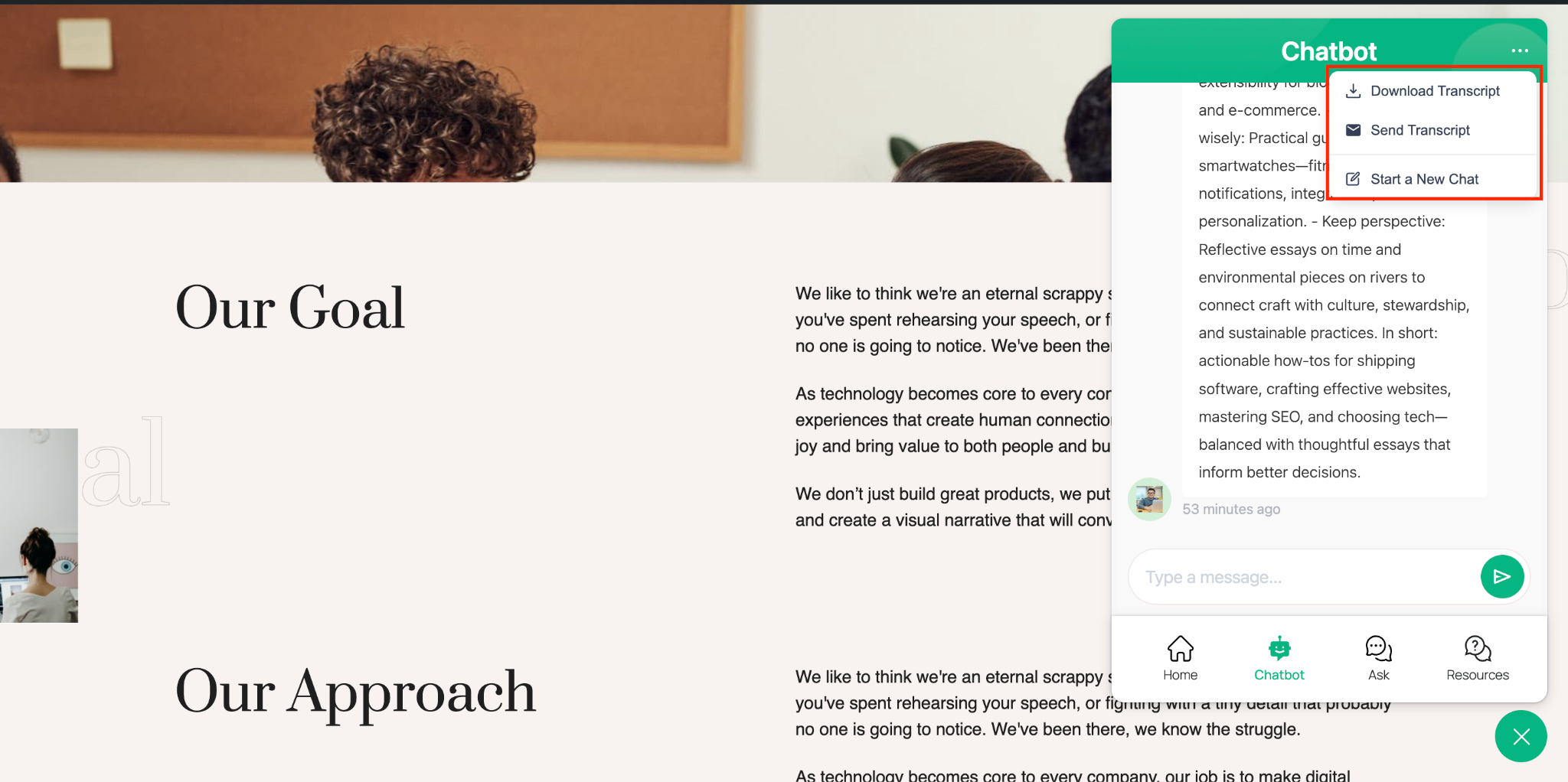
After clicking on ‘Download Transcript’, the TXT format of your conversation will be downloaded. If you want to send a transcript to someone, then click on ‘Send Transcript,’ and a field will appear. Give the email address where you want to send the transcript and the conversation will be sent.
Final Outcome #
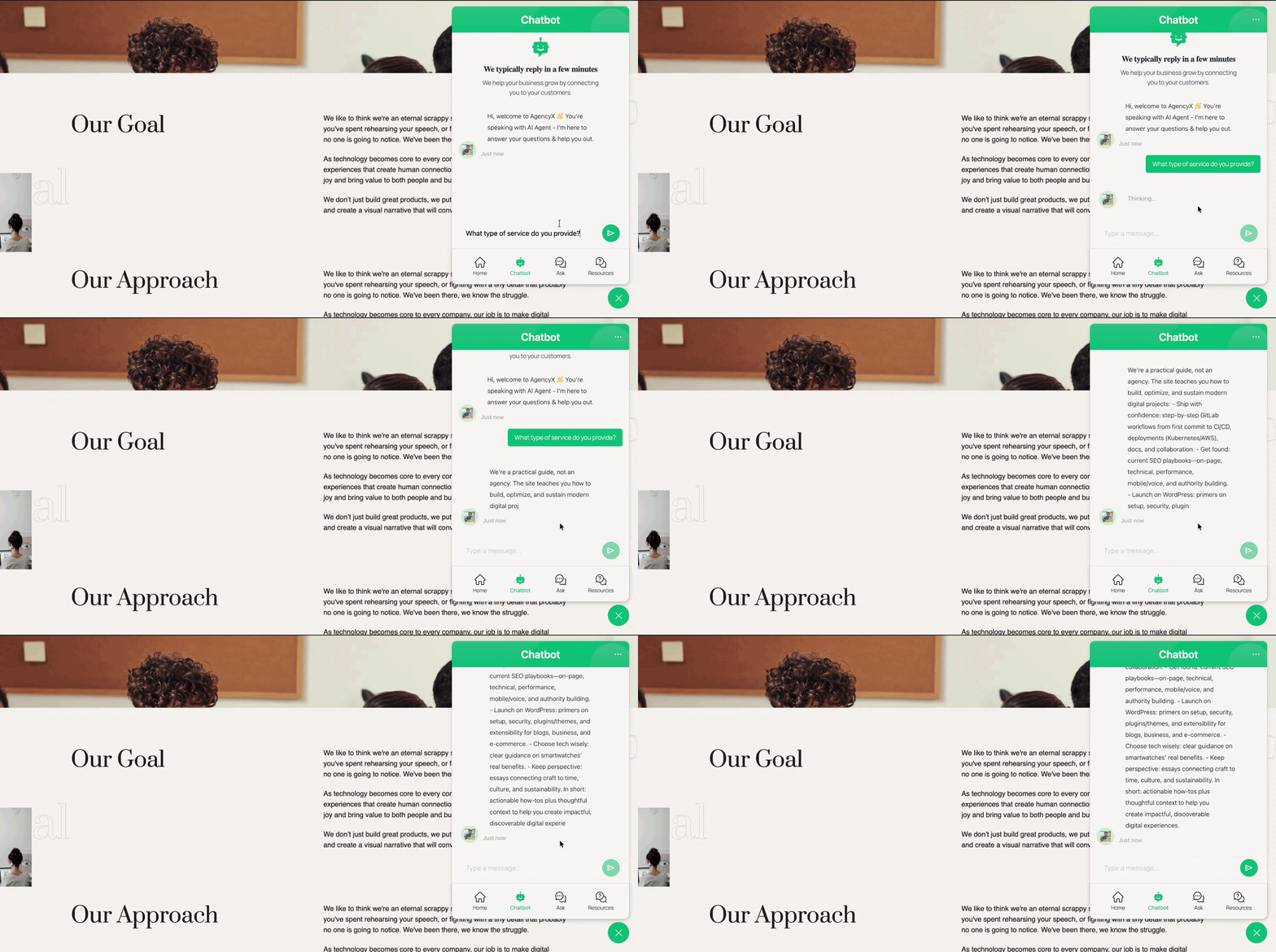
Now, your website’s visitors can start conversing with BetterDocs AI Chatbot. To interact with the chatbot, visitors have to click on the ‘BetterDocs Live Chat’ icon on the screen and go to the ‘Chatbot’ section. Here, they can enter their inputs to get instant, AI-generated replies based on your documentation’s data.
This is how easily you can configure the BetterDocs AI Chatbot feature for your website’s visitors. Getting stuck? Feel free to reach out to our dedicated support team for further assistance.