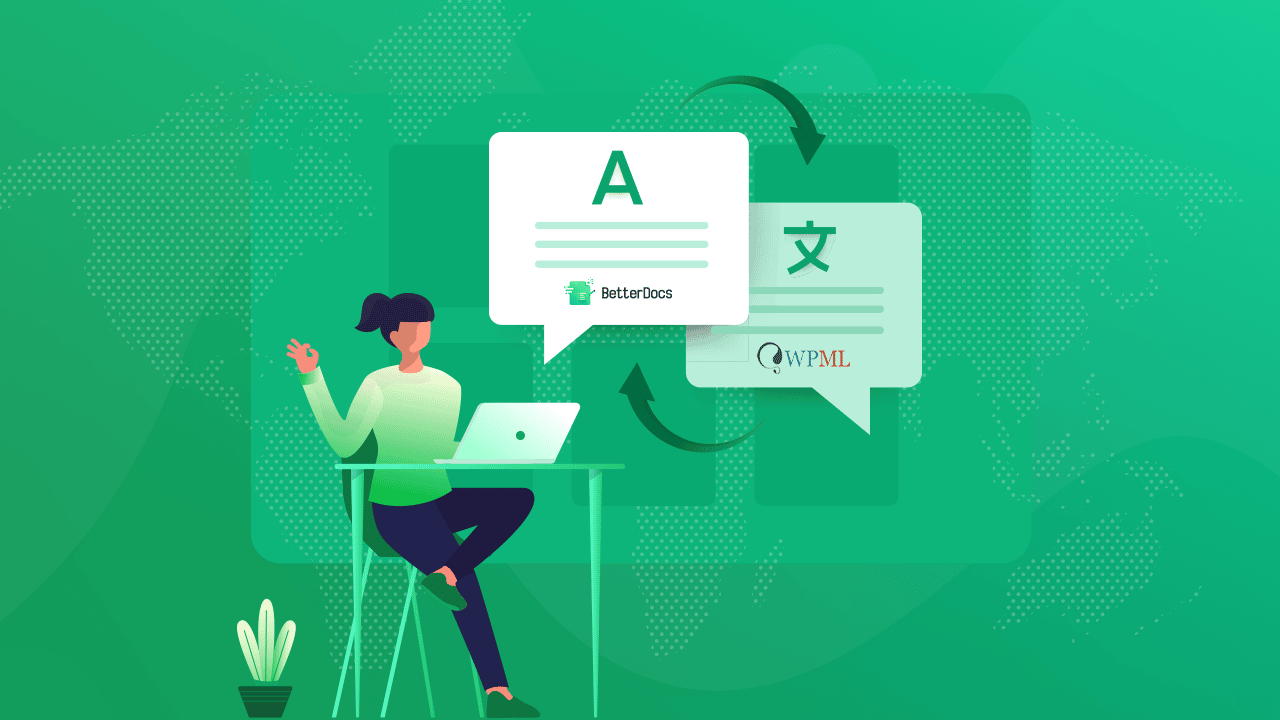
Want to translate BetterDocs WordPress documentation? We have got you covered! With BetterDocs’ powerful integration with the multilingual translation plugin, WPML, you can now translate all your single BetterDocs documentation into your desired language(s). Doing so increases your WordPress website’s multilingual accessibility.
Why Do You Need to Translate Knowledge Base Documentation?
Having an online business means your customers and audience are diverse and global, often from different linguistic origins. If they do not speak the language you offer on your self-service platform, will they find your knowledge base of any help? Likely not.
Offering multilingual flexibility with plugins like WPML ensures a broader reach, compliance with accessibility expectations and enhances the overall experience of engaging with your WordPress website. WPML enables your customer to easily translate documentation into their native language(s), making the most of your self-help knowledge base. Let us take a look at some of the benefits of translating knowledge documentation:
👉 Translatable knowledge base documentation is inclusive, especially for global businesses.
👉 Multilingual sites leave the impression that you care about your customers, which is always important for retention.
👉 Offering help in multiple languages adds to your professionalism, expressing that you are detail-oriented when it comes to customer satisfaction.
👉 Being able to access a site in someone’s native language creates a sense of belonging, enhancing your business’s credibility.
Introducing BetterDocs’ Integration With WPML
So, we know now that translating knowledge base documentation is important to ensure alignment with multilingual customers. That is exactly why BetterDocs brings you integration with the most popular WordPress multilingual translation plugin, WPML. To empower you, the site owner, to translate BetterDocs’ WordPress documentation faster and without error
BetterDocs allows you to translate each of your single docs using the multilingual translation plugin, WPML. Below, we offer a complete guide to translating documentation from your BetterDocs knowledge base into multiple languages, satisfying your global customer base.
Checklist to Look at:
Before we start with the guide, make sure that you have installed and activated the following plugins on your WordPress site:
- WPML Translation Management plugin
- WPML String Translation plugin
Once you get all three plugins installed, you can utilize the full multilingual translation suite using the WPML plugin with BetteDocs.
How to Configure WPML for BetterDocs’ Documentation Translation?
Navigare verso ‘WPML’ → ‘Setup’ from the dashboard. This takes you to the WPML Setup Wizard. In the first step, select your default language and the language you want to translate your single docs to. You can change it later whenever needed.
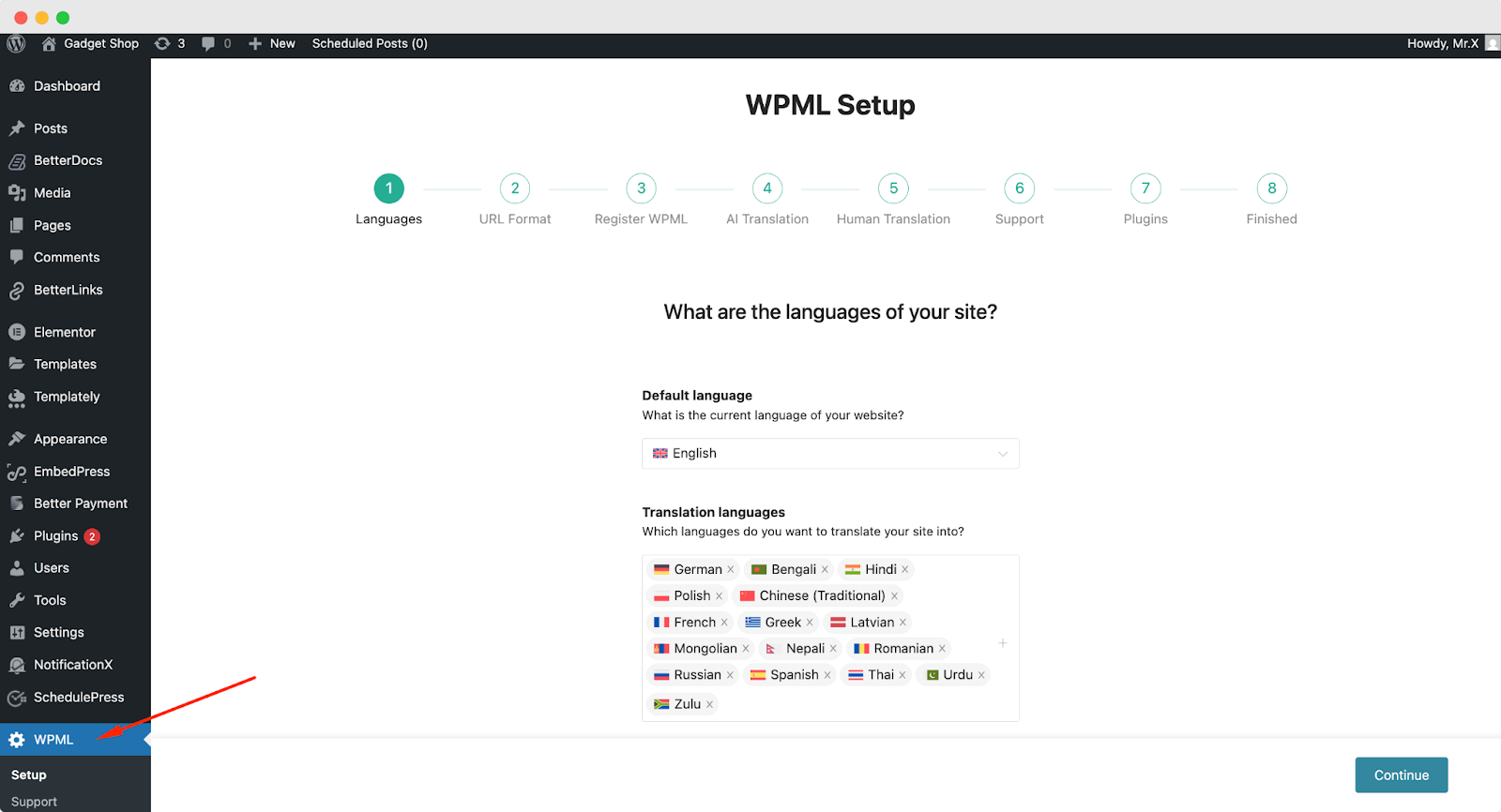
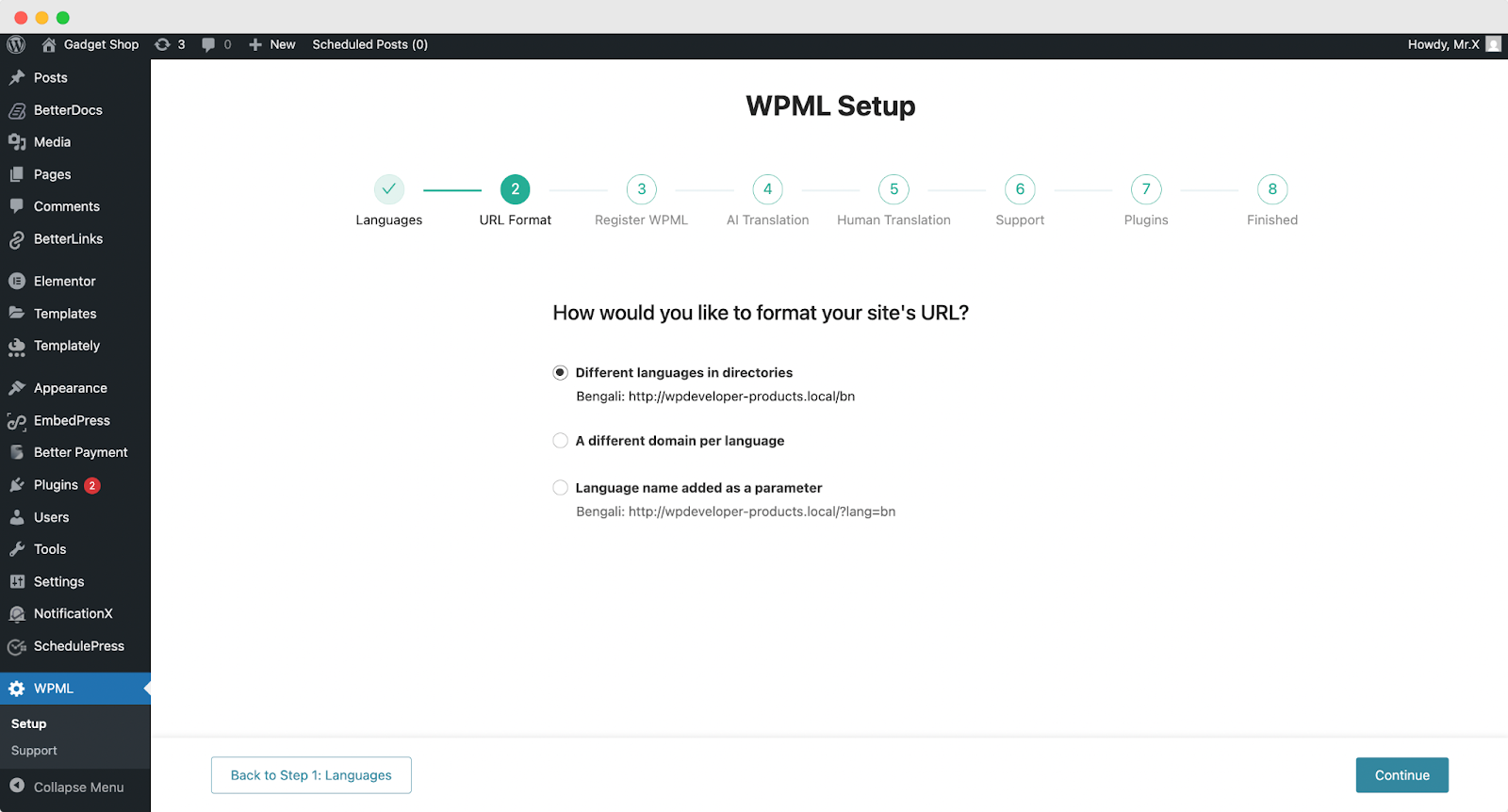
When you hit continue, you enter the ‘URL Format’ stage. Select how you would like to format the URL. Your options are as shown in the image below. Each URL format serves a different purpose.
Parameters: Appends ?lang=fr to the same URL, making it only suitable for testing as it is poor for SEO and user experience.
Directories: Adds a language code (e.g., /fr) to URLs, making it the best overall choice for SEO and user clarity on a standard multilingual site.
Different Domains: Uses entirely separate domains (e.g., .fr, .de), making it best for creating distinct, country-specific brand presences.
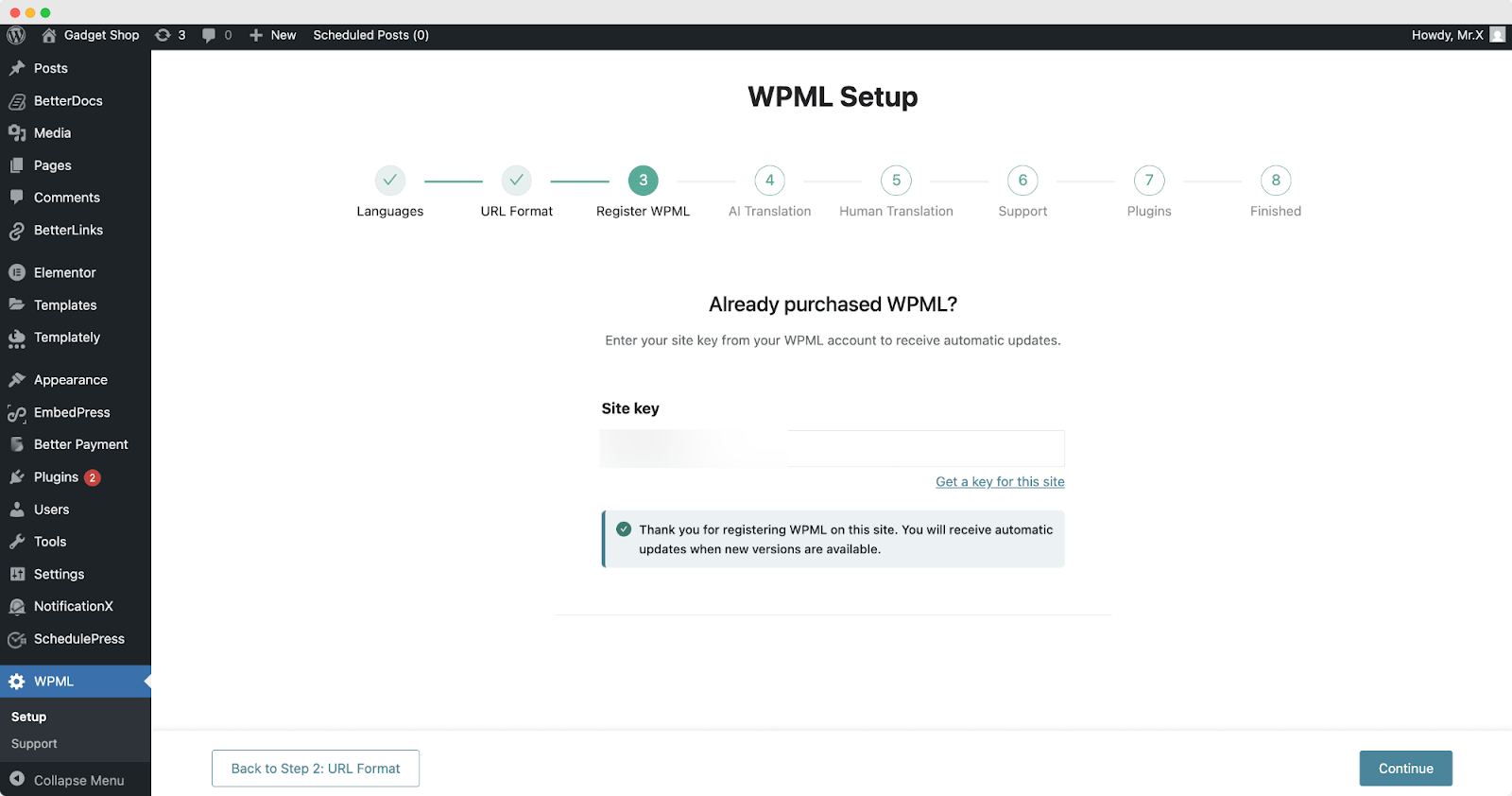
Once you have selected your preferred URL Format, we move on to ‘Register WPML.’ Add your site key in its designated field. Refer to the image below. Once done, click ‘Continue.’
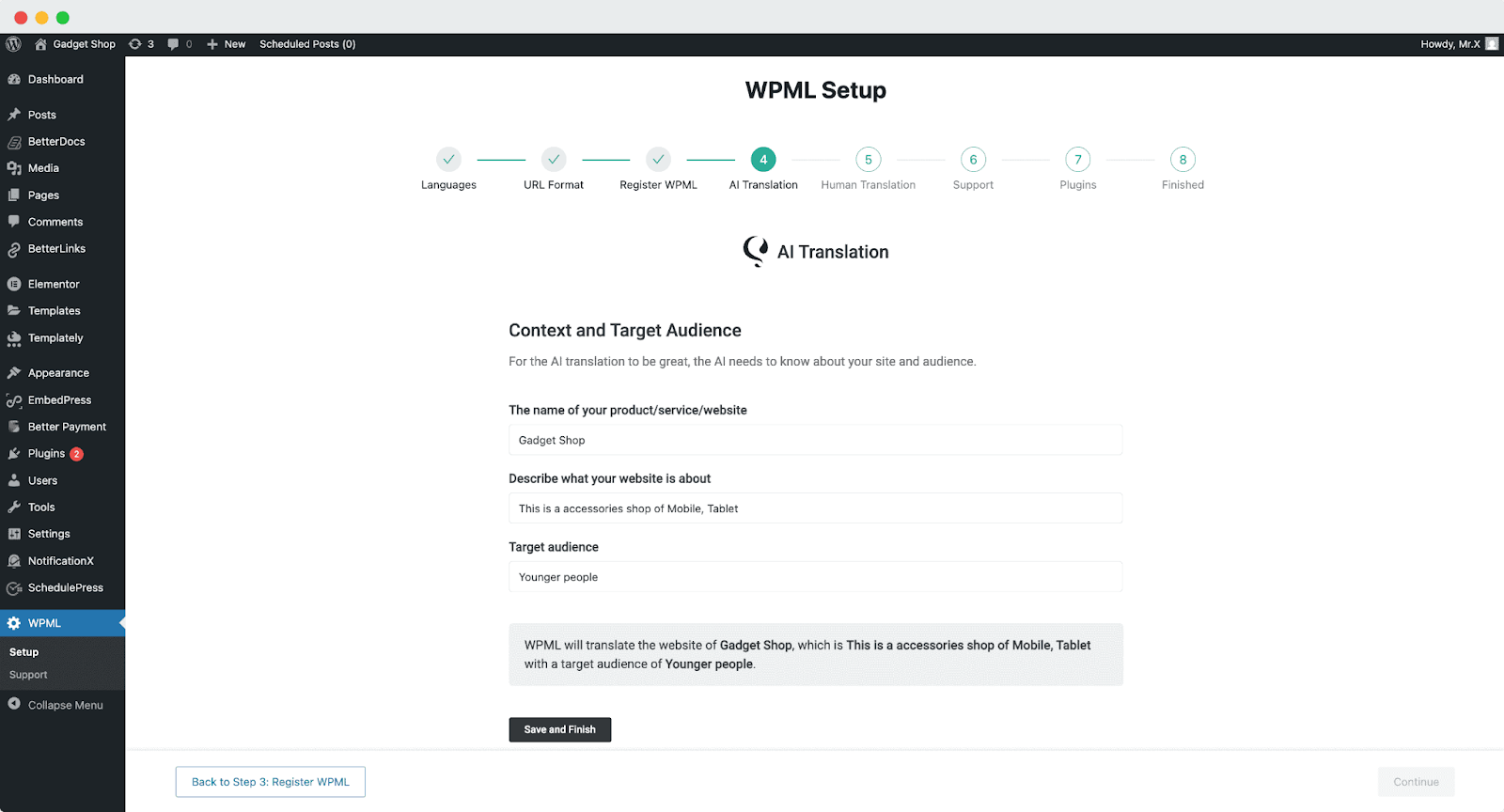
Then we set up ‘AI translation.’ The AI understands context and the target audience. Input relevant information regarding the name of your product/service/website, a brief description of what your website is about and your target audience.
WPML’s AI translation is powered by Private Translation Cloud (PTC). It is accessible from the dashboard, WPML → Settings.
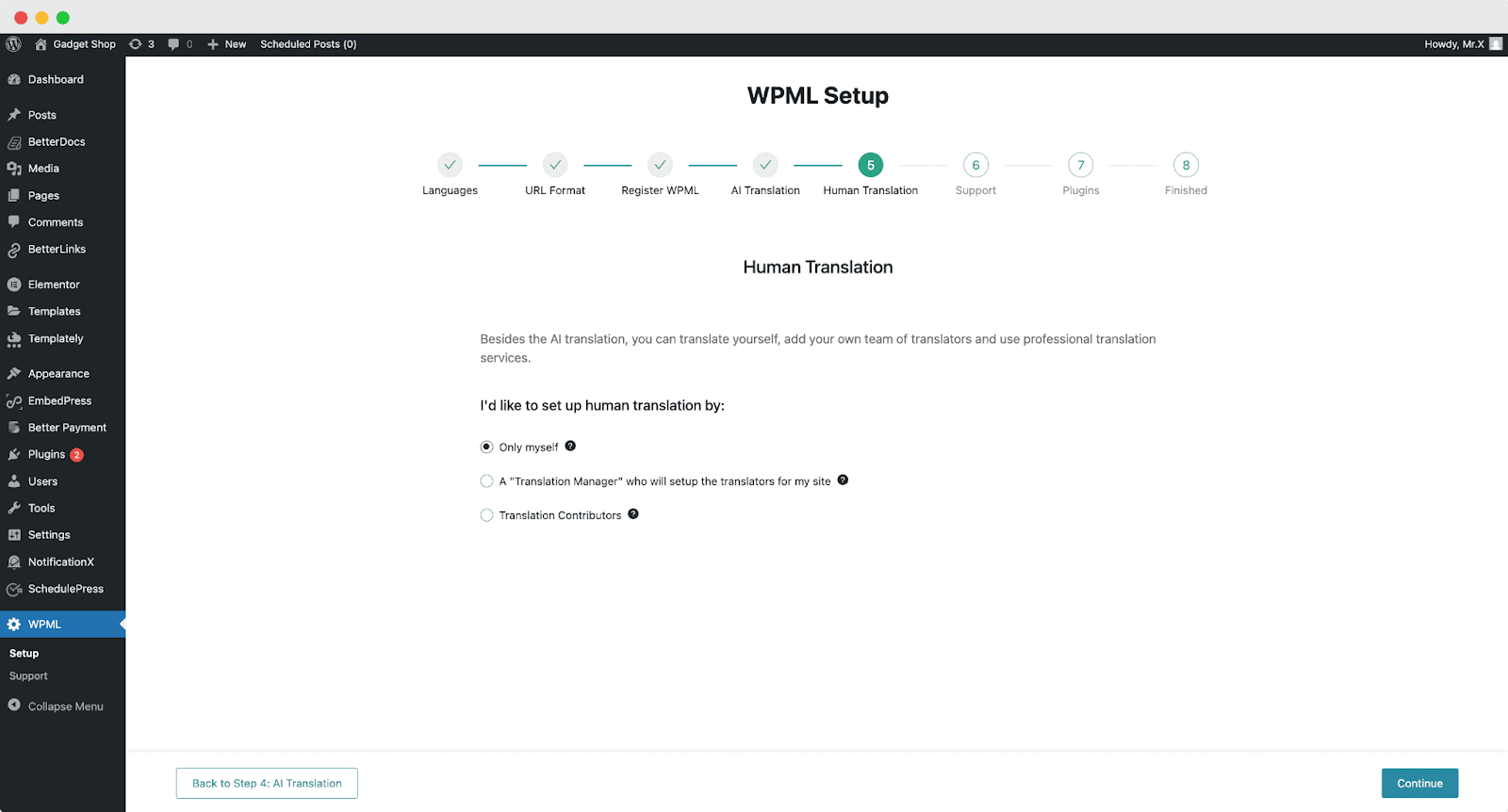
Now, in the fifth step, we set up ‘Human Translation’ anche.
You have three options through which human translations can be made. You can choose ‘Only myself’ to translate by yourself, ‘A Translation Manager’ to give access to set up the translators for your site, or ‘Translation Contributors,’ where the site admin can assign contributors directly.
Once you have chosen your ‘Continue’.
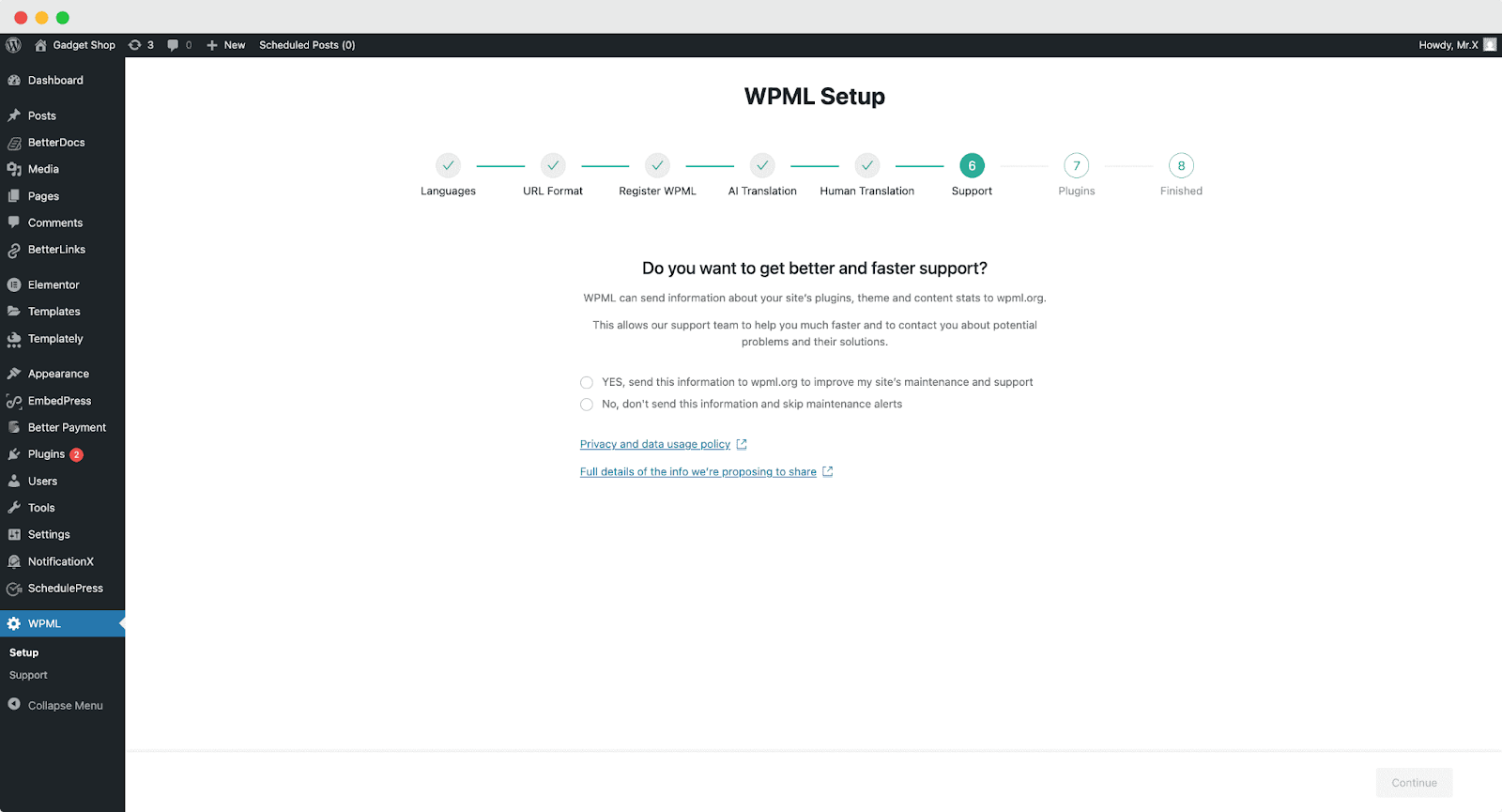
This next step asks you about preferences regarding ‘Support’ and usage data.
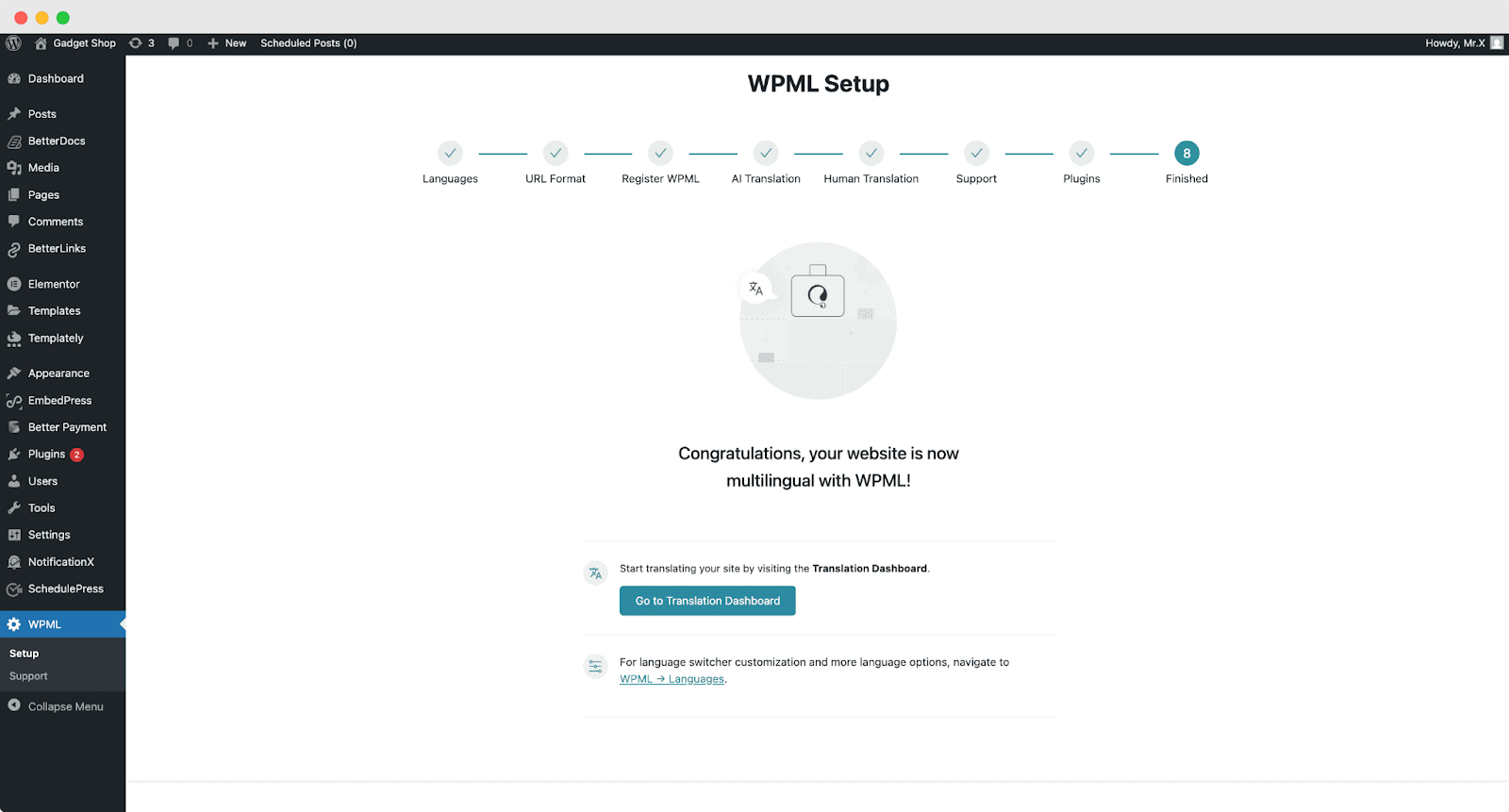
In the last two onboarding steps, the WPML plugin will be ready for use on your WordPress website. Now, you are done with the setup.
Steps to Translate BetterDocs WordPress Documentation With WPML
After configuring the WPML setup wizard, it is time to translate the BetterDocs documentation with WPML.
Translating BetterDocs WordPress Documentation Automatically
Follow this step-by-step guideline for automatic translations:
First, navigate to WPML → Translation Dashboard. Here, you can enable translation for single docs by toggling them on.
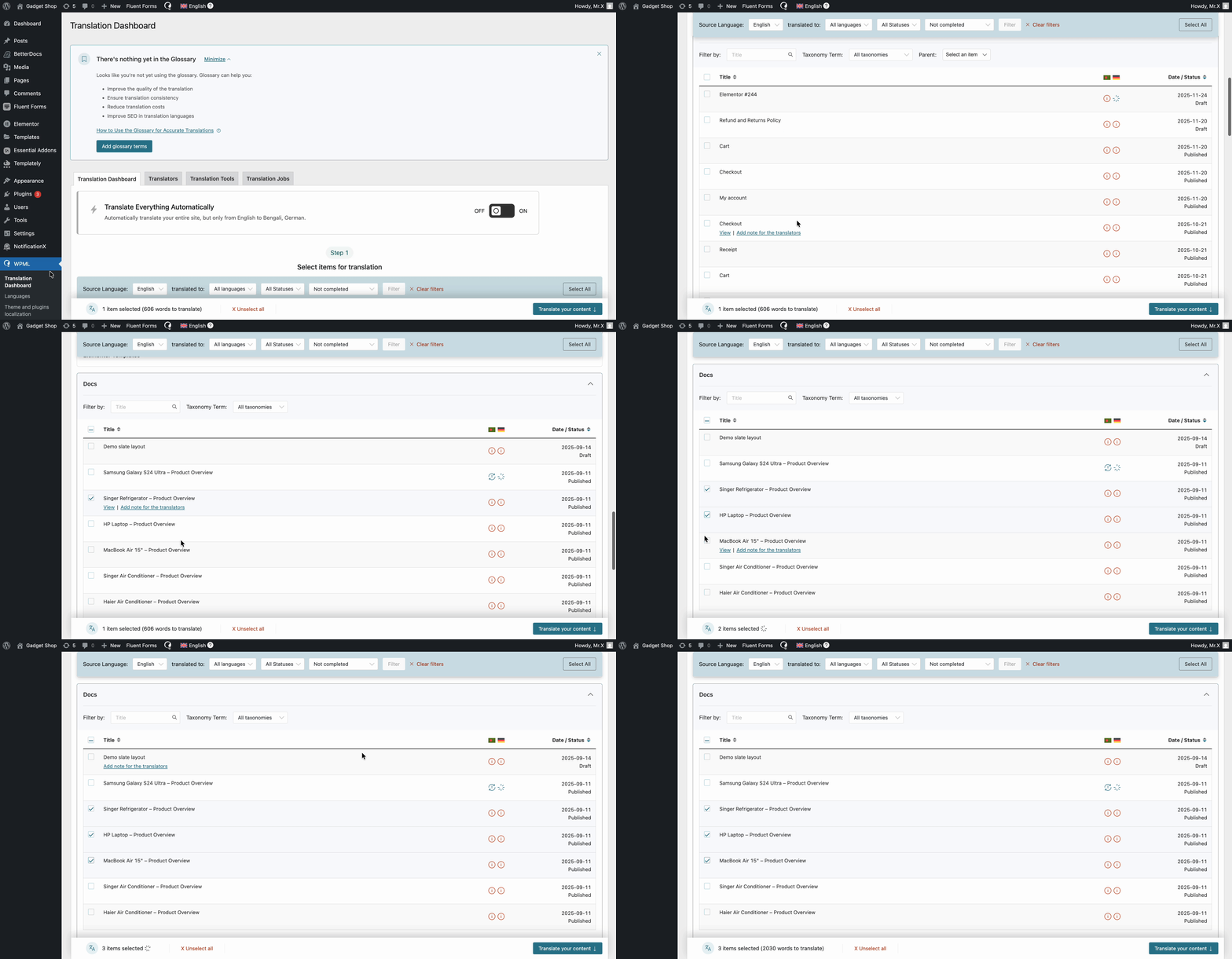
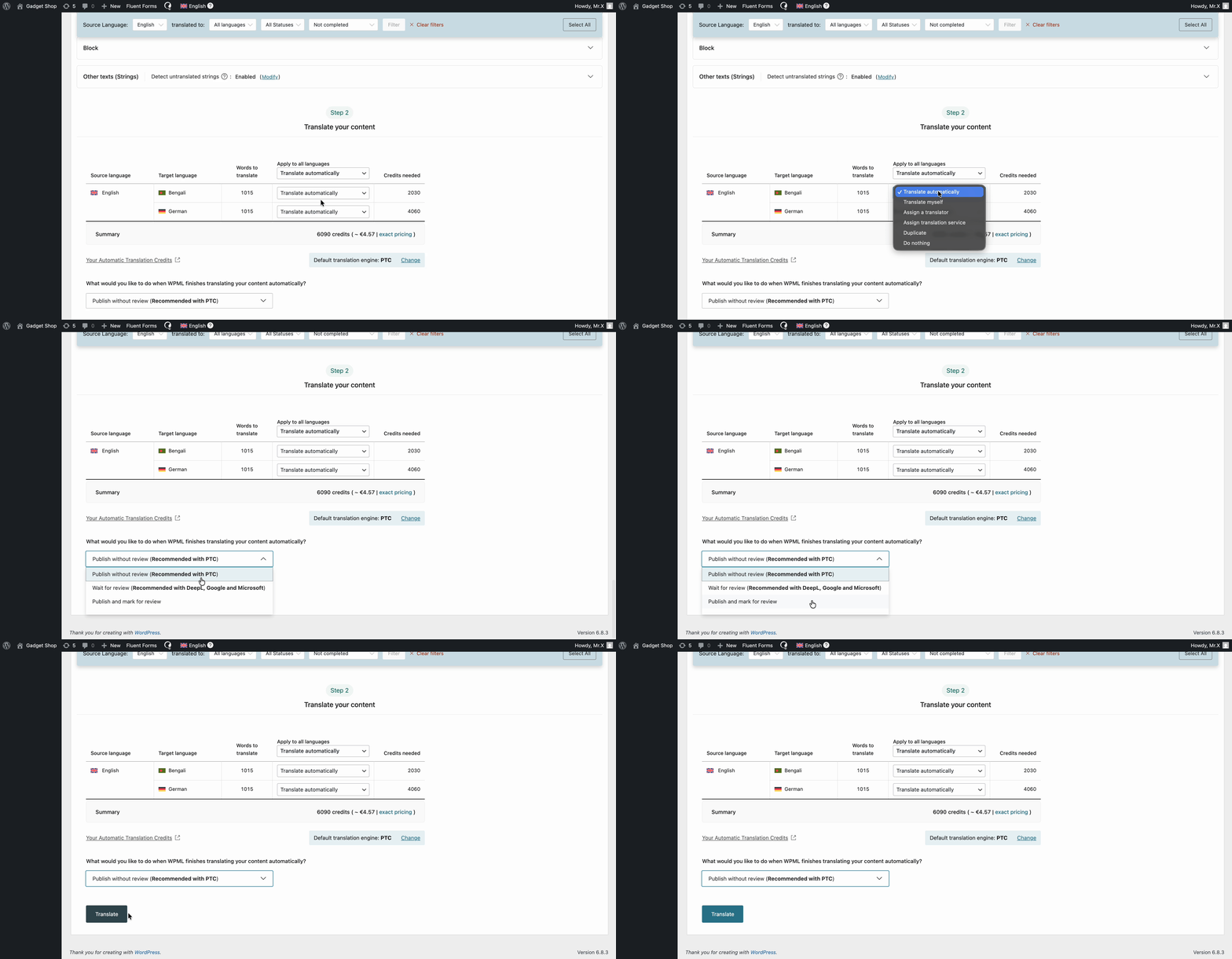
Once you have selected the docs you want to translate, click ‘Translate your content.’ The next step asks you about your publishing and review preferences. Upon translation, you can either publish without review (your translations publish without any further review), wait for review (you can use external resources to review), or publish and mark for review (you can publish and review later by yourself).
After that, all the selected documents will be translated automatically.
Translating BetterDocs WordPress Documentation Manually
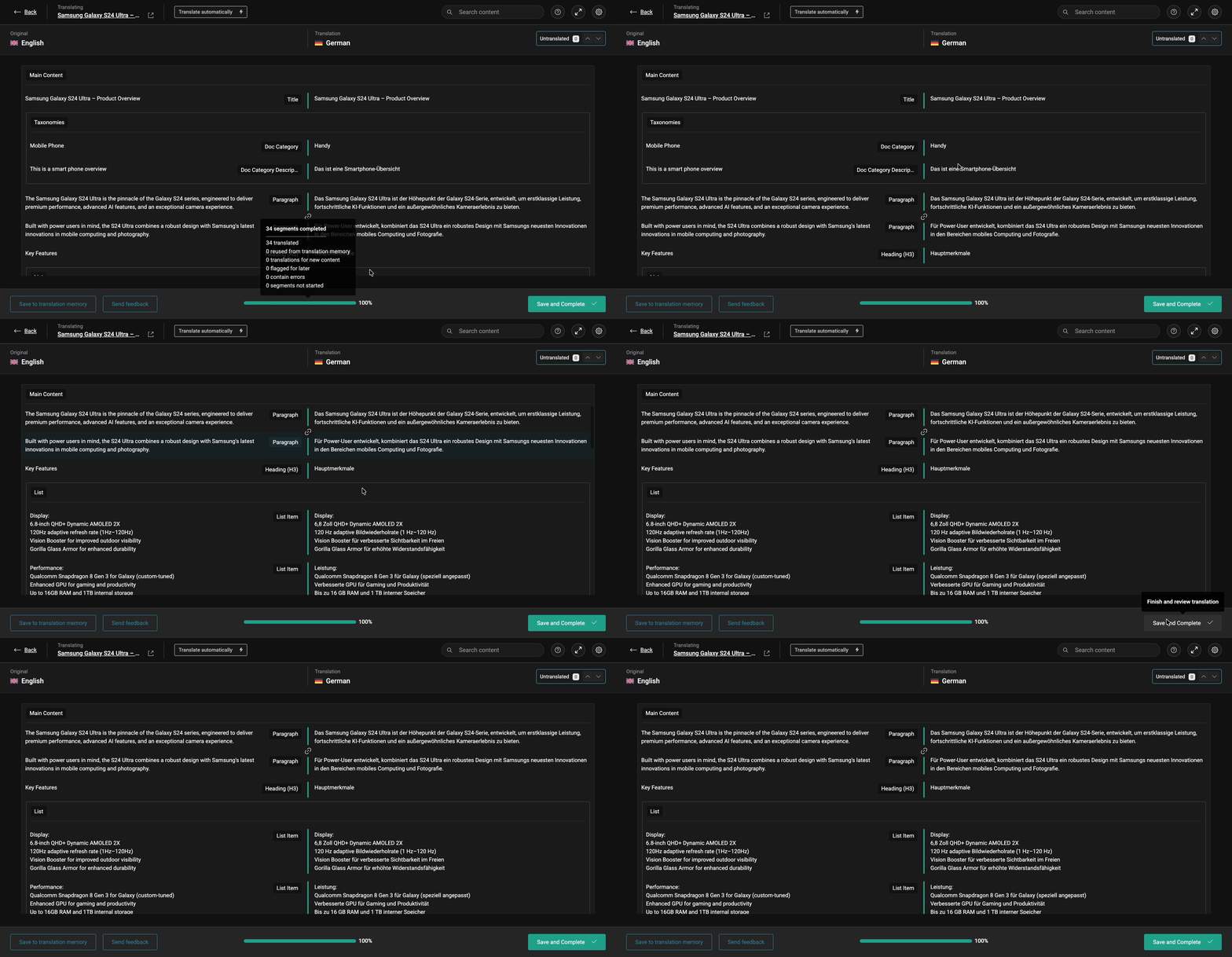
Now, to manually translate your docs, go to your dedicated doc editor. Scroll to the bottom. Click on the gear icon next to the language you want to translate to. It will take you to the Translation Editor.
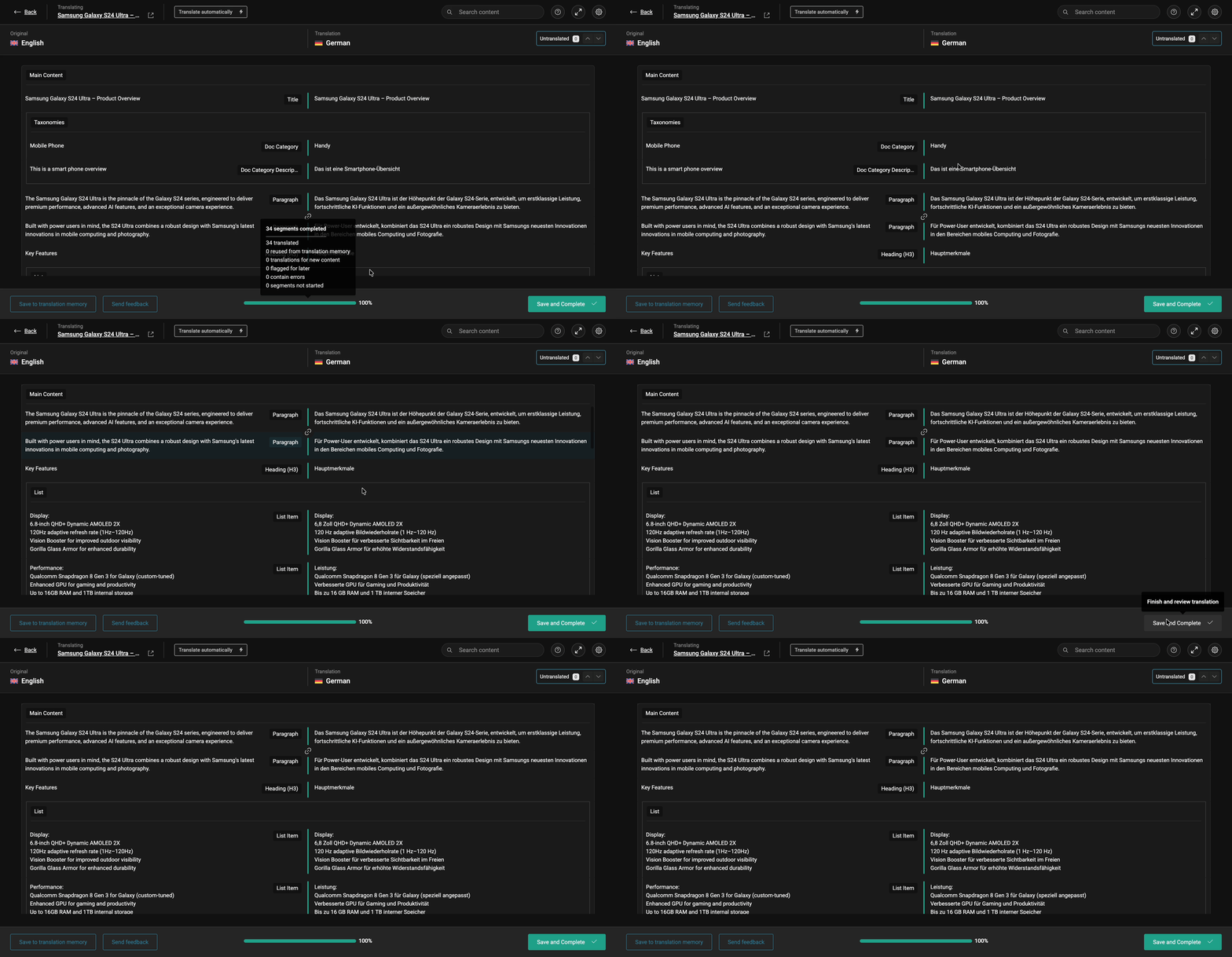
From there, you can input the relevant information relating to your doc. Once done, click ‘Save and Complete.’
Translating Strings With WPML String Translation
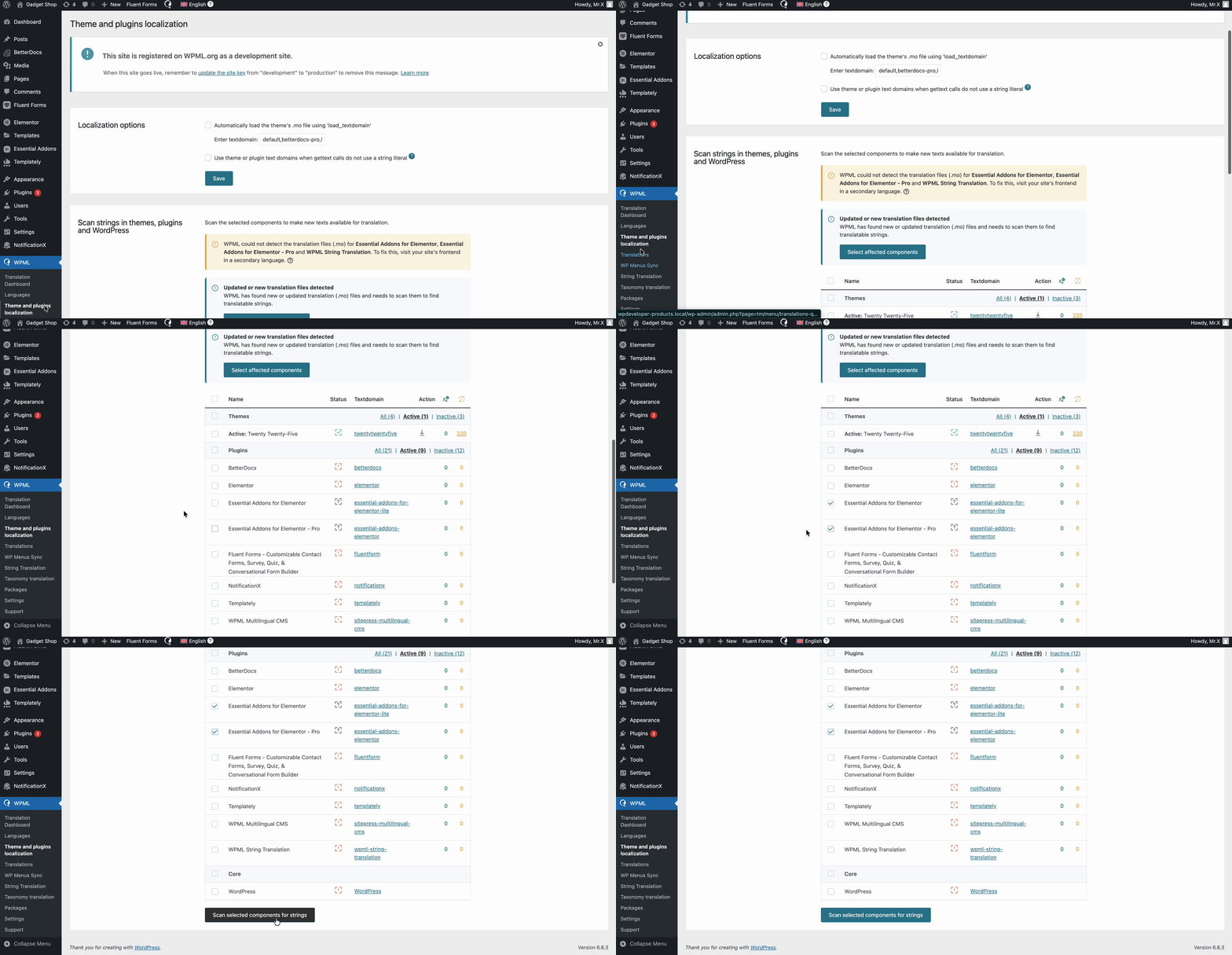
If you want to translate strings, you can use the ‘String Translation’ feature from WPML. Navigate to ‘WPML’ → ‘Theme and plugins localization’ from your WordPress dashboard. Then scroll down to the ‘Strings in plugin’ section and click on the checkboxes for the plugins you want to translate.
For example, ‘Essential Addons for Elementor’ and ‘Essential Addons for Elementor – PRO’. Please wait while plugin strings are being scanned.
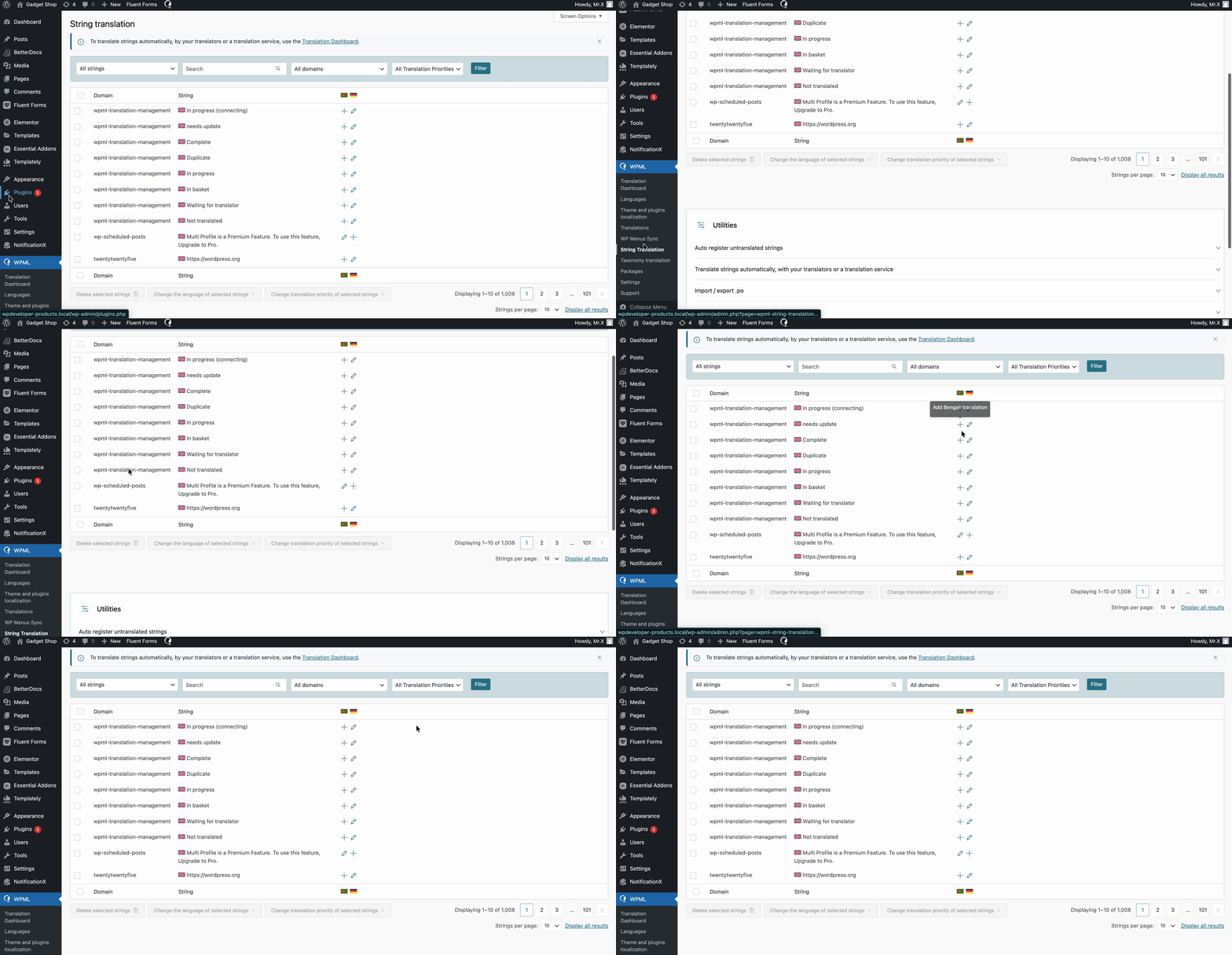
Afterwards, head over to WPML→ String Translation. From here, you can add translations for selected strings by clicking on the ‘+’ icon as shown below.
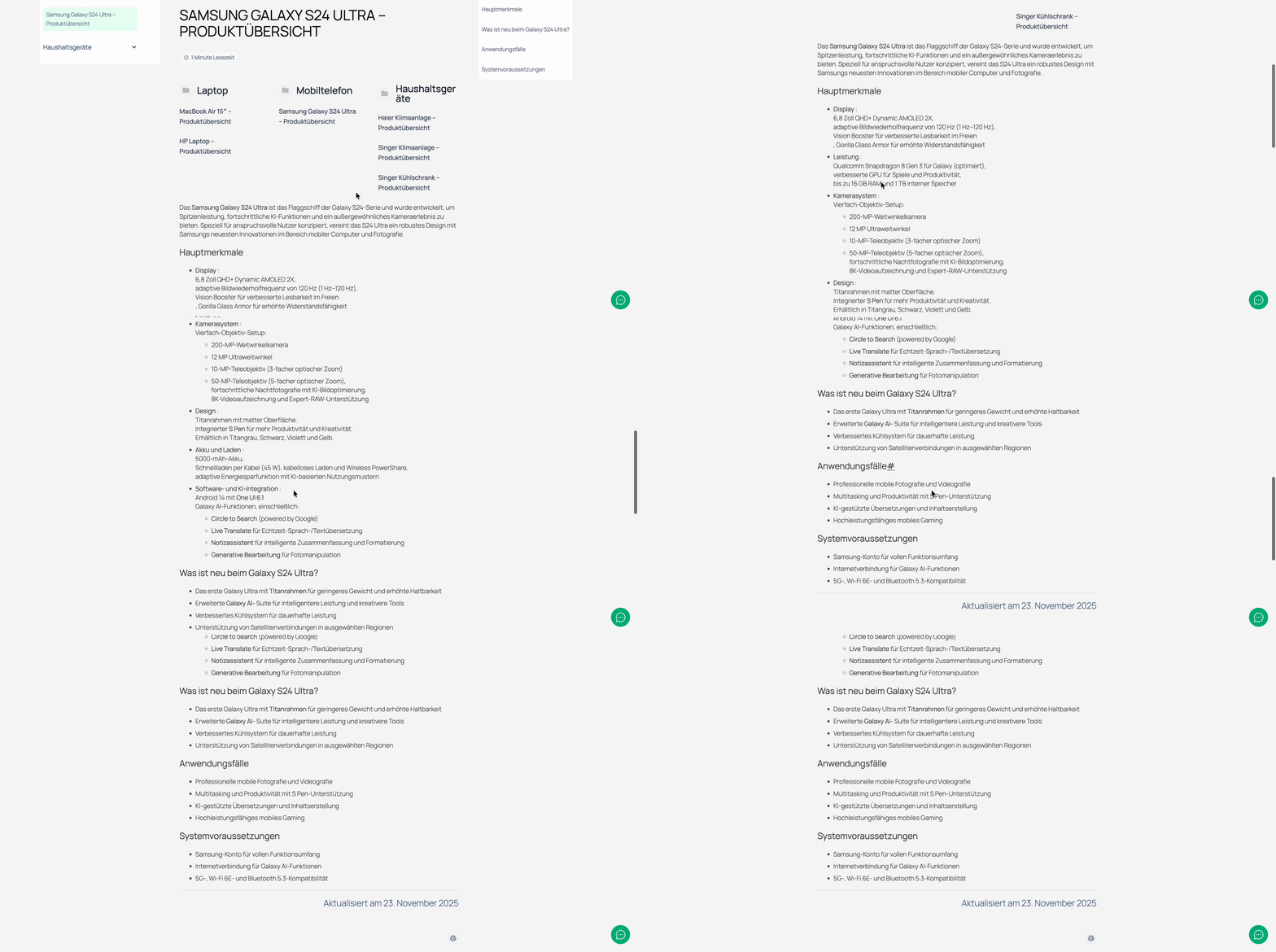
Final Outcome: Take a Look at Your Translated BetterDocs WordPress Documentation
And voila! ! Having followed the detailed guide, you can now easily translate BetterDocs WordPress documentation, powered by WPML.
Translate Your BetterDocs Documentation with WPML for Your Global Audience
So, without any hassle, you can translate BetterDocs WordPress documentation with WPML. Translate your single BetterDocs knowledge base docs into as many languages as you want and make your site accessible.
If you have not explored BetterDocs documentation translation with the WPML integration yet, make sure to explore it! For any further help, you can contact our dedicated support team and join our enthusiastic Facebook community to learn from all WordPress experts.
Further Reading: Use BetterDocs With Elementor to Instantly Create a Knowledge Base for WordPress