
BetterDocs专业版 让你 manage multiple knowledge bases on your WordPress site simultaneously. It will help you to maintain separate online documentation for different products with full customization options. Check out this step-by-step guideline to manage your multiple knowledge base documentation with BetterDocs below:
步骤1:启用多个知识库功能 #
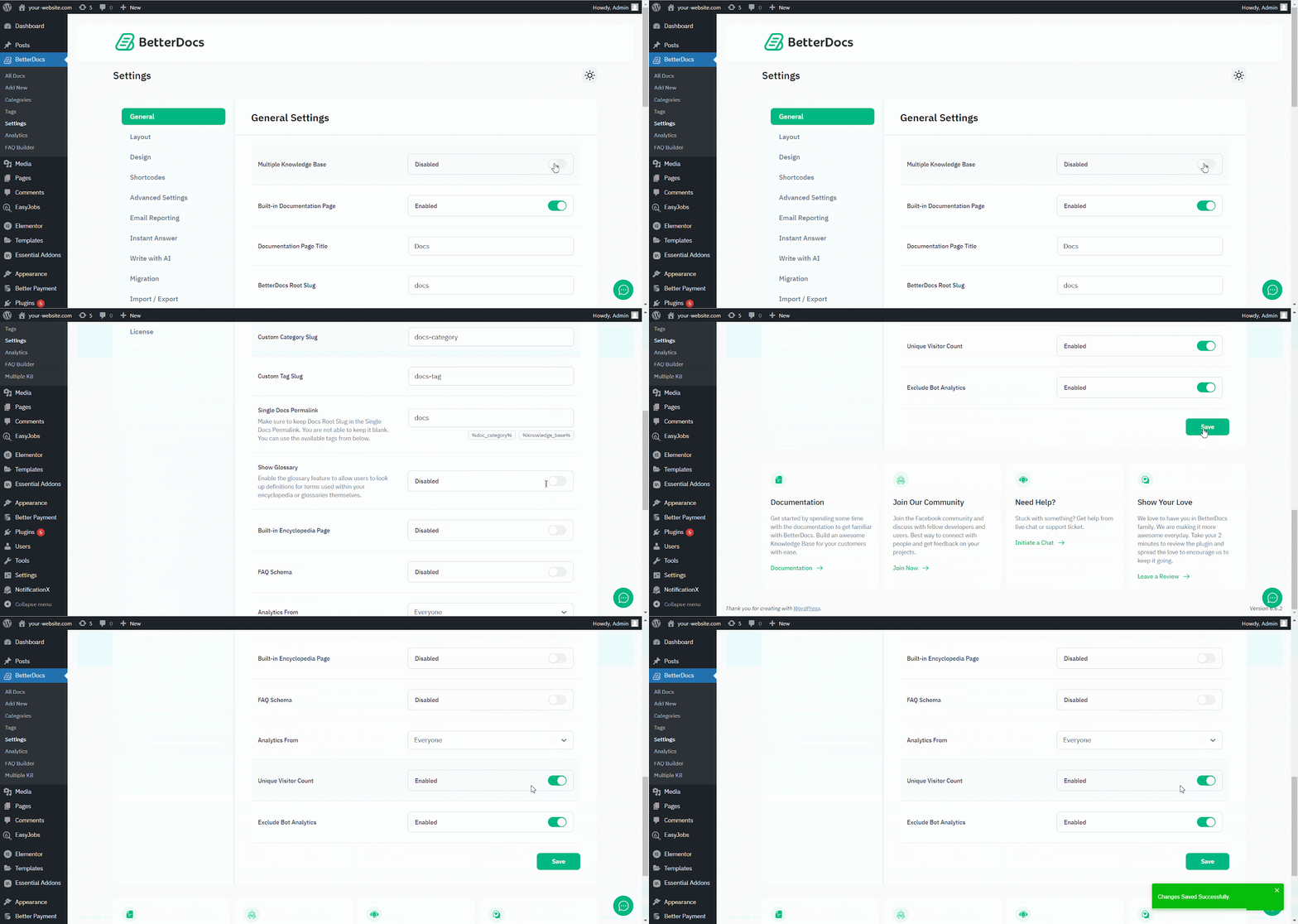
First of all, make sure to use the ‘Enable Multiple Knowledge Base’ BetterDocs常规设置中的选项。为此,请导航至 wp-admin > BetterDocs > Settings > General, and turn on the ‘Enable Multiple Knowledge Base’ to proceed further.
步骤2:创建多个知识库 #
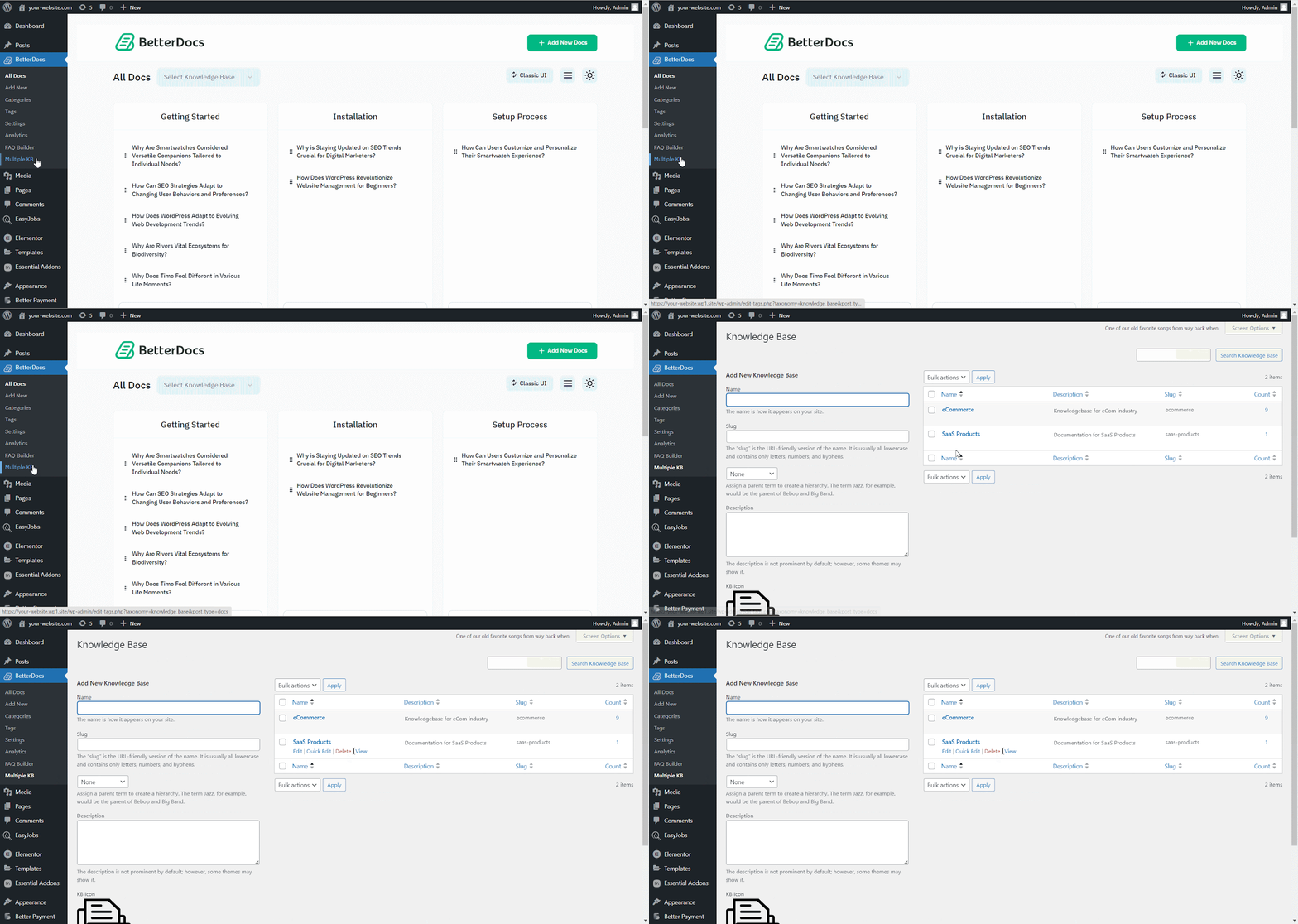
启用多知识库功能后,转到BetteDocs ‘Multiple KB’ 选择开始创建您的知识库。
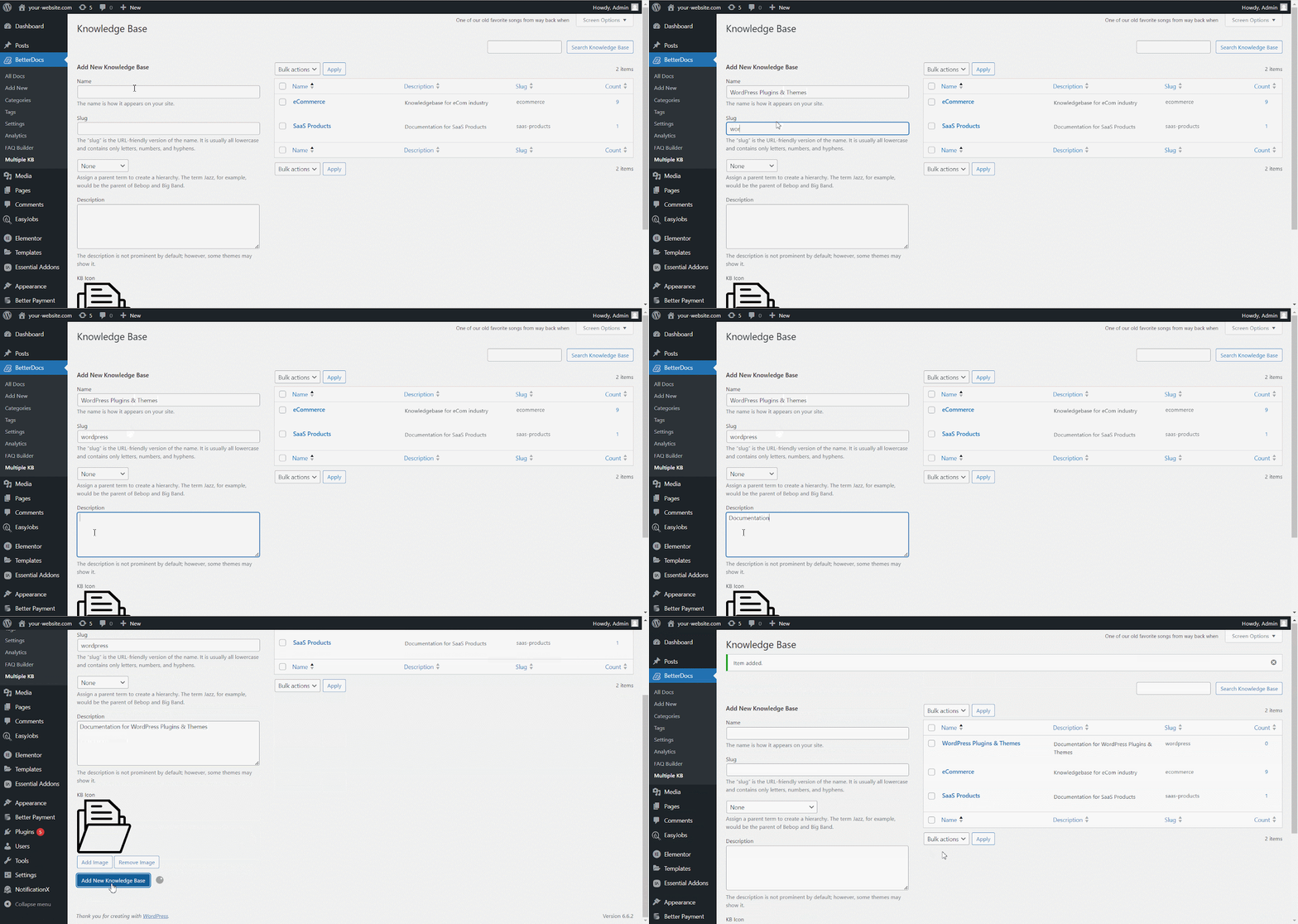
来自 ‘Add New Knowledge Base’ section, you can insert ‘Name’ and ‘Slug’ for each documentation. Afterward, hit the ‘Add New Knowledge Base’ button to create your knowledge base.
第3步:添加新类别 #
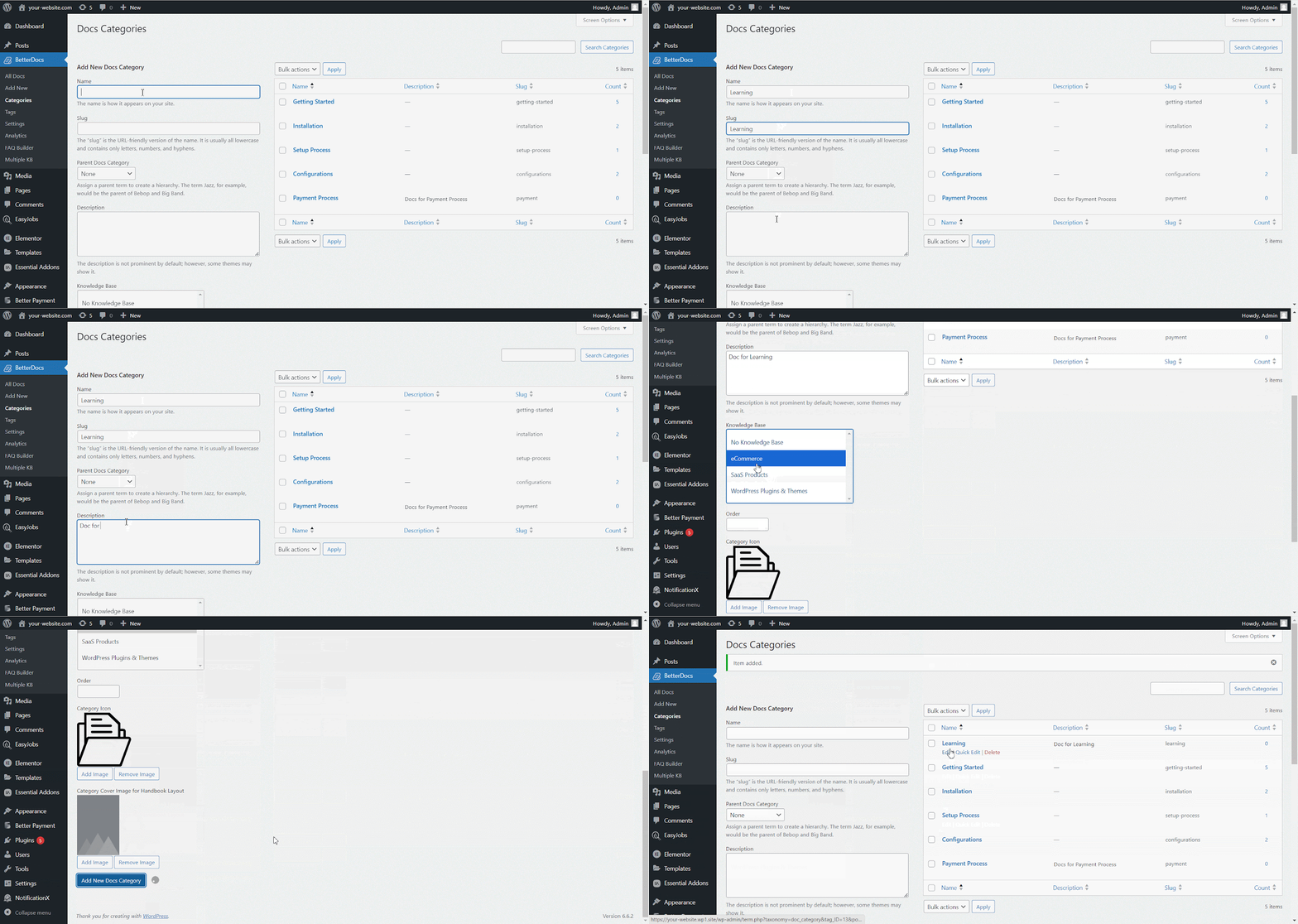
现在,转到BetterDocs ‘Categories’ to add a suitable category for your Knowledge Base.
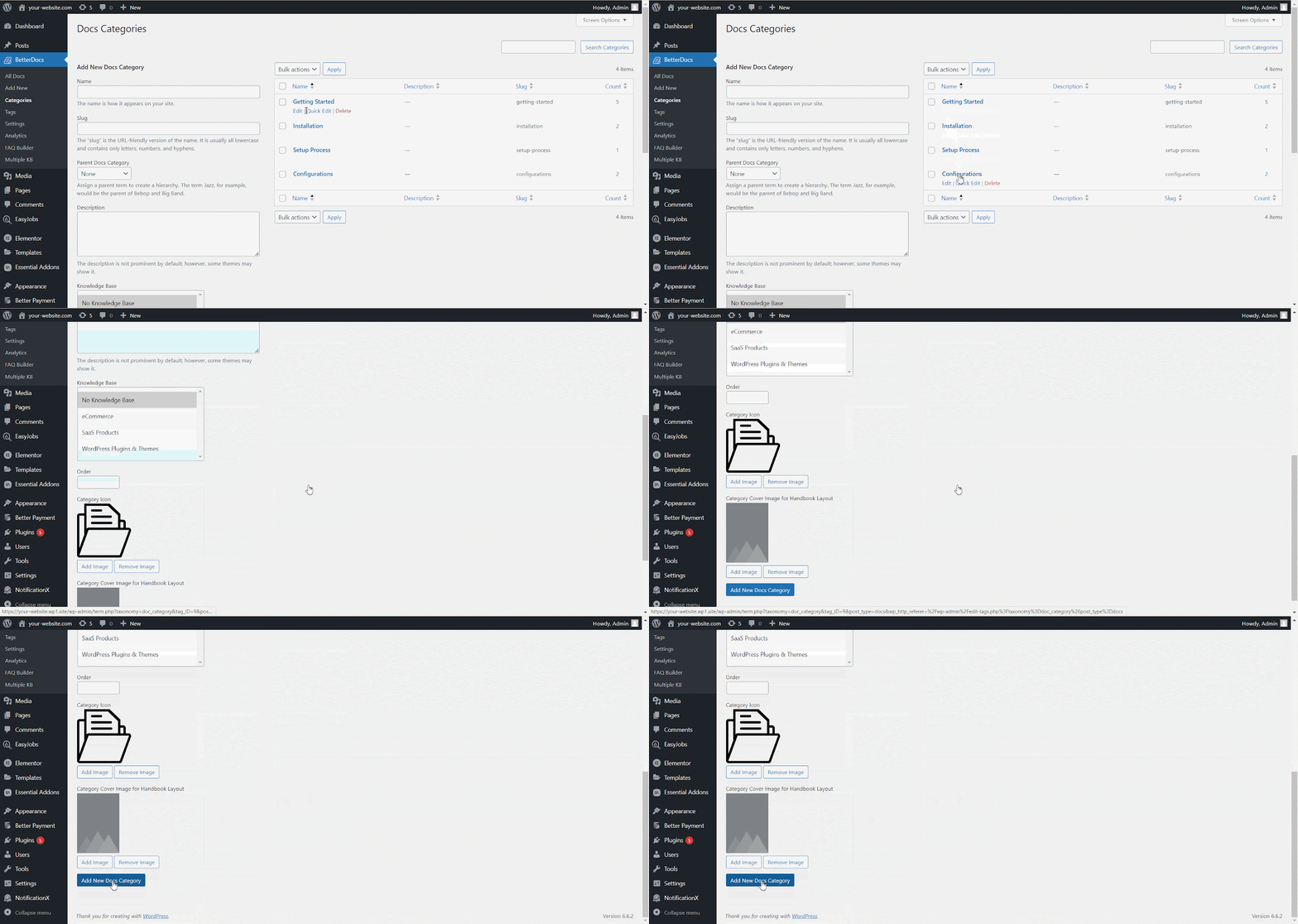
来自 ‘Add New Docs Category’ section, you can create your Categories for your knowledge base. You can pick one or multiple knowledge bases for each category from the drop-down menu. Besides, you can insert icons for each category and pick their ‘Parent category’ 如果你想。
步骤4:添加新文档 #
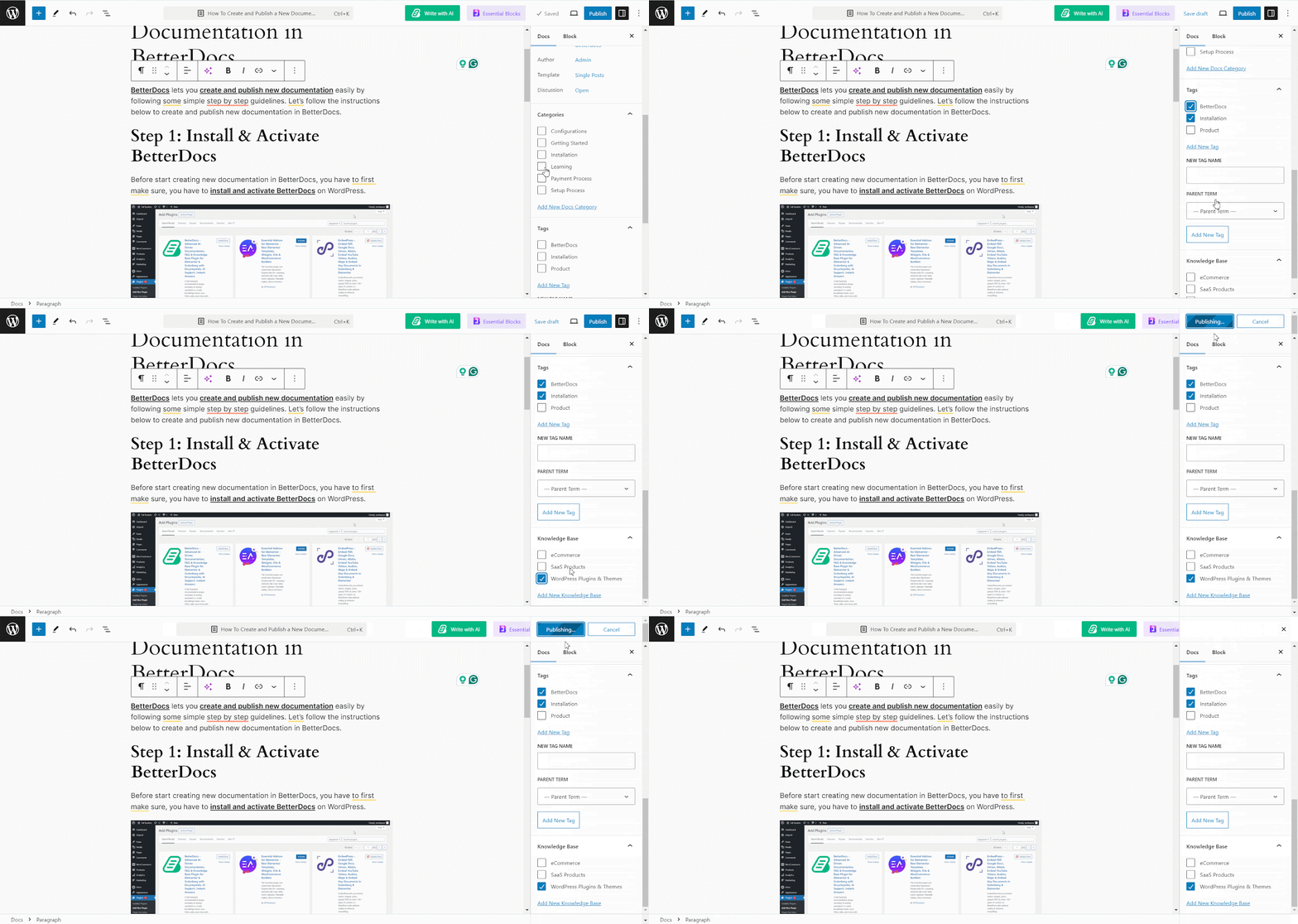
Now, let’s create new documentation from the ‘Add New’ section of BetterDocs. You can go ahead and add the preferred title and description and pick categories. To display this doc under the ‘知识库’ you have created, you will have to choose the ‘知识库’ option. You can pick multiple knowledge bases if you want. Afterwards, simply ‘Publish’ the doc.
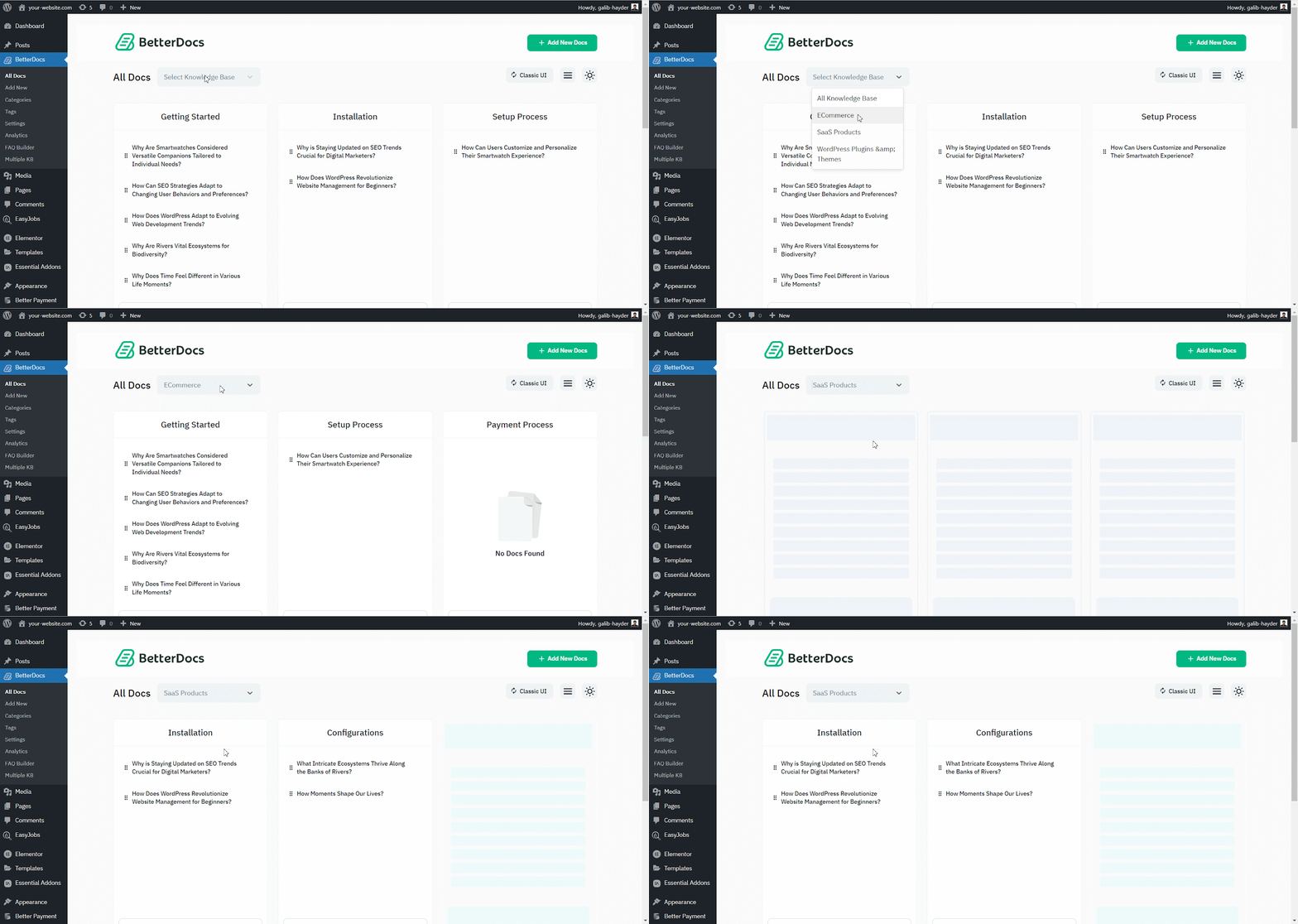
来自 ‘All Docs’ section, you can use the drop-down menu to see your docs on their respective knowledge bases.
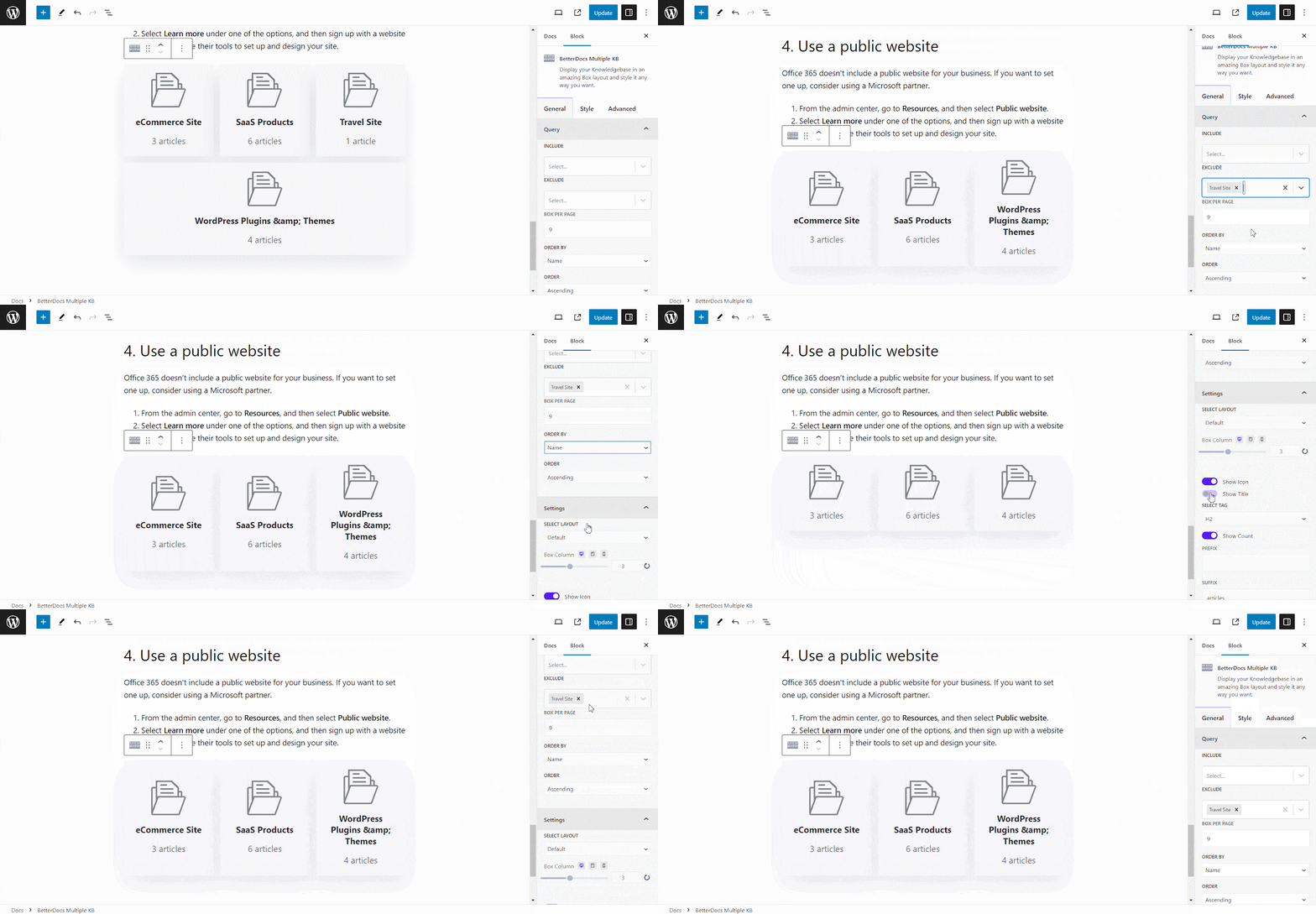
BetterDocs lets you add multiple knowledge base sections inside your existing documentation with a simple block in the Gutenberg editor. It will help your readers get access to other similar documents without having to look elsewhere. To add multiple knowledge bases in a document, simply search for ‘BetterDocs Multiple KB,’ and add the block.
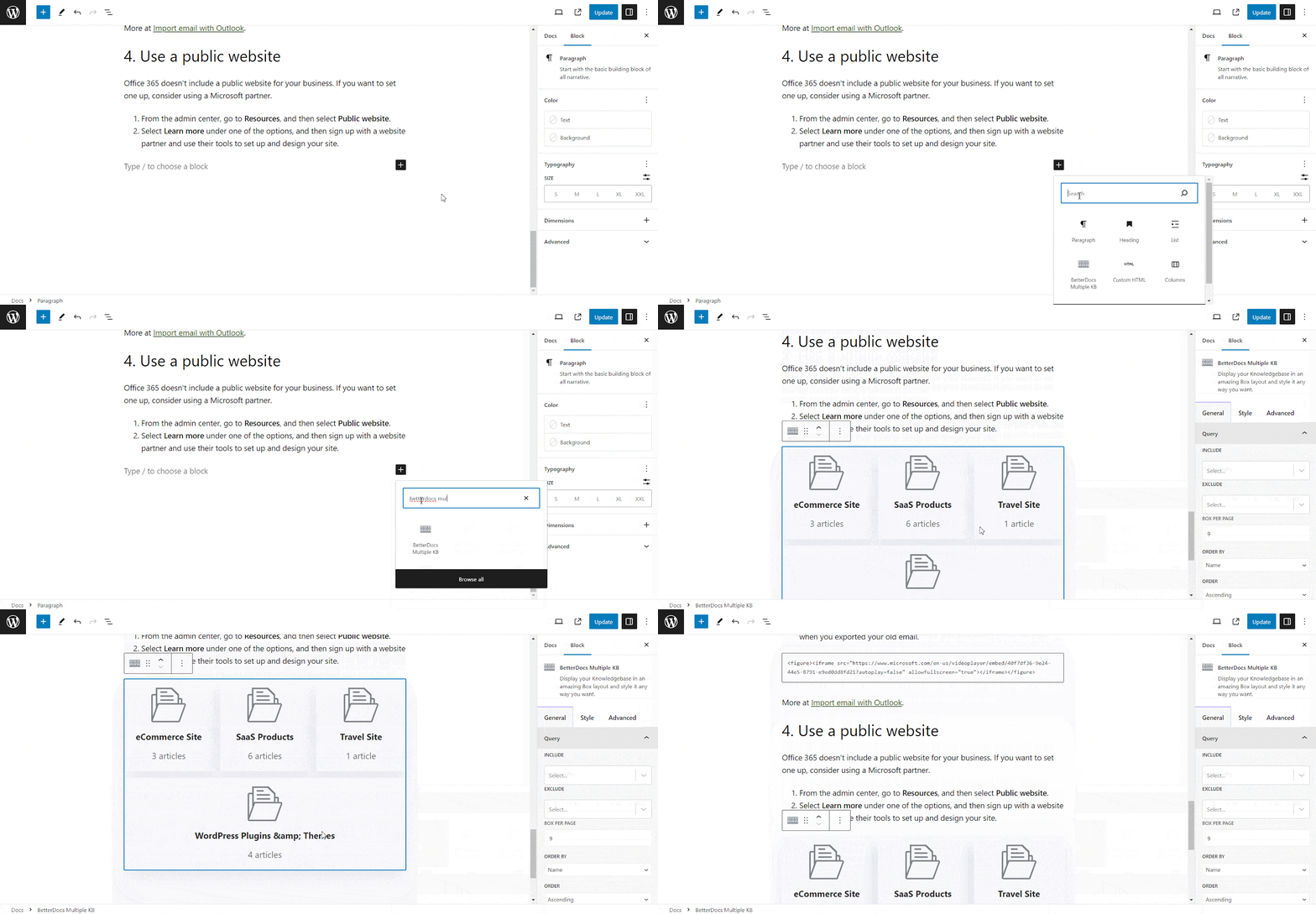
Here, you can customize the Multiple KB section with content and design needs. There are options to include or exclude a specific knowledge base. Additionally, you can set the display order, enable or disable icons, choose to show or hide the counts, and more. On the ‘Style’ tab, you will find options to change the height, width, background colour, image, etc., for the box, icon, title, and count.
步骤5:自定义外观 #
此外,您可以使用BetterDocs的两个排他版面来更改在线文档的外观, ‘Multiple KB’ 特征。为此,您必须转到 BetterDocs > Settings > Design, and click on the ‘Customize in BetterDocs’ section.
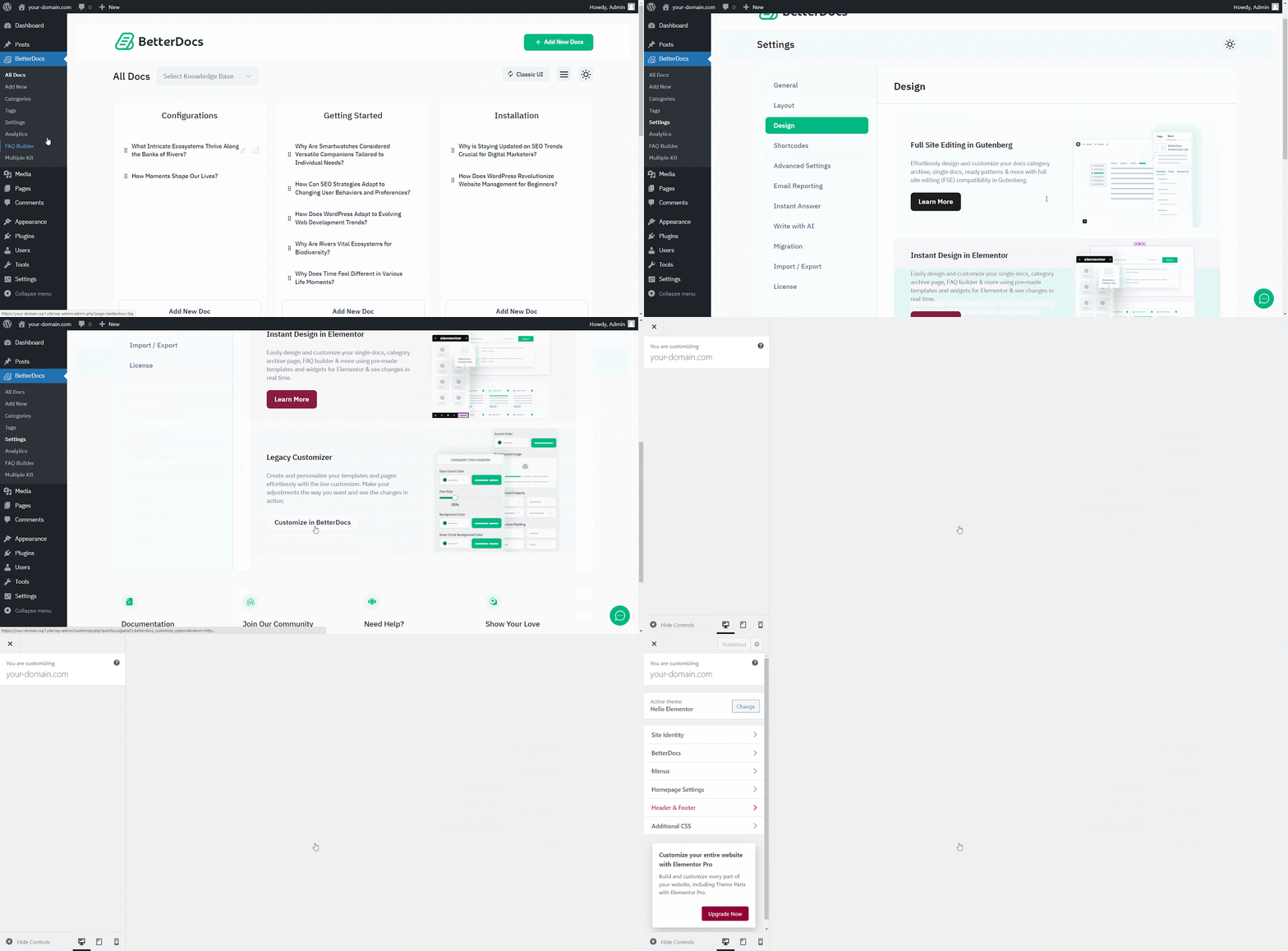
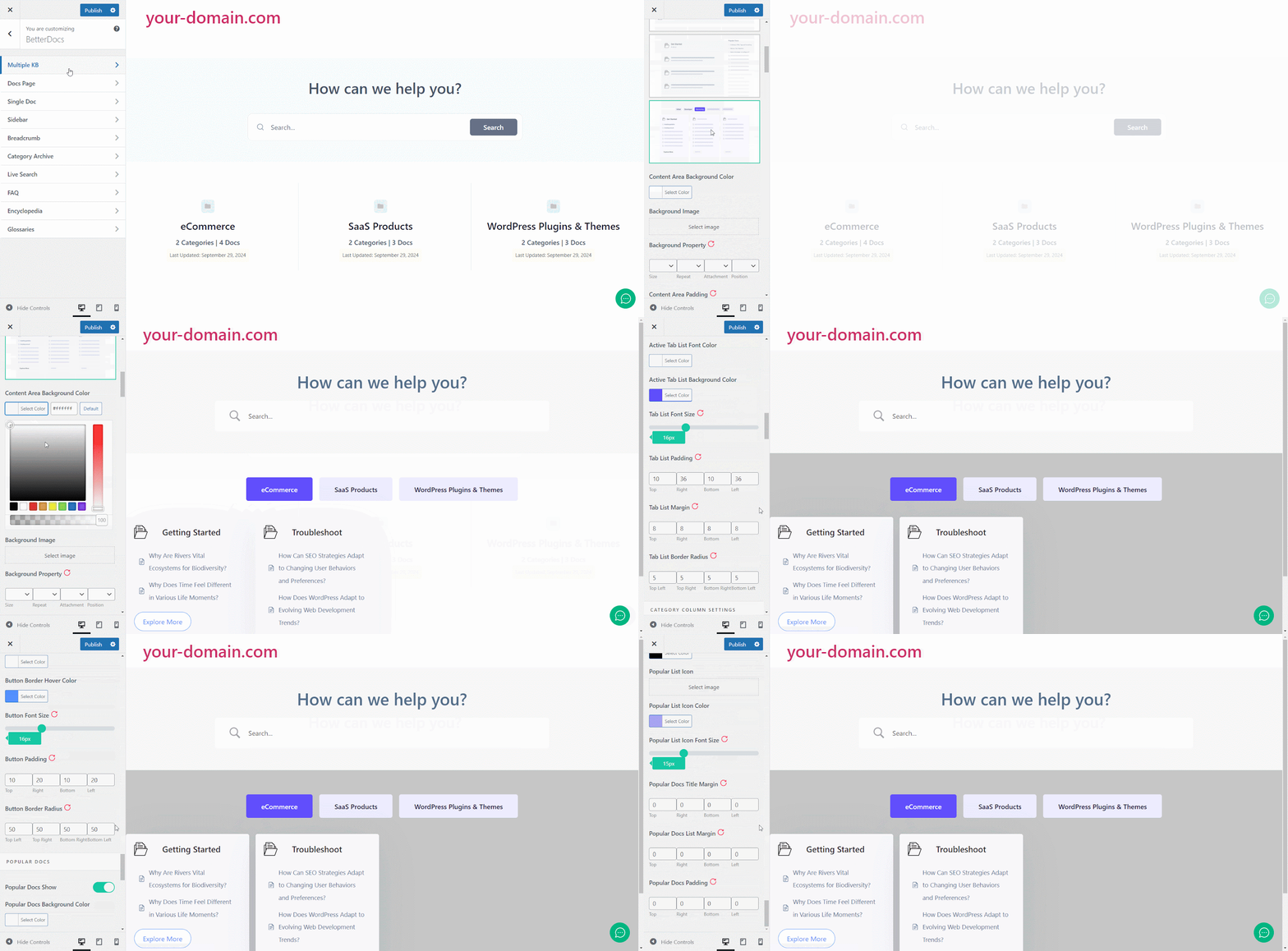
You will get a separate section named ‘Multiple KB’ to 定制 您的知识库。您可以从两种布局中选择一种。此外,你还会得到其他 独家造型功能 to modify the background colour, add a background image, configure the title colour, font size, content spacing, and more to make the BetterDocs documentation site interactive for your website visitors.
最终结果 #
只需按照上述所有步骤操作,便可以添加和管理 multiple knowledge bases 在WordPress网站上轻松使用BetterDocs。
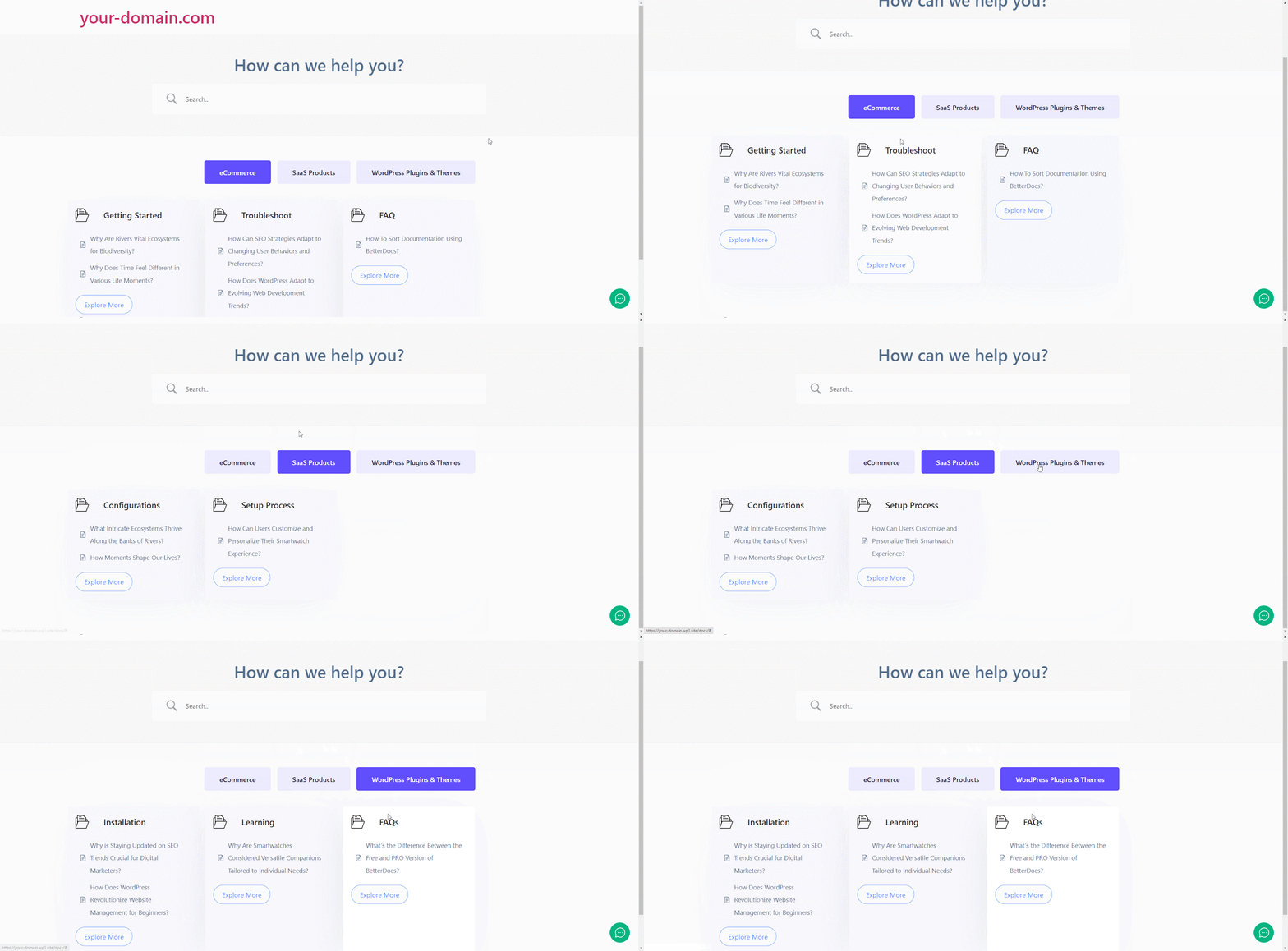
在...的帮助下 BetterDocs, this is how you can manage multiple knowledge bases on your WordPress website and reduce pressure on your support system.Getting stuck? Feel free to contact our 专门的支持团队。