BetterDocs le ofrece una integración perfecta con Elementor. Ahora puede diseñar su Documento único en Elementor sin ningún tipo de codificación utilizando el Creador de temas Elementor. Una vez que diseñe una plantilla para su página de documento único, puede guardarla y luego reutilizarla para cada una de sus páginas de documentación.
Nota: El Creador de temas Elementor es una función que solo está disponible con Elementor Pro. Entonces, para configurar Documento único en Elementor, you must have the Pro version of Elementor installed and activated.
Siga estas instrucciones paso a paso para descubrir cómo puede utilizar BetterDocs para diseñar su documento único en Elementor.
Step 1: Create a New Single Doc in Elementor Theme Builder #
Navegar a Tablero WordPress → Templates → Theme Builder desde su panel de control WordPress. Haga clic en el 'Agregar nuevo' button and select ‘Documento único’ as your template type. Choose any template and click on the ‘Insert’ button. Your new template will now open in the Elementor editor.
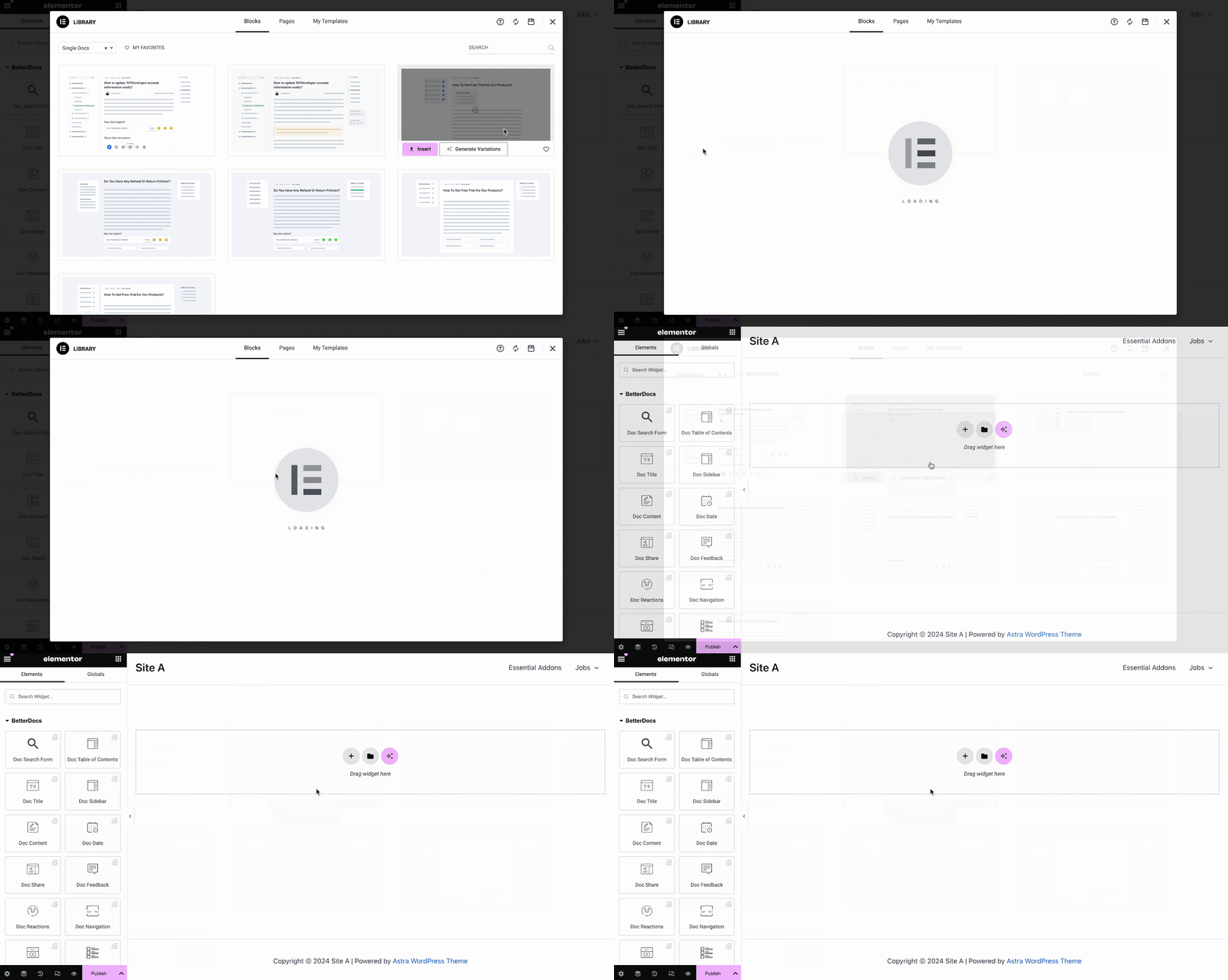
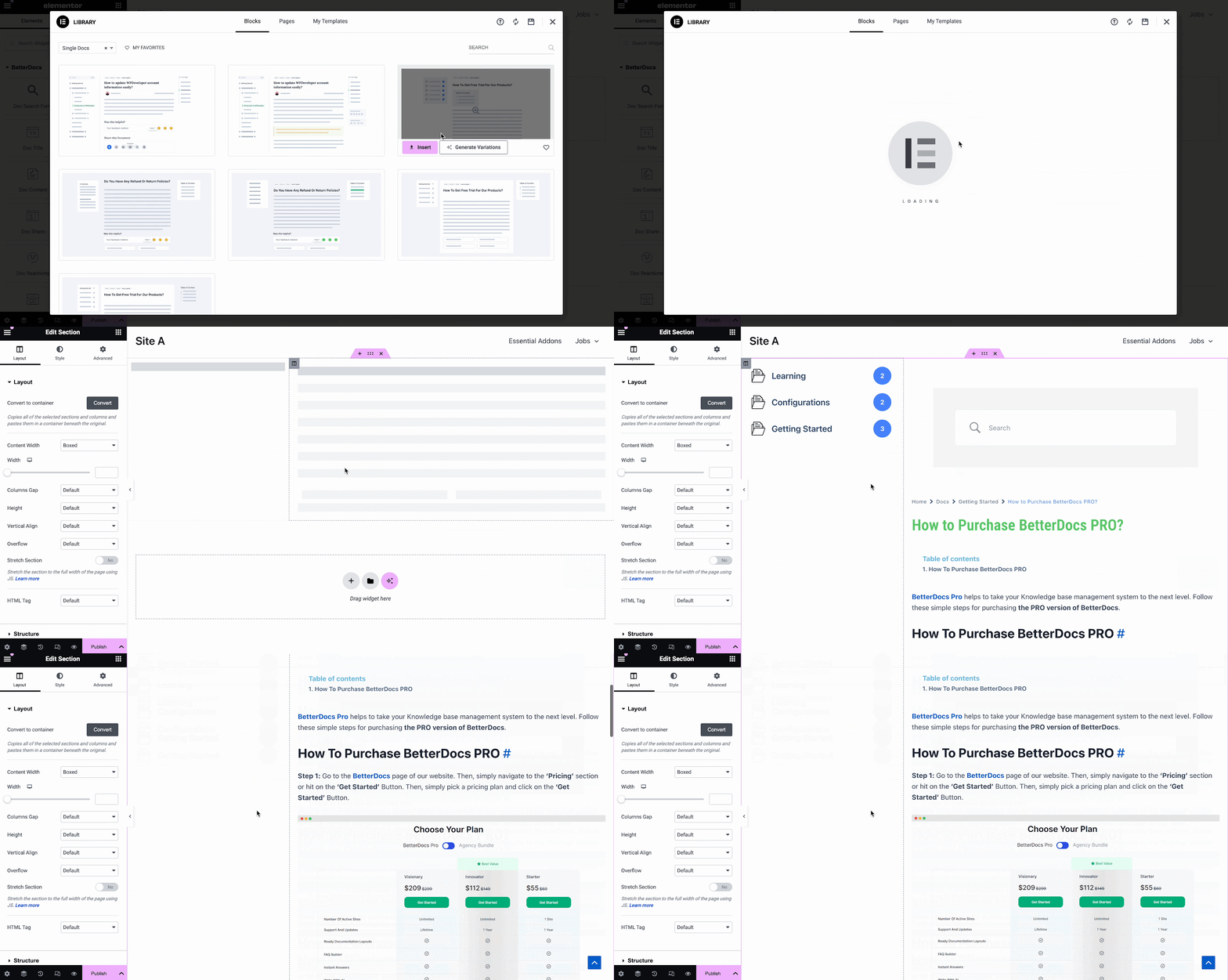
You can use BetterDocs premade-ready widgets to instantly create your single doc page. Or you can customize your single doc page from scratch by configuring different elements as shown in the next step.
Step 2: Customize Single Doc in Elementor #
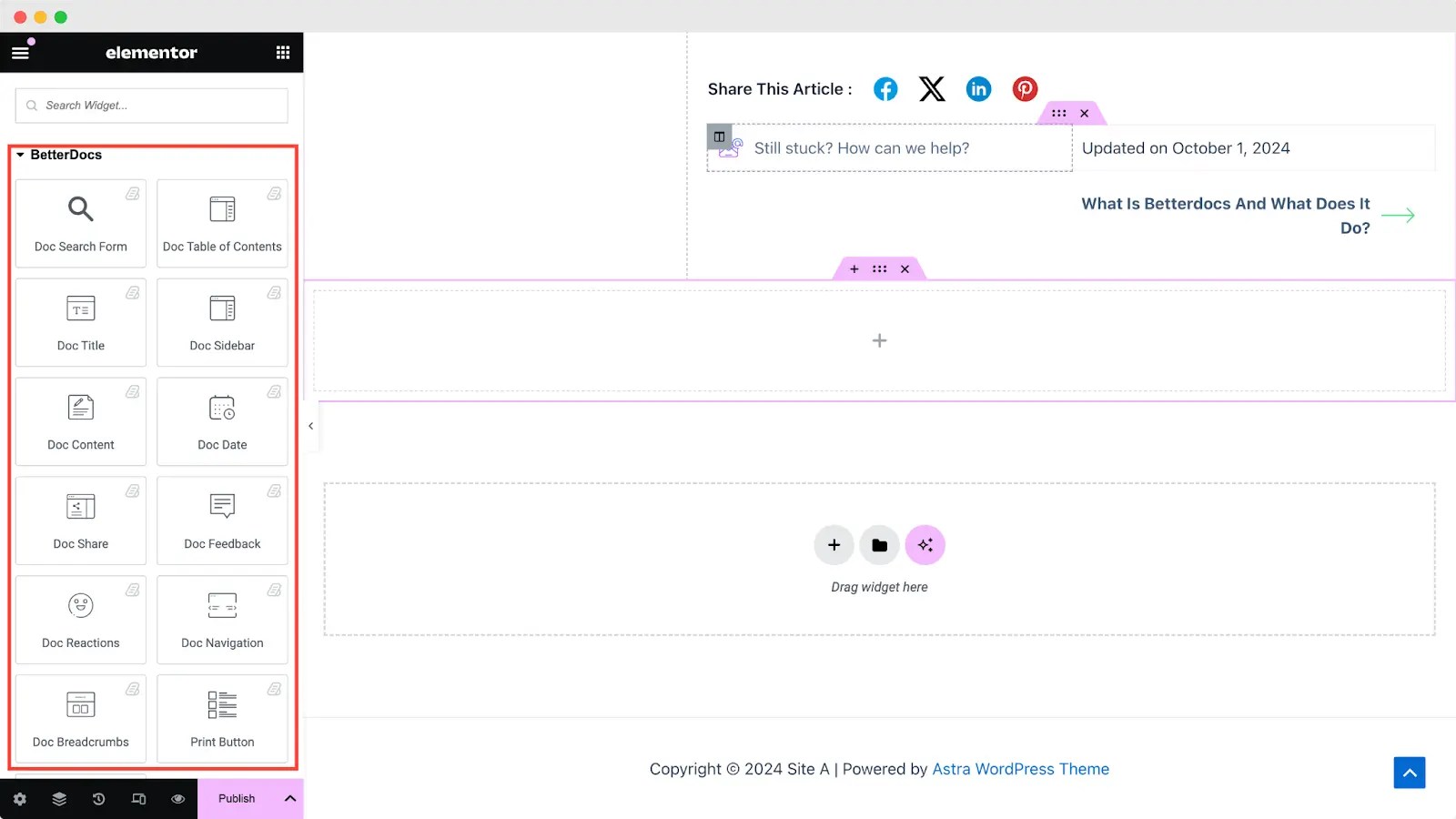
Desde el 'ELEMENTOS' tab in Elementor Editor, you should see 12 BetterDocs elements to design your Single Doc page template. You can drag and drop these elements anywhere on your page to use them.
Formulario de búsqueda de documentos #
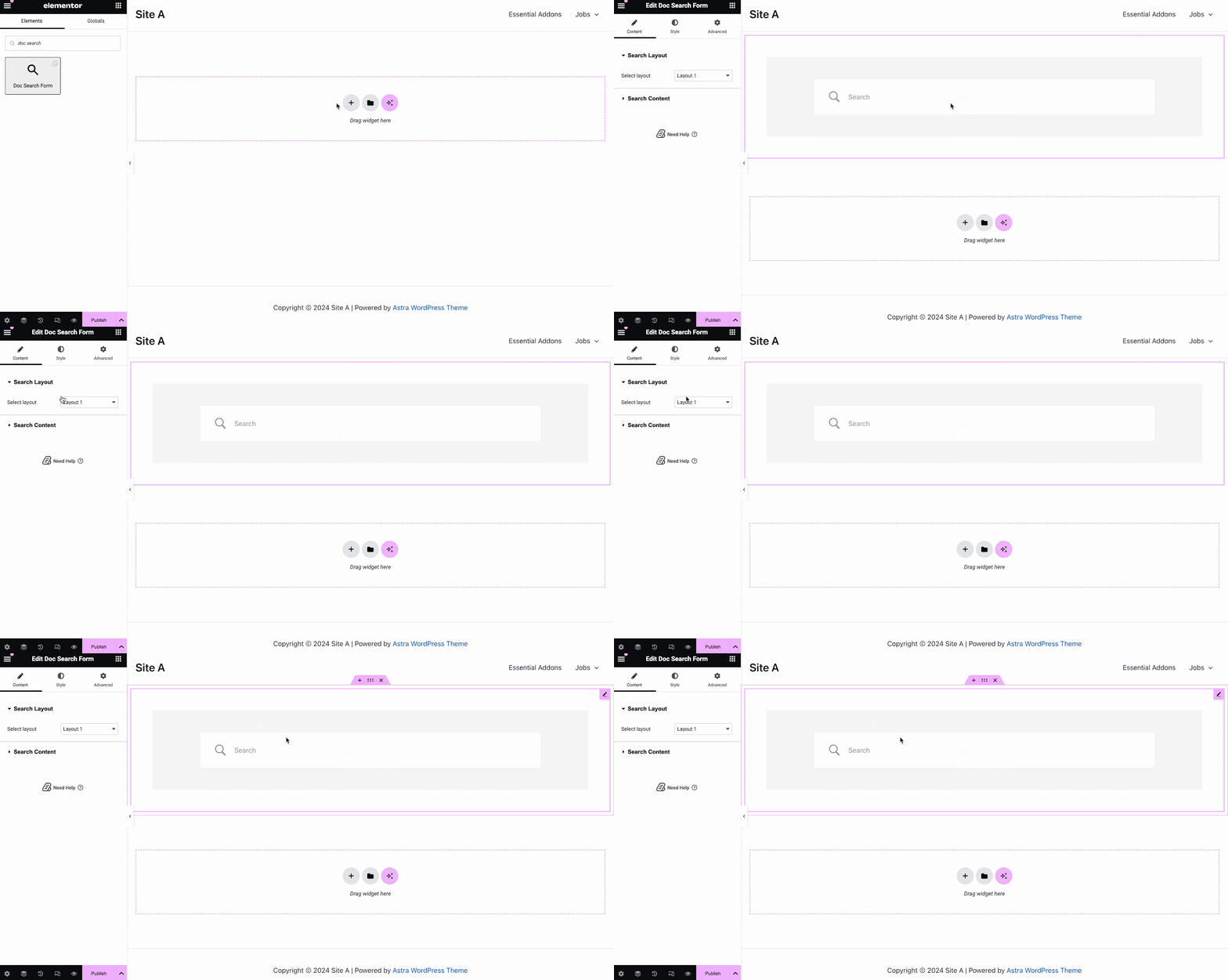
los Formulario de búsqueda de documentos elemento le permite agregar una barra de búsqueda en vivo a su Documento único page. To use this element, simply drag and drop it into any section of your page. Then, the element will appear on your page by default as shown below.
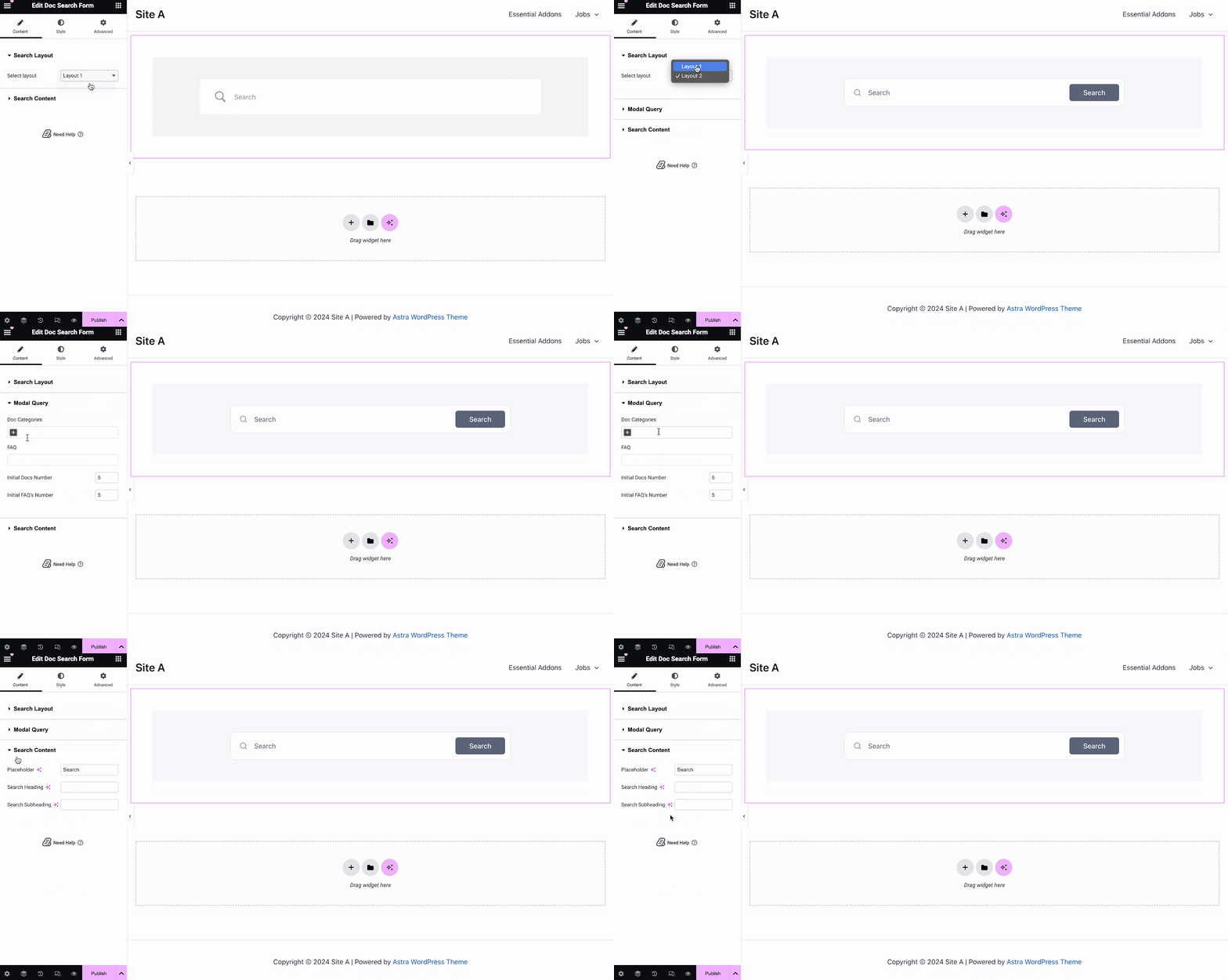
Desde el 'Contenido' tab, you can choose one from two templates and customize your Formulario de búsqueda de documentos. If you choose Layout 2, you will have another option to configure Modal Query, where you can set doc categories, FAQ, doc numbers, etc.
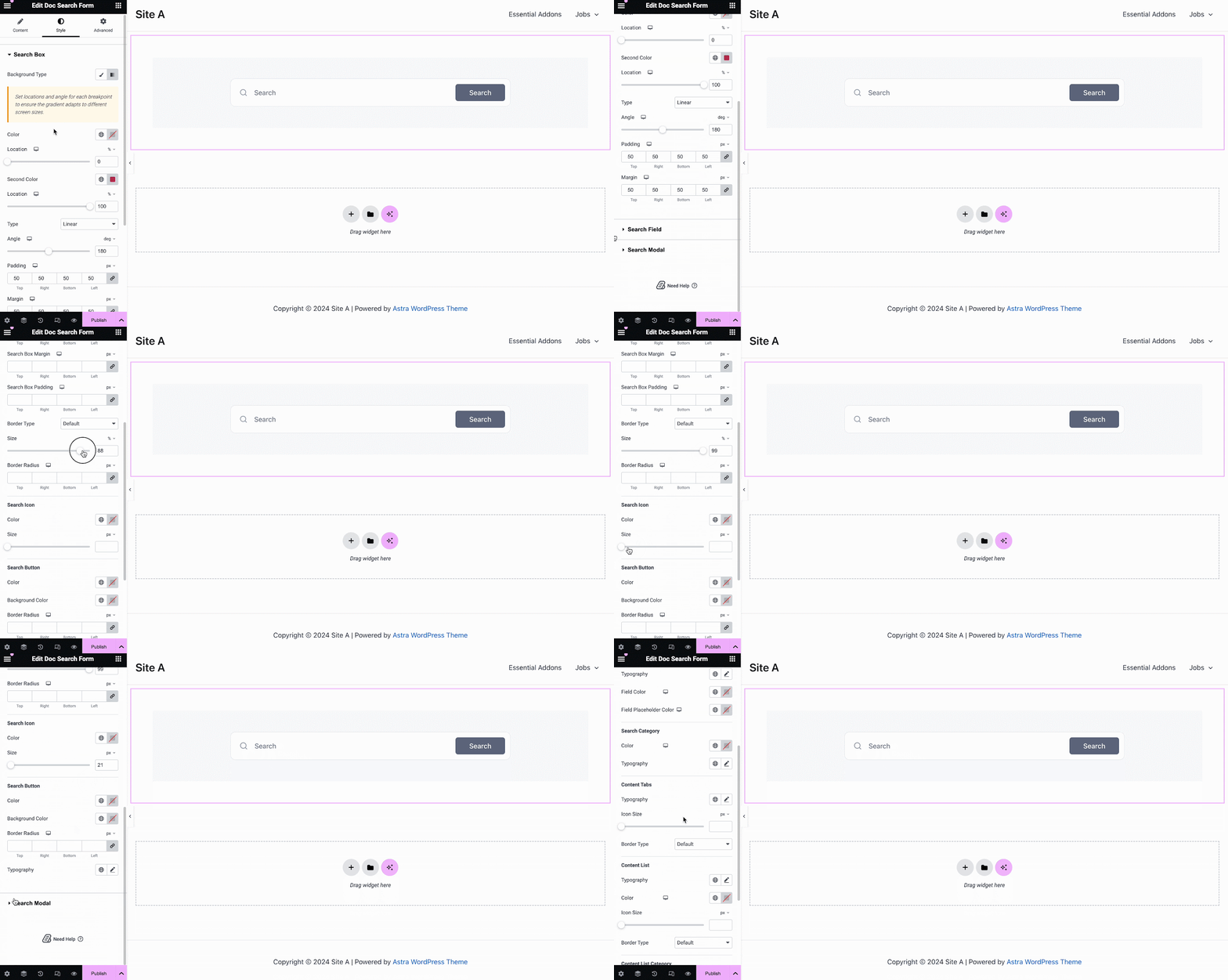
Bajo la 'Estilo' tab, you will see options for changing the background type and color of the 'Caja de búsqeda' items. You can use images, solid colors, or gradient colors for your background.
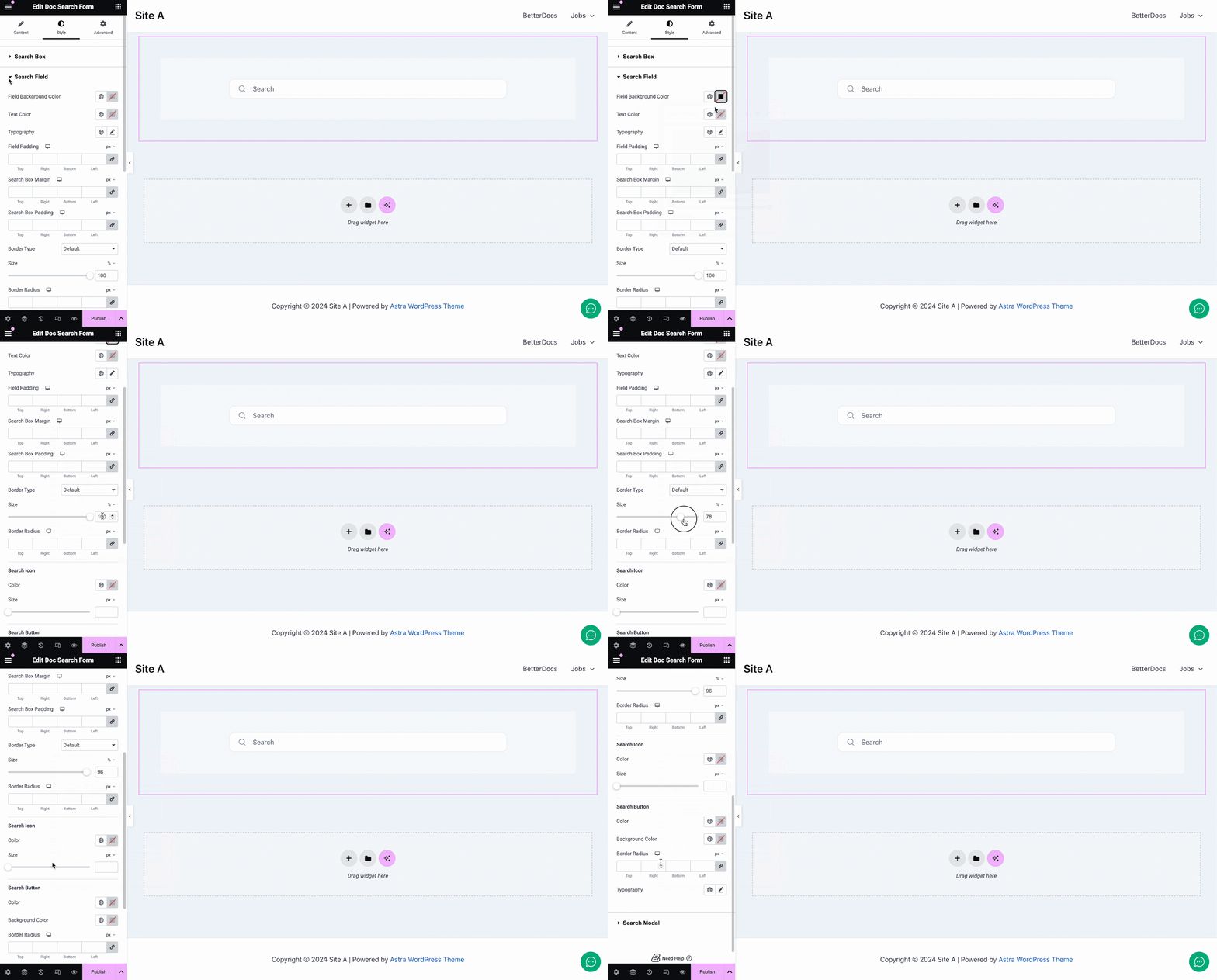
Del mismo modo, bajo el 'Campo de búsqueda' section, you have the option to change the field background color, field color, typography, padding, icons and much more. Plus, on the ‘Search Modal’ tab, you will have customization options for the search field, search category, content tab, content list, and more.
Título del documento #
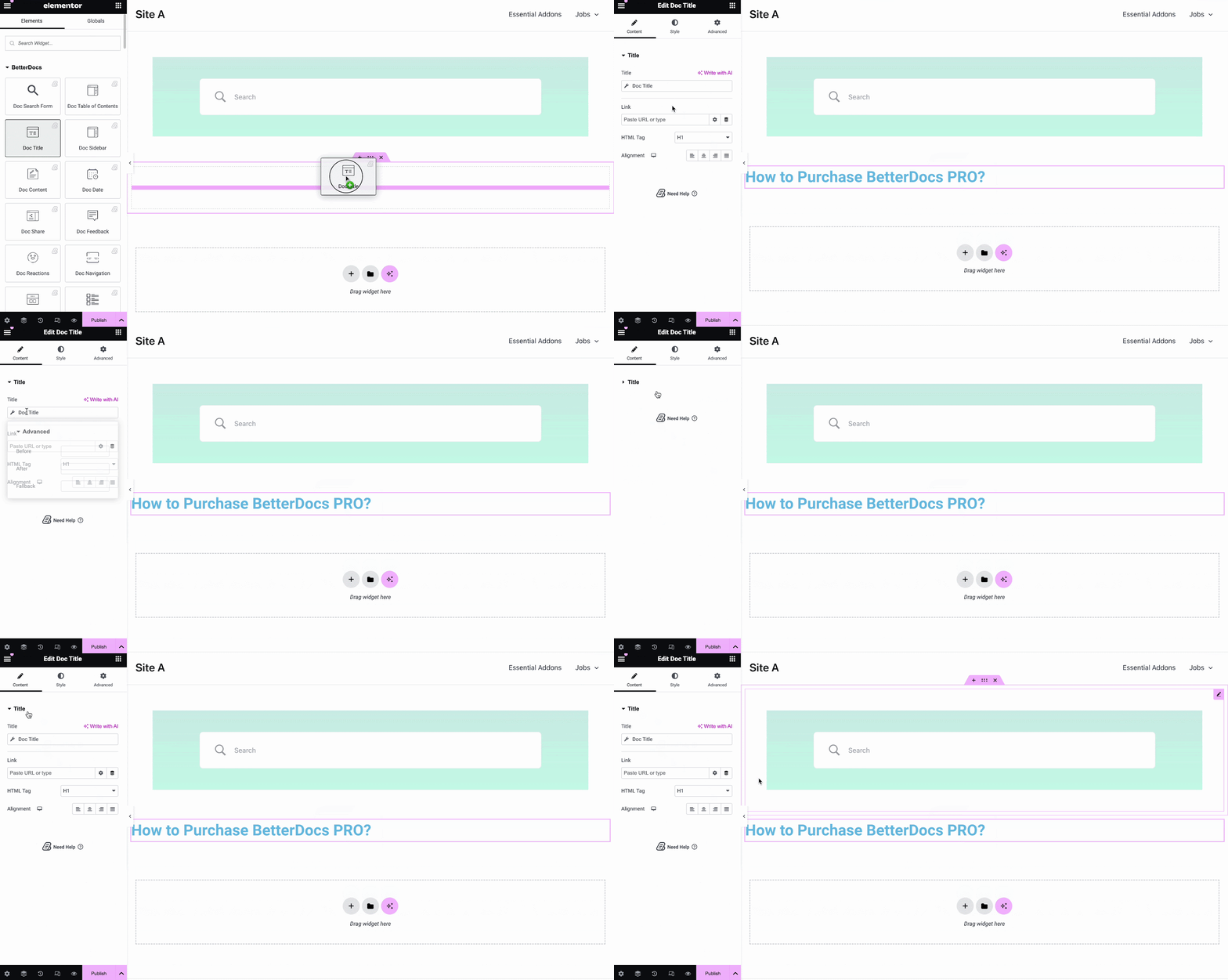
los Título del documento elemento agrega dinámicamente el título de su Documento único en Elementor. Desde el 'Contenido' tab, you can customize the title, link, html tag, and alignment.
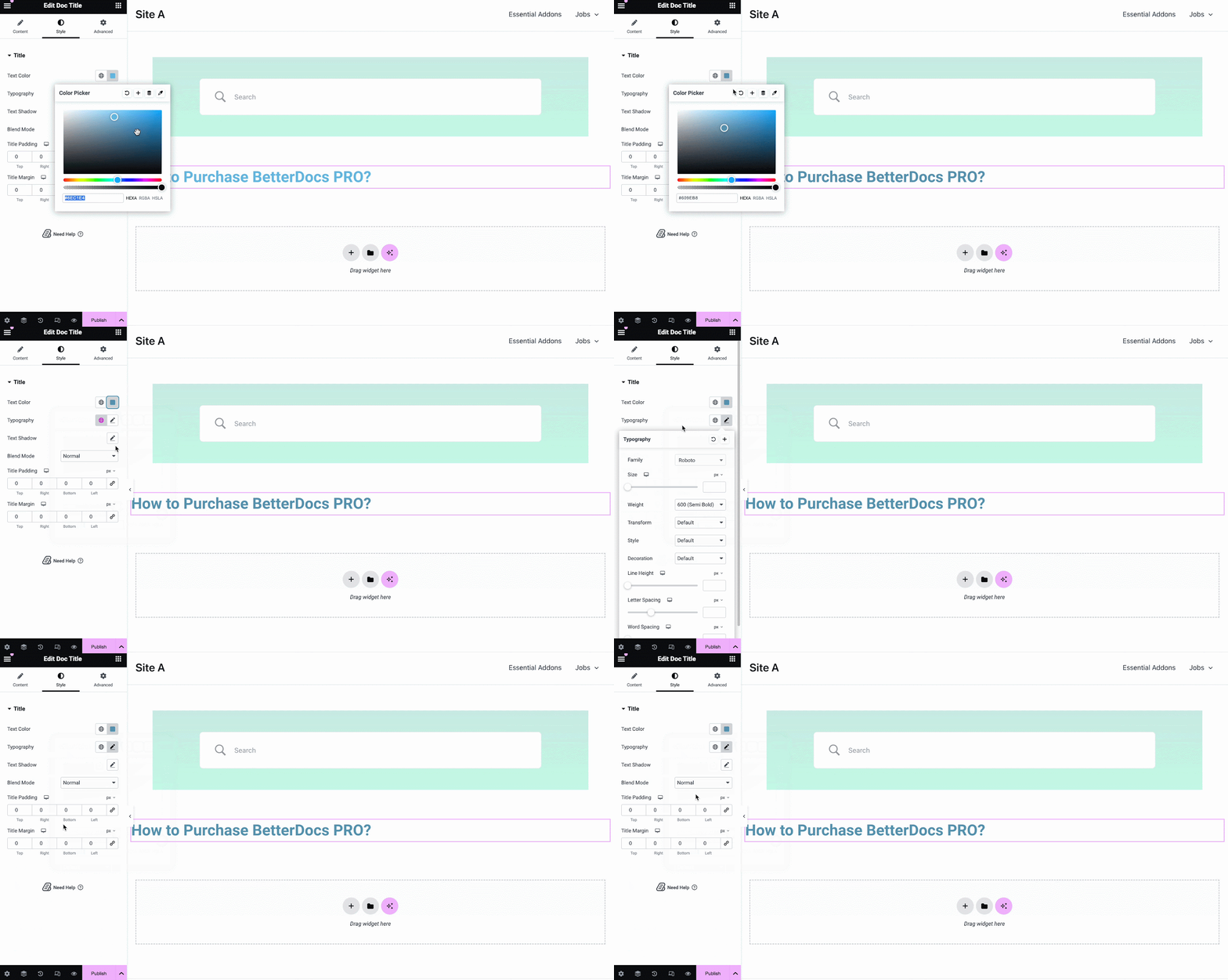
Desde el 'Estilo' pestaña puede cambiar el color del título, la tipografía, el modo de fusión e incluso agregar texto-sombra.
Doc Table of Contents #
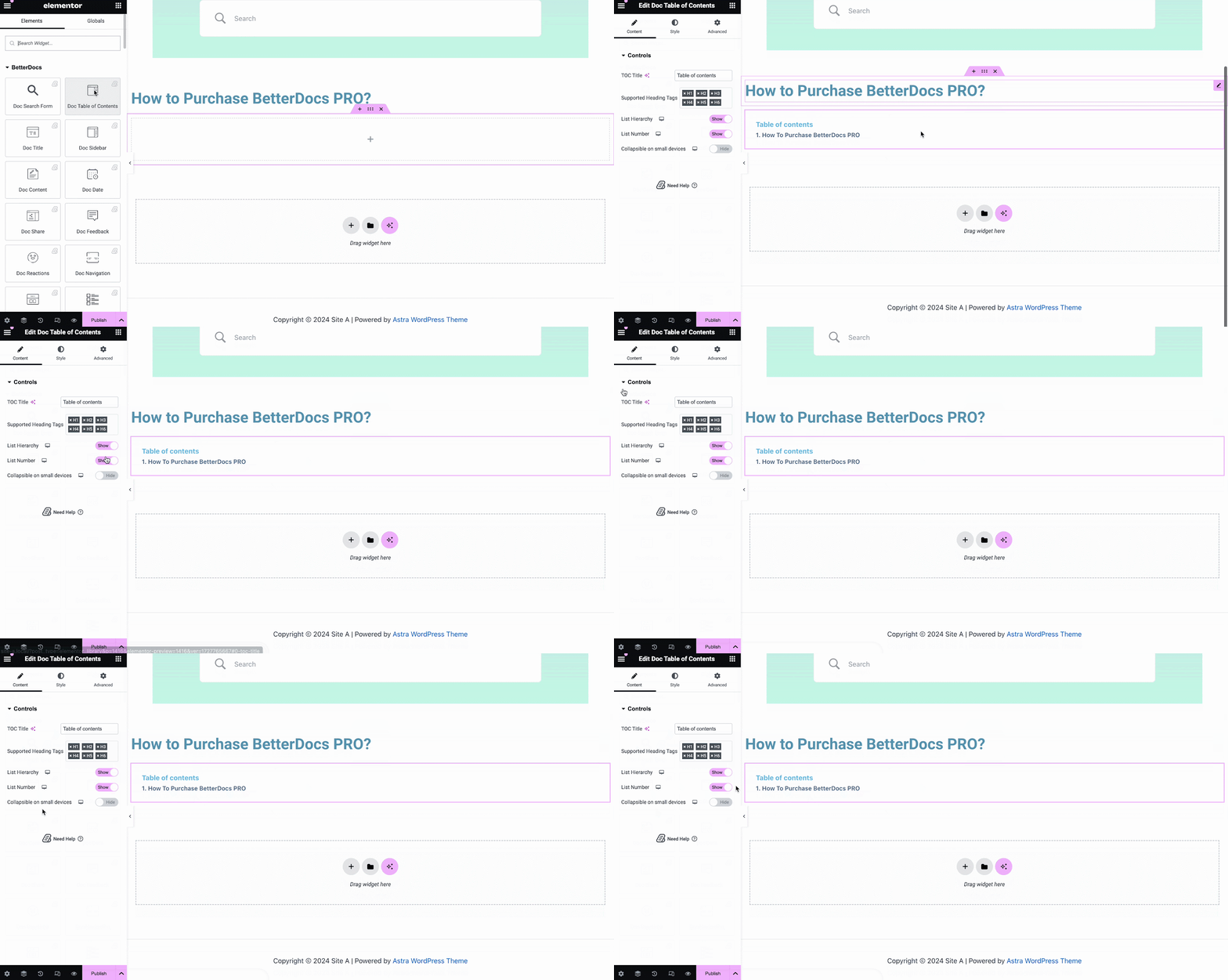
With the ‘Doc Table of Contents’ widget, you can customize the title, heading tags, hierarchy, list number and more on the Content tab, as shown below.
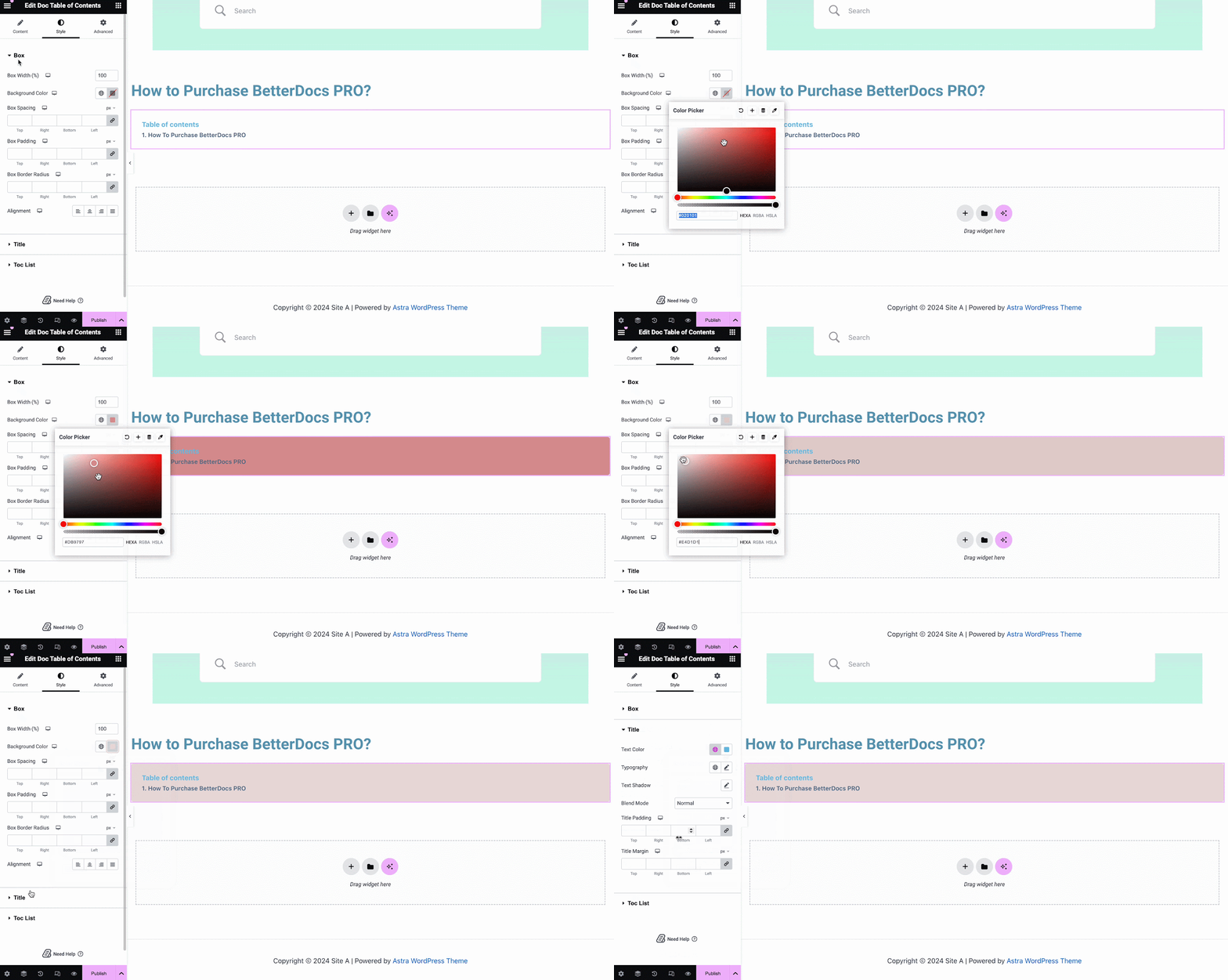
On the ‘Style’ tab, you can customize contents of the Box, Title, Toc list with the color, margin, padding, typography options.
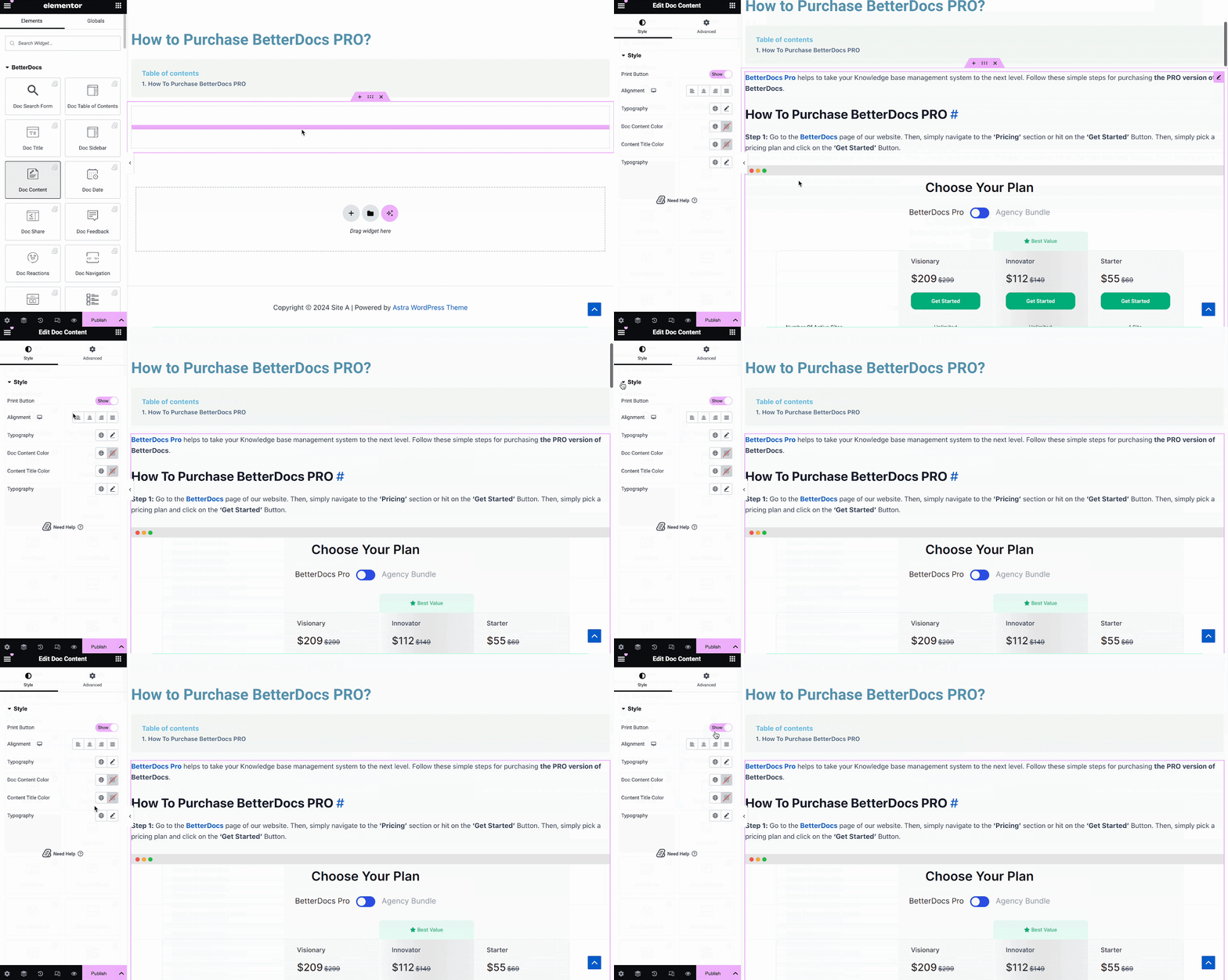
Contenido del documento #
Puede arrastrar y soltar el Contenido del documento elemento en cualquier parte de su página de documento único. El contenido de su documentación se agregará automáticamente. A continuación, puede cambiar la alineación, el color del texto y la tipografía desde debajo del 'Estilo' pestaña como se muestra a continuación.
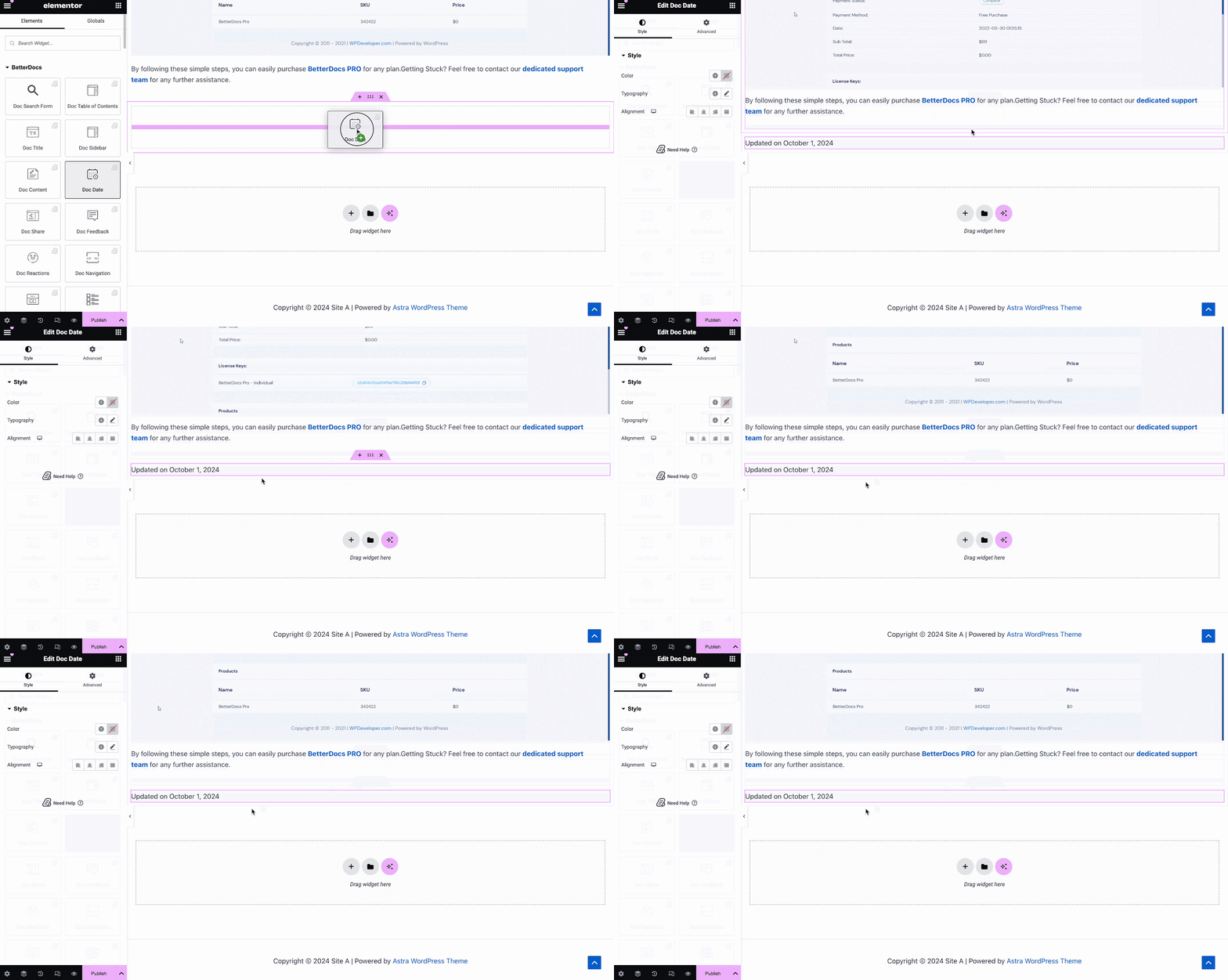
Fecha doc #
los Fecha doc El elemento le permite mostrar automáticamente la fecha en la que se actualizó su documentación. Puede cambiar el color, la alineación y la tipografía de la fecha desde debajo del 'Estilo' lengüeta.
Barra lateral de documentos #
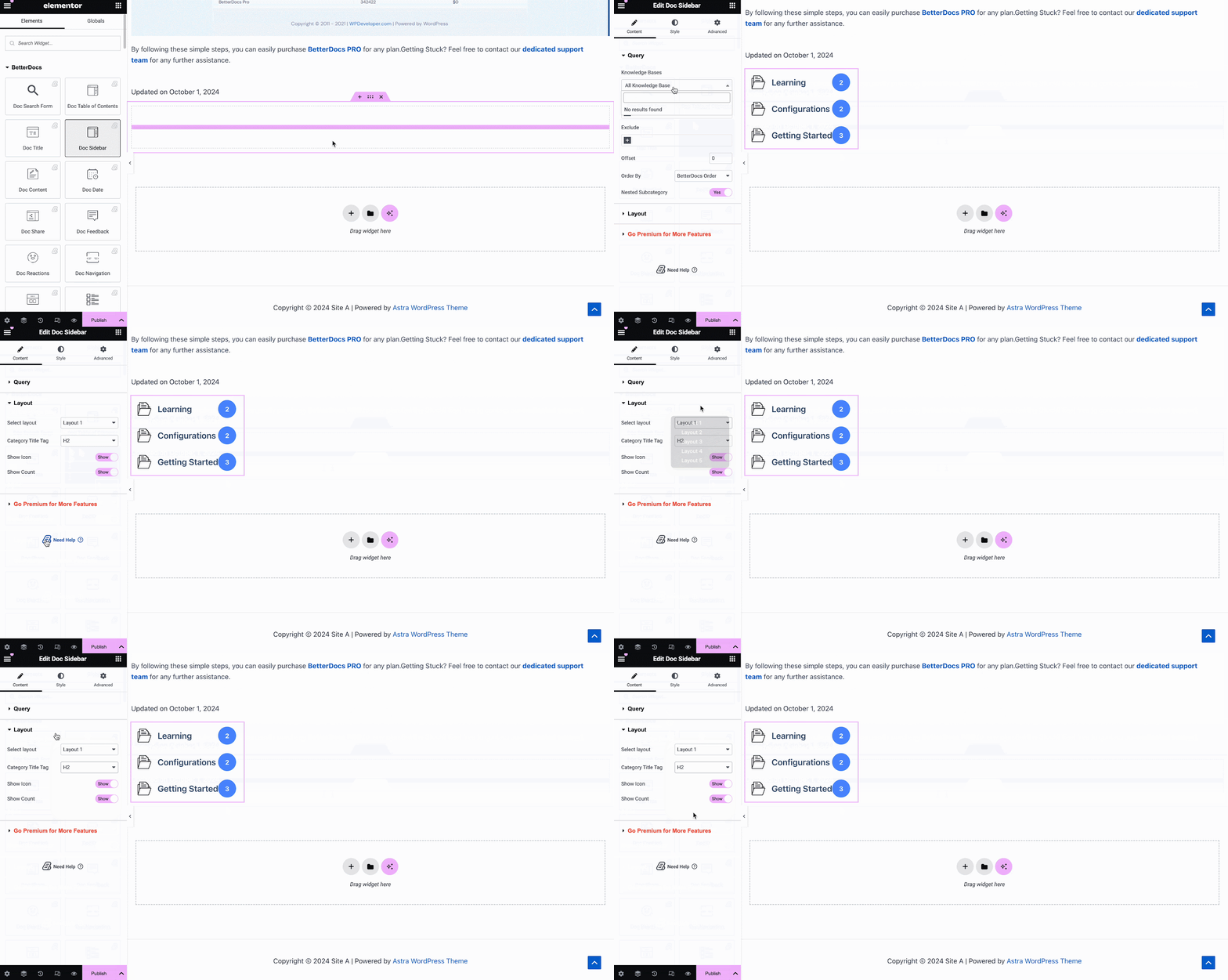
los Barra lateral de documentos elemento le permite crear una barra lateral para su Documento único en Elementor que muestra todos los demás artículos y categorías de documentación que ha creado.
Desde el 'Contenido' tab, you can choose the layout for your Doc Sidebar. Currently there are five layouts available, each with its own distinct style.
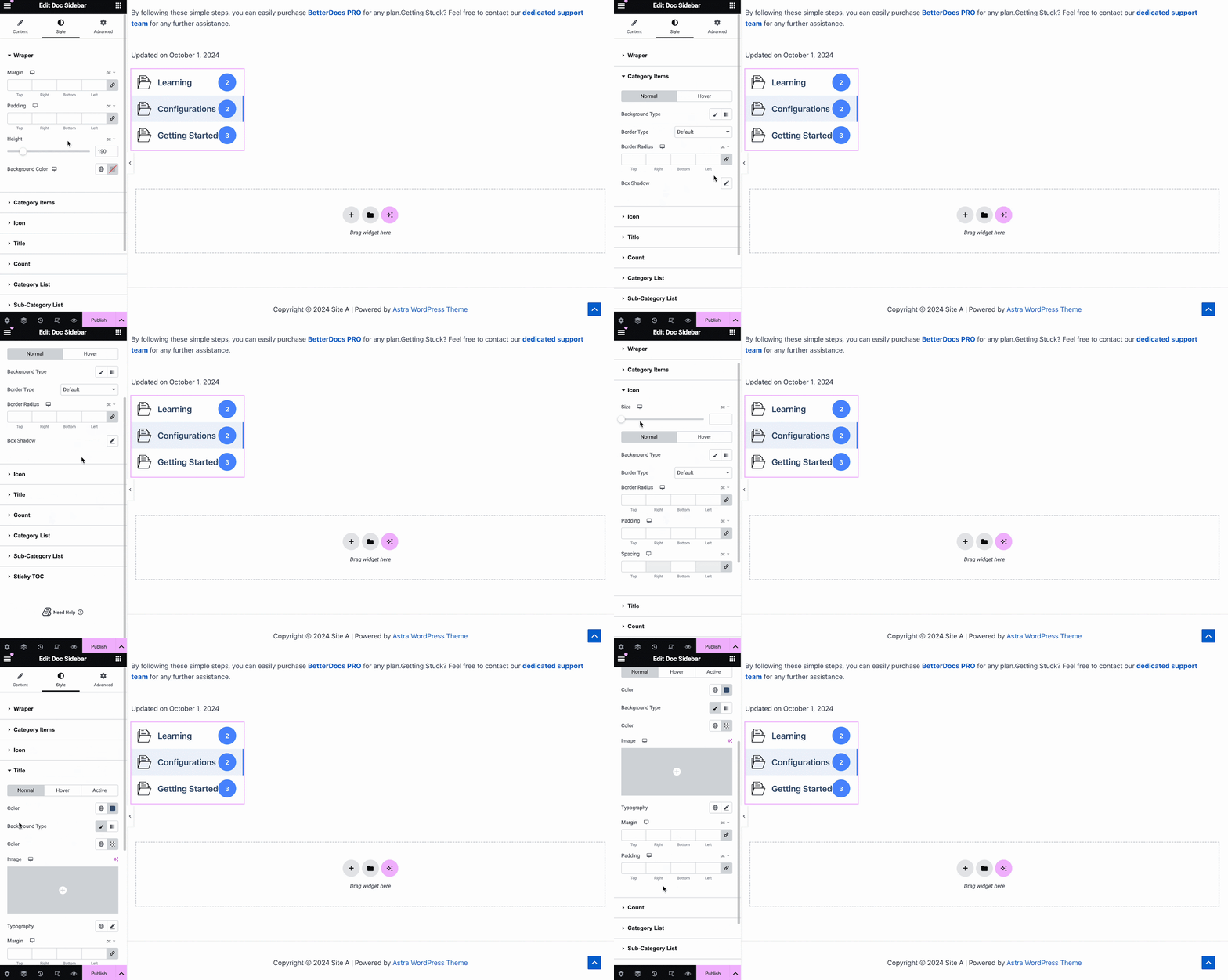
Bajo la 'Estilo' tab, you will see several options, including Wrapper, Icon, Category Style, Title, Count, Category List, etc. with the options to customize margin, padding, color, typography and more for a more personalized look.
Reacciones de Doc #
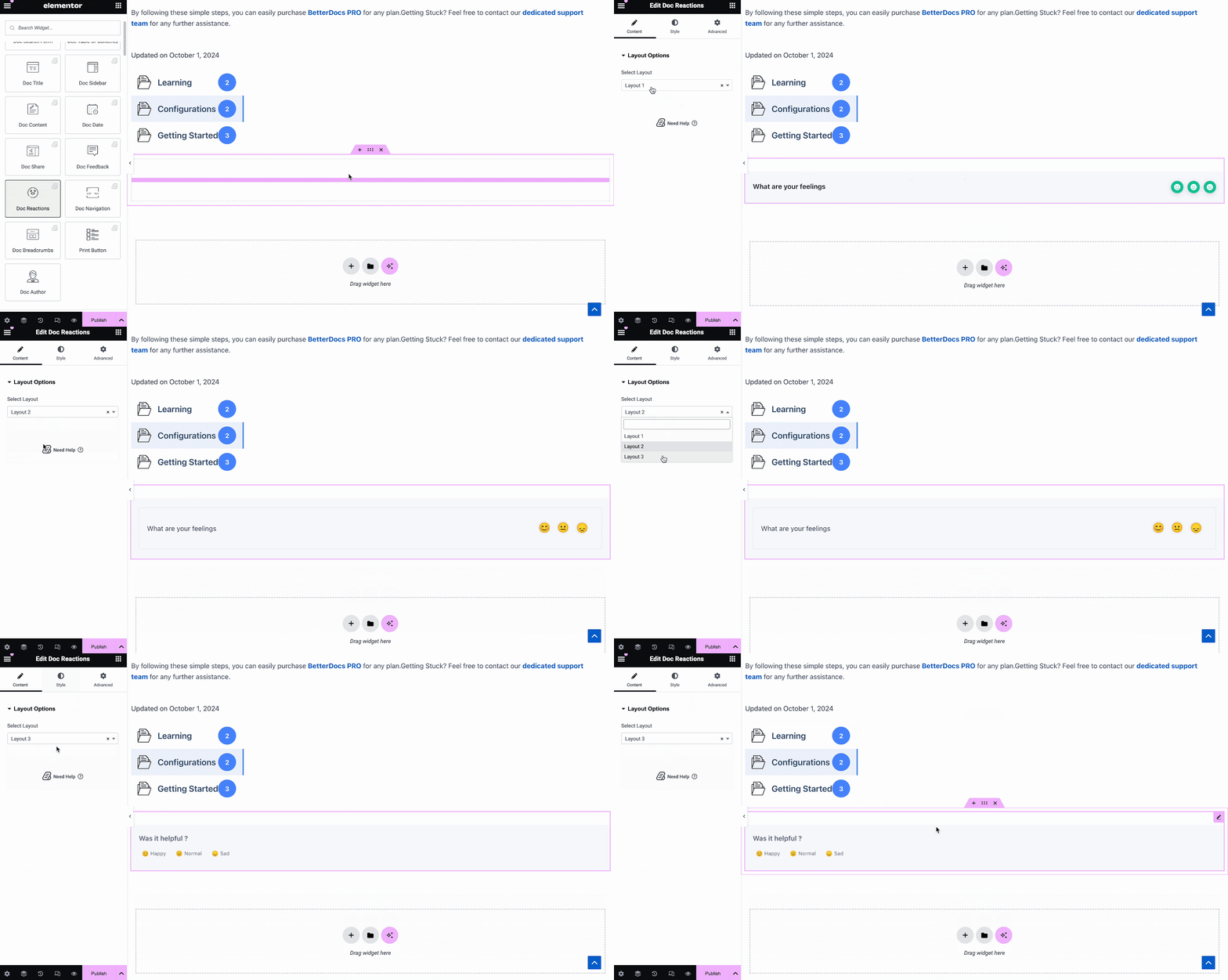
Con BetterDocs Pro, puede averiguar qué tan útil es su documentación para los visitantes del sitio con la Reacciones de Doc element. There are three layouts to choose from on the Content tab.
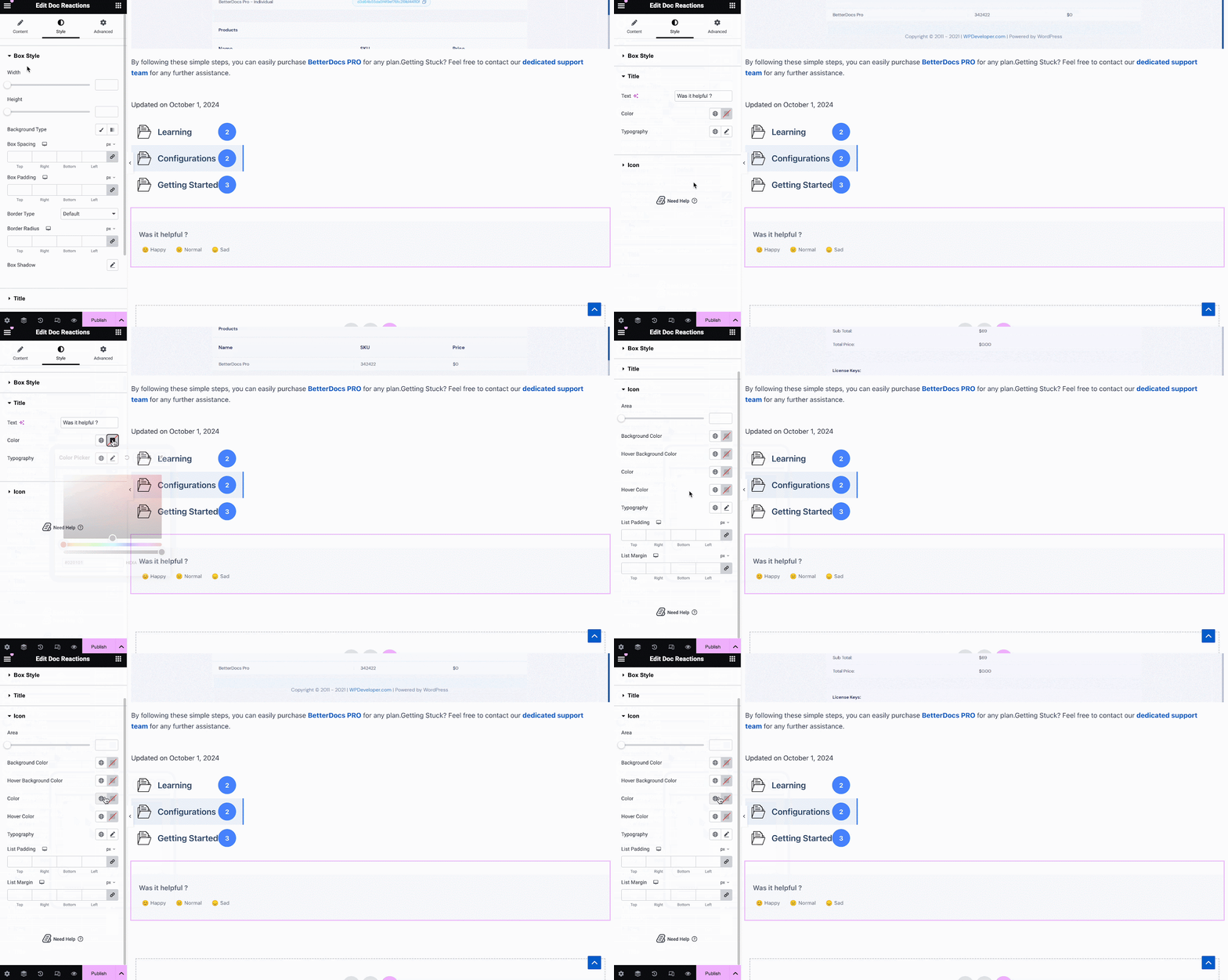
Bajo la 'Estilo' tab, there are several options to adjust color, margin, padding, typography and more for Box Style, Title and Icon.
Compartir documento #
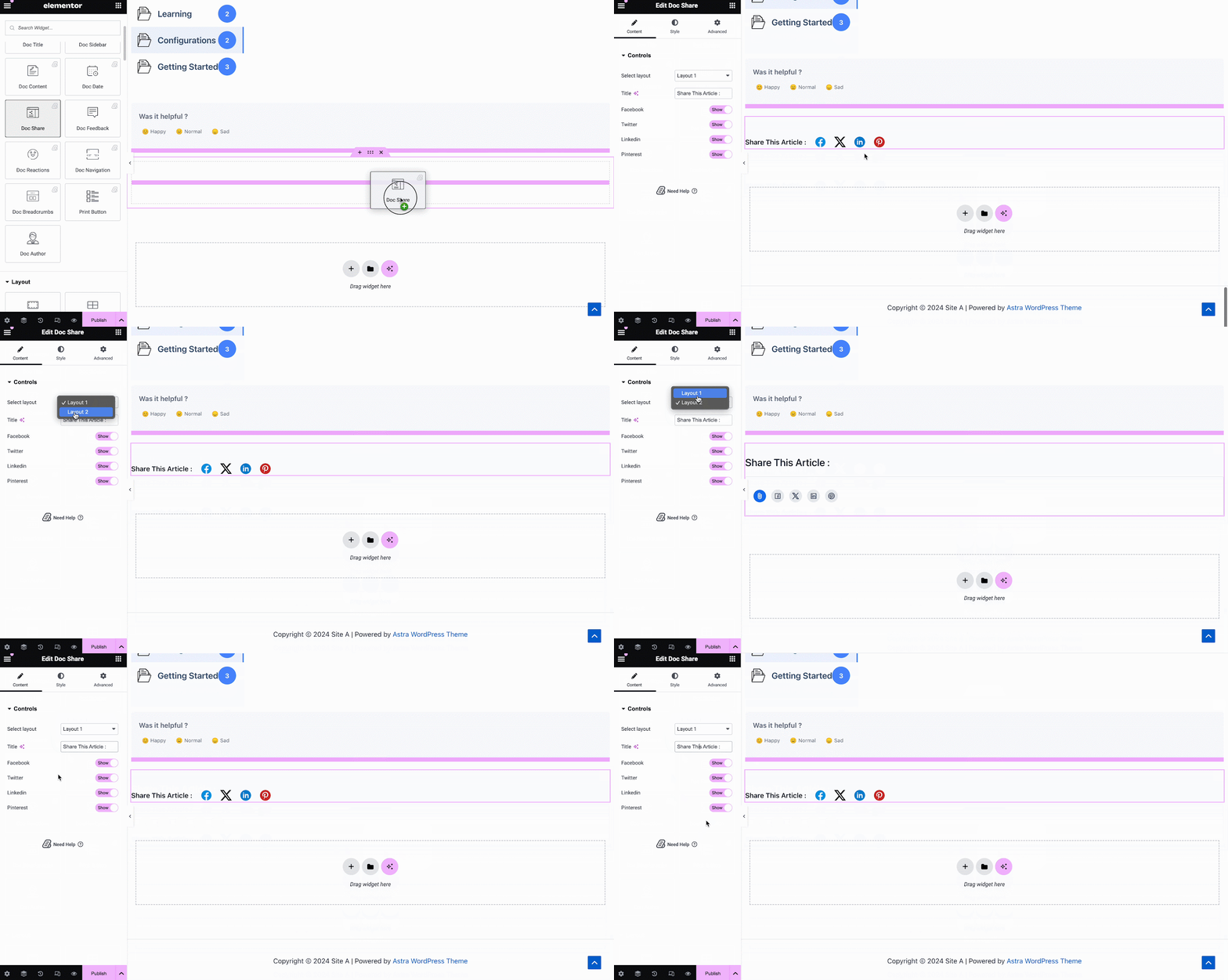
Compartir documento element le permite habilitar el intercambio social para su documentación. Con este elemento, los visitantes del sitio pueden compartir su documentación en diferentes plataformas de redes sociales. Simplemente arrastre y suelte el elemento en cualquier lugar de su Documento único in Elementor to activate it. On the ‘Content’ tab, you will find two layouts, options to change titles and buttons for four popular social media.
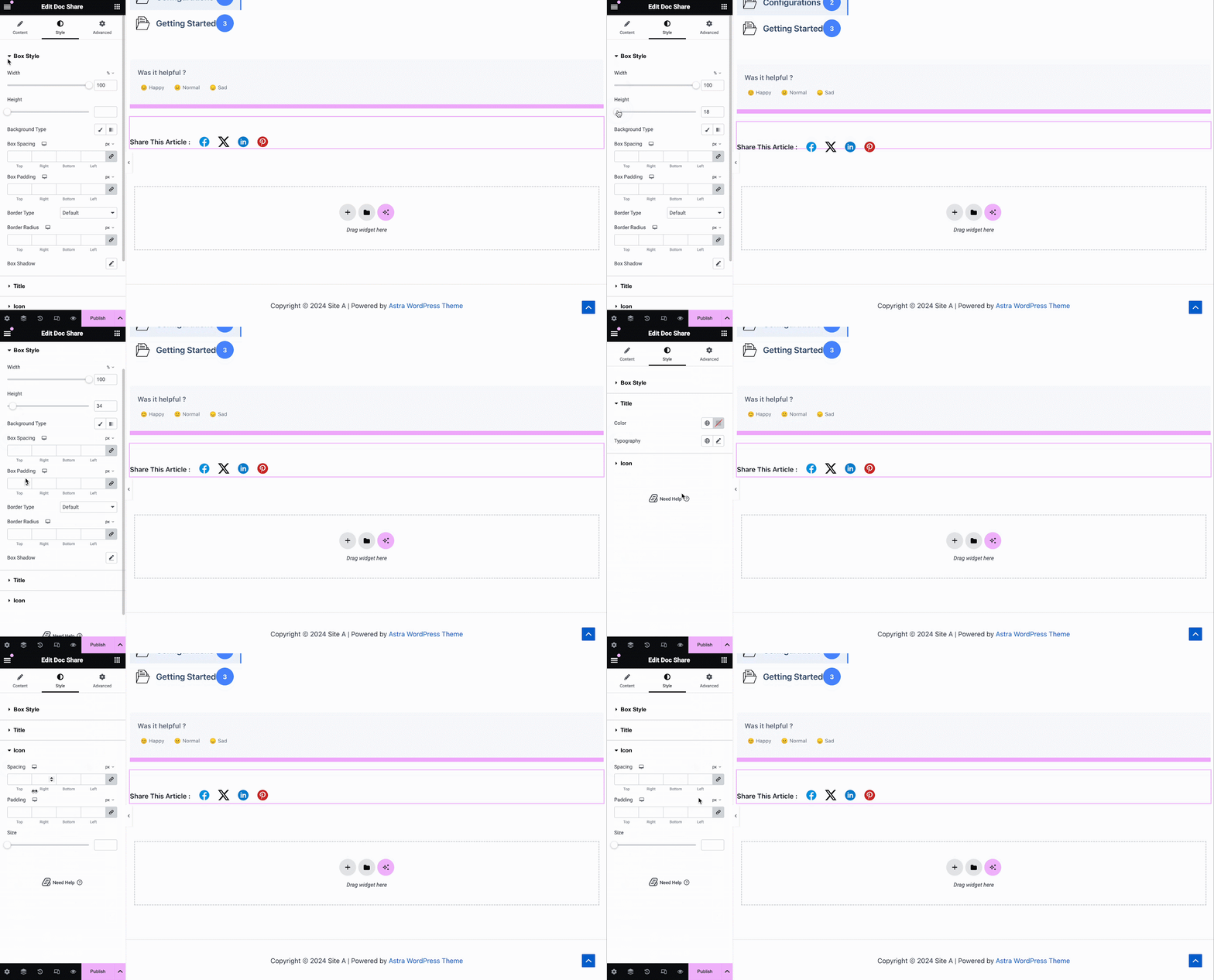
Bajo la 'Estilo' pestaña verá varias opciones para personalizar el Doc Share, Title, y Icon with margin, padding, color, typography, and more for more personalization.
Comentarios sobre el documento #
Comentarios sobre el documento element le permite agregar un formulario de comentarios para los visitantes de su sitio que pueden usar si desean comunicarse con usted para obtener más ayuda. Para activar este elemento, arrástrelo y suéltelo en cualquier lugar de su Documento único página.
A continuación, configure el contenido de su Comentarios sobre el documento elemento de debajo del 'Contenido' lengüeta. Aquí, desde el 'General' section, you can add your custom content feedback, button text, and icon image for the form.
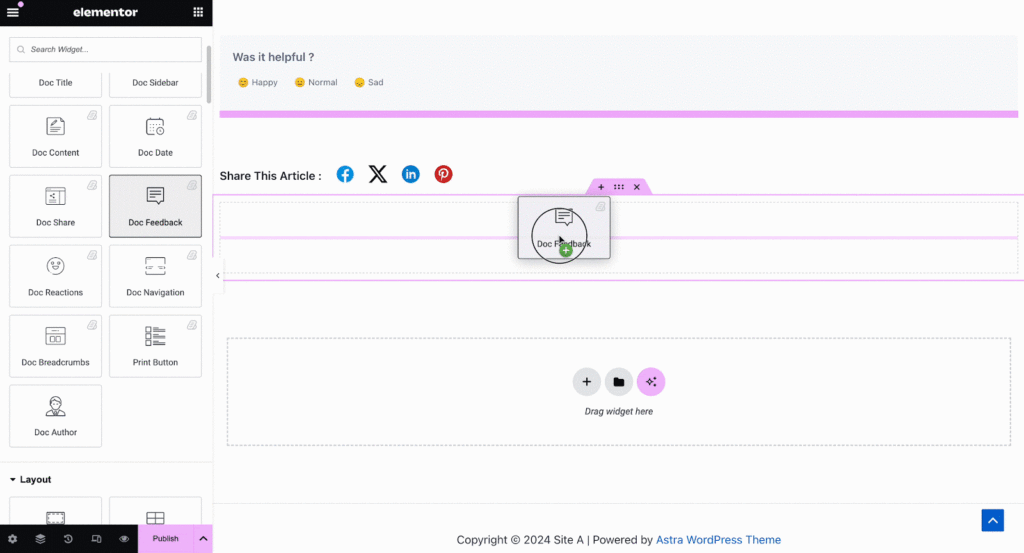
Under the ‘Style’ tab you will see several options to customize the Text, Icon, and Feedback Form with margin, padding, color, typography, and more for more personalization.
Navegación de documentos #
Con el Navegación de documentos elemento, puede permitir que los visitantes del sitio pasen rápidamente a la siguiente documentación o vuelvan a la documentación anterior. Para activar este elemento, arrástrelo y suéltelo en cualquier lugar de su Documento único en Elementor. On the Content tab, you will have two different layouts to choose from.
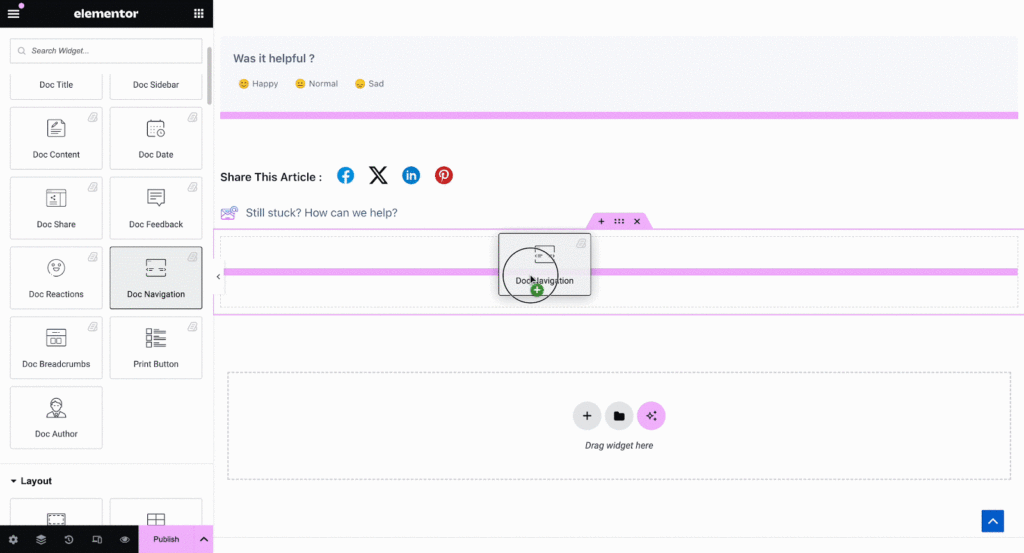
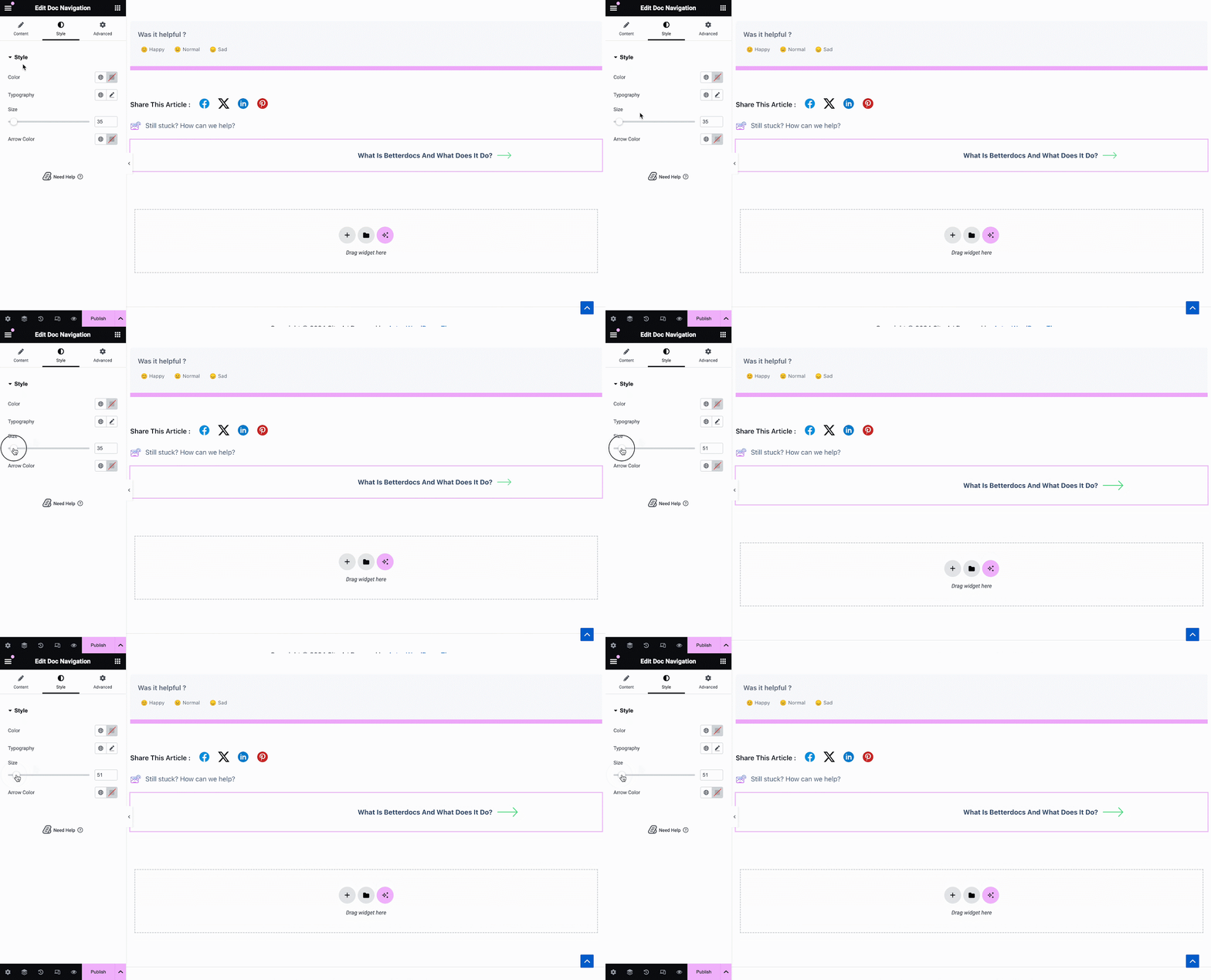
Desde el 'Estilo' sección puede personalizar la apariencia de su Navegación de documentos elemento cambiando el color, la tipografía, así como el tamaño y el color de las flechas.
Doc Breadcrumbs #
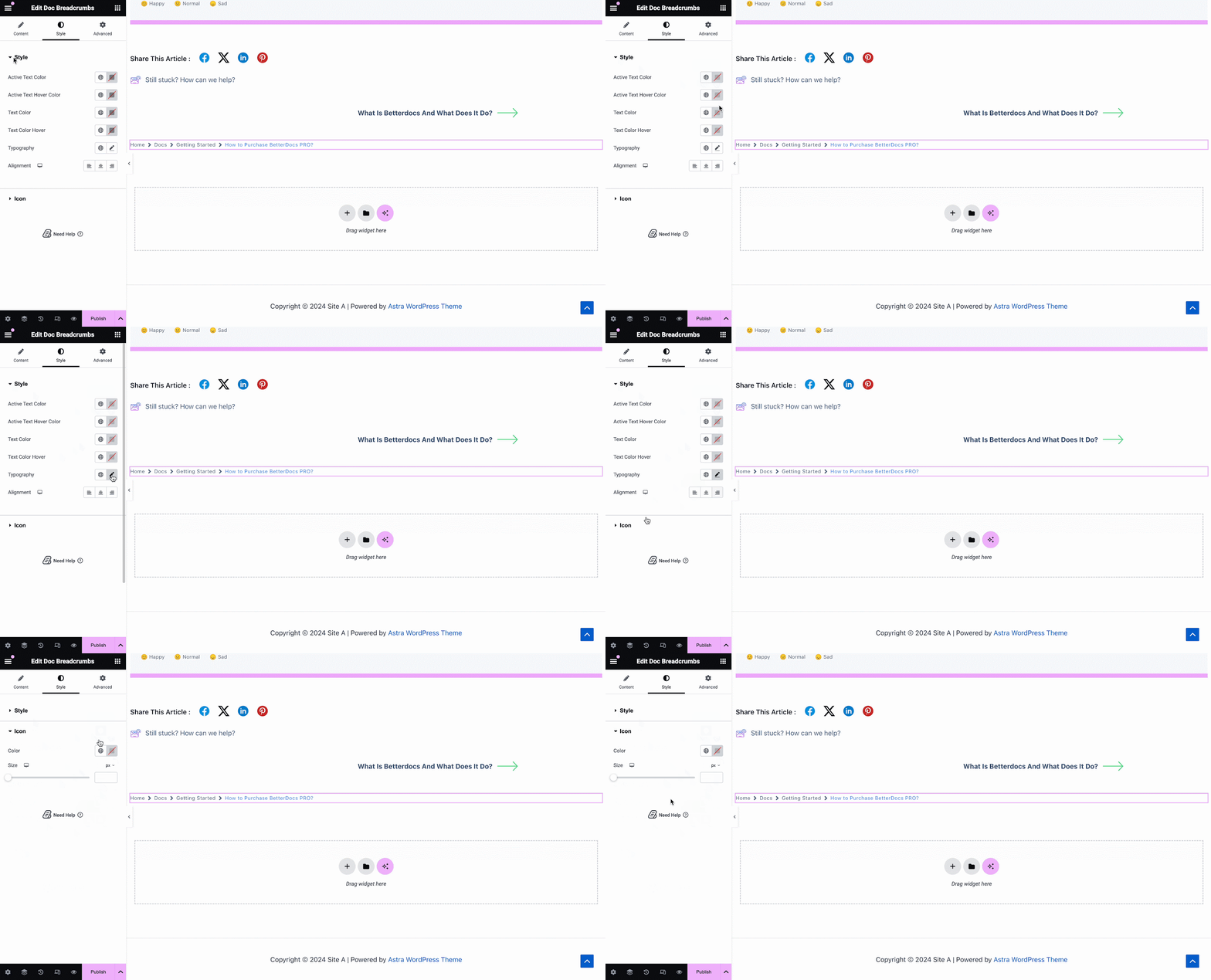
los Doc Breadcrumbs widget will let your visitors keep track of their current location while exploring docs. Simply drag and drop this widget and you will find two layouts on the General tab.
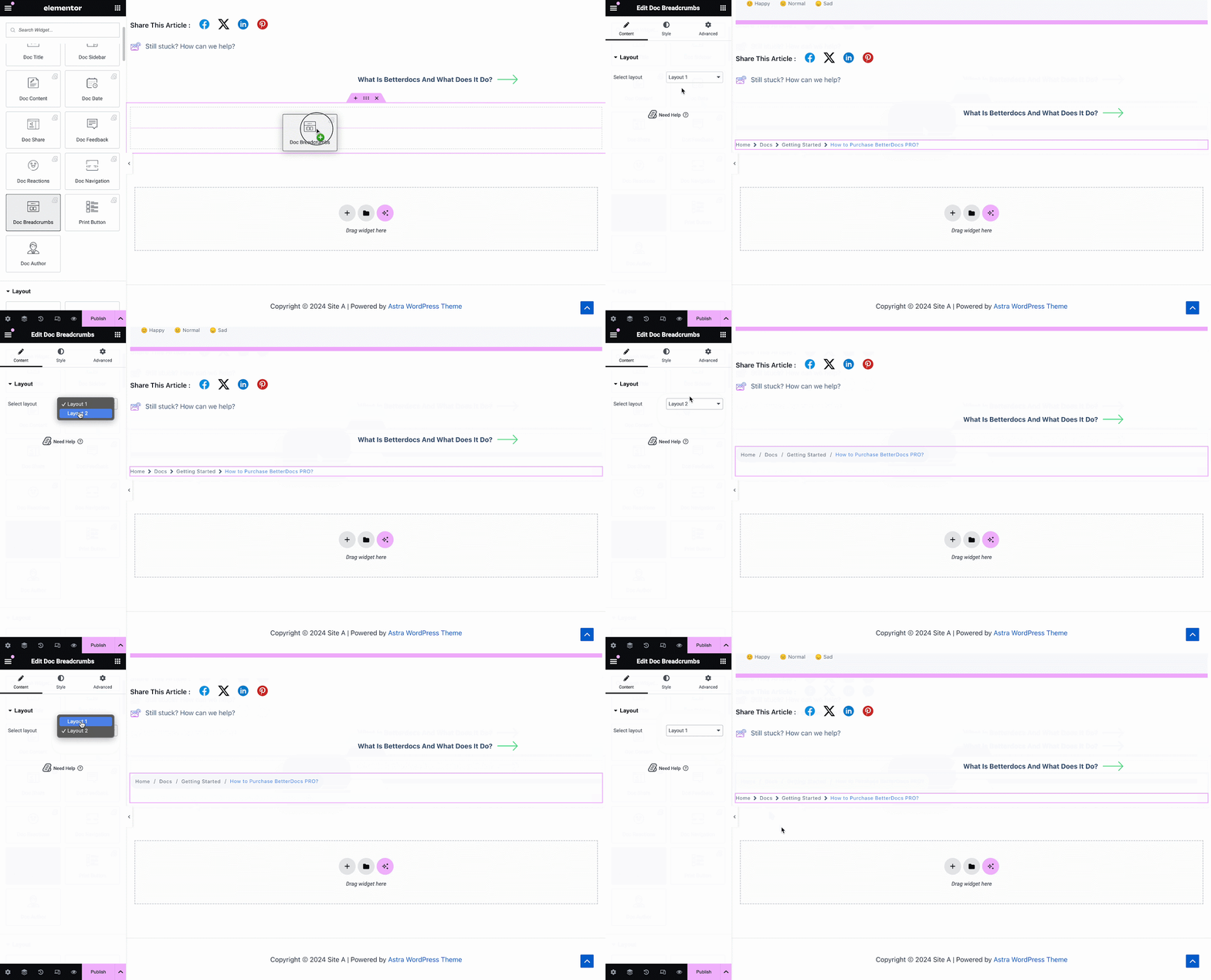
On the Style tab, you can customize the margin, padding, typography, and colors for Style y Icon.
Print Button #
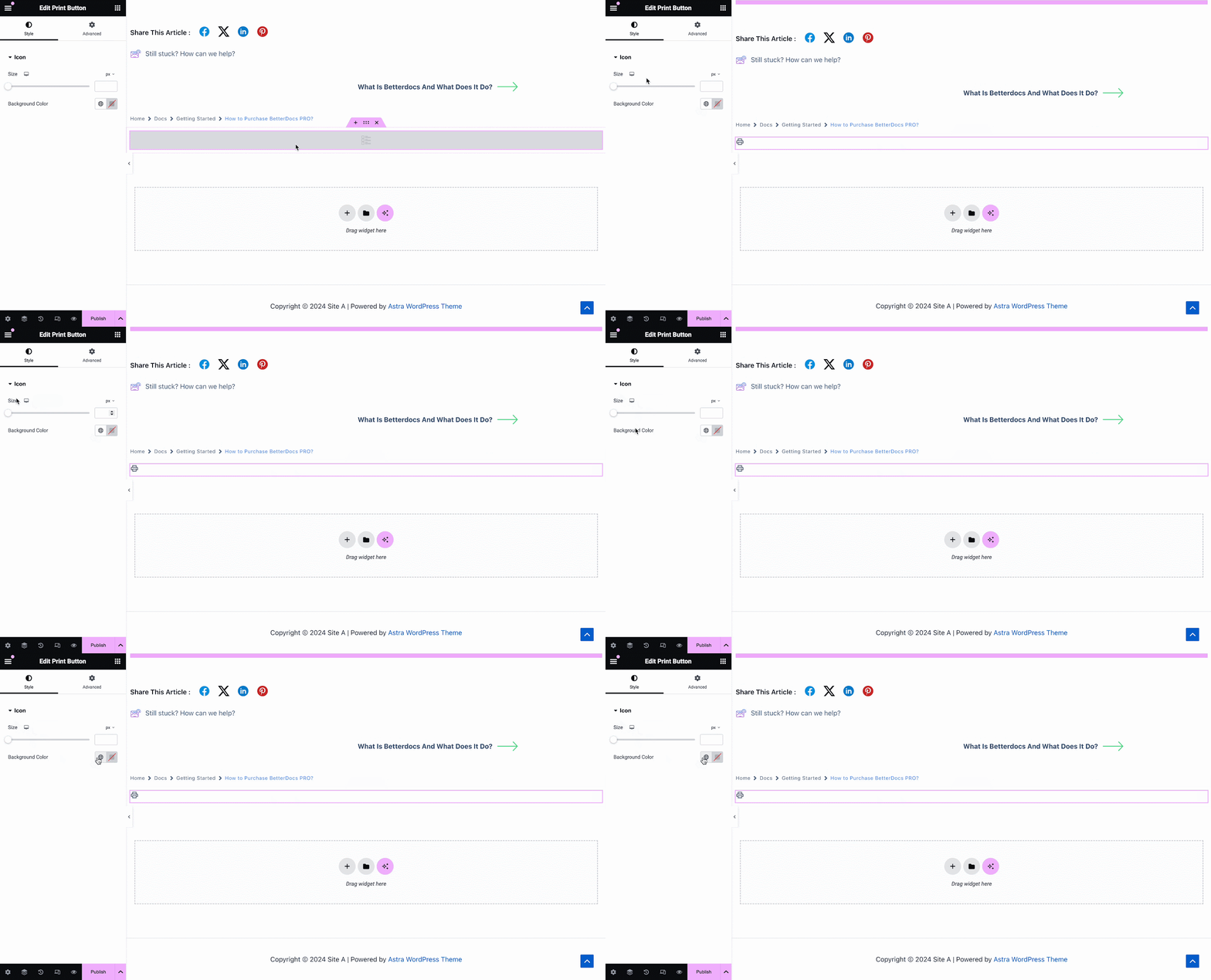
los Print Button widget lets you print your doc with a single click. Once you add the widget, you will have options to change icon size and adjust colors.
Paso 3: Establecer condiciones y publicar una plantilla de página de documento único #
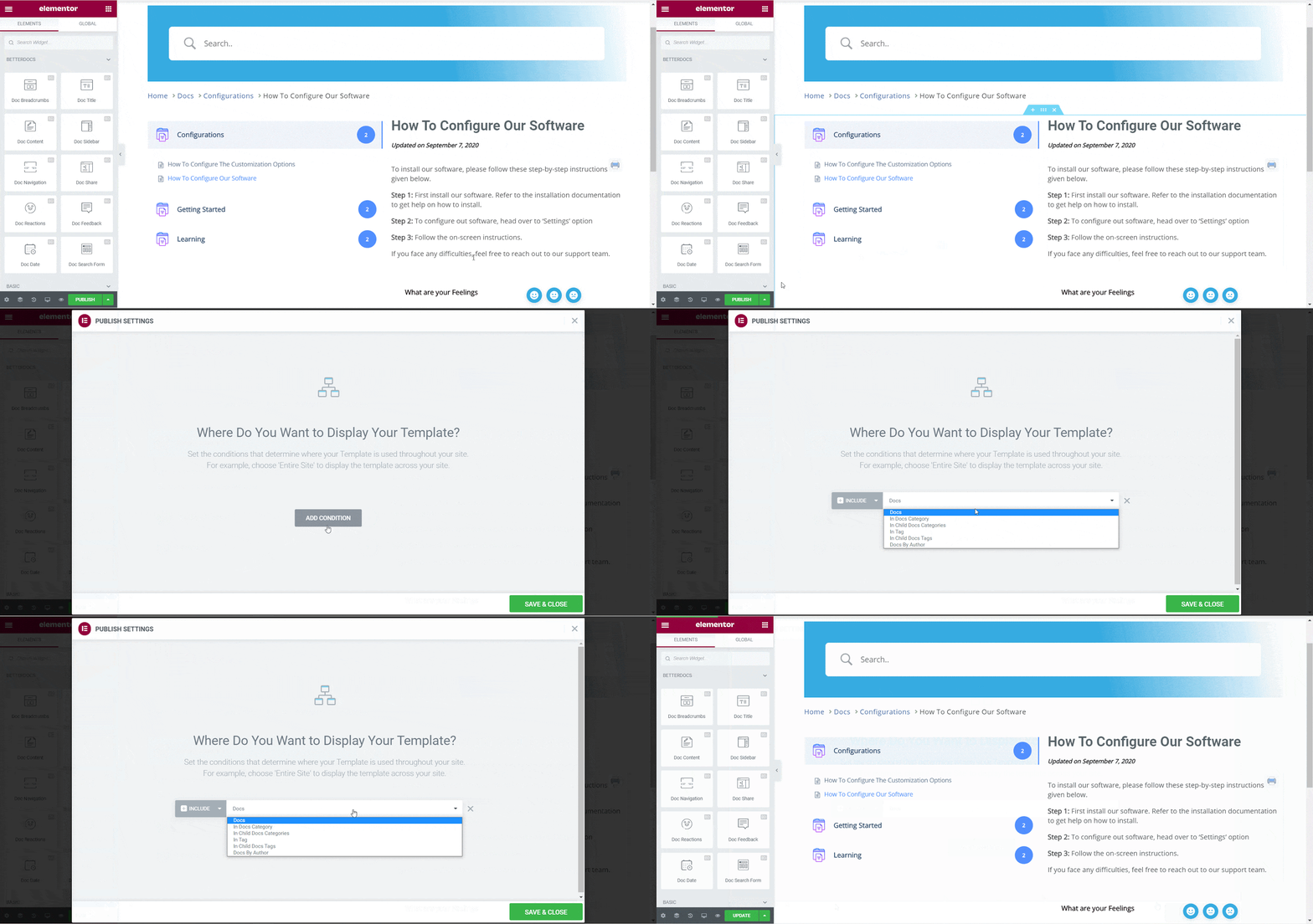
Una vez completados correctamente los pasos anteriores, puede publicar su Documento único plantilla de página que ha diseñado en Elementor. Simplemente haga clic en el 'Publicar' button and a popup will appear asking you to set conditions. This step is optional and it lets you decide the conditions under which your Single Doc page will be available to site visitors.
A continuación, haga clic en 'Guardar cerrar'. Su plantilla de página de documento único ahora se guarda en Elementor y se puede volver a utilizar para otras páginas de documentación única.
Resultado final #
Siguiendo estos pasos básicos, puede crear su propio Documento único en Elementor e incluso reutilizarlos de nuevo al instante.
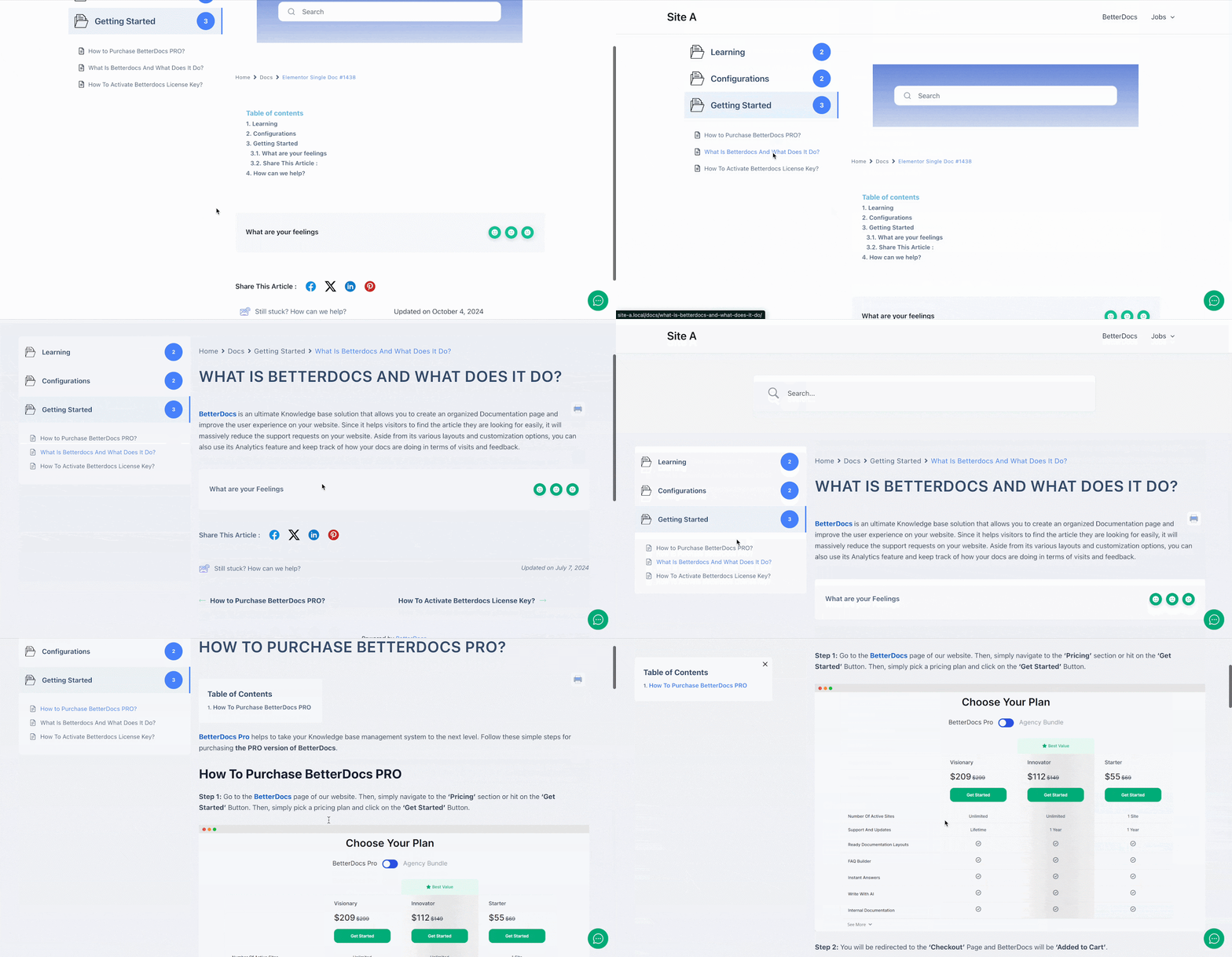
Con la ayuda de BetterDocs, así es como puede crear impresionantes plantillas de documento único con Elementor y asombrar a los lectores de su sitio.
¿Quedarse atascado? No dude en contactar a nuestro equipo de apoyo.