
Cu BetterDocs Listen, you can turn every single doc into an audiobook your readers can play right on the page, completely free. A ‘Listen’ button appears beside the reading time. When readers press it, it turns into a small audio player that reads the doc aloud. The player uses the visitor’s own browser voice, so there are no audio files to record or upload and no third-party service to set up. Readers can follow your docs hands-free, review steps while they work, and access content more easily if they prefer listening to reading.
Step 1: Go to Single Doc Layout Settings #
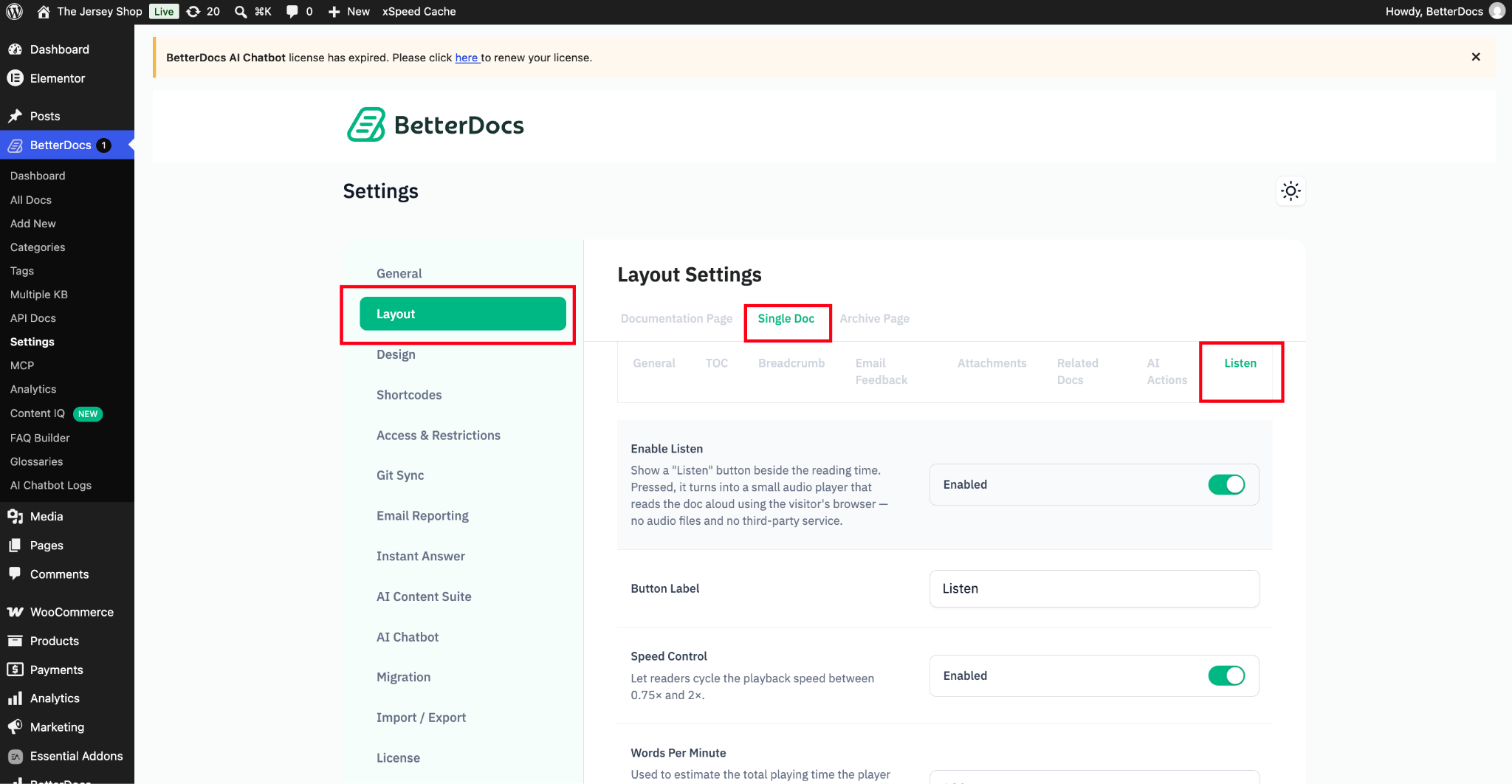
Navigheaza catre wp-admin → BetterDocs → Settings din tabloul de bord WordPress. Faceți clic pe ‘Layout’ tab, then select ‘Single Doc’ from the top. From the settings tabs that appear, click on ‘Listen’.
Step 2: Enable And Configure Listen #
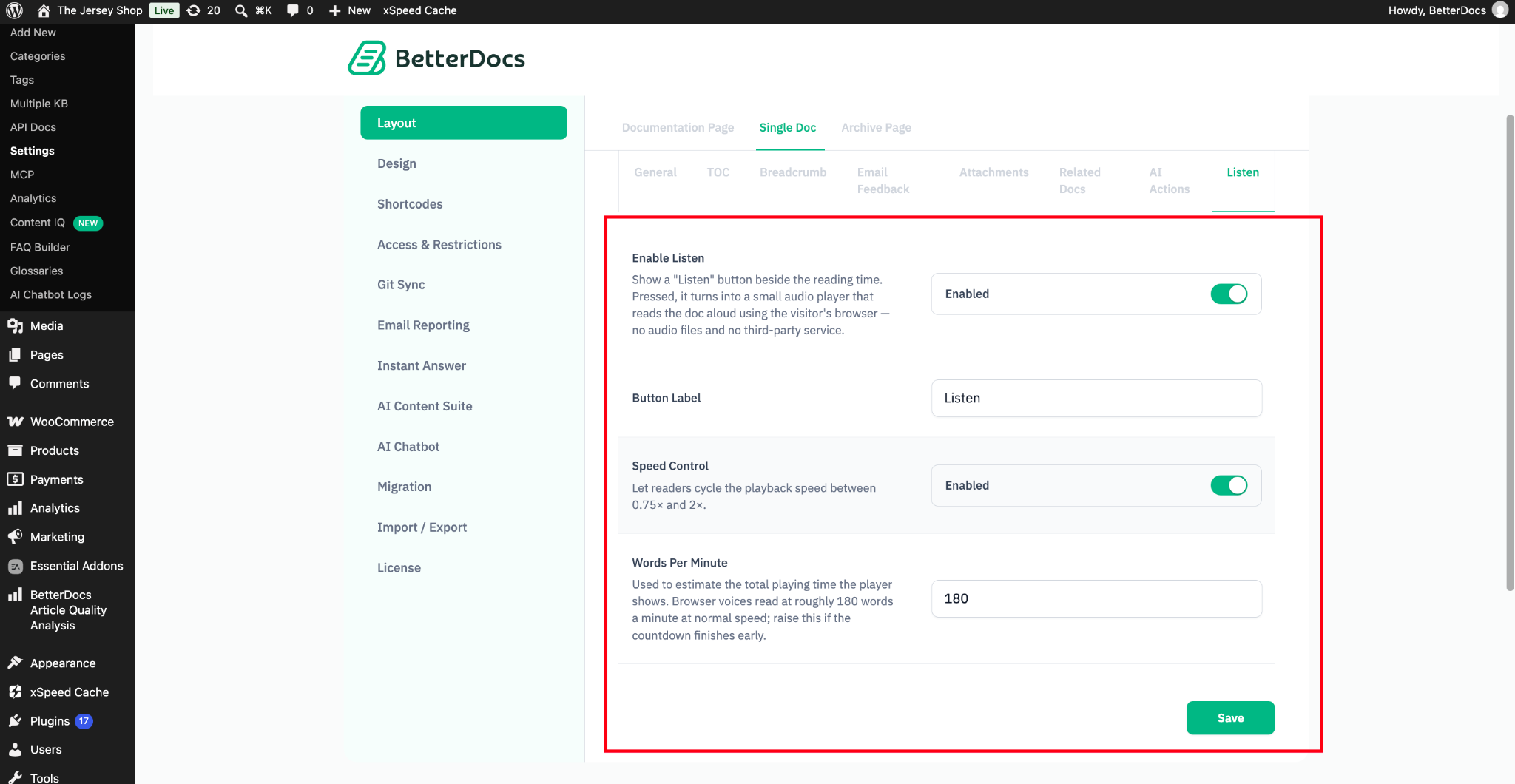
In the ‘Listen’ tab, set up the audio player for your docs:
- Enable Listen: Turn this on to show the ‘Listen’ button beside the reading time on every single doc.
- Button Label: Enter the text readers see on the button. The default label is ‘Listen’.
- Speed Control: Turn this on to let readers change the playback speed. They can cycle between 0.75× and 2×.
- Words Per Minute: Set the reading rate BetterDocs uses to estimate the total playing time shown in the player. The default is 180, which matches the normal speed of most browser voices. If the countdown finishes before the audio does, raise this number.
Once you are done, click the ‘Save’ button to apply your changes.
Rezultat final #
Your single doc pages now show a ‘Listen’ button beside the reading time. Readers can press it to hear the doc read aloud and adjust the playback speed as they listen.
This is how, with the help of BetterDocs’ Listen feature, you can turn your documentation into an audiobook your readers can play in one click.
A rămâne blocat? Nu ezitați să ne contactați Echipa de asistență dedicată.