You have put real work into your knowledge base. Your docs are organized into clean categories, the search bar finds the right article, and your support team has watched ticket volume drop since you launched it with BetterDocs.
But being helpful and being found are two different problems. Lately, a third problem has joined them: getting cited, not just ranked, when your customers ask ChatGPT, Gemini, Claude, or Google’s AI Overviews a question your docs already answer.
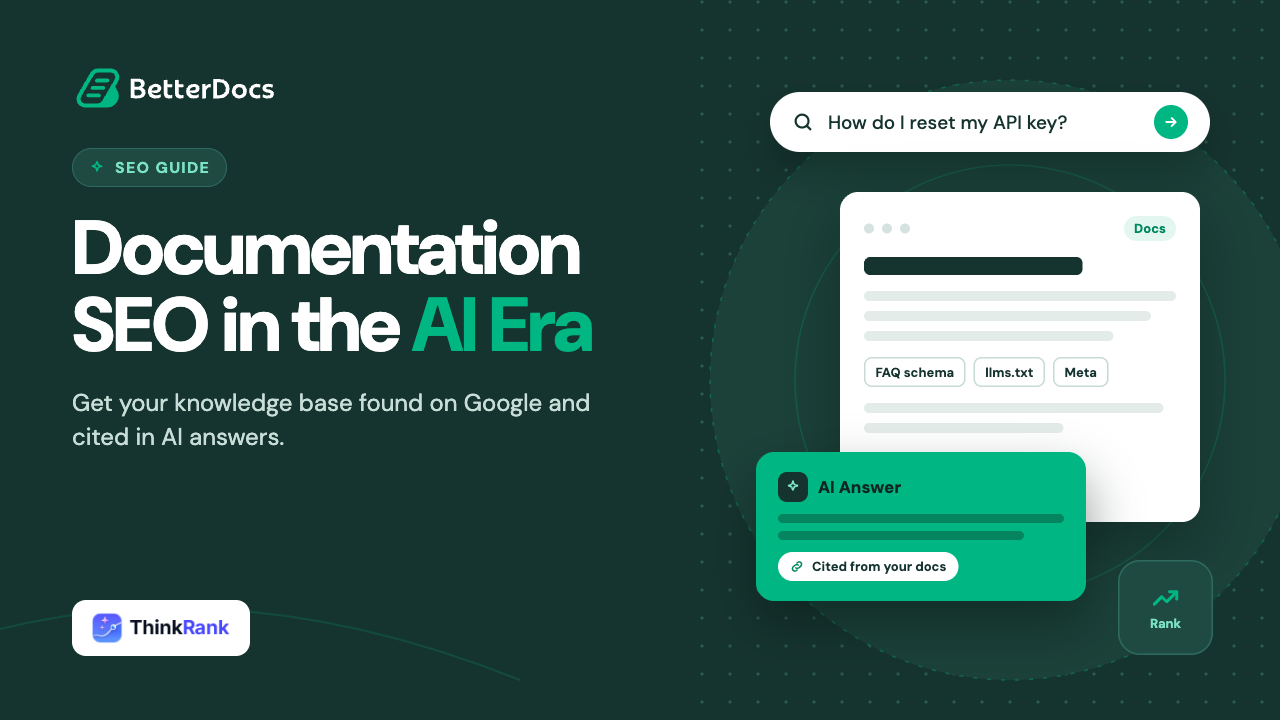
Many documentation teams don’t realize they have this gap. BetterDocs is built to create, organize, and serve documentation. It was never meant to be your full SEO layer: meta tags, schema markup, sitemap structure, and the machine-readable signals AI crawlers now look for. That job belongs to a dedicated SEO plugin, and that plugin now needs to work for both Google and AI search.
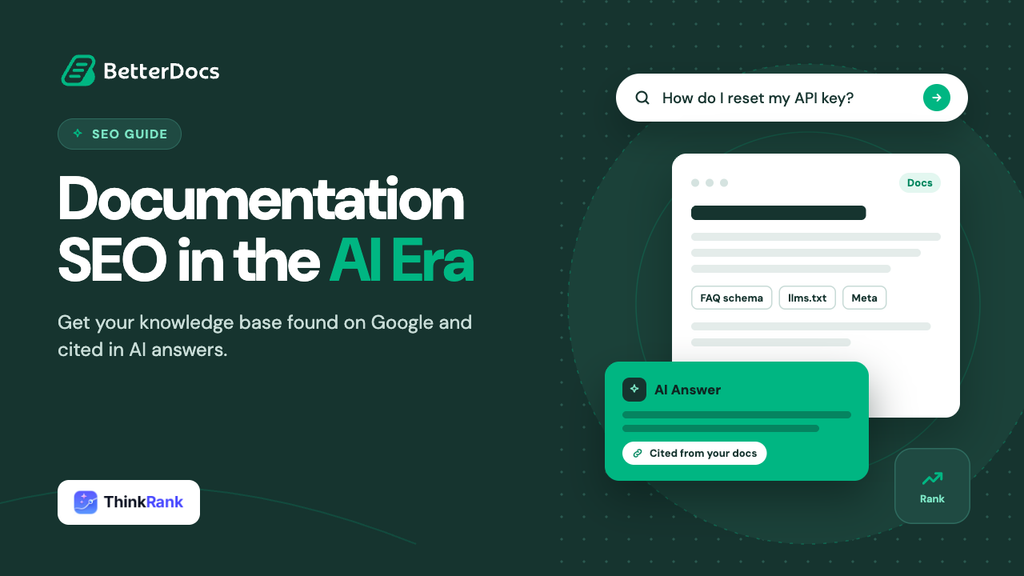
That is where ThinkRank comes in. It is an AI SEO plugin for WordPress from WPDeveloper, the team behind BetterDocs. It works alongside your knowledge base to handle documentation SEO for both search engines and answer engines. This post covers where knowledge bases usually fall short on SEO and AI visibility and how ThinkRank fixes it, with a practical example.
A Quick Summary/TL;DR
Too long? Didn’t read? Here is a quick summary of the post.
| What | Details |
| Problem | Knowledge bases often have generic doc titles, missing meta descriptions, unstructured FAQs and no AI-readable map of their most important content |
| Why it matters now | Customers increasingly ask AI assistants “how do I…” questions directly, and AI Overviews answer many of them before anyone clicks a result |
| The fix | ThinkRank: AI-generated metadata, schema for docs and FAQs, llms.txt generation, Search Console insights and a built-in MCP server |
| Who it’s for | BetterDocs users, SaaS and product teams, WooCommerce stores and support teams who want their docs found and cited |
| Setup time | The Setup Wizard takes a few minutes, and it imports existing data from Yoast SEO, Rank Math, AIOSEO, SEOPress or Squirrly SEO |
| Cost to try | Free on WordPress.org; PRO starts at $49.50/year for one site and adds Focus Pages, rank tracking, AI internal links, Markdown for AI, redirects and custom schema |
Why Knowledge Bases Struggle with SEO (And Now, AI Visibility Too)
Documentation doesn’t behave like the rest of your website. As we covered in our WordPress knowledge base SEO checklist, docs sites have hundreds of pages, many of them short. Customers search for them as questions, not keywords. A visitor who lands, reads the answer and leaves has had a successful visit. Most general SEO setups were never built with that in mind.
A few patterns show up on documentation sites again and again:
- Titles written for the sidebar, not for search. A doc called “API Keys” makes sense inside your category tree. In search results, it tells nobody whether it answers “how do I reset my API key.”
- Missing or duplicate meta descriptions. Across hundreds of docs, most never get one, so Google pulls a random sentence, usually from the middle of a setup step.
- FAQs with no structure behind them. Your FAQ section holds some of your most useful answers. Without structured data, machines see them as plain text.
- Thin-looking pages that are actually complete. A 150-word “How to activate your license” doc is exactly as long as it needs to be. Generic SEO tools still flag it, and the usual reaction is to pad it with filler that buries the answer.
These issues compound quietly as your knowledge base grows. For a structural view of how docs fit into your site, see how knowledge base SEO improves website structure.
Now add the AI layer. Even knowledge bases with decent traditional SEO are often hard for AI answer engines to use. Nothing tells an AI system which docs are authoritative, and FAQ answers aren’t marked up in a way it can extract cleanly. That is a newer, less obvious gap.
What Changed: Why “Getting Cited by AI” Is Now Part of Documentation SEO
For years, documentation SEO meant ranking a help article for a troubleshooting query. That is no longer the whole picture. As we explored in how AI search is changing the way users find help, customers now ask ChatGPT, Perplexity, and Claude how to use your product. AI Overviews answer many of those questions right on the results page.
That changes what visibility means for docs.
Suppose an AI assistant answers “how do I reset my API key in [your product]” by summarizing a third-party forum thread instead of your official doc. Your support team then gets the ticket anyway, often with outdated steps attached.
Here is a simple example. Two SaaS companies both publish a doc on resetting API keys.
- Doc A is well written but titled “API Keys.” It has no meta description. Its troubleshooting questions sit in plain paragraphs at the bottom, and nothing on the site points AI crawlers to it.
- Doc B is titled “How to Reset Your API Key.” It opens with a two-sentence answer before the detailed steps. Its troubleshooting questions are marked up with FAQ schema. The site also publishes an llms.txt file that lists it among its key docs.
When someone asks an AI assistant how to reset their key, Doc B has a real structural advantage. Its answer is clearly stated, its Q&A pairs are machine-readable, and its topic is obvious from the title. Doc A might contain better information, but it’s harder for an AI system to extract and attribute with confidence.
Structure is not the only factor. Google’s guidance on AI features says helpful content and solid SEO fundamentals are still the foundation. But structure is the part you control, and it’s what ThinkRank handles.
Introducing ThinkRank: AI SEO That Works Alongside BetterDocs
BetterDocs handles creating, organizing and serving your documentation. ThinkRank handles how search engines and AI systems read it. Your docs are a WordPress post type, so ThinkRank’s metadata, schema, sitemap and analysis tools apply to them the same way they apply to posts and pages.
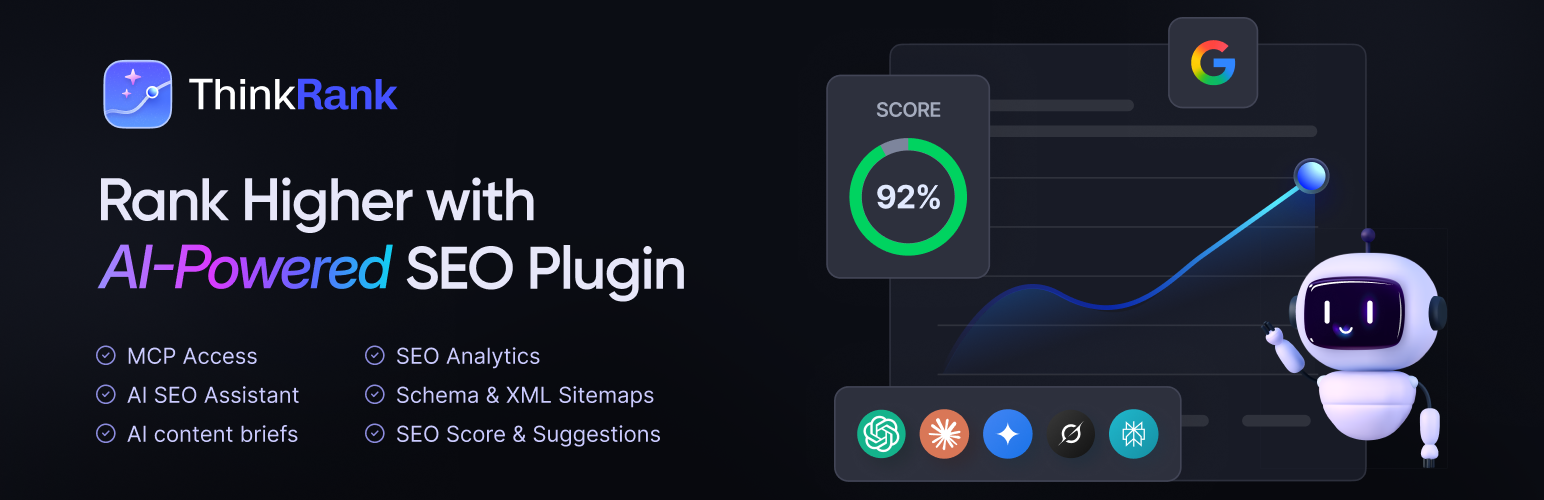
Here’s what that covers.
AI Features That Set ThinkRank Apart
These capabilities turn ThinkRank from a metabox you fill in into something closer to an AI SEO assistant for your knowledge base.
1. A Built-In MCP Server: Ask an AI Assistant to Manage Docs SEO
ThinkRank includes a self-contained MCP (Model Context Protocol) server. It lets AI assistants like Claude, ChatGPT or Cursor connect directly to your WordPress site and run over 35 SEO tools in plain language. You can type requests like “which of my docs are missing meta descriptions?” or “check Search Console for docs with high impressions and low CTR.” There is no companion plugin to install and no terminal setup. Access is off until an admin enables it and can be revoked with one click.
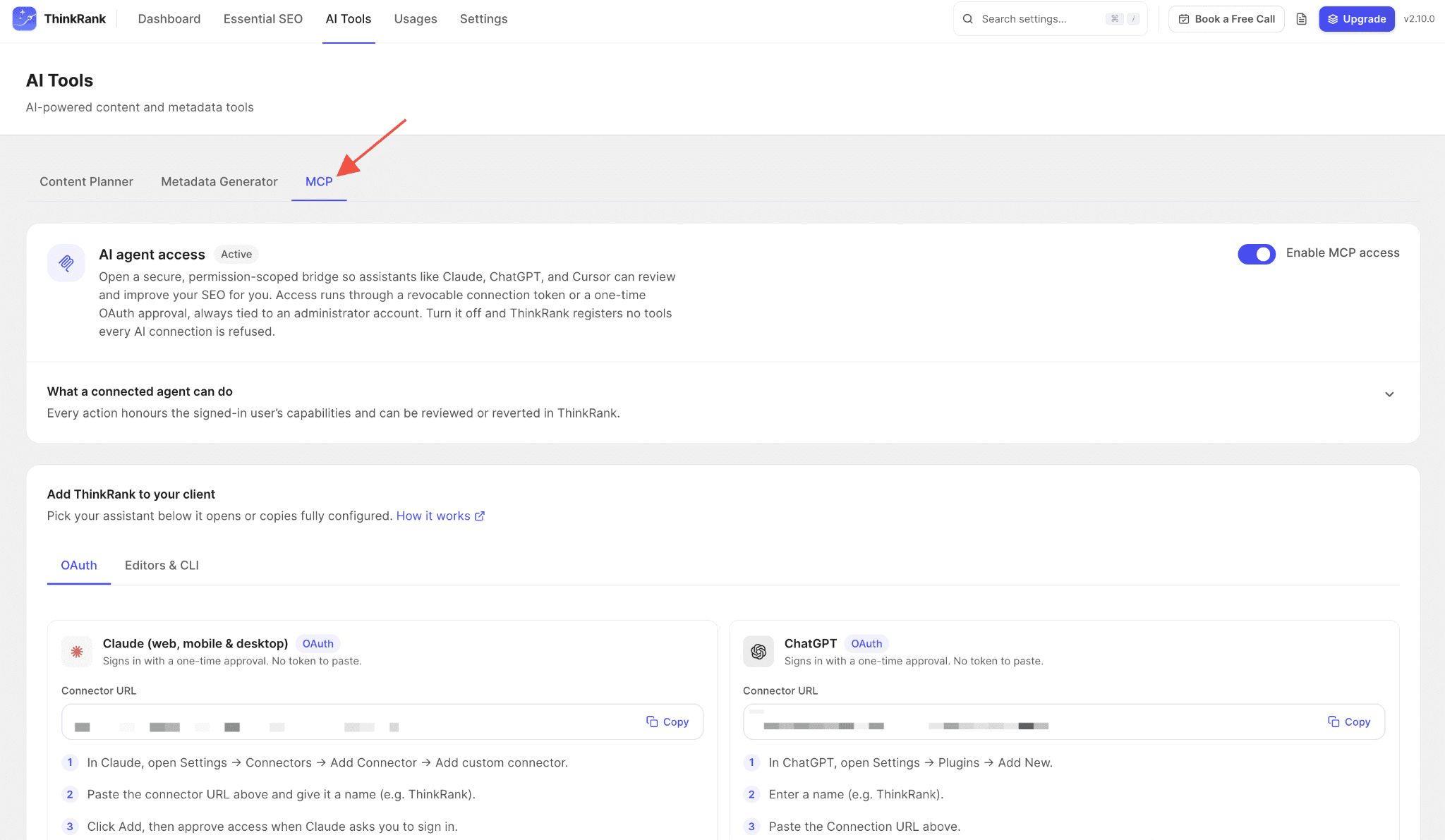
BetterDocs users get an extra benefit here. BetterDocs has its own MCP support, which lets Claude or ChatGPT draft, update and organize your docs and FAQs. Connect both, and one conversation can cover the whole workflow. Ask your assistant to write a new troubleshooting doc in BetterDocs, then have ThinkRank write its SEO title and meta description and score it. You never open wp-admin.
Better Together: Write And Optimize Docs From One Chat
Here is what that looks like in practice. Add both BetterDocs MCP and ThinkRank’s MCP server to Claude, and a single conversation can take a doc from idea to optimized:
- Draft: “Write a troubleshooting doc on fixing failed Stripe payments and add it to the Payments category.” BetterDocs MCP creates the doc.
- Optimize: “Write an SEO title and meta description for that doc and check its SEO score.” ThinkRank MCP handles the metadata and scoring.
- Find gaps: “Which docs in my knowledge base are missing meta descriptions?” ThinkRank finds them, and you can fix them in batches.
- Prioritize: “Check Search Console for docs with high impressions and low CTR.” Then ask BetterDocs MCP to rewrite the openings of those docs so the answer comes first.
Each connection keeps its own permissions. BetterDocs MCP acts under your admin account and can be revoked anytime from BetterDocs → MCP. ThinkRank’s MCP server stays off until an admin enables it, offers read-only access if you want the assistant to look but not touch, and can be revoked in one click.
2. llms.txt Generation: Speaking AI’s Language
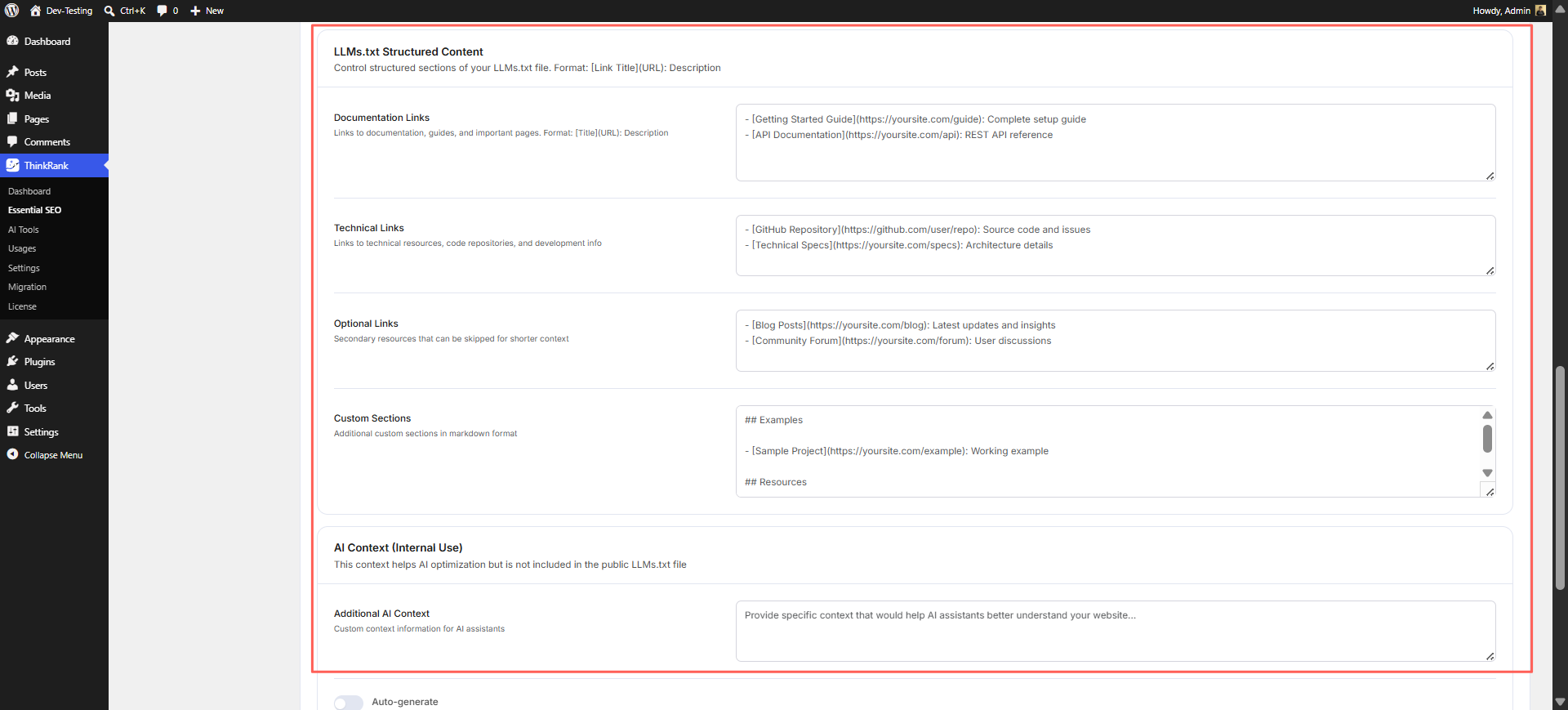
ThinkRank generates and maintains your site’s llms.txt file. This is a Markdown index of your most important content for AI agents and tools, similar in spirit to a sitemap. Docs are a natural fit because developer platforms were among the first to adopt the format for their documentation. ThinkRank keeps the file in sync as your content changes and lets you control what goes in, so your core setup guides and troubleshooting docs can come first.
Keep expectations realistic. ThinkRank itself notes that Google has said llms.txt does not affect Google Search. It is useful infrastructure for AI tools, not a ranking shortcut, and ThinkRank maintains it for you so it doesn’t go stale.
On PRO, Markdown for AI goes a step further: it serves AI agents a clean Markdown copy of any doc on the same URL, plus a site-wide llms-full.txt file, so assistants can read your documentation without wading through theme markup.
3. Real-Time SEO Score with “Explain with AI”
As you write or edit a doc, ThinkRank calculates a live 13-factor SEO score covering content quality, keyword optimization, readability, word count, heading structure and keyword density. It tracks up to five focus keywords per doc. It also warns you about keyword cannibalization, which is common in knowledge bases where several docs cover related tasks.
Suggestions come with a one-click Apply where an edit is possible, and Explain with AI tells you why a suggestion matters for that specific doc. Use judgment on word count, though. A short, complete doc beats a padded one, and this guide to writing a knowledge base article explains why.
4. AI-Generated Meta Titles And Descriptions
Writing a unique title and meta description for every doc is the task that never gets done in a 300-article knowledge base. ThinkRank generates them from each doc’s actual content, with a live Google preview and one-click apply.
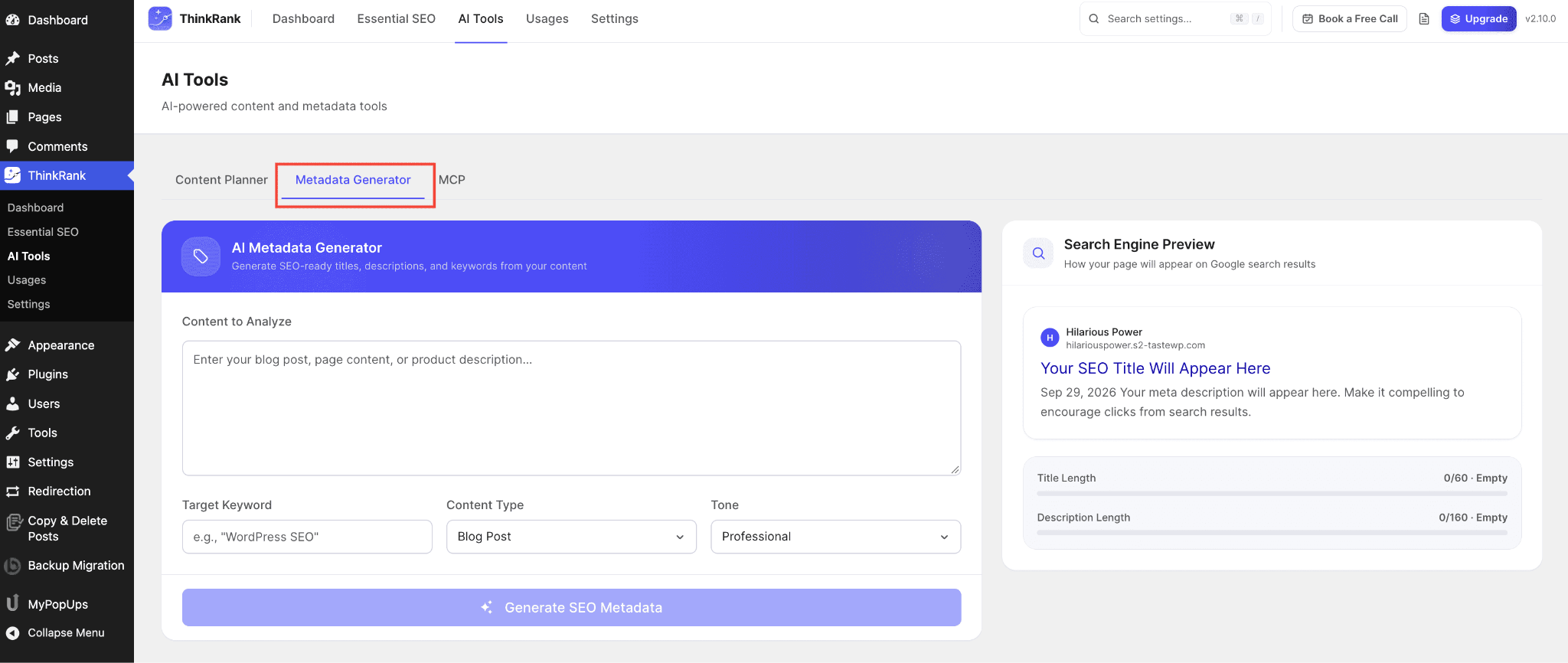
For example, a doc titled “Webhooks” can get a suggested title like “How to Set Up Webhooks in [Product]: Step-by-Step Guide | [Brand]”. Bulk Snippets then puts every doc’s title, meta description and focus keyword in one table, with AI drafts, and flags duplicate titles and descriptions across post types.
5. AI Content Brief Generator: Find the Docs You Haven’t Written Yet
Give ThinkRank a target keyword and it produces a content brief: outline, headings, entities to cover, competitor analysis and content gaps. For documentation teams, it gives you a way to spot the questions competitors answer that your knowledge base doesn’t. It pairs well with a content gap analysis of your existing docs.
6. AI SEO Assistant: Plain-English SEO Help Inside WordPress
Not everyone on a docs team is an SEO specialist. ThinkRank’s AI SEO Assistant brings conversational, plain-English optimization into your WordPress dashboard. Ask what is holding a doc back, get titles, descriptions, briefs and image alt text written, and get a clear explanation of every fix. The full Assistant is unlocked on every PRO plan.
7. AI Traffic: See Which AI Assistants Send Readers to Your Docs
Getting cited only matters if it brings people to your docs. ThinkRank’s AI Traffic report tracks visitors arriving from ChatGPT, Perplexity, Claude and Gemini, traffic that standard analytics often hides. For documentation teams, it is the most direct way to see whether your AI visibility work is paying off. If you sell through WooCommerce, PRO also shows what those visitors spend.
8. Bring Your Own AI Provider, With Spend Controls
ThinkRank does not sell AI credits. You connect your own OpenAI, Anthropic, Google Gemini or OpenRouter key, or any OpenAI-compatible endpoint such as Ollama, LM Studio, vLLM, Azure or a private gateway, so your docs content can stay on infrastructure you choose. Spend controls add a daily request limit, a per-minute limit and a pause-all-AI switch, so bulk jobs on a large knowledge base never run up a surprise bill.
The SEO Fundamentals ThinkRank Still Delivers
AI features get the spotlight, but ThinkRank covers the groundwork every knowledge base still needs.
1. Schema Markup for Docs and FAQs Without Touching Code
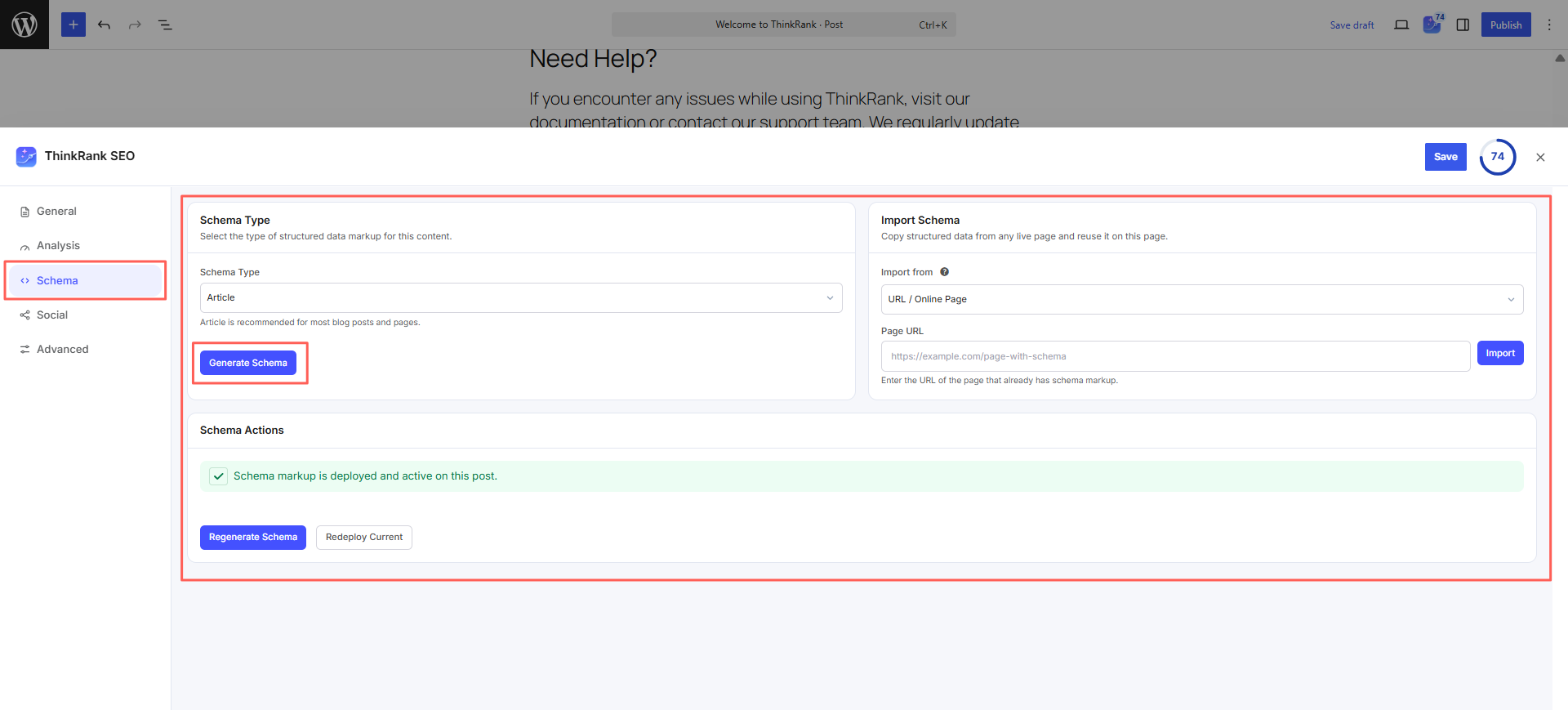
ThinkRank outputs valid JSON-LD, including Article, FAQ, HowTo, Breadcrumb and Organization schema, on posts, pages and custom post types. It also ships FAQ, HowTo and Table of Contents blocks, with matching Elementor widgets, that output FAQPage, HowTo and SiteNavigationElement structured data automatically. For docs, that means step-by-step guides and troubleshooting Q&As become machine-readable without anyone writing JSON-LD by hand.
A note on rich results: Google deprecated FAQ rich results in May 2026, so FAQ schema no longer creates a special search listing for any site. FAQPage is still valid Schema.org markup, and Google says it can stay on your pages. For knowledge bases, its value now is clarity: it gives other search engines and AI tools a clean, structured version of your questions and answers. Check your markup with the Schema Markup Validator.
2. XML Sitemaps and Instant Indexing
ThinkRank offers four sitemap modes with per-post-type controls, so your docs can have their own clean segment of the sitemap. Instant Indexing pushes new and updated docs through IndexNow, which reaches Bing, Yandex, Naver, Seznam and Yep. That matters when you have just corrected an outdated setup guide, since Bing’s index also feeds some AI search tools. Google does not support IndexNow, so for Google your XML sitemap and Search Console remain the way in.
3. Search Console and GA4 Insights Without Leaving WordPress
Connect Google once and ThinkRank pulls clicks, impressions, queries and Core Web Vitals into your dashboard. For docs, the most useful view is queries. You can see exactly how customers phrase their problems and whether your docs are showing up for them. Pair that with your documentation KPIs and BetterDocs analytics, and you get a clearer picture of which docs deflect tickets and which ones nobody finds.
On PRO, Focus Pages takes this further. Pick the docs that matter most, such as your getting-started guide or top troubleshooting article, and ThinkRank shows exactly why each one is not ranking, with a fix for every gap. Scheduled email reports round it out: a monthly SEO summary by default, with custom schedules, recipients and branding on PRO, so your support lead can see how the docs are performing without logging in.
4. Site SEO Analyzer: Audit a Knowledge Base With No Google Connection
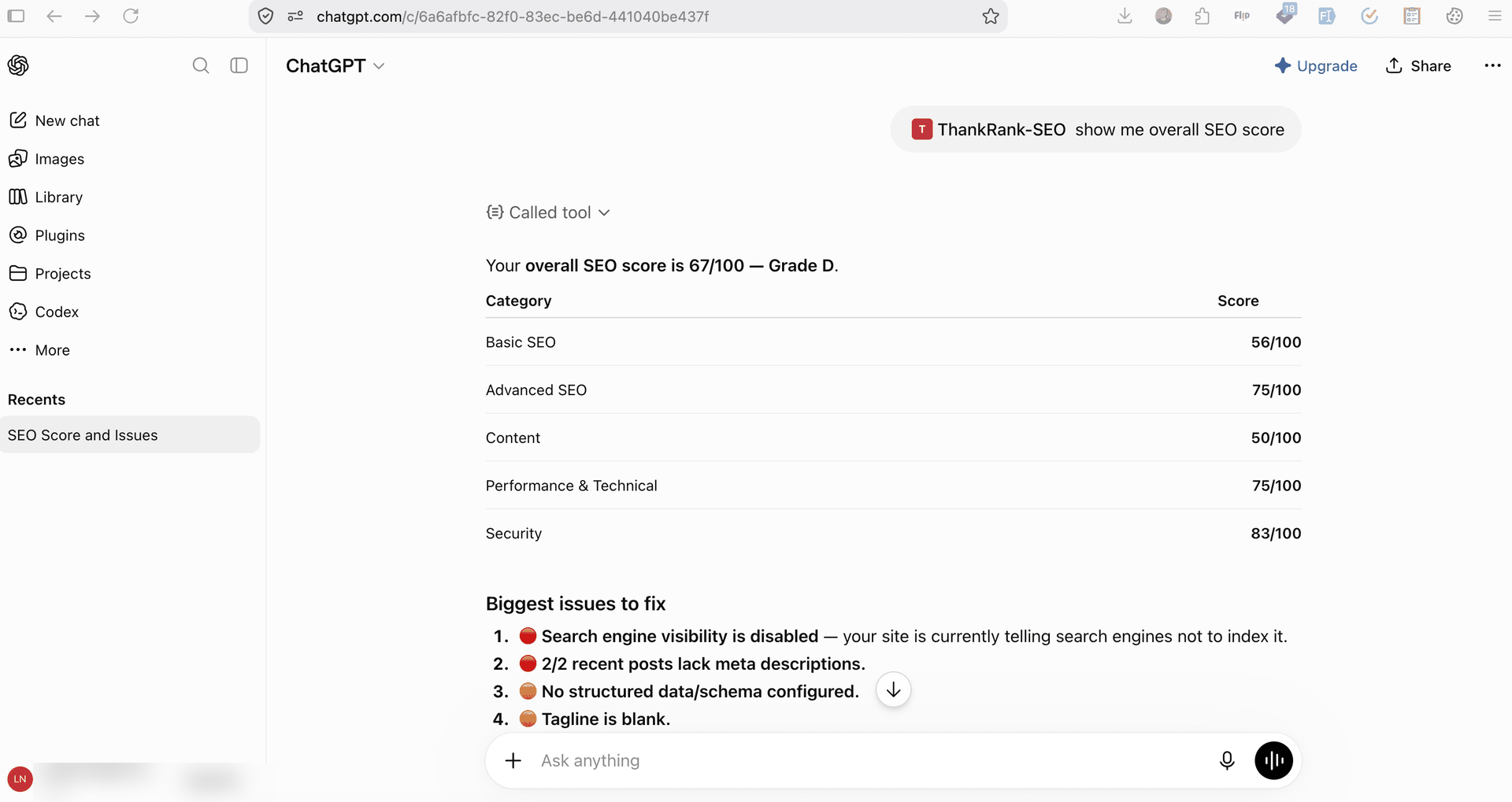
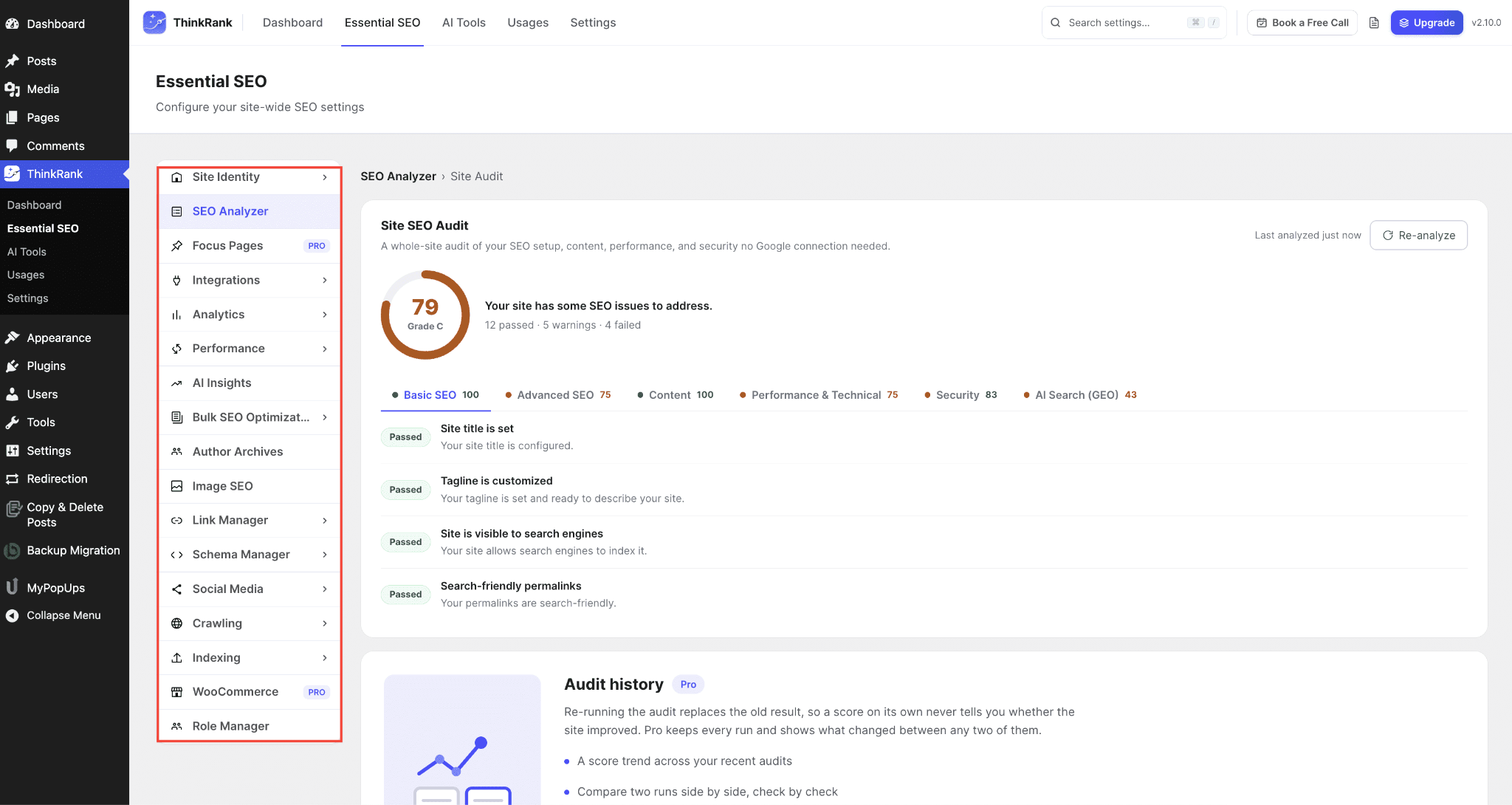
A brand-new help center, a staging site or a freshly migrated knowledge base usually has no Search Console history. ThinkRank’s Site SEO Analyzer audits the whole site without it. It gives you a 0–100 score and letter grade across Basic SEO, Advanced SEO, AI Search (GEO), Content, Performance and Technical plus Security, with “How to fix” guidance.
5. Multilingual Documentation SEO
If you run multilingual documentation in WordPress, ThinkRank supports WPML, Polylang and TranslatePress. SEO fields appear in the WPML Translation Editor, and each language gets correct og:locale alternates and language-aware sitemaps. ThinkRank also avoids duplicate hreflang tags when WPML or Polylang already prints them. That structural consistency across languages is what GEO for multilingual docs depends on.
6. More Tools for Growing Knowledge Bases
A knowledge base rarely stays small. These tools help as your docs, team and traffic grow:
- AI Crawler Controls: Allow or block each AI crawler individually in your robots.txt, without touching the rest of the file. You decide which AI tools can read your docs.
- Image SEO: Docs are full of screenshots. ThinkRank writes AI-generated alt text to the Media Library itself, bulk-fills every image that is missing it and auto-fills new uploads.
- Pillar Content: Build topic clusters and pillar pages, a natural fit for a knowledge base that is already organized into categories.
- External Link Rules: Apply nofollow and open-in-new-tab to outbound links as pages render, with an exception list for partners you want to link normally.
- Page Builder Support: ThinkRank reads the real rendered content in Gutenberg, Elementor, Divi, Oxygen, Breakdance, Bricks and Beaver Builder. If your docs page is built with Elementor, it is scored on what visitors actually see instead of being treated as empty.
- Role Manager: Decide which roles can access Essential SEO, AI Tools and Settings. The rules are enforced on the REST API, not just hidden from the menu, so doc writers get what they need and nothing more.
- WooCommerce and Local SEO: Product metadata and Local Business schema for a single business are included, with advanced WooCommerce SEO (GTIN, MPN, variation offers) and multi-location Local SEO in PRO. Useful if you also run WooCommerce product FAQs with BetterDocs.
ThinkRank Free vs PRO: Features and Pricing
Most of what this post covers is free. Here is how the two plans compare on the features that matter most for documentation sites:
| Feature | Free | PRO |
| MCP server, AI metadata, content briefs and SEO score | ✓ | ✓ |
| Site SEO audit with AI Search checks | ✓ | ✓ |
| Schema manager, XML sitemaps, robots.txt and instant indexing | ✓ | ✓ |
| llms.txt and AI search optimization | ✓ | ✓ |
| Search Console, GA4 and AI referral traffic | ✓ | ✓ |
| Migration and import/export | ✓ | ✓ |
| Focus keywords per doc | 5 | Unlimited |
| Markdown for AI and llms-full.txt | ✗ | ✓ |
| Focus Pages, rank tracker and AI internal links | ✗ | ✓ |
| Google index status per doc | ✗ | ✓ |
| Custom schema and display conditions | ✗ | ✓ |
| Redirections, 404 monitor and broken link checker | ✗ | ✓ |
| AI referral revenue attribution (WooCommerce) | ✗ | ✓ |
| Email SEO reports | Every 30 days | Custom schedule and branding |
ThinkRank is free on WordPress.org. PRO plans are currently:
- $49.50/year for 1 site (Starter),
- $79.50/year for 5 sites (Innovator) and
- $124.50/year for unlimited sites (Visionary)
There is also a Visionary Lifetime plan at $249.50 one-time. Check the ThinkRank pricing page for the latest offers.
Setting Up ThinkRank on Your BetterDocs Site: A Practical Walkthrough
Getting ThinkRank running alongside BetterDocs takes only a few steps, and none of them change your existing docs or layout. Here is the order we recommend:
- Install and activate ThinkRank from your WordPress plugin dashboard, the same way you installed BetterDocs.
- Run the Setup Wizard. It pre-fills your site identity and, if you’re switching from Yoast SEO, Rank Math, AIOSEO, SEOPress or Squirrly SEO, imports your existing SEO data. Keep only one SEO plugin active afterward to avoid duplicate meta tags and schema. You can also back up everything ThinkRank stores as JSON or CSV from its Import/Export screen and restore it on this site or another one.
- Connect your Google account to pull in Search Console and GA4 data. Knowledge bases on subfolders like /docs/ are often under-monitored, so this alone can surface quick wins.
- Run the Site SEO Analyzer, then open your highest-traffic docs and check their SEO score. Missing meta descriptions and vague titles usually show up first.
- Add structure where it counts. Use the HowTo block on step-by-step guides and the FAQ block on troubleshooting sections. One caution for BetterDocs users: if BetterDocs’ own FAQ Schema toggle (BetterDocs → Settings → General) is on, don’t add ThinkRank’s FAQ block to the same page, or that page will output FAQPage schema twice. Use one source per page. ThinkRank also shows a Site Health warning when another plugin publishes schema markup on the same pages.
- Enable llms.txt and prioritize your core docs: getting-started guides, setup instructions and your most-searched troubleshooting articles.
- Optionally connect the MCP server alongside BetterDocs MCP if you work with Claude, ChatGPT or Cursor, so you can manage both content and SEO from one chat.
If parts of your knowledge base are for internal use only, such as an internal knowledge base for your team, keep them out of search with ThinkRank’s robots meta controls and leave them out of llms.txt.
Start Making Your Knowledge Base Visible to Both Search Engines and AI
BetterDocs makes it easy to build a knowledge base customers can actually use. But a doc customers can’t find, or one an AI assistant skips in favor of a forum thread, can’t deflect a ticket. If your documentation has grown for years without a consistent SEO layer, or you’ve never prepared it for AI search, you may be losing visibility without realizing it.
ThinkRank gives BetterDocs users a way to close that gap: AI-written metadata, schema for docs and FAQs, a maintained llms.txt, Search Console insights and a built-in MCP server that works alongside BetterDocs MCP. Start by running a check on two or three of your most-visited docs. That’s usually enough to see where the gaps are.
To learn more about ThinkRank, read the official ThinkRank launch announcement from WPDeveloper.
Was this blog helpful? Share your thoughts in our Facebook Community. And don’t forget to subscribe to our blog for the latest updates.