
To create IT documentation, tools, or plugins that require various coding languages, a code snippet feature is essential, allowing users to easily copy and implement the code. With BetterDocs 'Code Snippet’ feature, you can not only implement code snippets into your documentation but also customize them and make them look more stylish.
Adding a code snippet in your documentation requires a few simple steps with BetterDocs. Learn how to configure it.
Step-by-Step Guide to Configure Code Snippet in BetterDocs #
Follow these step-by-step instructions to find out how you can use ‘Code Snippet’ to design your Single Doc in Gutenberg or Elementor.
Step 1: Add Code Snippet to Your Documentation #
Navigate to BetterDocs and your preferred document where you want to add the ‘Code Snippet’. If you are using the Gutenberg editor, click on the ‘+’ icon and search for the ‘BetterDocs Code Snippet’ block. Drag and drop the block to the place where you want to show the snippet.
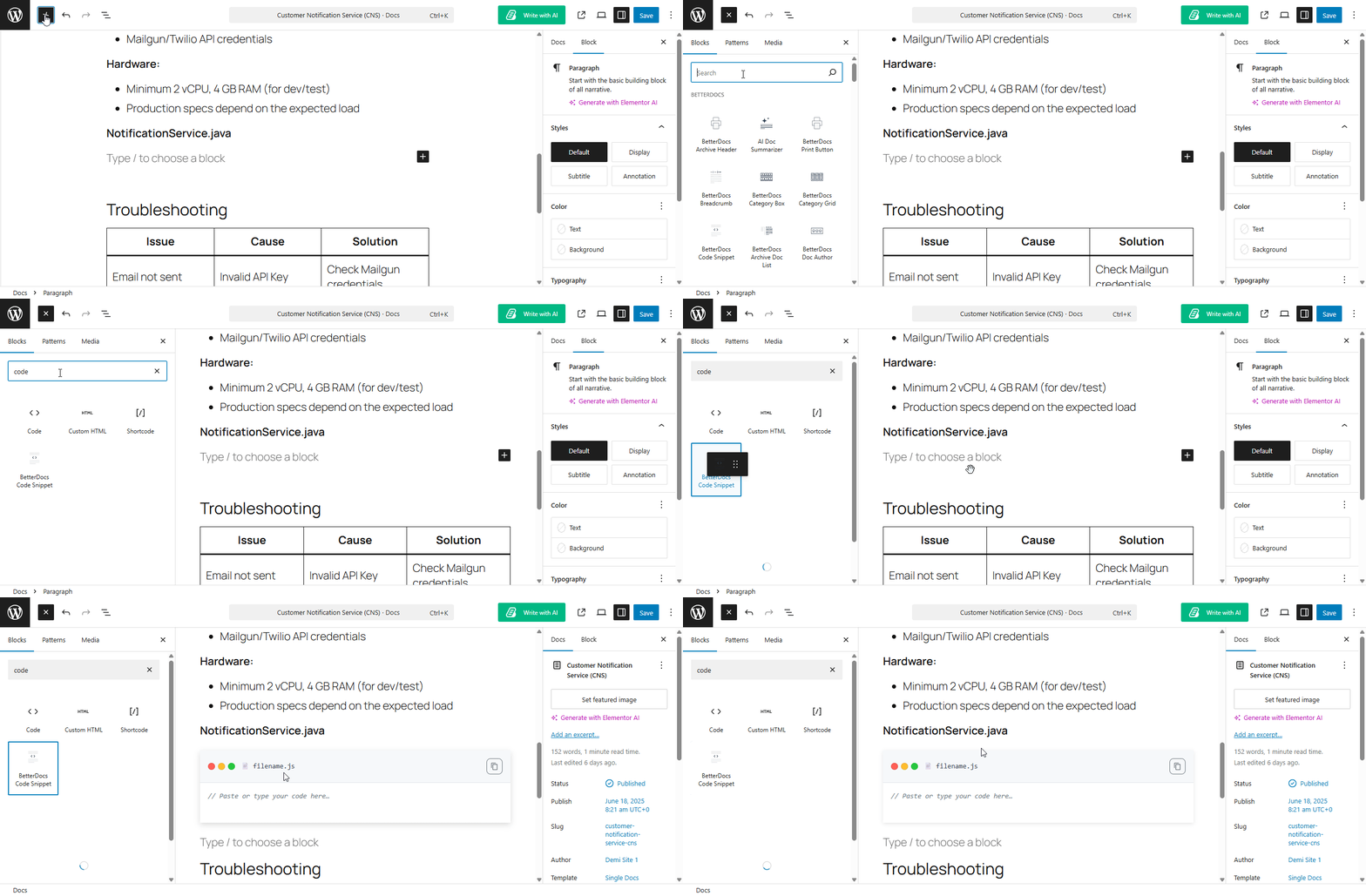
Step 2: Add Code and Customize the Snippet #
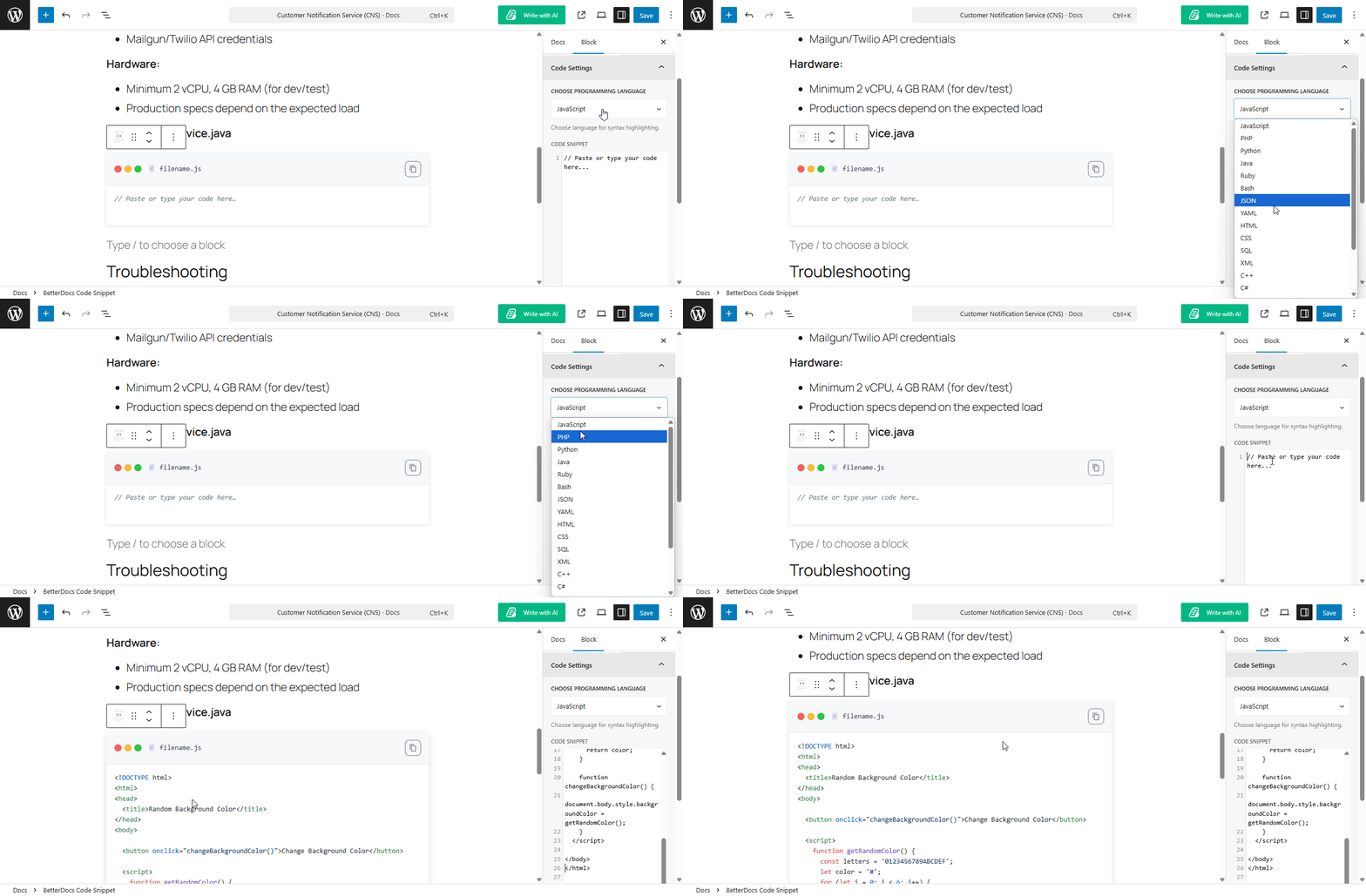
Next, you can add the code and customize the snippet inside the documentation. From the right sidebar, choose the programming language that you want to insert. After that, in the code snippet field, paste your code. Here, based on your preferred programming language, the syntax colour will be changed.
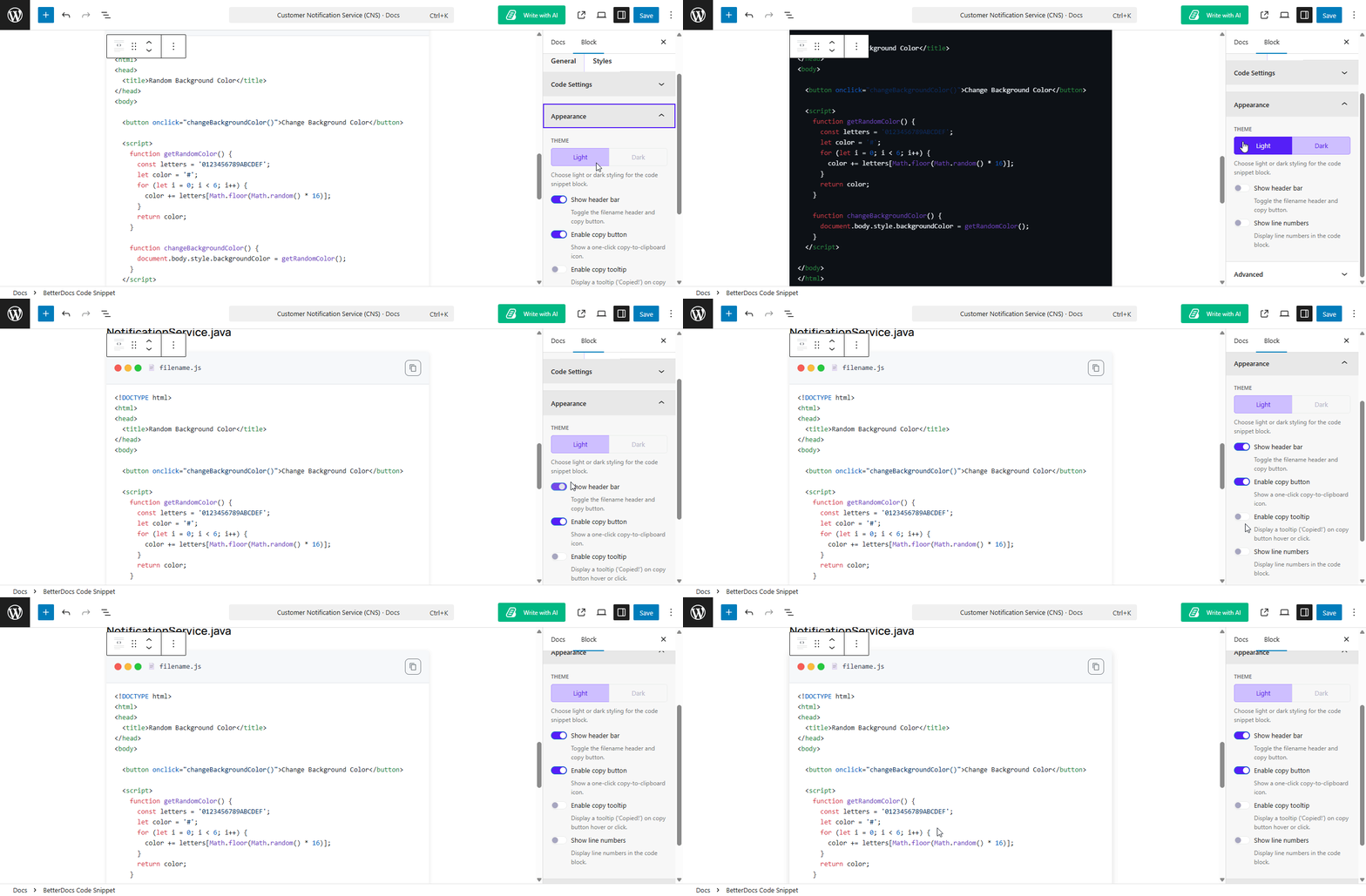
Next, from the ‘Appearance’ option, choose how you want to display the snippet in your document. You will be able to show your snippet in ‘Light’ of ‘Dark’ mode. Also, you can enable or disable the ‘Header Bar’, ‘Copy Button’, ‘Copy Tooltip’ en show/ hide the line numbers.
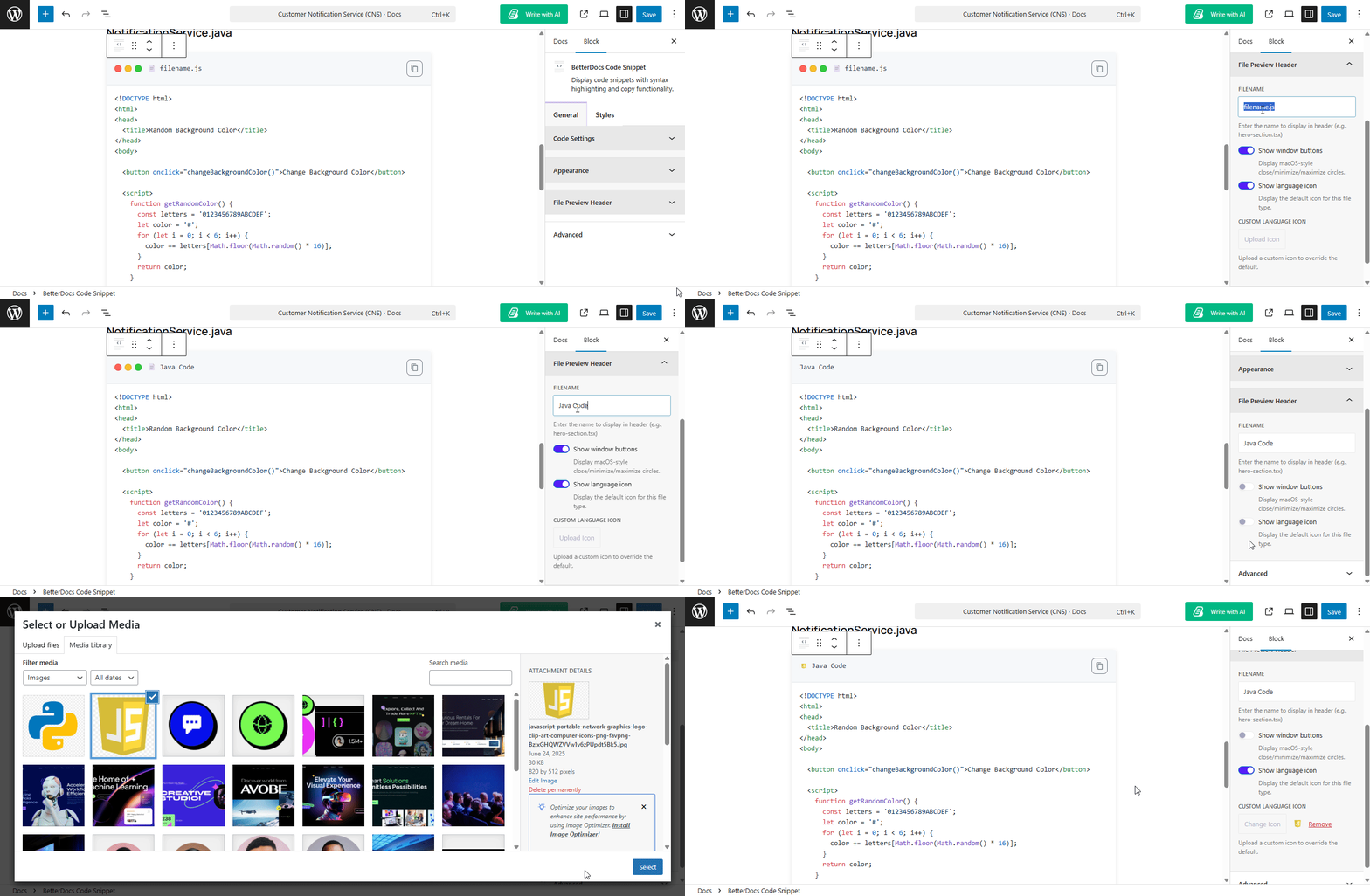
Vervolgens van de ‘File Preview Header’, choose your preferred name for the snippet, show or hide the window buttons and language icon. Here, you can also add a custom icon for the snippet block.
Step 3: Choose Different Styles for The Code Snippet #
Next, you can customize and add different styling options in your code snippet block. From the ‘Wrapper’ dropdown menu, you can choose the margin and padding of the block. There with the background type, you can set ‘Background Color’ en ‘Border Color’. Also, you can choose different border widths and radius for the snippet.
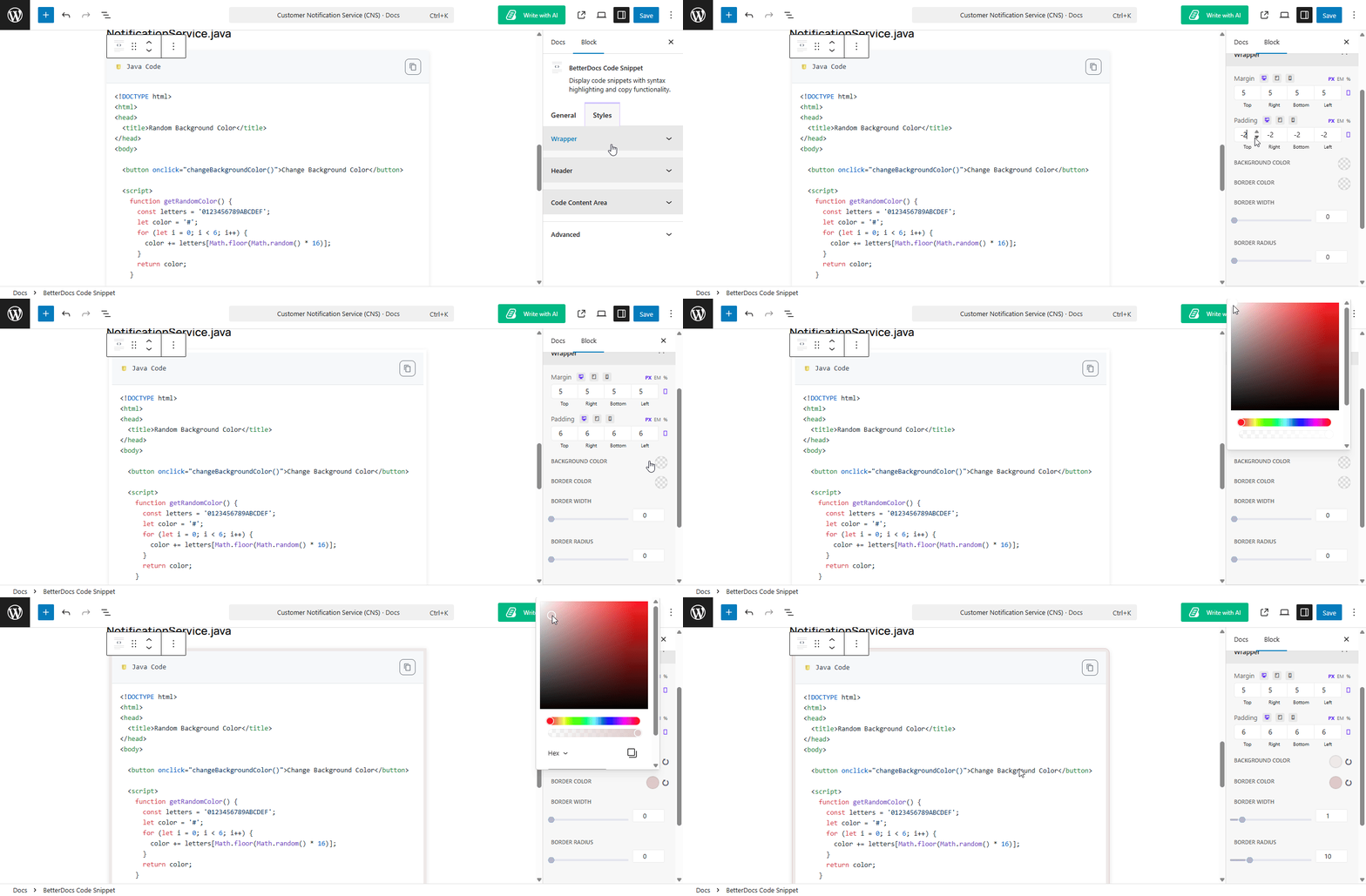
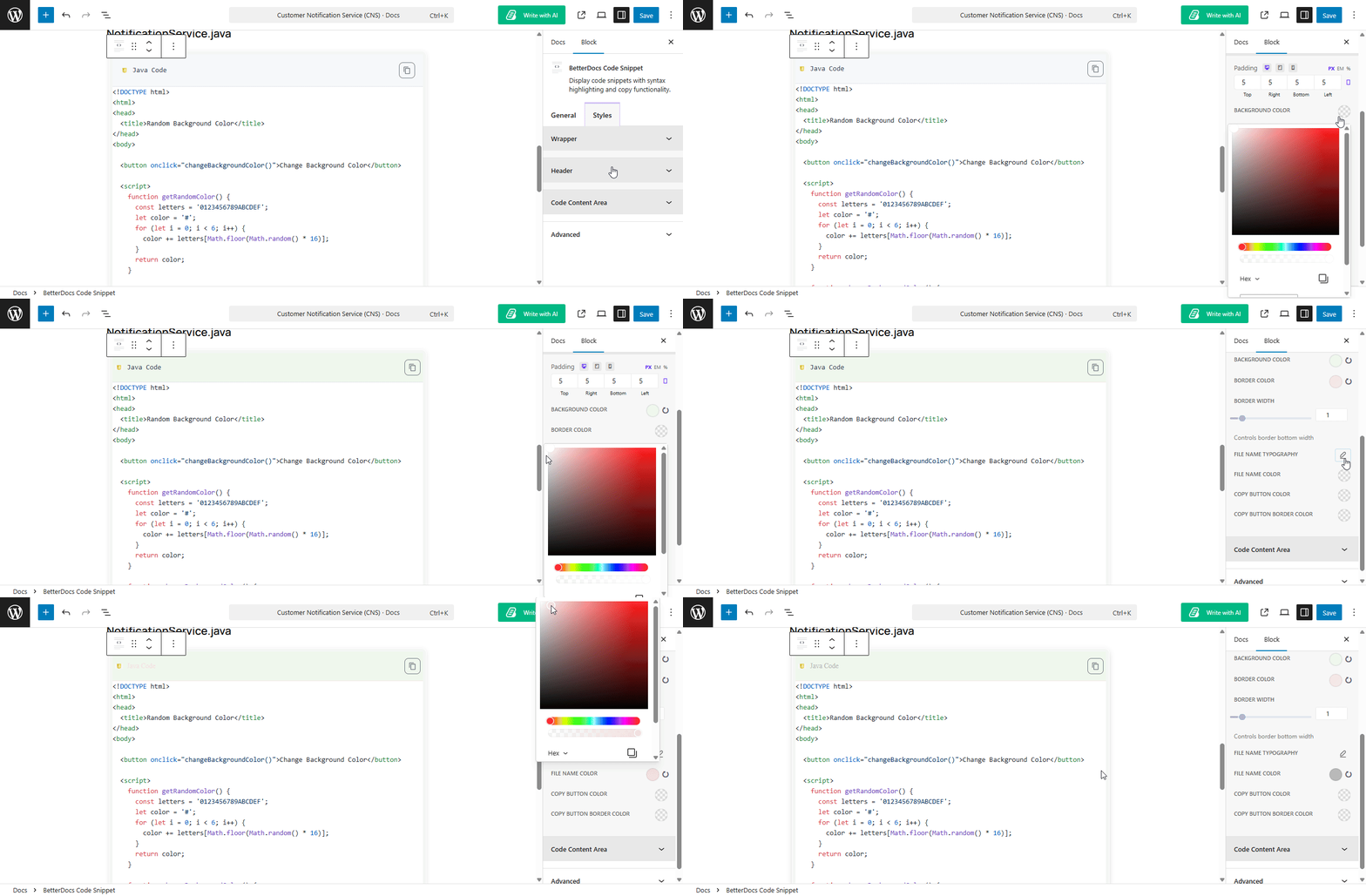
After that, to show the code in your document in a stylish format, you can add background color inside the snippet and typography to the code from the ‘Header’. In this option, you can also customize the copy button color and file name color for the snippet.
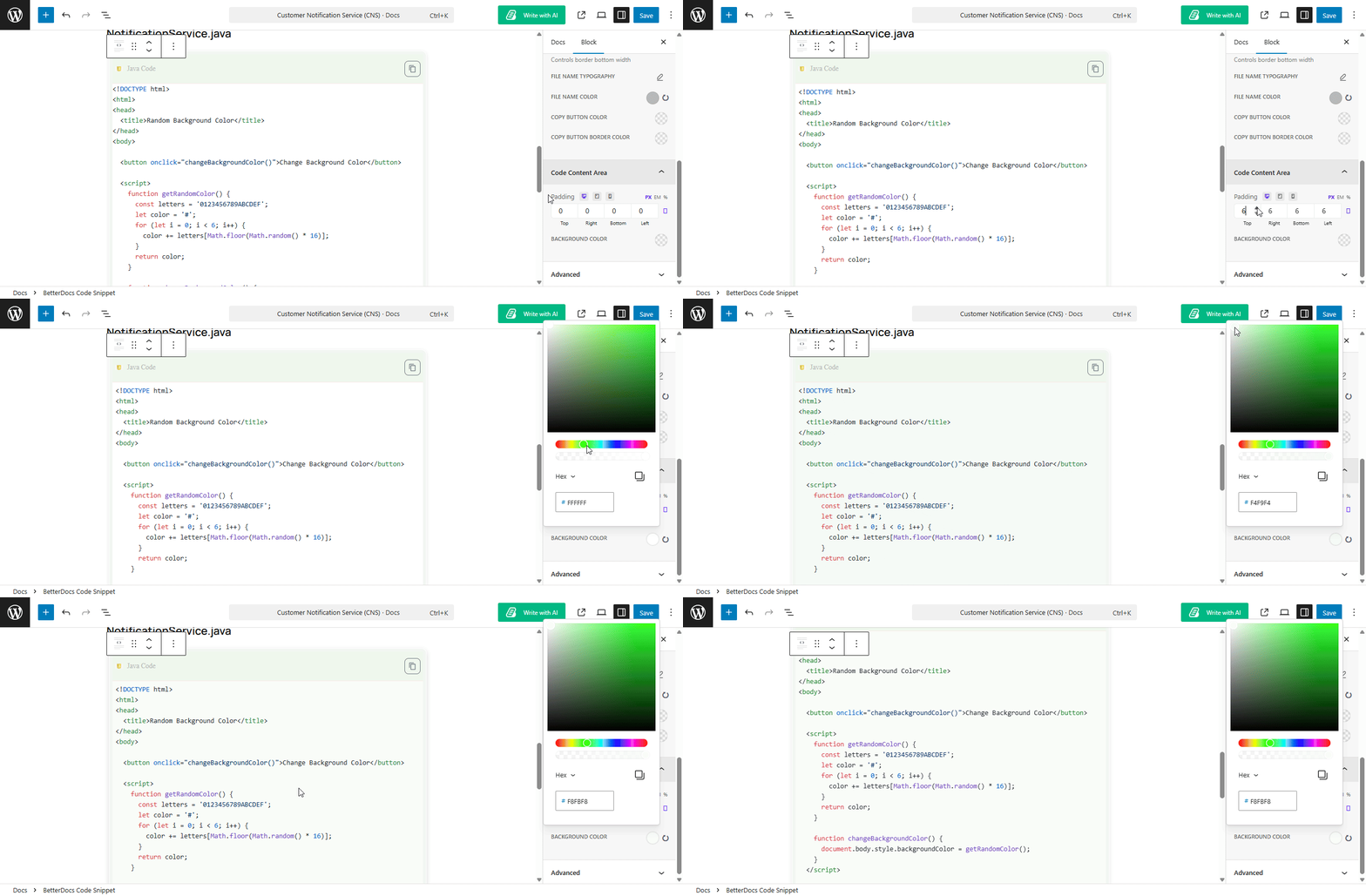
Van de ‘Code Content Option’, you can choose your preferred padding and background color inside the snippet.
How to Add the ‘Code Snippet’ in Elementor? #
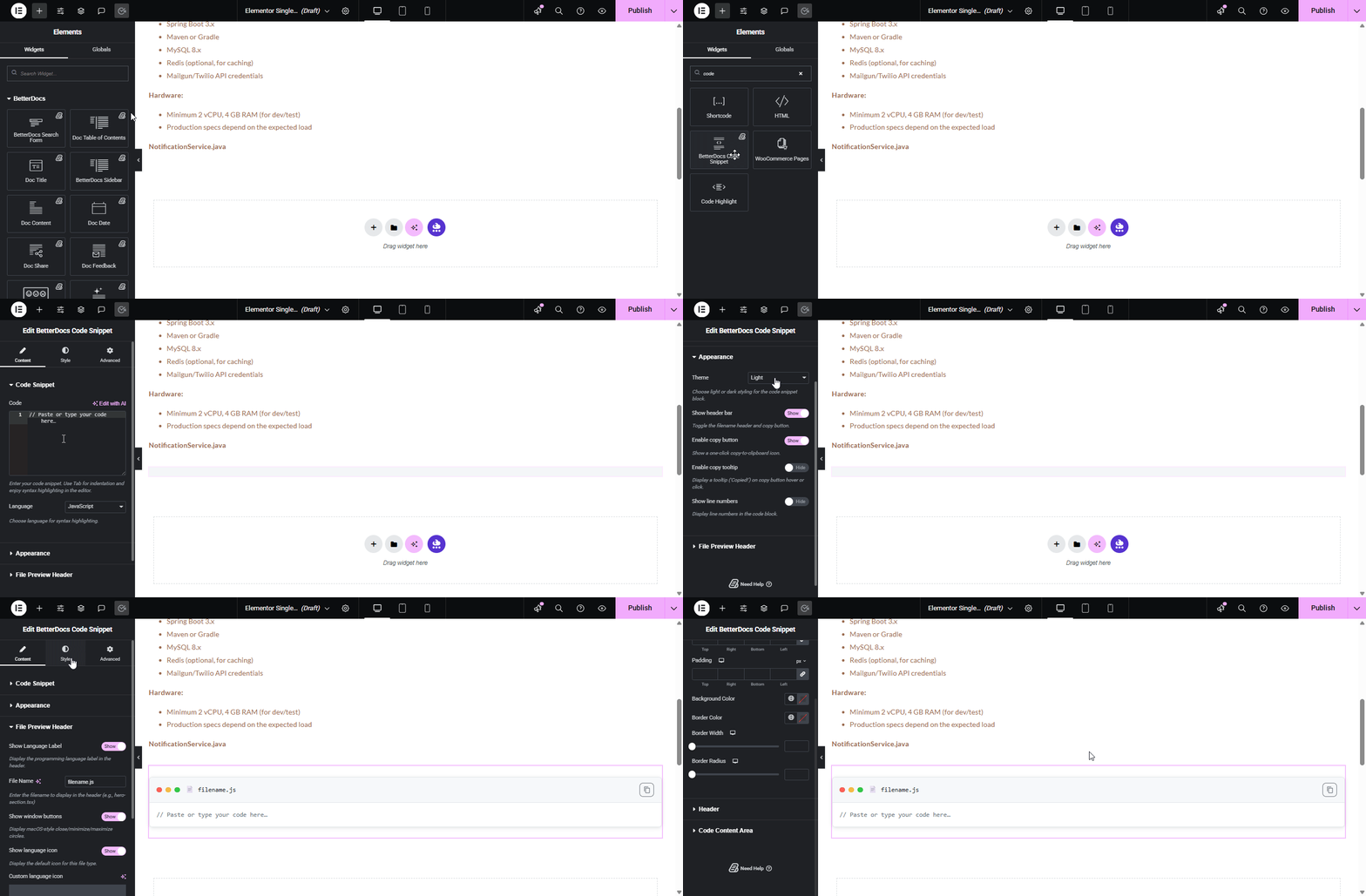
If you prefer your documentation in Elementor, then you can implement this similarly with the ‘‘BetterDocs Code Snippet’ ' widget. For that, you need to add a single doc first. Know how to configure the single doc page on Elementor from the documentation.
Notitie: To configure single docs for Elementor, you need the Elementor PRO version.
Once you have configured the single doc, open it in Elementor. Search for ‘‘BetterDocs Code Snippet’ in the elements’ search panel, then drag and drop it to your document to get the code snippet for the doc.
Uiteindelijke uitkomst #
Finally, in your single document, you can see the code snippet as you wanted in your documentation.
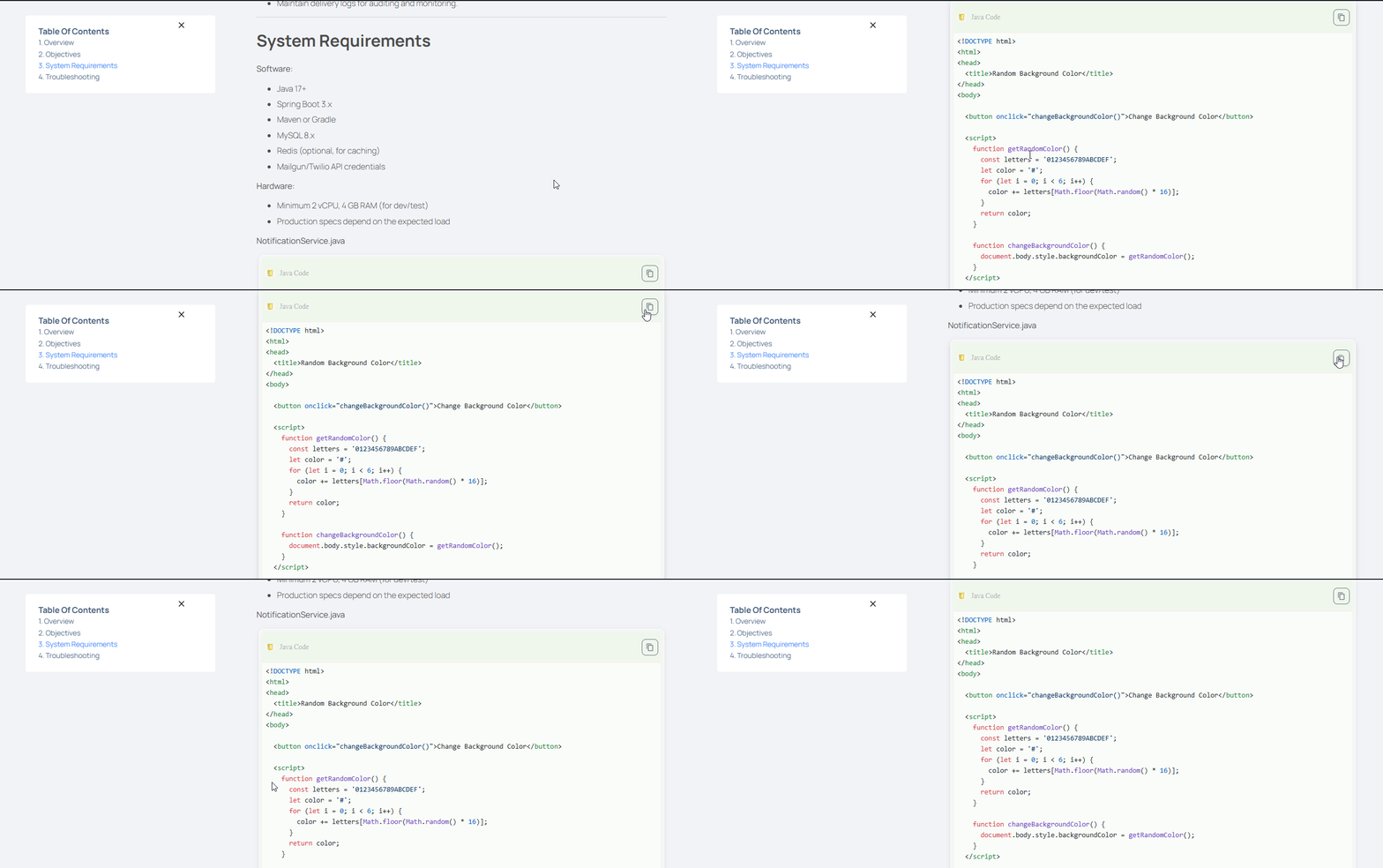
That is how you can configure a code snippet and show the code stunningly on your website.
Still have some questions? Do not forget to contact our ondersteuningsteam.