Con BetterDocs PRO, you can now set more advanced options to restrict categories and documents. With advanced customization rules for Internal Knowledge Base, you can choose which role will have access to view, edit, or restrict a specific category or document.
Follow this step-by-step guide to learn how to set different rules for different users on a specific category or document.
Nota: The internal knowledge base is a PRO feature in BetterDocs. So, make sure you have installed and activated BetterDocs PRO on your WordPress.
Step 1: Enable Advanced Rule Feature on Internal Knowledge Base #
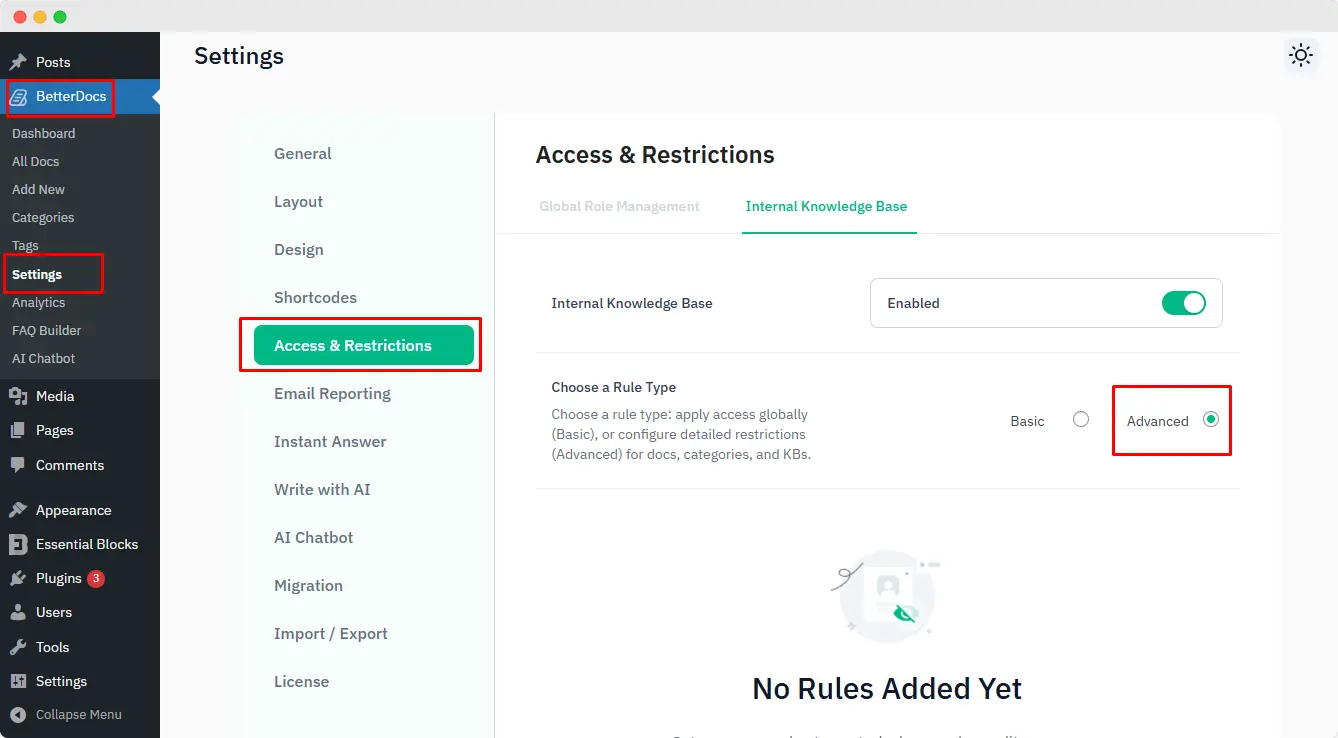
Open your WordPress dashboard and navigate to BetterDocs > Settings. Then, from there, go to the ‘Access & Restrictions’ options. There you will see two options. ‘General Role Management’ e ‘Advanced Role Management’.
Vai a ‘Advanced Role Management’ and then enable ‘Internal Knowledge Base’. Quindi, dal ‘Choose a Rule Type’ select the ‘Advanced’ opzione.
Step 2: Configure Different Rules for the Internal Knowledge Base #
Now, it is time to set the rules for your users. Click on the ‘Add New Rule’ button. Next, select a name for your rule to better understand which rule you set up.

After that, select the specific category that you want to set the rule for. From the ‘Doc Categories’ dropdown menu, select a specific ‘Category’ of your documentation. You can select one or multiple categories for this condition.

Now, either you can set the rule for specific docs or all docs. If you choose a specific doc, then the rule will be applied only for that particular document. But if you do not choose any doc, then the rule will be applied to all the documents in that specific category.

Then, select the user roles for which you want to set the conditions. You can select one role or multiple user roles for this condition. From the ‘User Roles’ dropdown, select the user role.

Now that you have selected the category, document, and user roles, it is time to set up the permission mode for your knowledge base. In the ‘Permission Mode‘ section, you will find four different modes. ‘View’, ‘Edit Only’, ‘Full Control’, ‘Restricted’. Here are the details of how each mode works:
- View: Assigned users will only be able to see the document or category. They will not be able to edit or modify it.
- Edit Only: In this mode, the assigned user will be able to edit the document of the category.
- Full Control: Here, the assigned user can edit, publish, and delete the documents and get full control over the document.
- Restricted: With this mode, the assigned user will not see the category or document set in the rules.
Now, set the mode based on your preference and then click on the ‘Save’ button. Then it will take you back to the rule settings option, and then click on the ‘Save’ button to save the changes.

Esito finale #
Finally, from the user role, they will see that the rule is applied to the documents. This is what your Internal Knowledge Base will be: well-controlled with advanced rules.
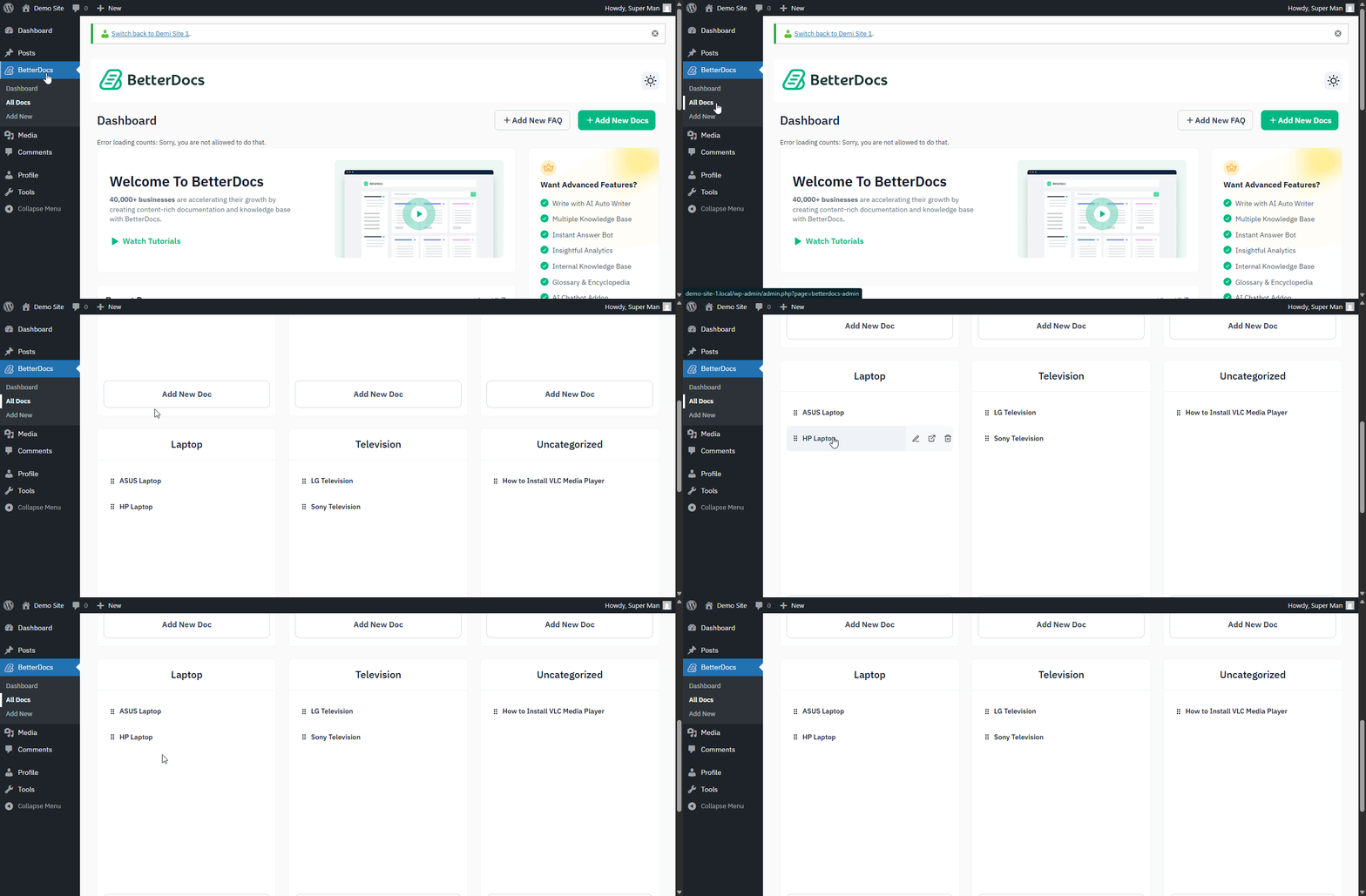
By using BetterDocs PRO’s advanced rules, that is how you will be able to better control your internal knowledge base and document management process.
If you face any difficulties, feel free to contact our support team.