Introducing Git Integration in BetterDocs PRO, a smarter, faster way to keep your documentation synced directly with your Git account. Follow the guide below to explore how to connect the GitLab repository to BetterDocs to get started seamlessly.
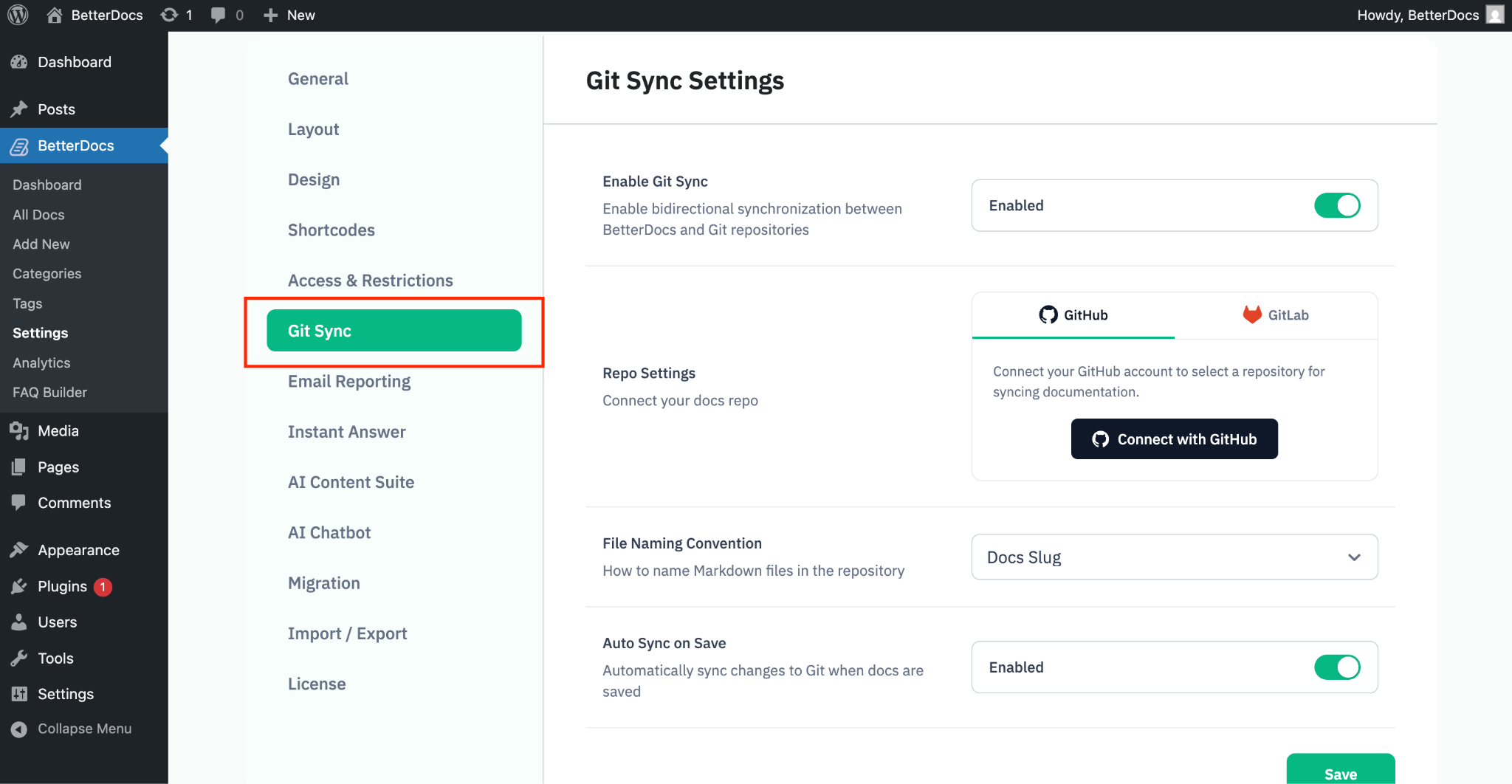
Step 1: Configure BetterDocs Settings #
To begin, navigate to BetterDocs ‘Settings’ and open the ‘Git Sync’ tab. From there, you can configure and manage the connection with your Git account. Simply toggle the ‘Enable’ option to start syncing your GitLab account seamlessly.
Note: To connect your GitHub account, check the step-by-step process in this documentation.
Step 2: Connect Your GitLab Account #
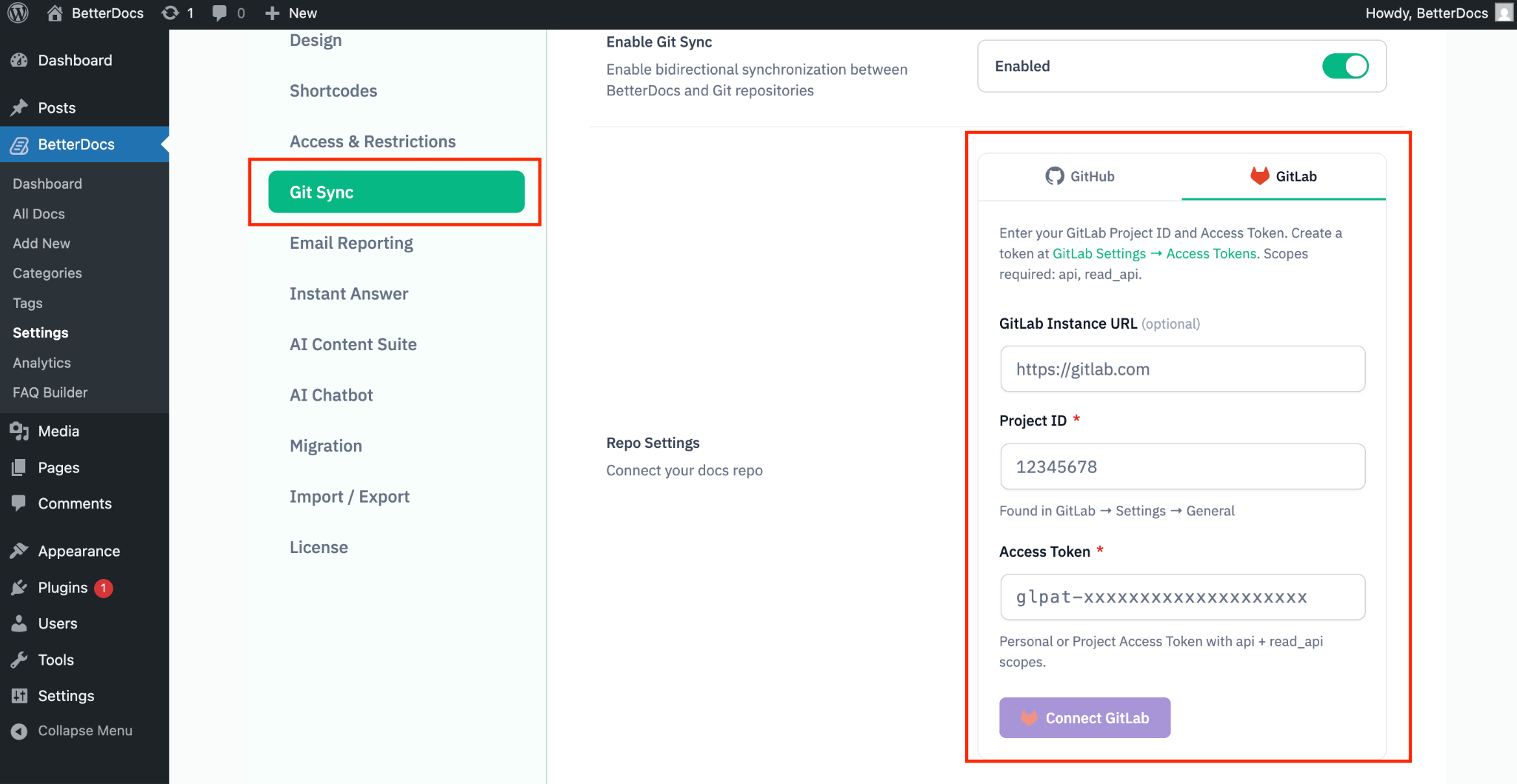
To connect your account with GitLab, enter your GitLab Project ID and Access Token. Create a token at GitLab Settings → Access Tokens. From there, copy the token ID and project ID. Then paste it in your BetterDocs settings. Click on the ‘Connect GitLab’ button. After that, your GitLab account will be automatically connected to BetterDocs.
Step 3: Configure the GitLab Integration Settings #
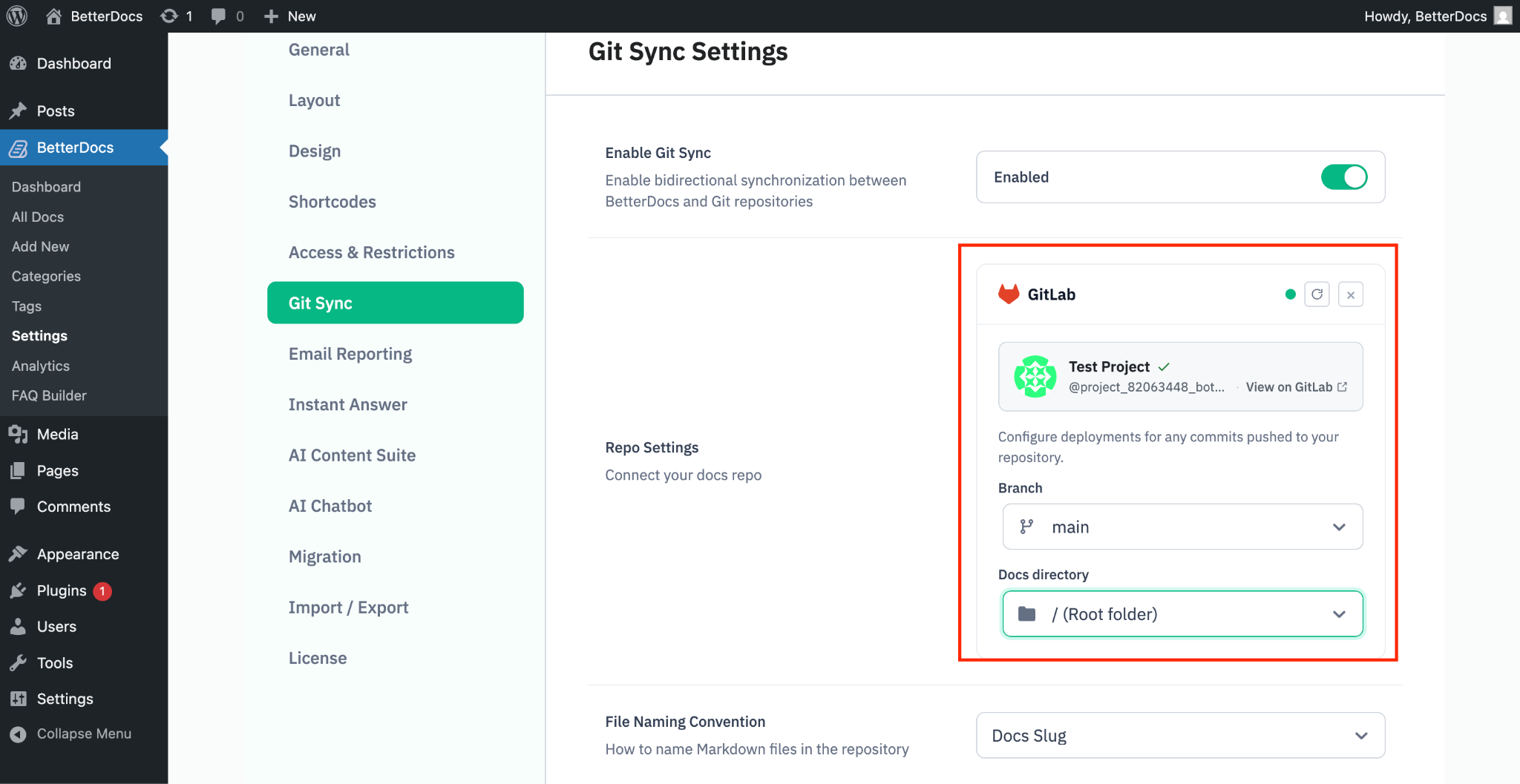
Now, after connecting with your GitLab account with Project ID and Access Token, select the repository where you want to sync the documentation. After selecting it, select the specific branch and doc directory. Next, configure the ‘File Naming Convention’ to define how Markdown files will be named in your repository. You can also enable or disable the ‘Auto Sync’ option to automatically sync documentation changes with Git whenever docs are saved. Once everything is set up, click the ‘Save’ button to apply your changes.
Step 4: Sync the Documentation #
Go back to the documentation that you want to sync in your Git repository. There, you will find an option on the top right side of the documentation named ‘GitLab Sync.’
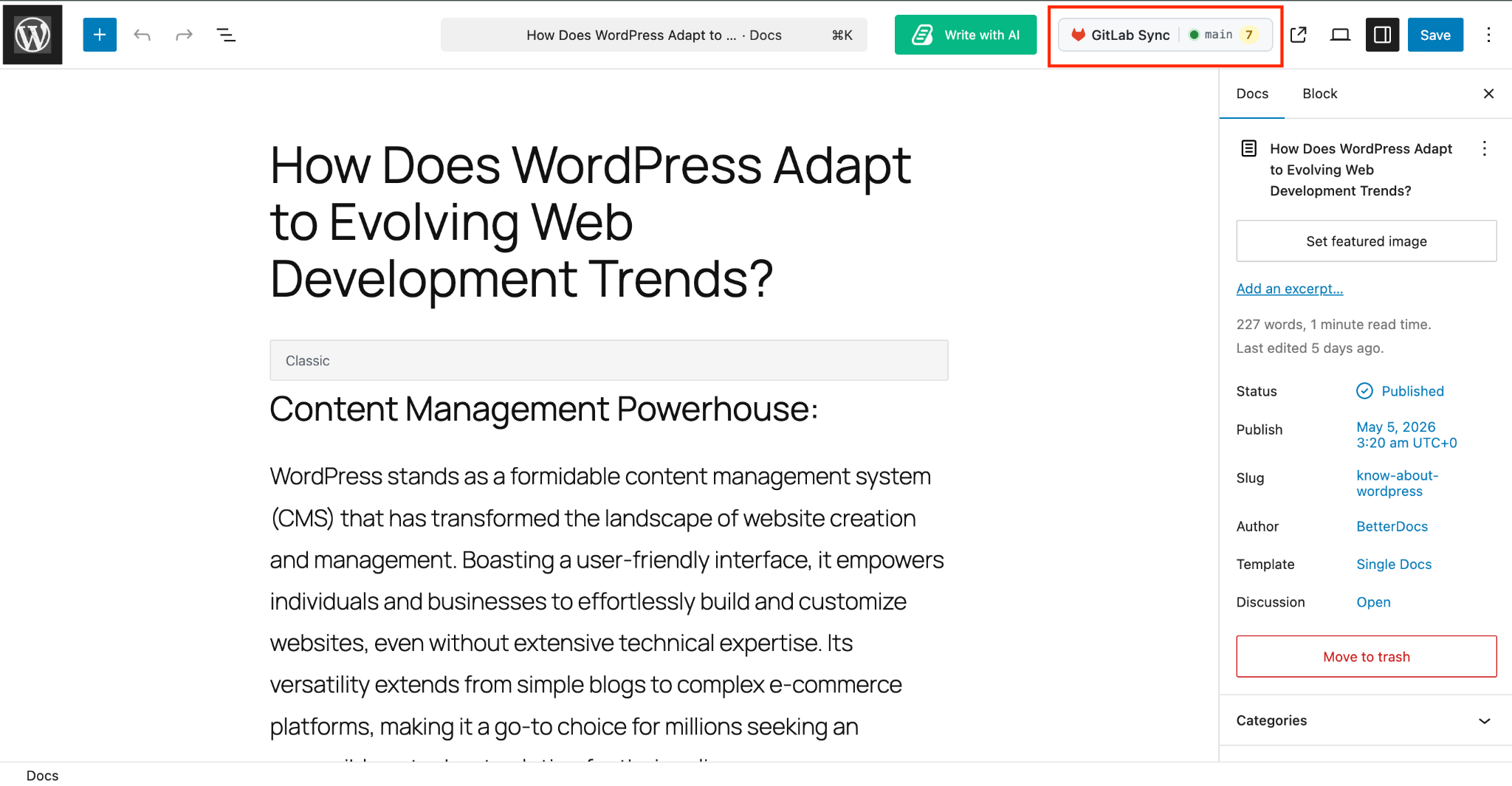
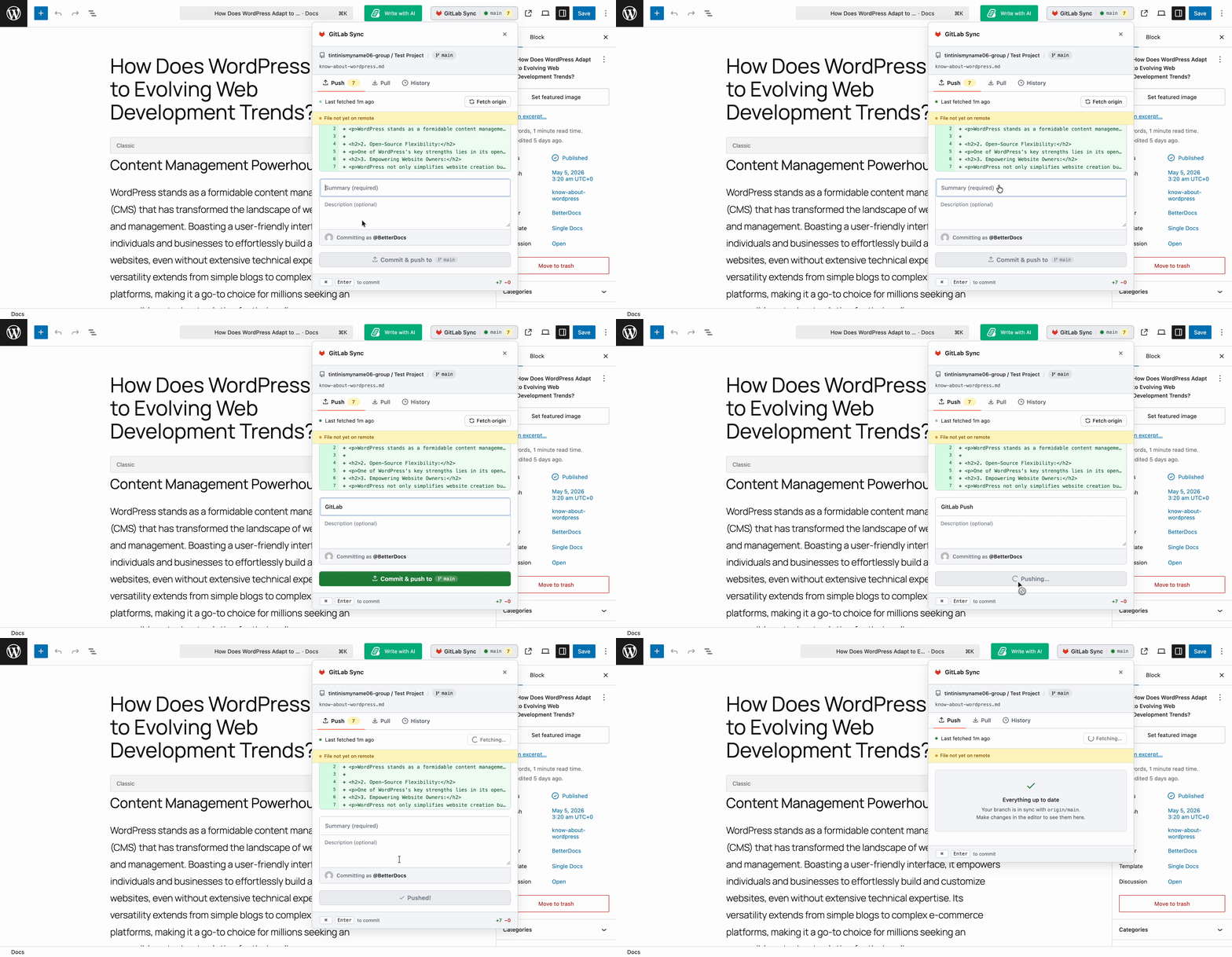
Click the button to access the option for pushing the doc to your GitLab repository. Once the document is fetched successfully, add a ‘Summary’ for your documentation and include a description if needed. Finally, click the ‘Commit & Push to’ button to publish the documentation to your selected branch.
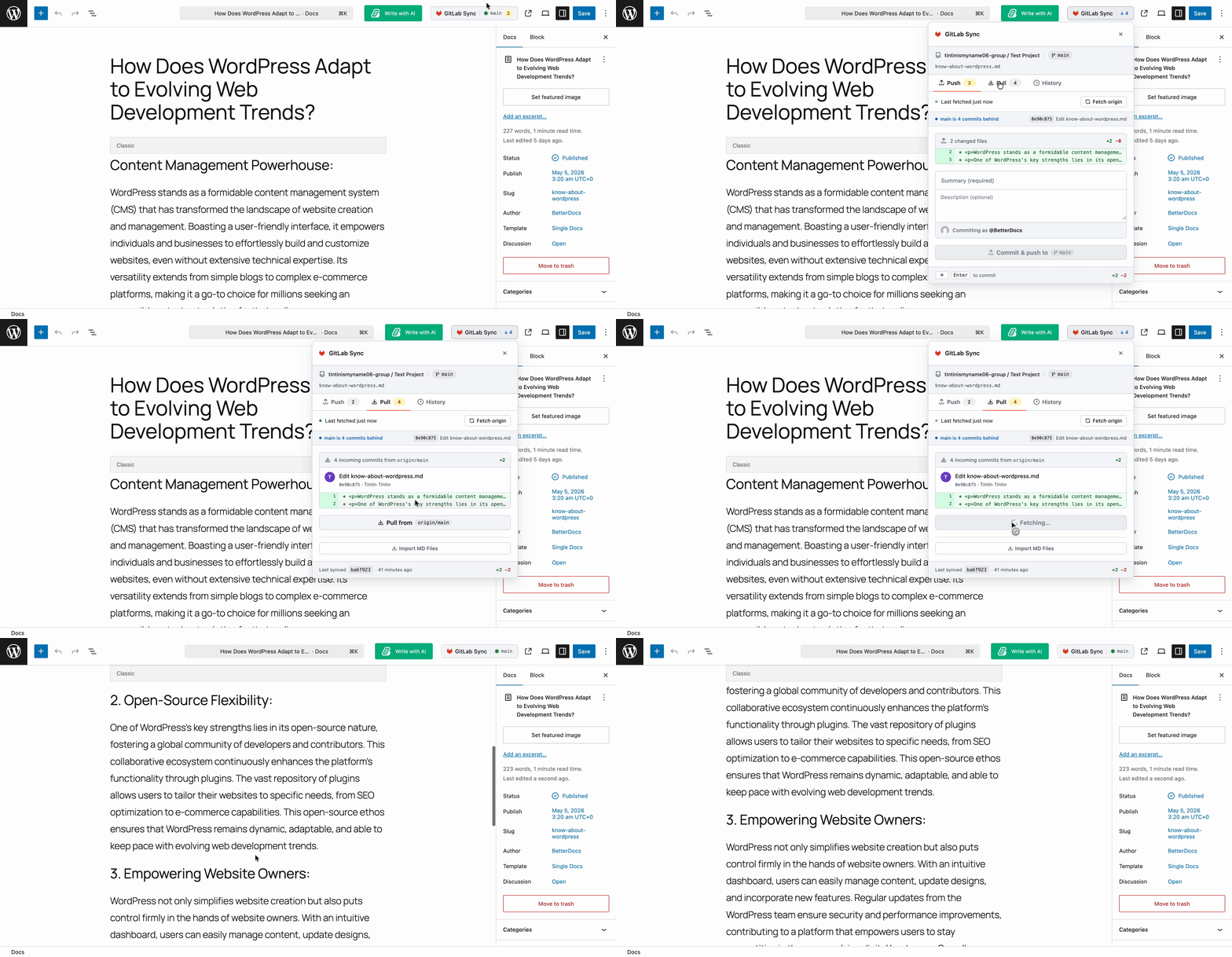
You will also find options to ‘Pull from GitLab’ and ‘Import MD Files’. If any changes are made to the documentation in your GitLab repository, simply click ‘Pull from GitLab’ to automatically sync and apply those updates to your BetterDocs documentation.
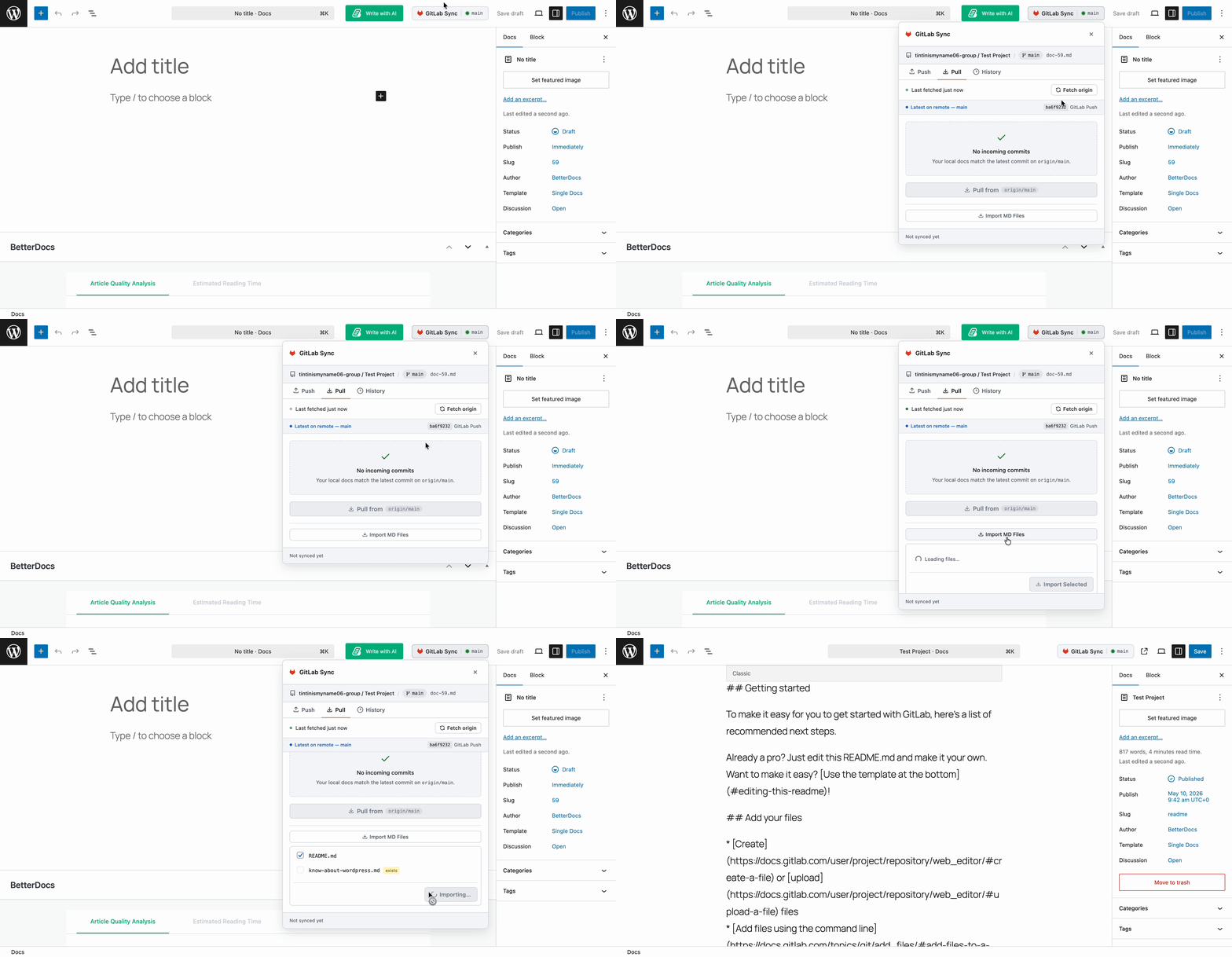
Similarly, you can import all the MD files from your GitLab repository right inside your BetterDocs documentation. Click on ‘Import MD Files’ and select the documentation you want to import. Then click on the ‘Import Selected’ button to import the file.
Final Outcome #
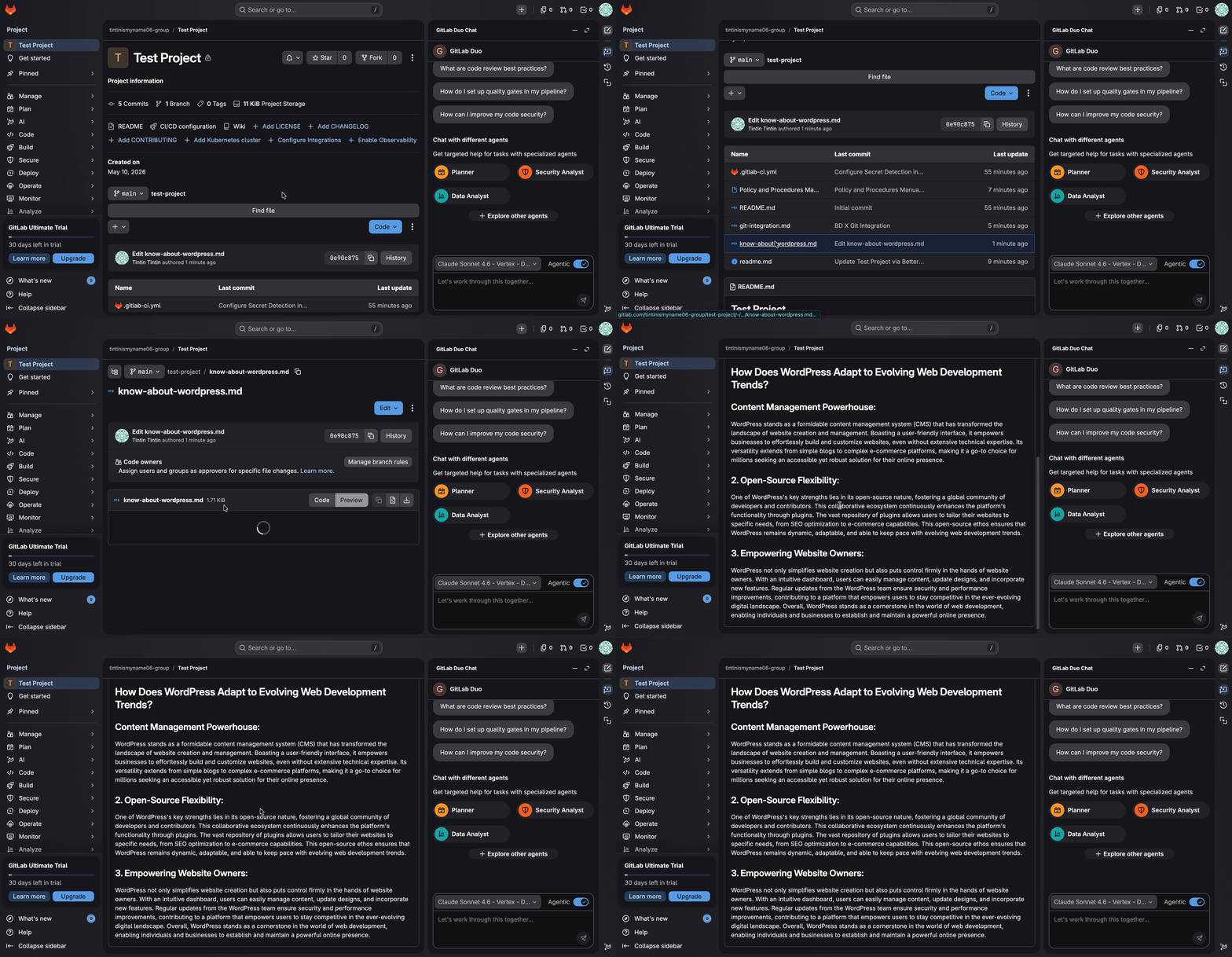
Finally, in your Git Repository, you will see that the documentation is synced with your BetterDocs knowledge base. This is how you can easily document on BetterDocs and a GitLab account.
If you face any difficulties, feel free to contact our support team.