
BetterDocs lets you add dedicated, product-specific FAQs for your WooCommerce store using the built-in FAQ Builder. Instead of showing the same generic questions across every product, you can group questions by product or topic, answer them manually or generate them with AI and control exactly how they appear on your store. This helps shoppers find answers right when they are making a purchase decision, reducing pre-sale queries and building buyer confidence.
Note: Before you begin, make sure that BetterDocs is installed and activated on your WordPress website and that WooCommerce is active on the same site.
Step 1: Navigate to WooCommerce FAQ #
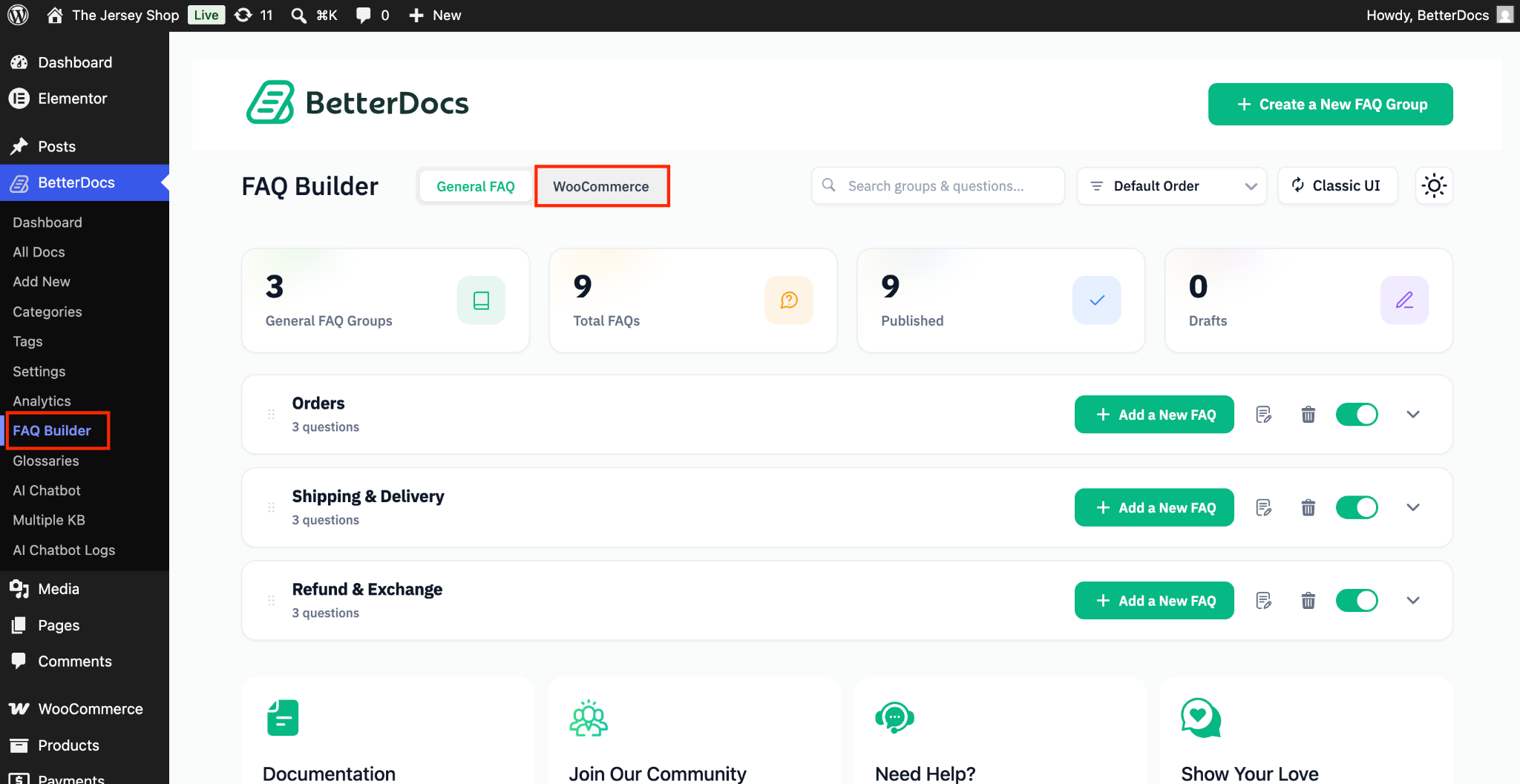
First, go to your WordPress Dashboard and navigate to wp-admin → BetterDocs → FAQ Builder. This is the central area where you create, organize, and manage all of your FAQs. At the top of the FAQ Builder, you will find separate tabs; from there, select the dedicated tab for your WooCommerce store.
Step 2: Add Your FAQ Groups #
Inside the ‘WooCommerce’ tab, you can start by adding your FAQ Groups. An FAQ Group acts as a container that bundles related questions together, for example, a group for shipping questions, a group for sizing details, or a group dedicated to a specific product.
To create one, click the option to ‘Add FAQ Group’, then give the group a clear, descriptive name so you can recognize it later. Then, from there, you can also upload an icon, select which category you want to showcase the FAQ group and then select which specific products you can add the FAQ group to. Click on ‘Create FAQ Group’ to save the changes.
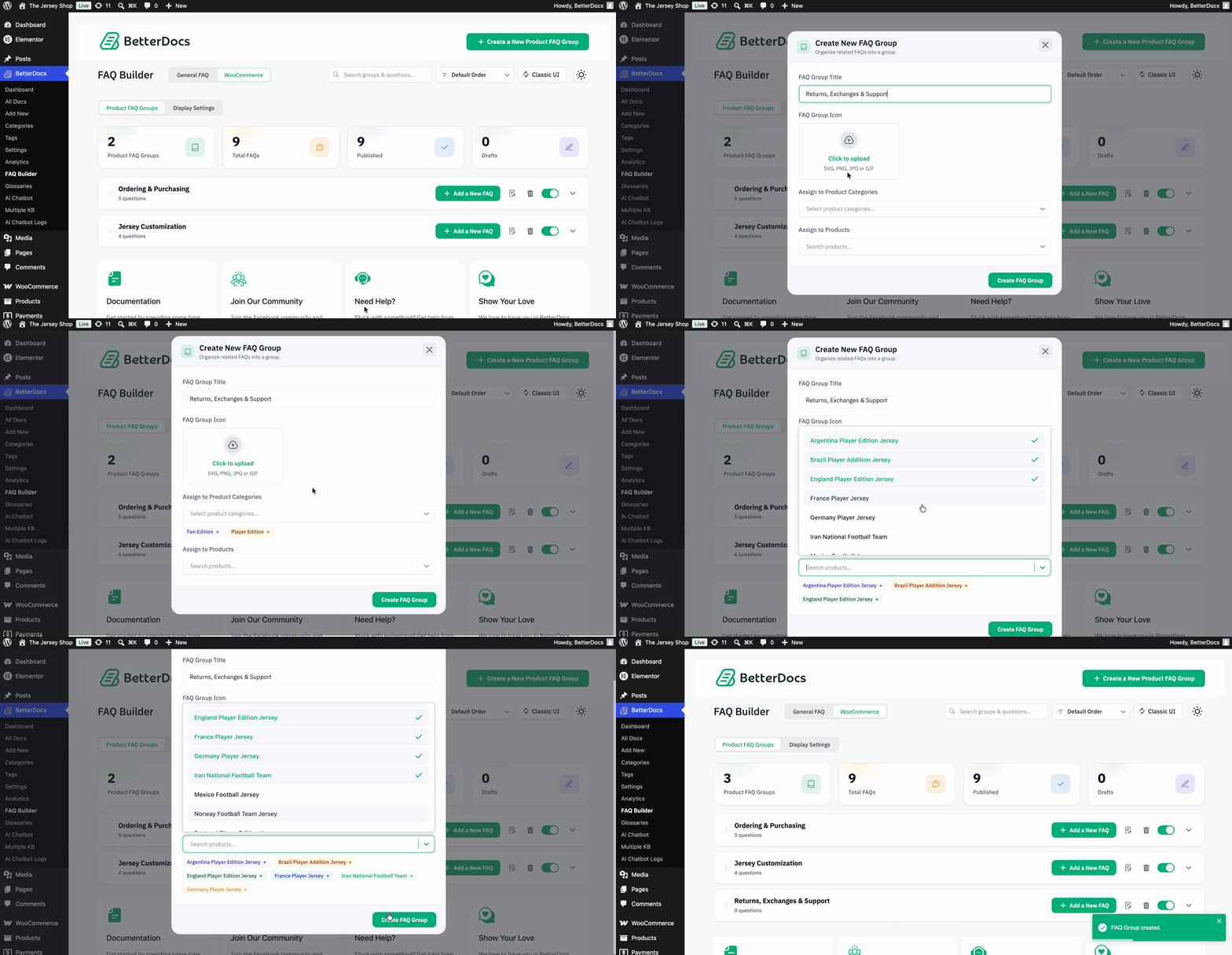
You can create as many groups as you need, which allows you to organize your questions logically and assign the right set of FAQs to the right products.
Step 3: Add FAQs Manually Or with AI #
Once an FAQ Group is created, you can begin adding individual questions and answers to it. BetterDocs gives you two flexible ways to do this:
Step 3.1. Add FAQ Manually #
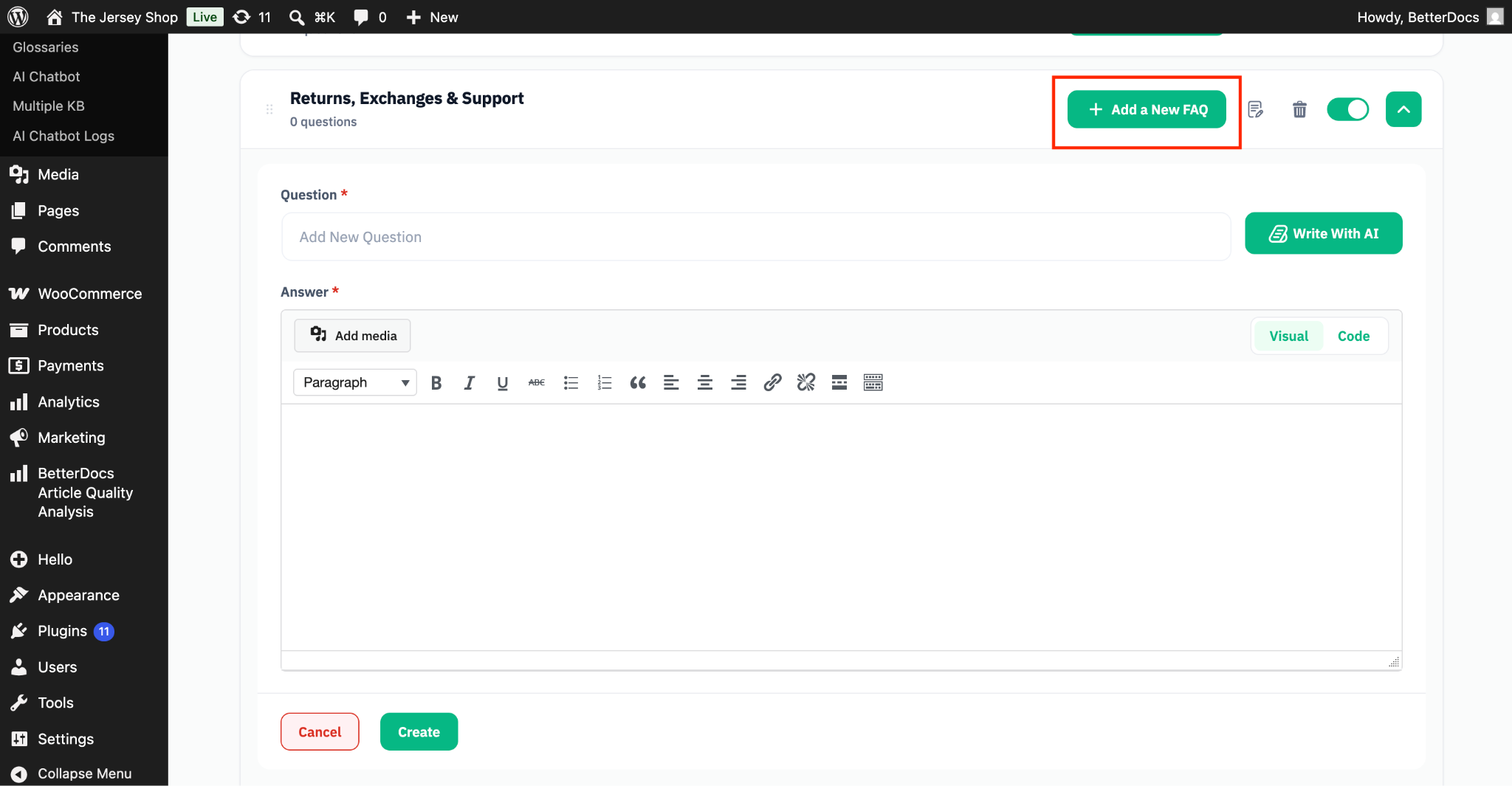
Select the option to add a question, then type your question into the question field and write the corresponding answer in the answer field. This method gives you full control over the wording, tone, and detail of each FAQ, which is ideal when you want answers to match your brand voice exactly or to address very specific product details.
Step 3.2. Add FAQ with AI #
If you would prefer to save time, use the ‘Write with AI’ option. BetterDocs will generate relevant answer pairs for you based on your question, so you can quickly populate a group without writing everything from scratch. After the AI generates the content, you can either keep it or regenerate it by clicking the ‘Regenerate FAQ’ button.
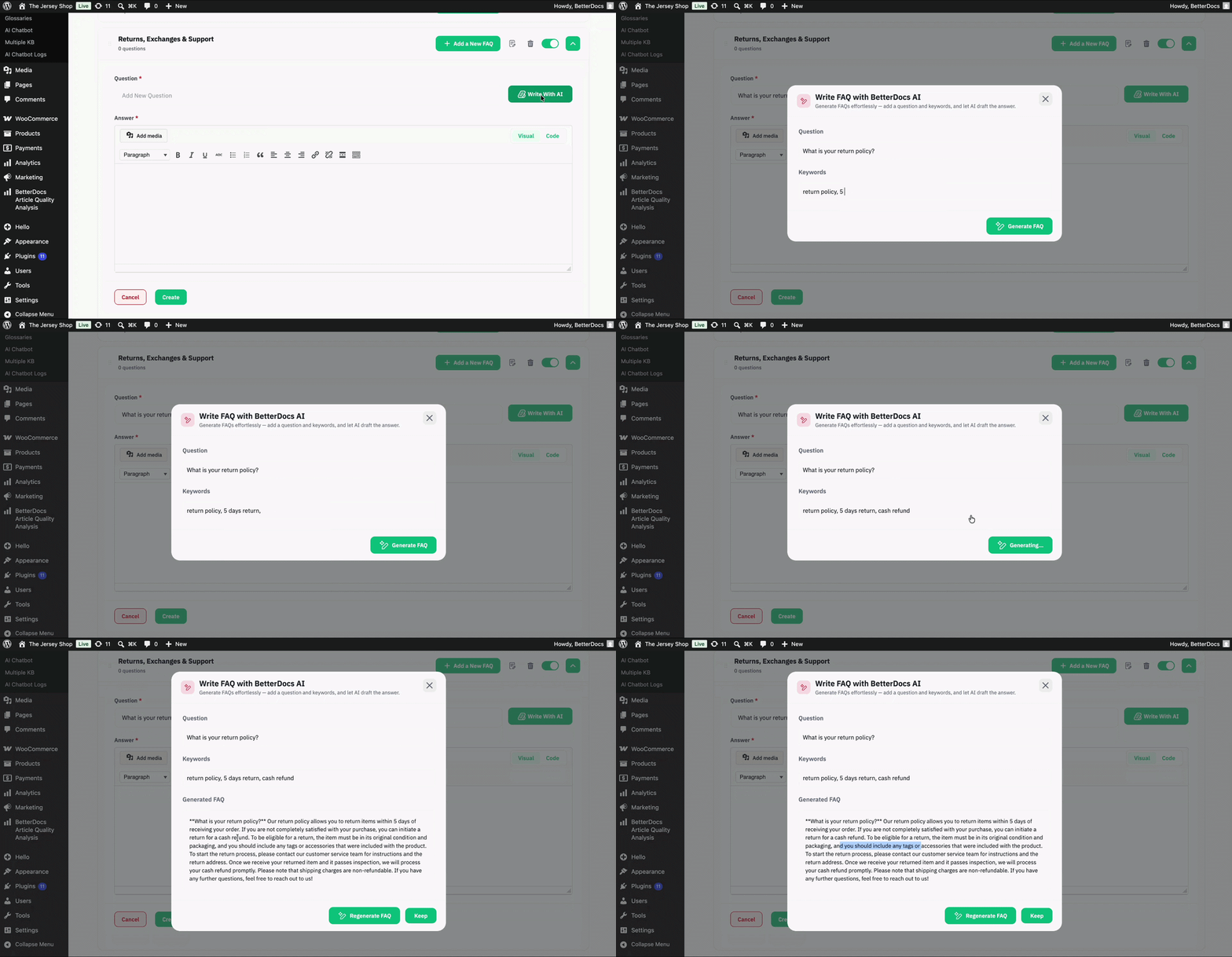
You can mix both methods within the same group, generating a starting set with AI and then refining or adding your own questions manually.
Step 4: Configure the Display Settings #
After your FAQ groups and questions are ready, switch to the ‘Display Settings’ tab to control how the FAQs appear on your WooCommerce product pages. From here, you can fine-tune the presentation using the following options:
Step 4.1. Select a Placement #
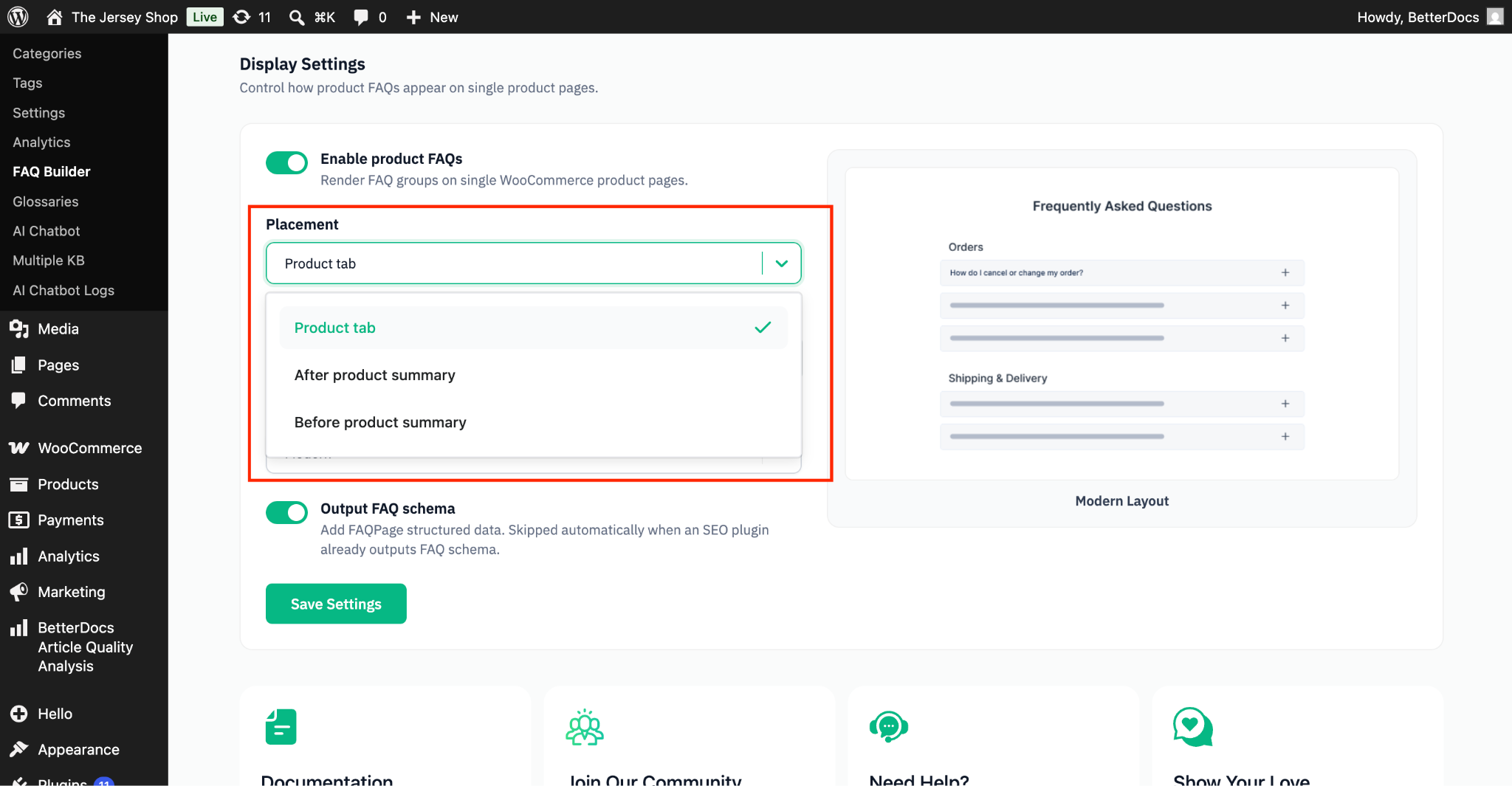
From the dropdown, select where you want to show this FAQ on your WooCommerce Product page. You will find three options there –
- Product Tab
- After Product Summary
- Before Product Summary
Step 4.2. Add a Title #
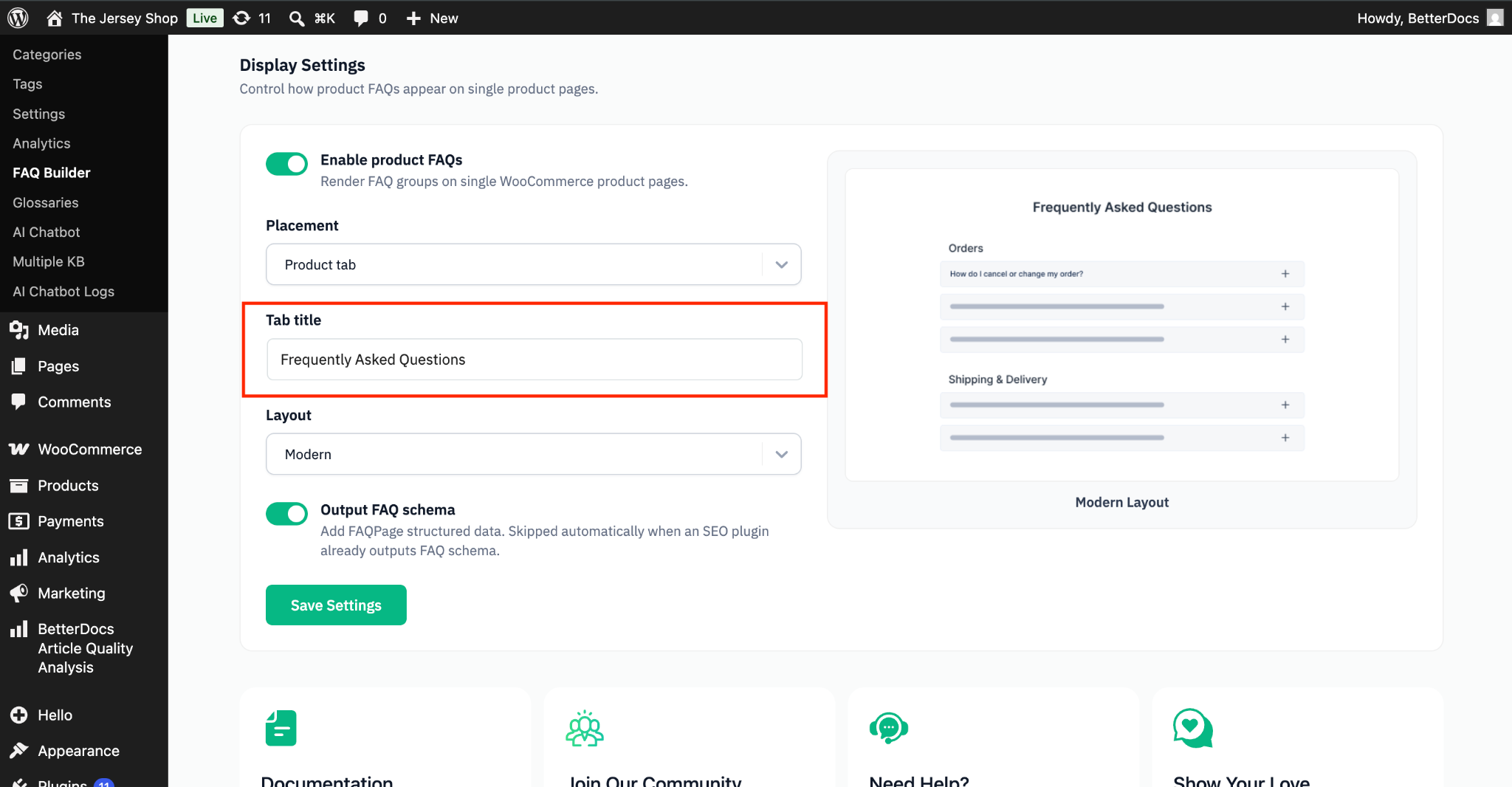
Enter a title for your FAQ section, such as “Frequently Asked Questions” or “Product FAQs.” This title is shown to your shoppers above the questions and helps clearly label the FAQ area on the product page.
Step 4.2. Choose a Layout #
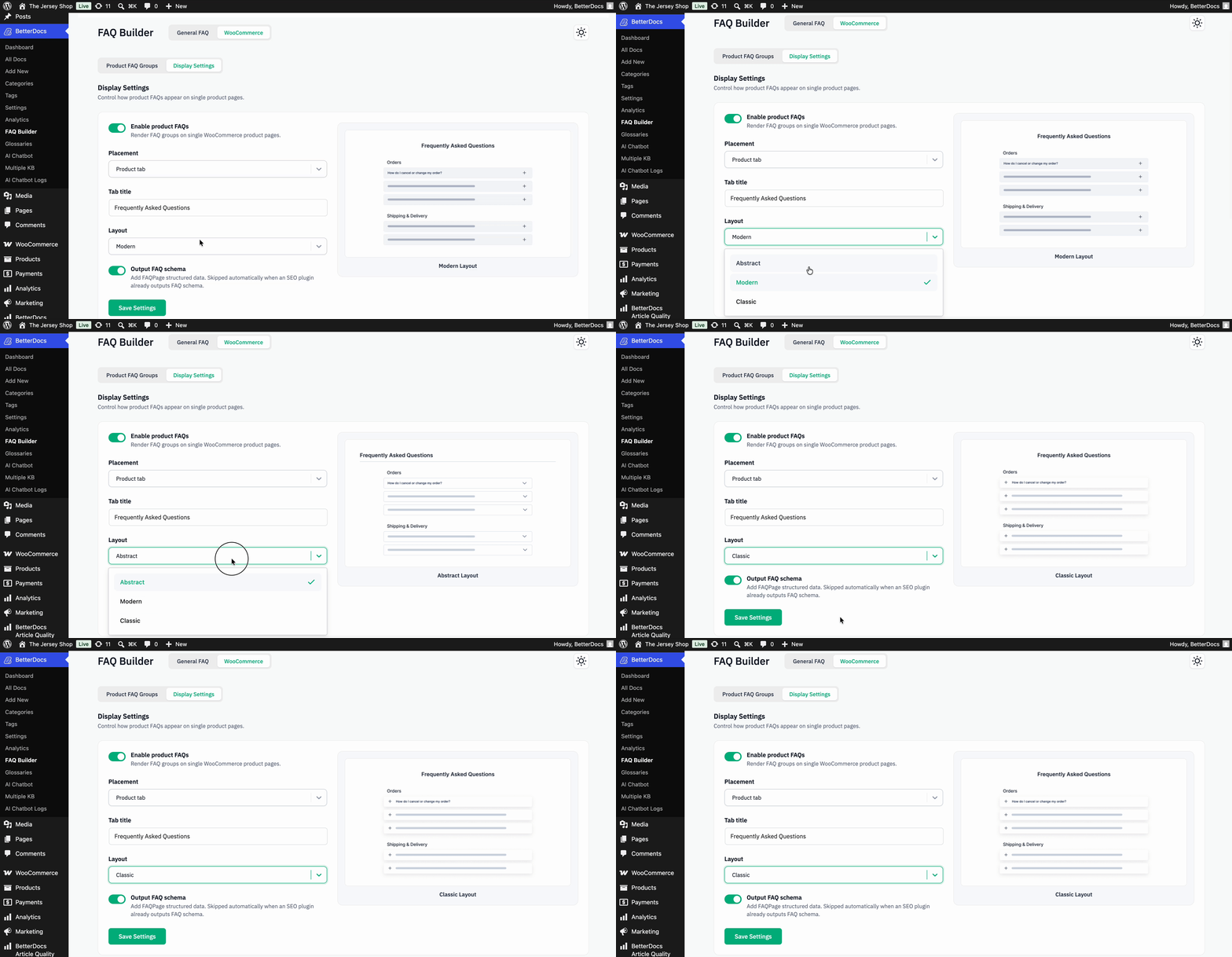
Select the layout that best matches your store’s design. The layout option controls the visual style in which your FAQs are displayed to visitors, so you can pick the format that fits your product page and offers the best reading experience. You will find three layouts from there: Modern, Classic and Abstract.
Step 4.3. Enable Or Disable the FAQ Schema #
Use the ‘Output FAQ Schema’ toggle to enable or disable structured data for your FAQs. When enabled, BetterDocs adds FAQ schema markup to your pages, which helps search engines understand your questions and answers and can make them eligible to appear as rich results in search. If you do not want this markup applied, simply keep the toggle disabled.
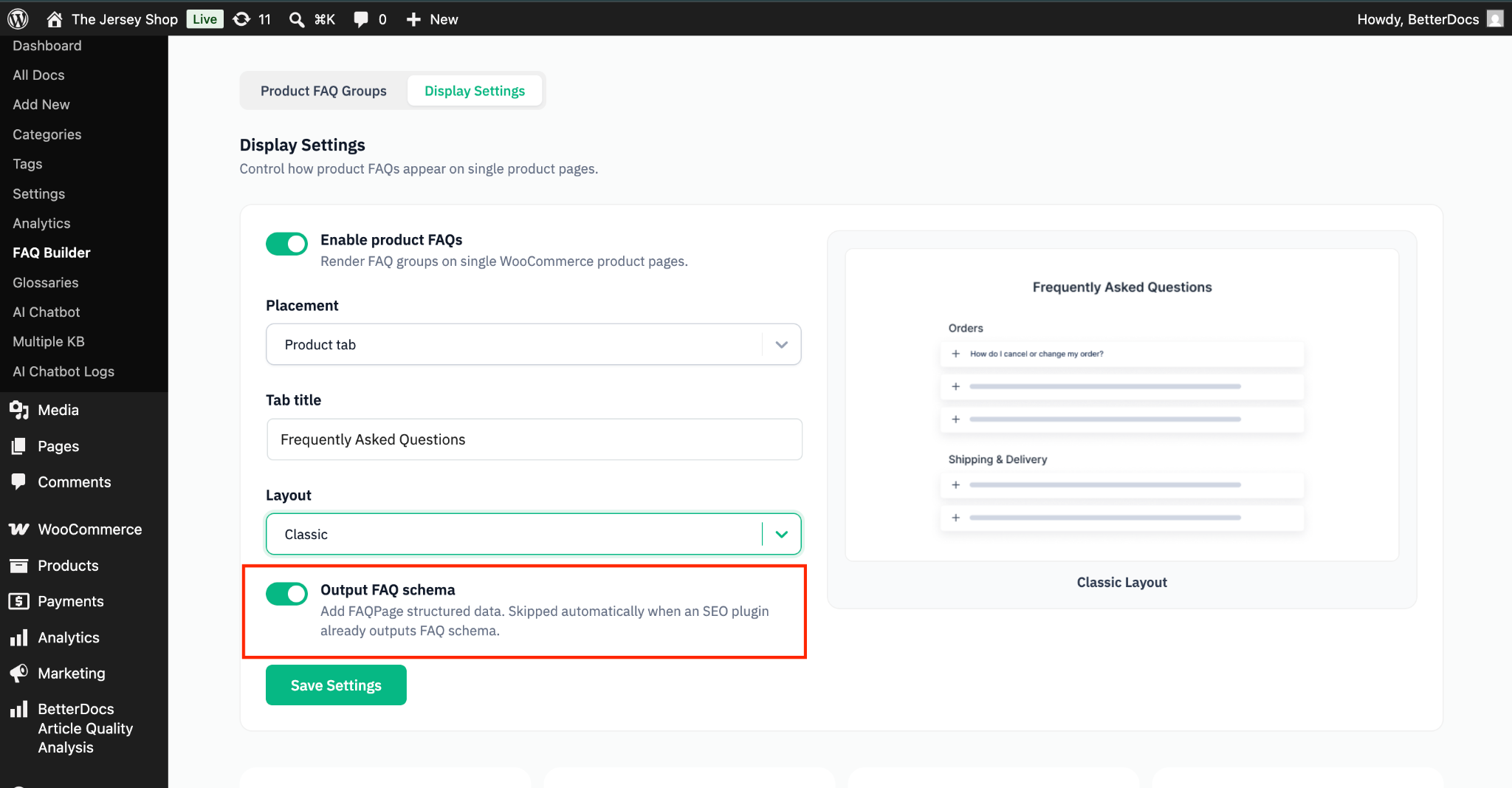
Once you have set your title, chosen a layout, and configured the FAQ schema as needed, click on ‘Save Settings’ to save your changes.
Final Outcome #
Your WooCommerce Product FAQ is now ready to be displayed to your shoppers.
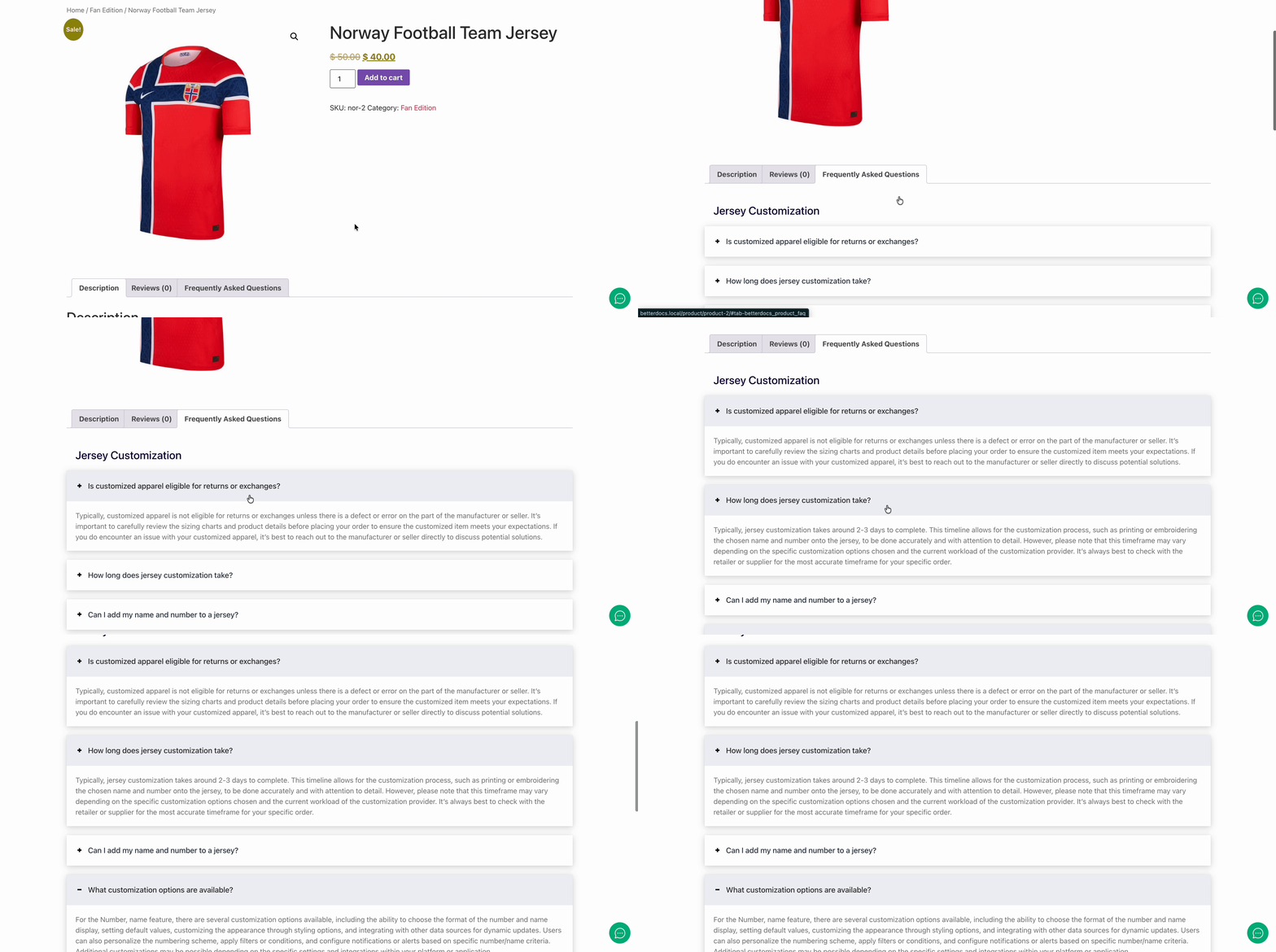
This is how, with the help of the BetterDocs FAQ Builder, you can create, organize, and display WooCommerce Product FAQs that answer your customers’ questions right at the point of purchase.
Getting Stuck? Feel free to contact our Dedicated Support Team.