
BetterDocs comes with an intelligent AI-Powered Real-time Related Docs feature that automatically recommends the most relevant articles to each reader while they browse your knowledge base. Instead of depending only on the related articles you link by hand, this feature quietly observes how visitors interact with your documentation, what they read, how far they scroll, what they search for and which links they click. Then it suggests the articles most likely to help them at that moment.
Now, let’s follow the guidelines below to configure AI-Powered Real-time Related Docs in BetterDocs.
Step 1: Enable the Real-time Related Docs #
Before configuring this feature, please make sure you have BetterDocs PRO installed and activated and you have added an OpenAI API key for AI-based suggestions.
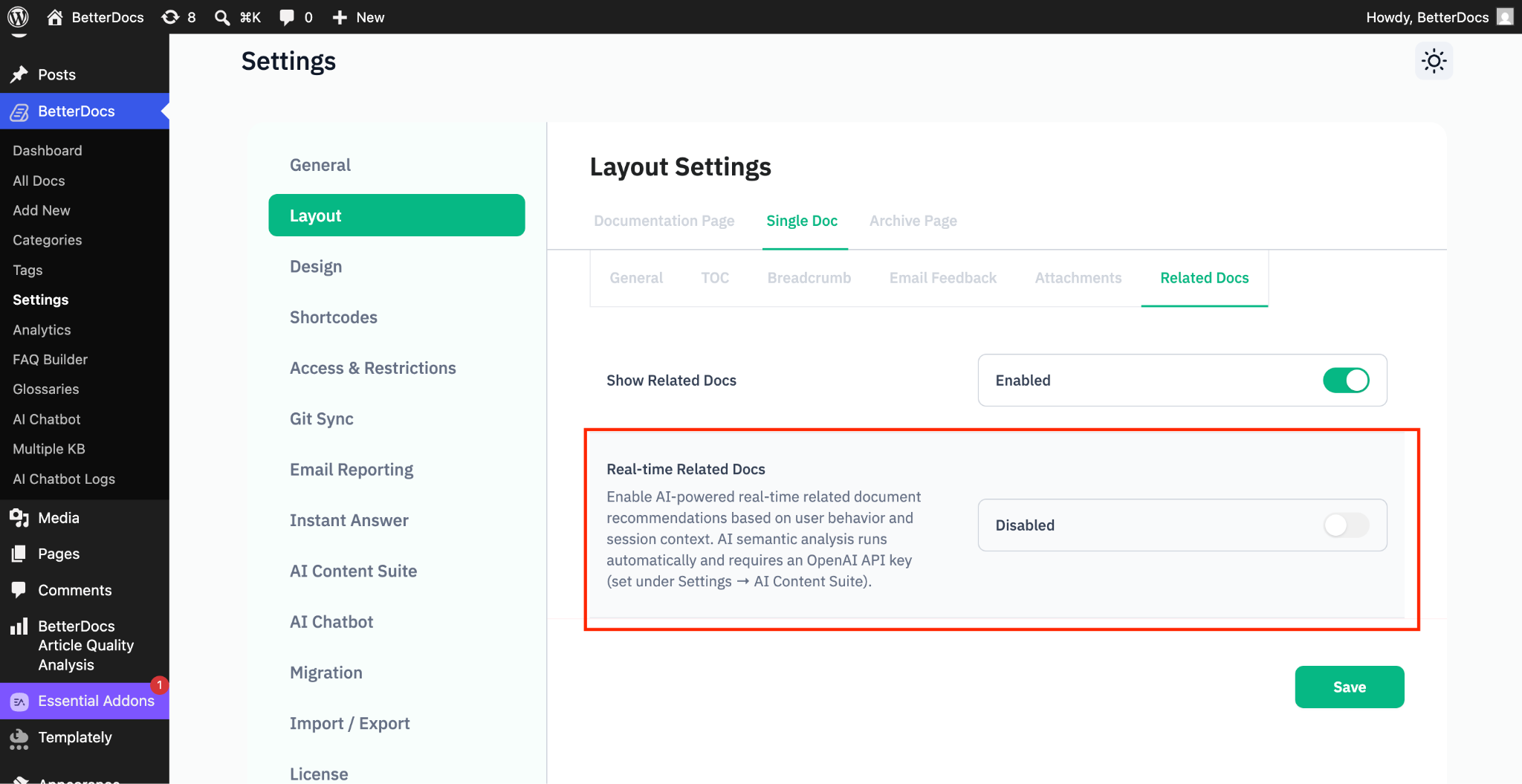
First, from the settings, go to the Layout ➤ Single Doc ➤ Related Docs. From there, enable the ‘Related Docs’. After that, enable the “Real-time Related Docs.” It will enable AI-powered, real-time related document recommendations based on user behavior and session context.
Step 2: Configure Real-time Related Docs #
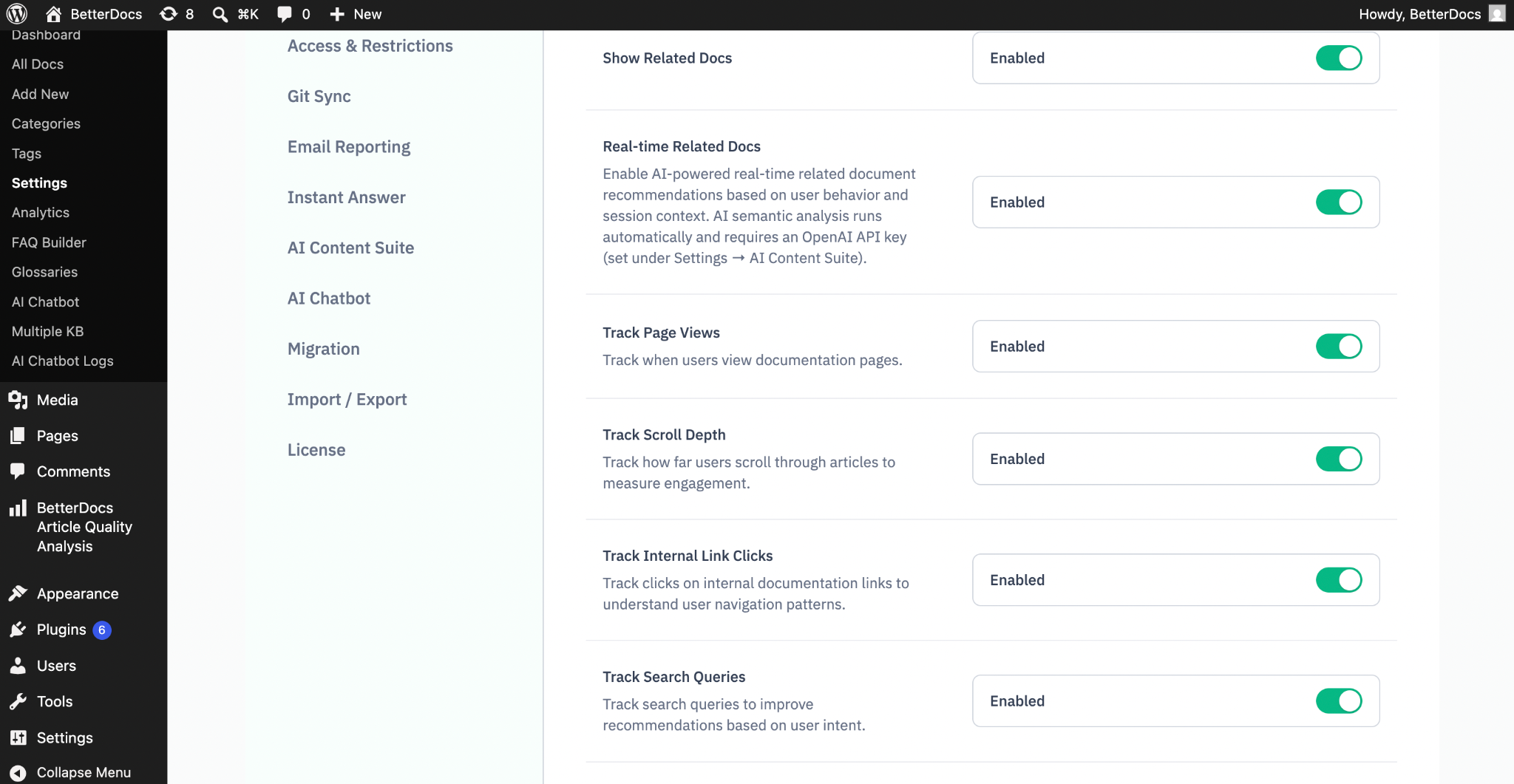
After enabling the real-time related docs, you will find different options for how you want the BetterDocs AI to show relevant documentation. You can enable or disable each of these options to maintain accuracy while showing relevant documentation.
Configure Tracking Settings #
These settings decide which visitor interactions the feature monitors.
- Track Page Views: Records which documentation pages a visitor reads during their session. This is the most important signal, as it tells the engine the path a reader is following. Turning it off reduces recommendation quality.
- Track Scroll Depth: Measures how far down a page a visitor scrolls, shown as a percentage. This indicates how engaged a reader was with an article and the engine gives a relevance boost to articles where readers consistently engage deeply.
- Track Internal Link Clicks: Records when a visitor clicks a link inside one article that leads to another article in your knowledge base. This is a strong signal of intent: if readers of one article frequently move on to a particular second article, the engine will recommend that second article to future readers.
- Track Search Queries: Records the terms a visitor searches for during their session. Search terms reveal needs that page views alone cannot, allowing the engine to boost suggestions that match what the reader is actively looking for.
Configure Performance Settings #
These settings control how tracking information travels from a visitor’s browser to your server.
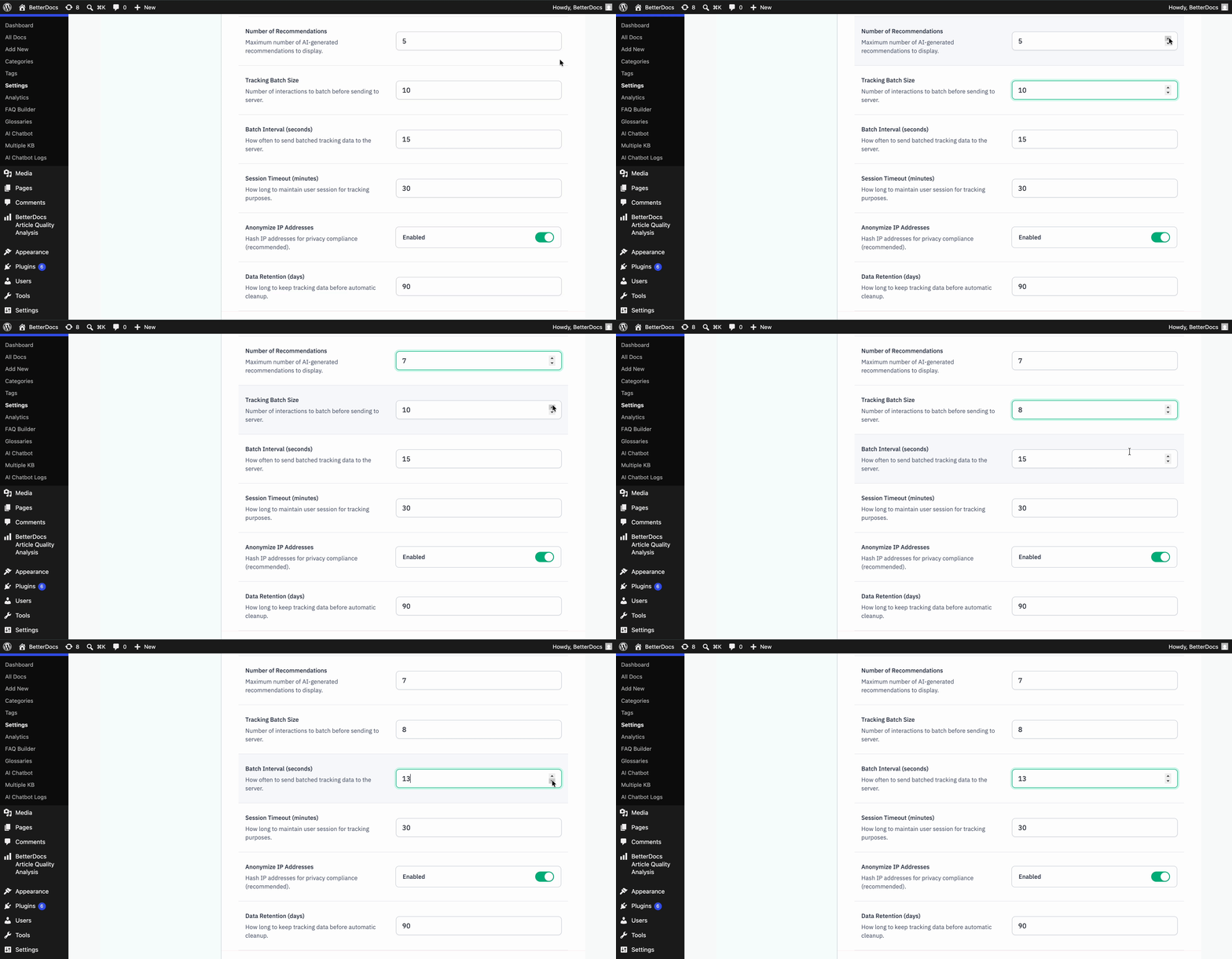
- Number of Recommendations: This sets the maximum number of AI suggestions shown beneath your manually linked related articles. The default is 5. Suggestions are always ranked by relevance, so the first few are the most relevant. The engine may show fewer than your chosen number if it does not find enough strongly related articles.
- Tracking Batch Size: The number of interactions collected before they are sent to your server. The default is 10. Lower values send data more frequently and keep it fresh, but create slightly more server requests, which suits small sites. Higher values reduce the number of requests, which suits busy sites.
- Batch Interval (seconds): The longest time the feature will wait before sending collected data, regardless of how much has been gathered. The default is 15 seconds. Whichever limit is reached first, the batch size or the interval, triggers the data to be sent.
Session Timeout (minutes): How long a visitor’s session stays active without activity before a new session begins. The default is 30 minutes, with a range of 10–120. Shorter sessions treat each focused visit as a separate journey, while longer sessions keep a visitor’s full browsing history together, which is helpful for complex products where readers research across many articles.
Configure Privacy Settings #
These settings help you keep your data collection responsible and compliant.
- Anonymize IP Addresses: When this is turned on (the default), visitor IP addresses are securely scrambled before they are stored and the original IP is never saved. This supports privacy best practices and regulations such as GDPR. It is recommended to keep this on unless you have a specific, documented reason to store original IP addresses.
- Data Retention (days): How long tracking data is kept before it is automatically deleted. The default is 90 days, with a range of 7–365. A shorter retention period keeps your database smaller and queries faster, while a longer period gives the engine more history to learn from, at the cost of larger data tables.
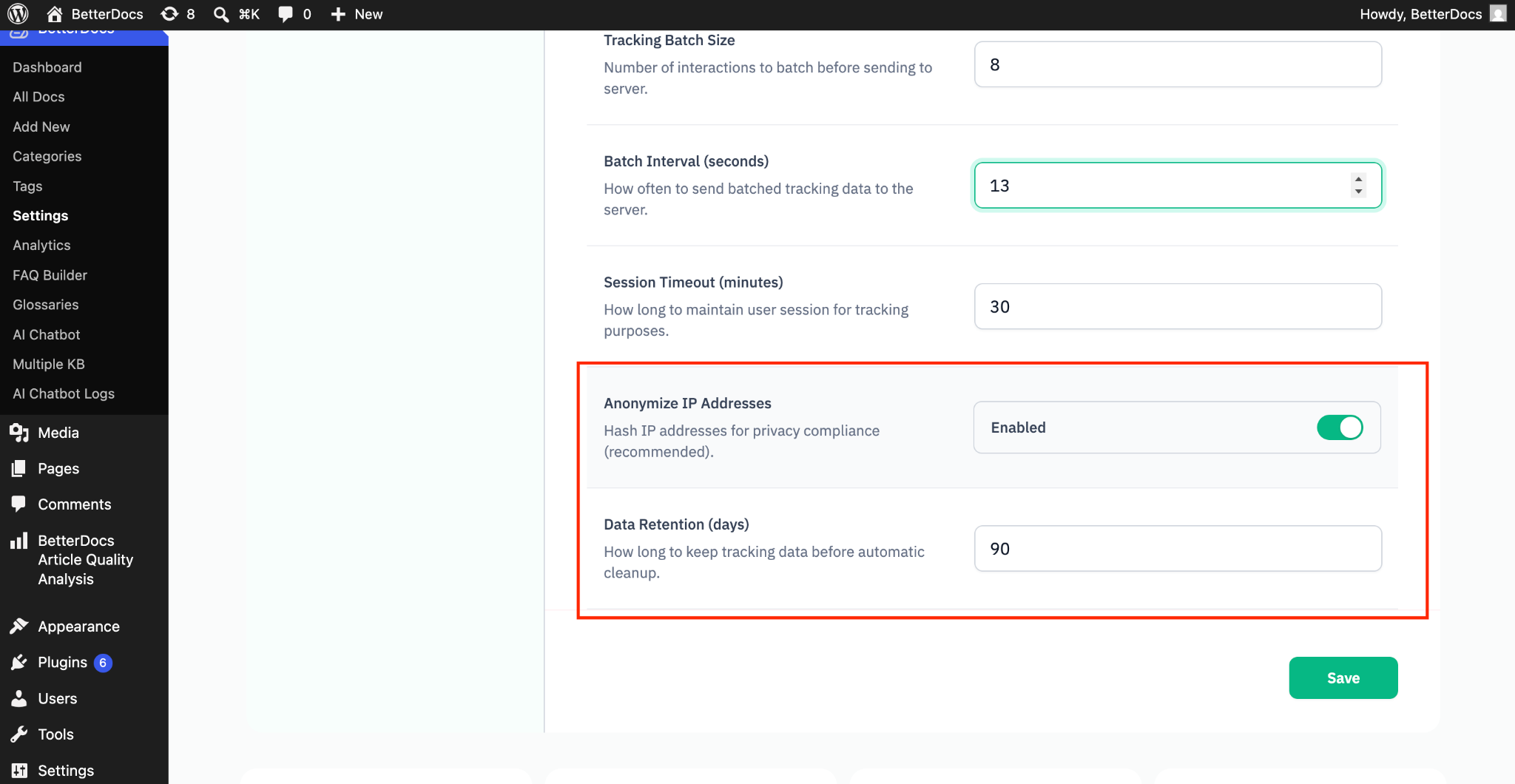
After selecting the options, click on the ‘Save’ button to save the changes.
Step 3: Generate AI Suggestions Inside the Editor #
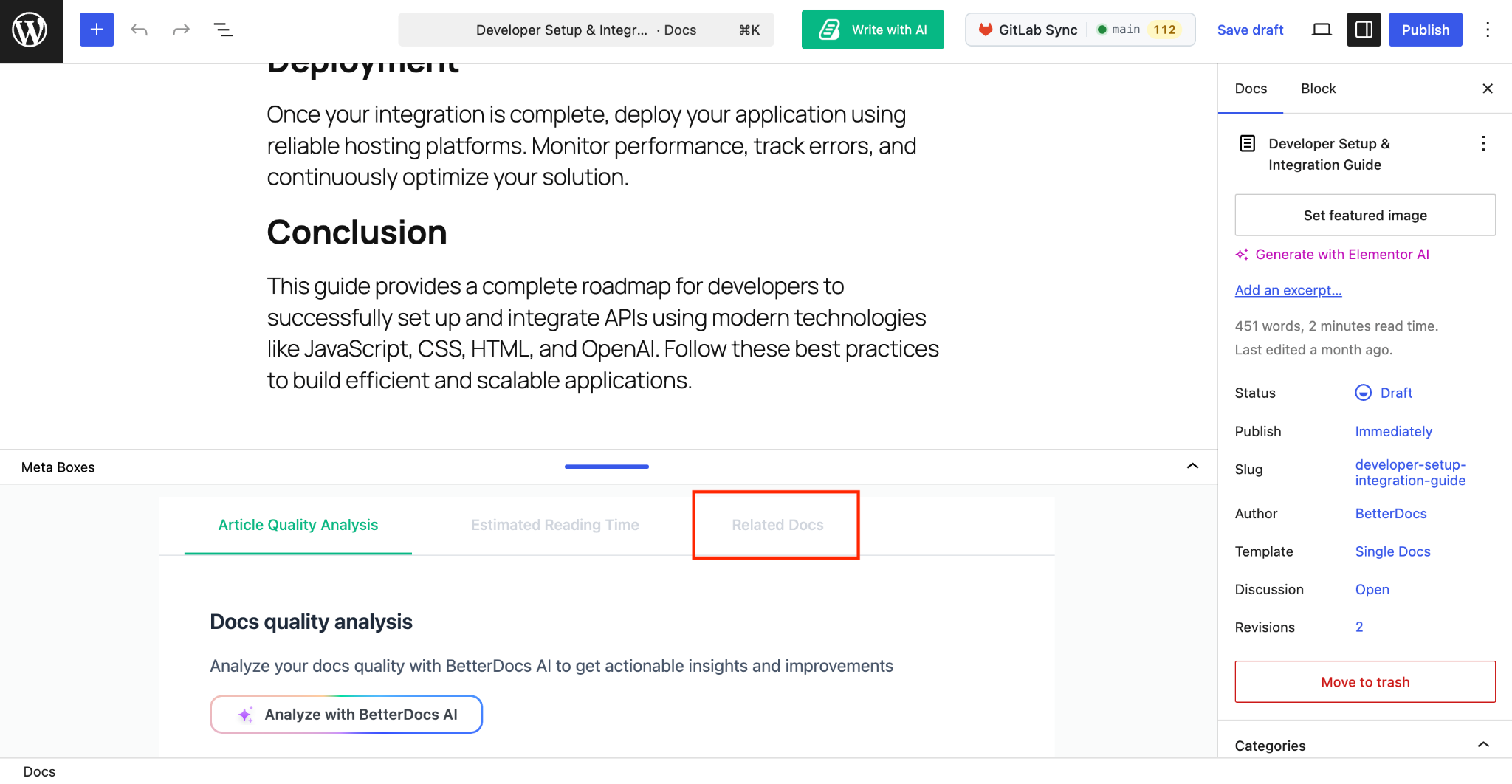
Next, go to the documentation editor. At the bottom of it, you will find a tab of ‘Related Docs’. Navigate to the tab and here you can configure the AI-related docs for your documentation.
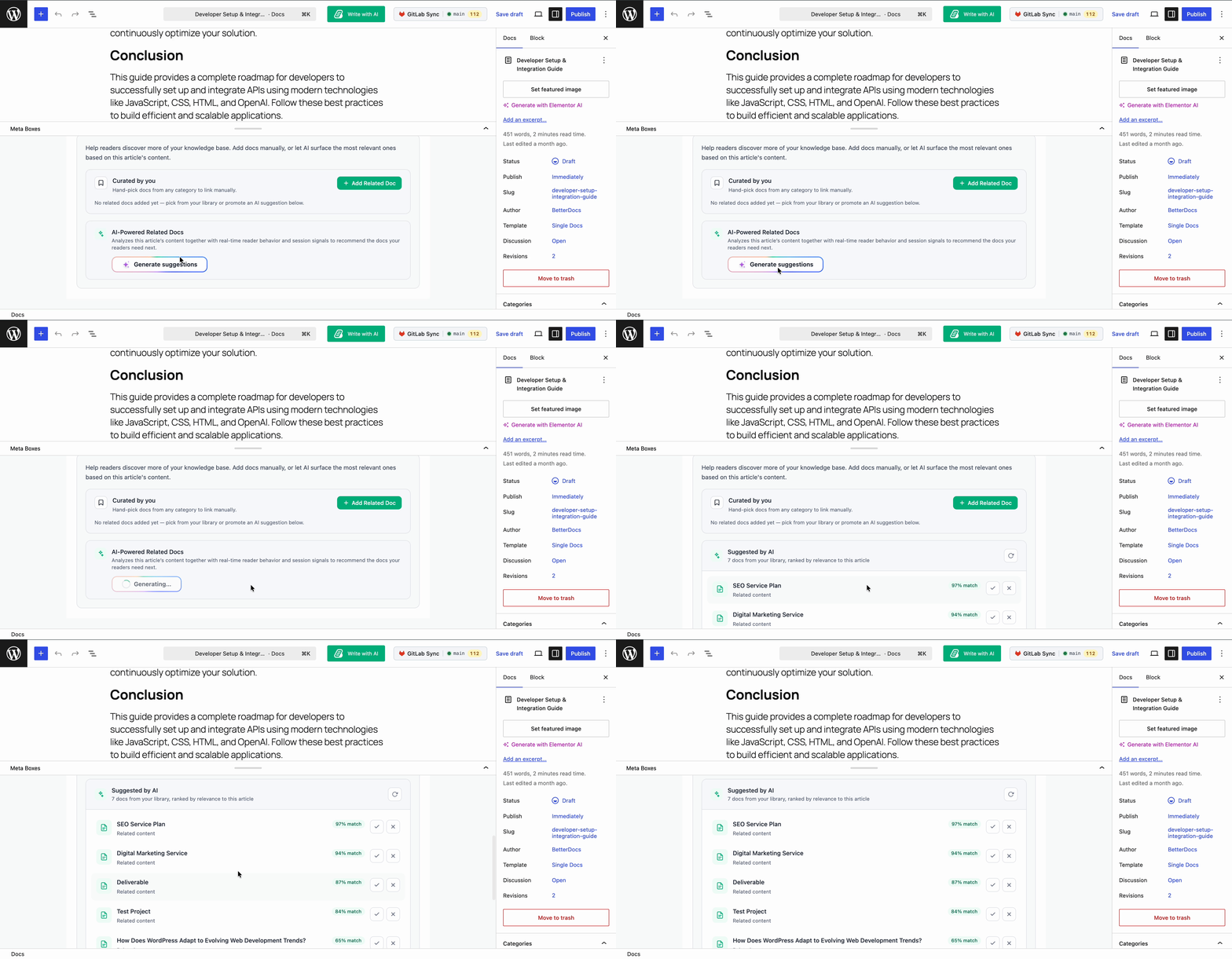
There, you will get two options: one is ‘Curated by you’, where you can manually add the relevant documentation. Another is ‘AI-Powered Related Docs’. Click on the ‘Generate Suggestions’ button and then you will find an AI-generated relevant documentation solution.
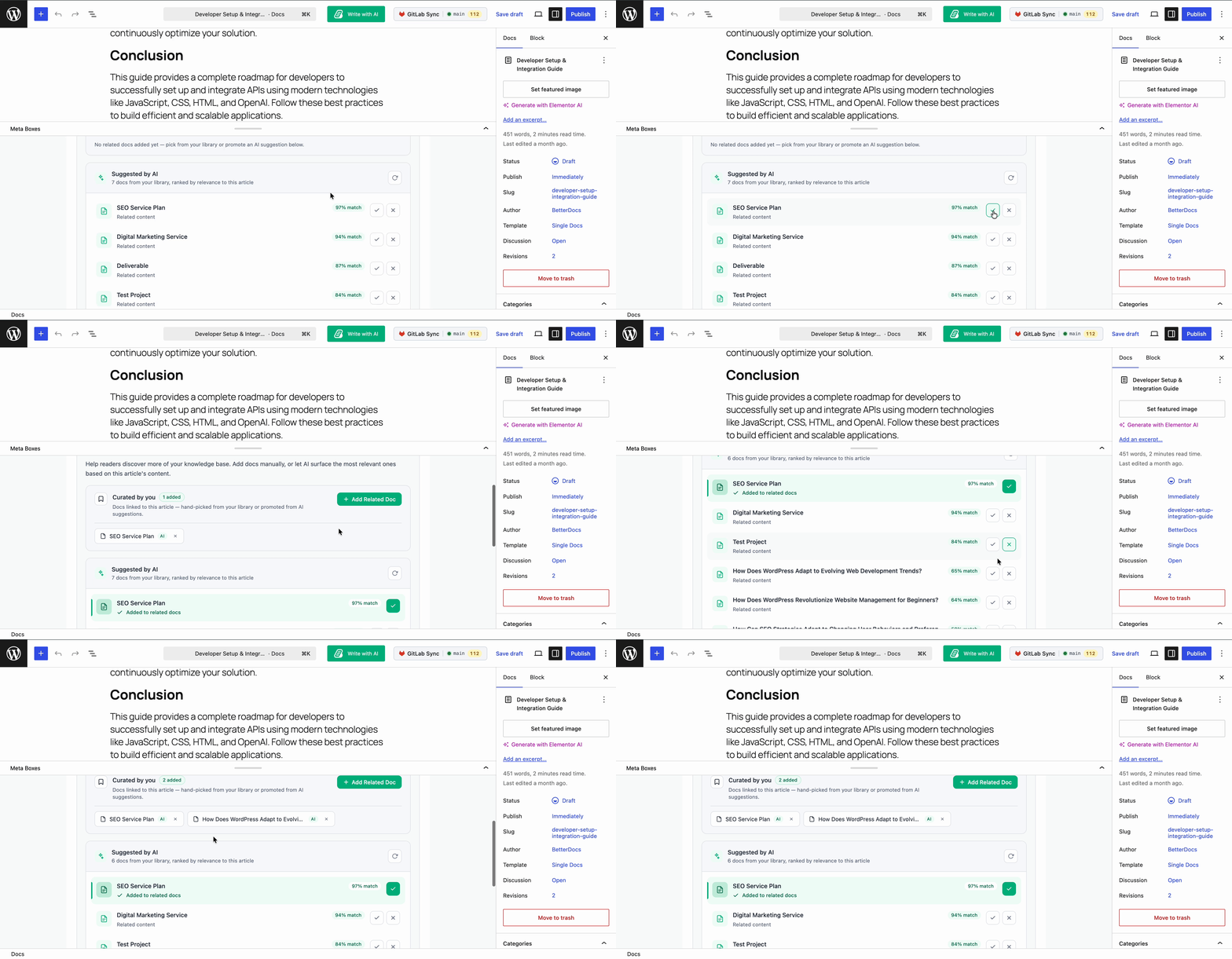
After that, based on the suggestions, a list of documentation will be recommended. Now, if you want to add a document to the relevant documentation, then click on the correct (✓) icon. If you do not want to add the documentation, then add the cross (✗). Based on your preference, users will see the relevant document on the page.
Final Outcome #
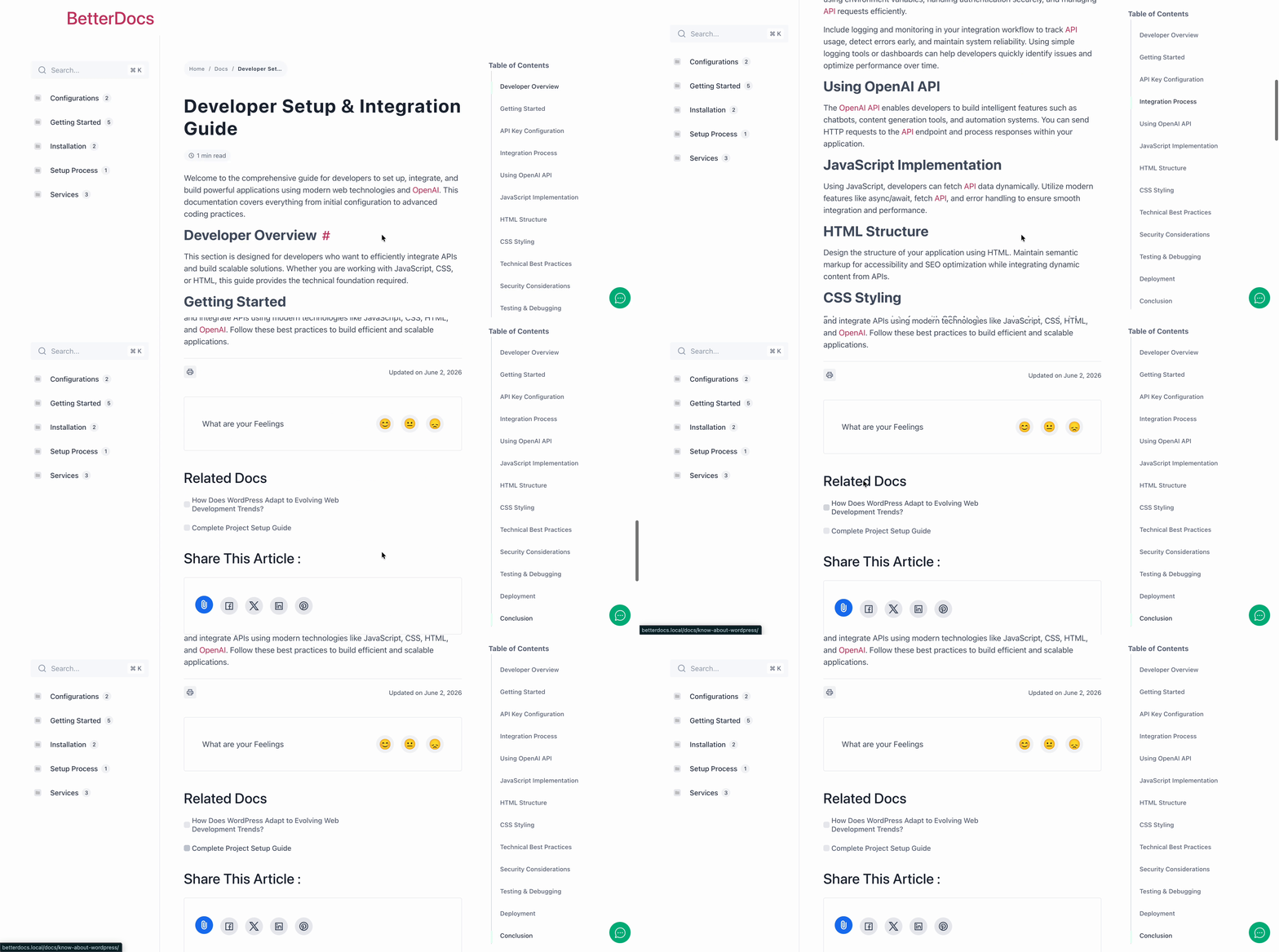
Finally, from the published documentation page, you will see that the relevant documentation appears based on the suggestions of AI.
That is how, with BetterDocs AI-Powered Real-time Related Docs, you can automatically guide your readers to the most relevant articles and create a smarter, more helpful knowledge base for your end-users. Getting Stuck? Feel free to contact our Support Team.